Virtualc64: Simplify PRG loading
User request:
1) "Please add ability so save selected controllers on Port 1 and Port 2/ I'm selecting my gamepad on Porta 2 every time I start VirtualC64, because this setting is not saving itself."
2) "When I try to take a screenshot, game pauses for a moment and then starts running again. That pretty much ruins most of the screenshots, because dialog appears and I have to hit Enter and select a format maybe... Well, the moment is passed. I know, there are Quick Save Screenshot option, but still - every other emulators pauses games until screenshot is saved. And by the way, for some reason Alt+S does not work for me - in BASIC it's just produces this symbol (it attachement)."
3) "Can you please make running DSK, PRG and other files a little bit easier? Now I have to click on file in Finder, then click on first file (Enter does not work, it can only insert disk, for example), then press Enter again to execure "Run" command. Other emulator like Vise, while lacking in other areas (like saving screenshots or selecting other palletes), make this process so much simplier!"
 dirkwhoffmann
All 16 comments
I can save the settings in the user defaults. No problem.
When "Save screenshot ..:" is selected, I can pause emulation and continue when the save dialog disappears. Hitting Alt-s does not trigger a menu event, because all menu item shortcuts are prefixed with Cmd. Cmd-s is already reserved for "Save" and Alt-Cmd-s for "Save As ...". We are running out of key combinations here ... BTW, Alt-s produces the strange looking character, because the Alt-key is mapped to the Commodore key.
The simplest way to quick-load a PRG is to enable "Skip user dialog when reading file" in the emulator preferences. If it is enabled, simply drag and drop a PRG file into the emulator window. It will automatically flash the file contents into memory and start the program.
dirkwhoffmann
on 4 Dec 2018
Thanks!
Thanks again.
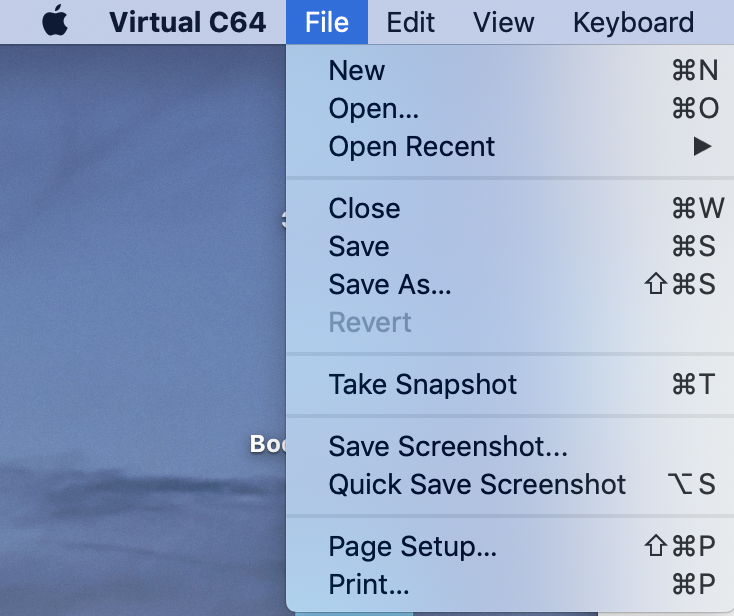
Regarding "Alt+S" - I have this combination as default for Quick Save Screenshot. See screenshot in attachement. Maybe it's some bug? And there's no quick key for Save Screenshot for some reason (I had to make my combination in System Preferences).
So maybe do something like this?
Ctrl+Command+S - Save Screenshot
Alt+Command+S - Quick Save Screenshot (I know it's Hide Sprites, but this function is soooo rare!..)
Or maybe:
Command+S - Quick Save Screenshot (it's better with some adjustements)
Alt+Command+S - Save Screenshots
Ctrl+Command+S - Save (I use this fuction not so often; but that's just me)
Or maybe:
Alt+Command+S - Quick Save Screenshot
Command+T - Save Screenshot (maybe you don't need to use Take Snapshot so frequently because it save itself every 3 seconds)
Ctrl+Command+S - Save
Cmb+Shift+T - Take Snapshot
I see. But it works only with PRG, right? It's no use for D64. And is it possible to make this happen by not dragging and dropping PRG file into the emulator window, but by opening from finder?
Quick Save Screenshot function everytime save screenhot in Untitled.tiff. Why tiff and not PNG? And how about incrementing number in filename? Maybe even take part of PRG pr D64 filename.
Like this: portal_v1_ntsc_1.png, portal_v1_ntsc_2.png etc.
 michellekg
on 4 Dec 2018
michellekg
on 4 Dec 2018
michellekg
on 4 Dec 2018
I agree that taking screenshots should be made more flexible. In V3.3 the user will be able to choose freely if the emulator texture or the upscaled texture should be saved. The default image format will be "png" and not "tiff" any more. The choices are made in the emulator preferences, so they can be picked up by "Quicksave screenshot" as well. The new emulator preferences will look like this:
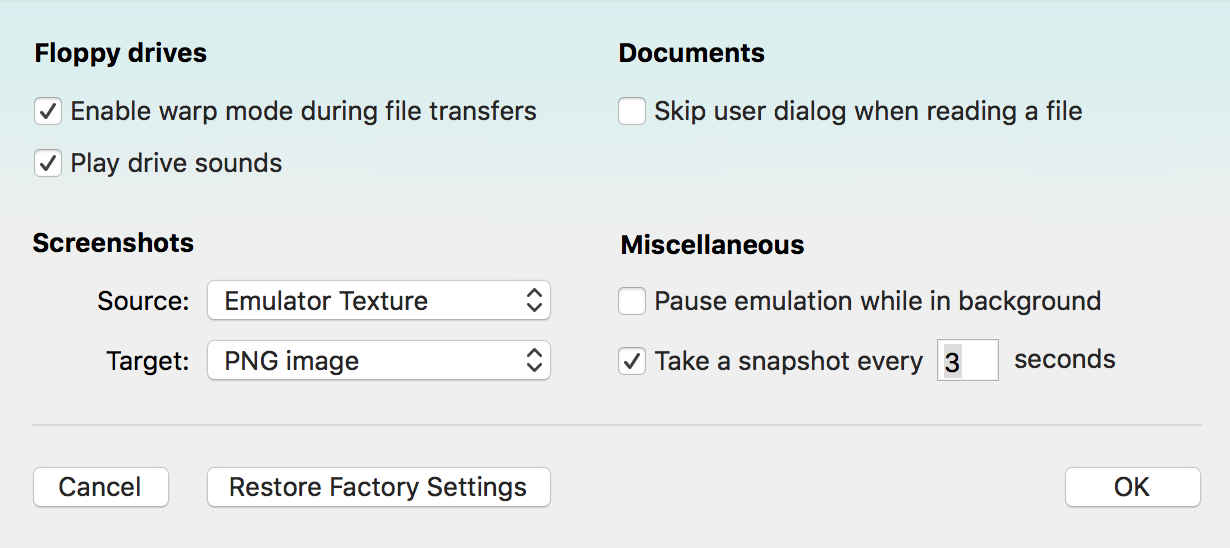
The video stuff will be moved to a separate video preferences dialog, because the current dialog is already crowded and it's likely that we need to add some new video options as well.
dirkwhoffmann
on 5 Dec 2018
Regarding the shortcuts: "Quicksave screenshot" was indeed assigned to Alt-s in V3.1, a key combination that did not work. In V3.2, I changed it to Cmd-Alt-s. We cannot use Cmd-s for screenshots, because this combination is the default for saving the current document. I agree that "Hide sprites" does not need a shortcut.
I could assign Cmd-Ctrl-s to "Save screenshot...", but is it really needed? Once the behaviour of "Quicksave screenshot" can be controlled in the emulator preferences and we fix the name thing, I guess that most users will prefer "Quicksave screenshot" to "Save screenshot..." anyway.
dirkwhoffmann
on 5 Dec 2018
I agree that taking screenshots should be made more flexible. In V3.3 the user will be able to choose freely if the emulator texture or the upscaled texture should be saved.
Sorry for my ignoranceб but what is "texture"? Do you mean size of screenshot? Or something else?
The default image format will be "png" and not "tiff" any more. The choices are made in the emulator preferences, so they can be picked up by "Quicksave screenshot" as well. The new emulator preferences will look like this:
That's very nice! Thanks. My only issue with this dialog is that snapshot preferences is grouped with screenshot ones. It can confuse somebody.
And by the way, is there plans to let users deside what folder screenshots (quick or normal ones) should be stored in?
The video stuff will be moved to a separate video preferences dialog, because the current dialog is already crowded and it's likely that we need to add some new video options as well.
Totally agreed.
michellekg
on 6 Dec 2018
We cannot use Cmd-s for screenshots, because this combination is the default for saving the current document.
Yeah, your right. And power users can set this combination through System Preferences, so that's okay.
I could assign Cmd-Ctrl-s to "Save screenshot...", but is it really needed? Once the behaviour of "Quicksave screenshot" can be controlled in the emulator preferences and we fix the name thing, I guess that most users will prefer "Quicksave screenshot" to "Save screenshot..." anyway.
Well, it would be nice to have at least some key combination (like, really anything), but you're probably right, Quick Screenshot with increment numbers in name etc is better anyway.
My only concert is that Save is Cmd+S and Take Snapshot is Cmd+T, so basically "saving state" is having two major key combinations right now (I know it's different, but you know what I mean) and screenshots having none. So maybe Cmd+T for Quick Screenshots and Cmd+Ctrl+S for Take Snapshots? Just a thought.
If it's by design (which I totally understand) so let it be. Although is better to decide which combination is easier to press to made access to Quick Screenshots easier too: Cmd+Alt+S or Cmd+Ctrl+S. For me it's the second one (with Ctrl), but maybe it's just me.
michellekg
on 6 Dec 2018
Feature is available in V3.3 alpha 1:
http://www.dirkwhoffmann.de/virtualc64/VirtualC64_3.3_alpha1.zip
Please reopen if there is still an issue.
dirkwhoffmann
on 6 Dec 2018
Quoting from another topic:
Regarding the name of a quick-saved screenshot, I have adapted the name scheme of Apple's grab tool:
Nice, although it works not exactly like Apple system. If multiple screenshots are made within one second, macOS names them as Screenshot 2018-12-07 at 12.10.56.png, Screenshot 2018-12-07 at 12.10.56 1.png, Screenshot 2018-12-07 at 12.10.56 2.png etc (so autoincrement after forst file), while VirtualC64 just replaces files. And sometimes you have to make many several screenshots in one seconds to choose a better shot.
Also controller settings is not saving after quitting program. Maybe I need to make other topic? TRhe same goes for quick opening of PRG, D64 and other files.
michellekg
on 6 Dec 2018
The screenshot naming issue has been fixed. If multiple screenshots are saved within a single second, number prefixes are added to make the file name unique (the way the grab tool does).
http://www.dirkwhoffmann.de/virtualc64/VirtualC64_3.3_alpha2.zip
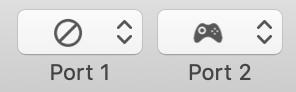
I also changed the code for saving the controller settings to the user defaults. Just to make sure: With "controller settings", you mean the selected input devices for the two control ports, right?
Regarding the quick opening of PRG, D64 etc.:
I don't know how to improve this without loosing important functionality.
What we need to preserve are the following actions:
(1) Changing disks with low effort (e.g., a game requests disk 2)
(2) Flushing files into memory with low effort
(1) can be achieved via drag-and-drop with option "Skip user dialog when reading a file" enabled.
(2) can be achieved by double-clicking a file in the file browser (which opens automatically if "Skip user dialog when reading a file" is disabled).
(1) is not possible in VICE I think. When a D64 file is dragged into VICE, it insert the disk and auto-types "LOAD "*",8,1:". But if you simply want to insert disk 2 of a game, it's more complicated (if there was an option for doing this quickly, I didn't find it).
In VirtualC64, CMD-L types "LOAD "*",8,1" automatically. Hence, the quickest way to load the first file of a D64 image is:
(a) Drag-and-drop D64 image into the emulator window with "Skip user dialog when reading a file" enabled.
(b) Type CMD-L and hit return
For PRGs, it's even quicker. If you drag-and-drop a PRG file and "Skip user dialog when reading a file" is enabled, the PRG is flashed into memory and "RUN" typed automatically. In V3.2, RETURN is typed automatically, too. The only exception is, when the PRG load address is not the standard address. In that case, SYS xxxx is printed without hitting RETURN, so the user can decide if he really wants to execute the SYS command.
dirkwhoffmann
on 7 Dec 2018
Well, you're talking mostly about dragging flies to Emulator window, while I'm talking about opening them from Finder.
How about that - leave all that broad functionality to dragging files and open them from File menu, and assigning quick operations to opening files from browser?
So if I double click on PRG in Finder, these actions will be applied:
a) flush PRG into memory
b) enter "RUN"
c) hit Enter
And with D64 it's like that:
a) open D64
b) flush first file on disk into memory
or:
a) open D64
b) type "LOAD "*",8,1:"
c) hit Enter
d) wait for it to load
e) type "RUN"
f) hit Enter
I don't know which is more accurate.
This way you're preserving current functionality (like opening disk 2), but simplifying opening 99% of games and apps.
michellekg
on 14 Dec 2018
I fear that we're running into a complexity problem here. Firstly, we have multiple ways to open a media file:
- Menu -> Open ...
- Drag and drop
- Finder (double-clicking or dropping a file onto the dock icon)
Secondly, we have different file format that need to be handled differently. E.g., while flashing is the natural choice for PRGs and P00s, it almost never works for D64s or G64s. For those files, inserting as disk would be the natural choice. With the 7 supported file formats PRG, P00, T64, TAP, D64, G64, CRT, we end up with a choice matrix of 3 x 7 action items. Furthermore, I guess the user would not understand why adding a D64 via drag and drop does an auto-insert without auto-typing whereas opening the file from the finder would trigger auto-typing.
My suggested solution is to add default actions for the 7 file formats in the emulator preferences. This bloats up the dialog a bit (what I don't like), but it makes clear what action is taken when a certain media file is opened.
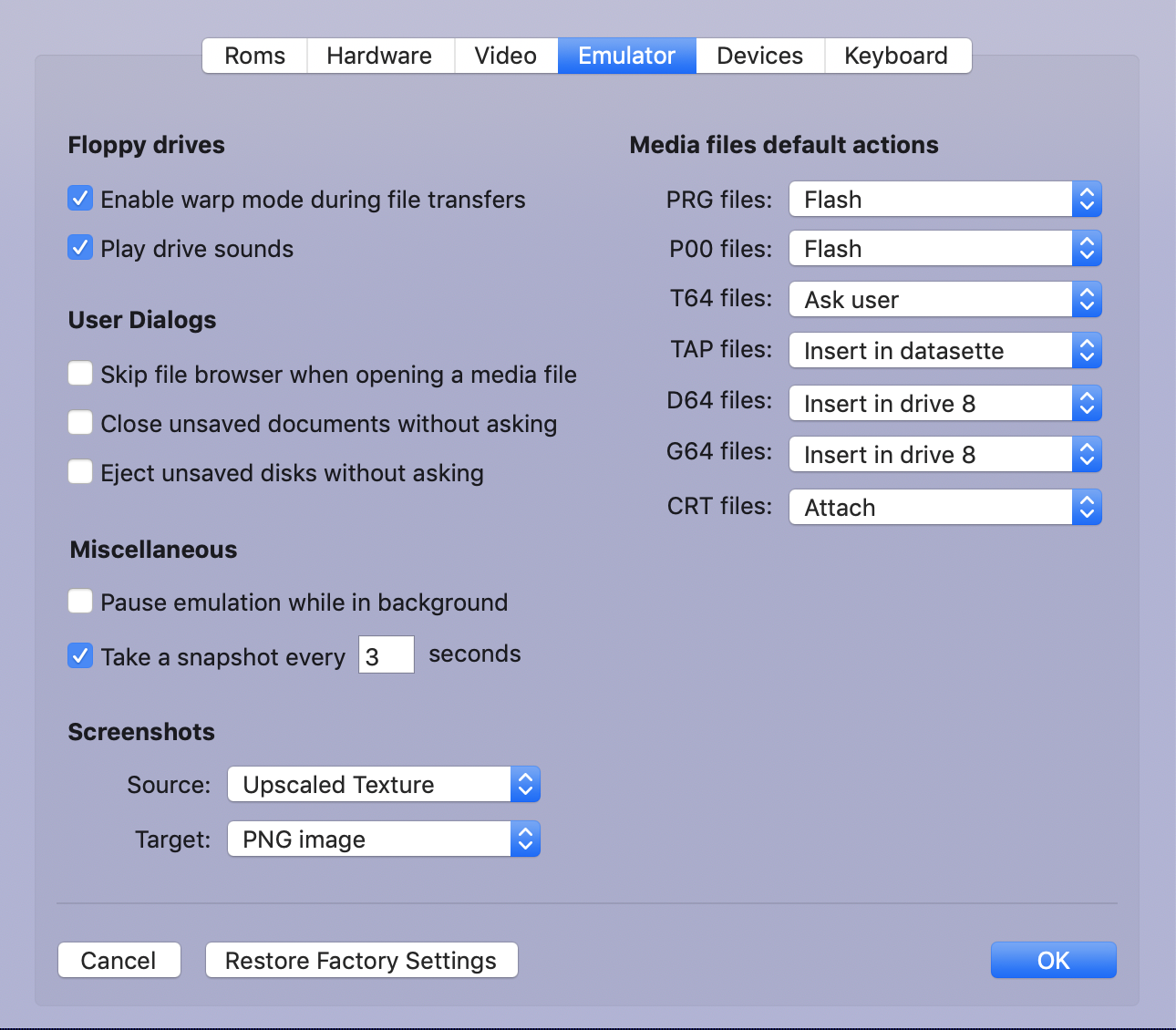
Option "Ask user" would bring up the mount dialogs as they come up right now, when option "Skip file browser when opening a media file" is unchecked. Hence, this option would no longer be needed.
dirkwhoffmann
on 14 Dec 2018
Sounds nice and not at all complicated.
Does "Insert into drive 8" means "Insert into drive 8, LOAD and RUN"?
michellekg
on 15 Dec 2018
_add default actions for the 7 file formats in the emulator preferences_
This is a good solution
 Alessandro1970
on 15 Dec 2018
Alessandro1970
on 15 Dec 2018
I'm planning to make it a little more flexible:
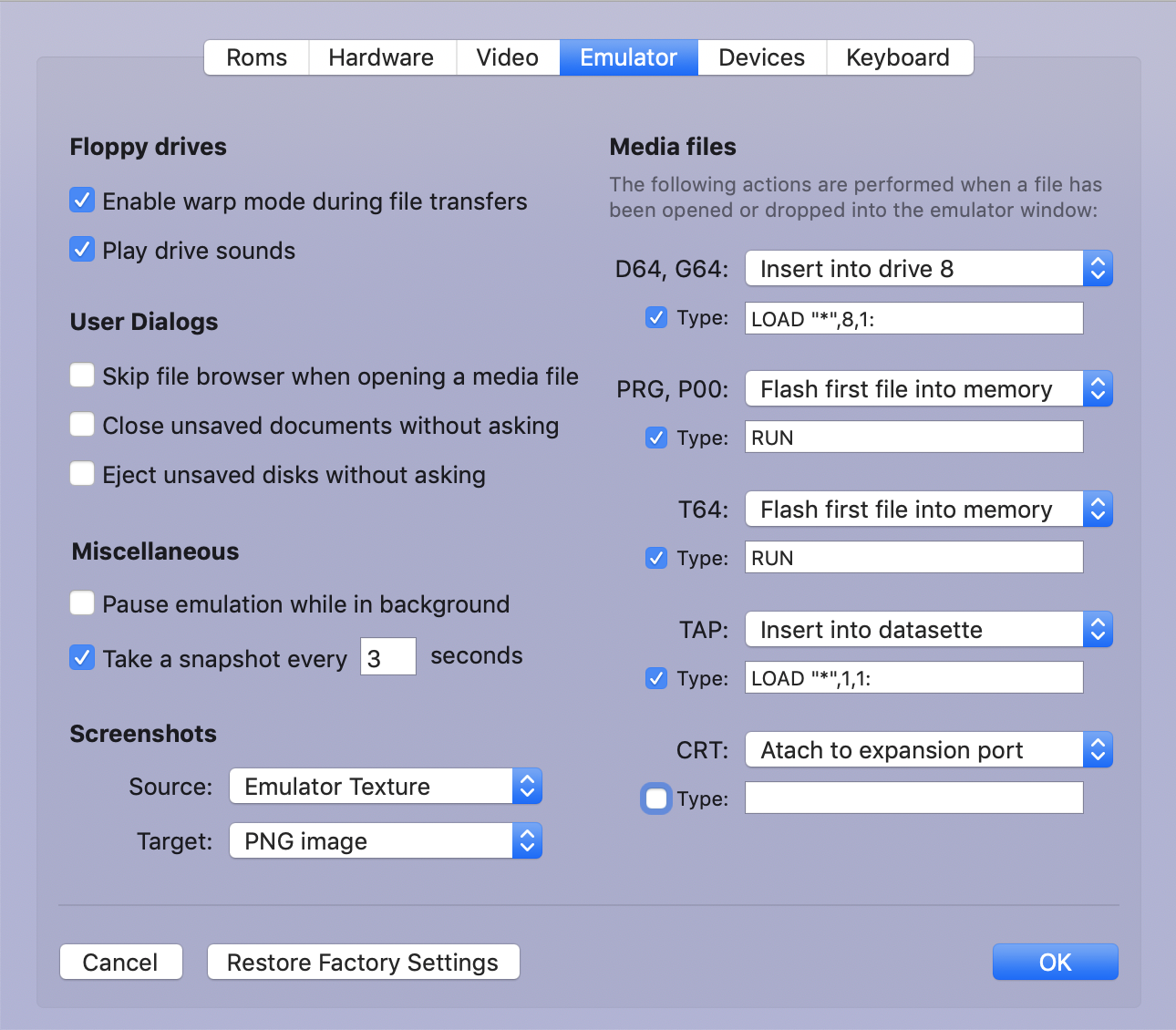
Typing "RUN" after a file has been loaded from disk won't be possible though, because the emulator has no means to know when loading has finished.
dirkwhoffmann
on 15 Dec 2018
Unified preferences are up and running:
http://www.dirkwhoffmann.de/virtualc64/VirtualC64_3.3_alpha3.zip
Please reopen if there are any issues (there might be some, because I changed a lot of code under the hood).
dirkwhoffmann
on 16 Dec 2018
Related issues
dirkwhoffmann
·
5Comments
 mortinus
·
6Comments
mortinus
·
6Comments
 cfwdman
·
6Comments
dirkwhoffmann
·
4Comments
dirkwhoffmann
·
7Comments
cfwdman
·
6Comments
dirkwhoffmann
·
4Comments
dirkwhoffmann
·
7Comments