- Click thumbs-up 👍 on this issue if you want it!
- Click confused 😕 on this issue if not having it makes VSCodeVim unusable.
The VSCodeVim team prioritizes issues based on reaction count.
BUG REPORT:
Environment:
- VSCode Version: 1.18.0
- VsCodeVim Version: 0.10.3
- OS: Window version 1709
What happened:
Unable to find substring with Ctrl+D, it moved cursor to end of selected string when pressed ctrl+D
When VSCodeVim is enabled:
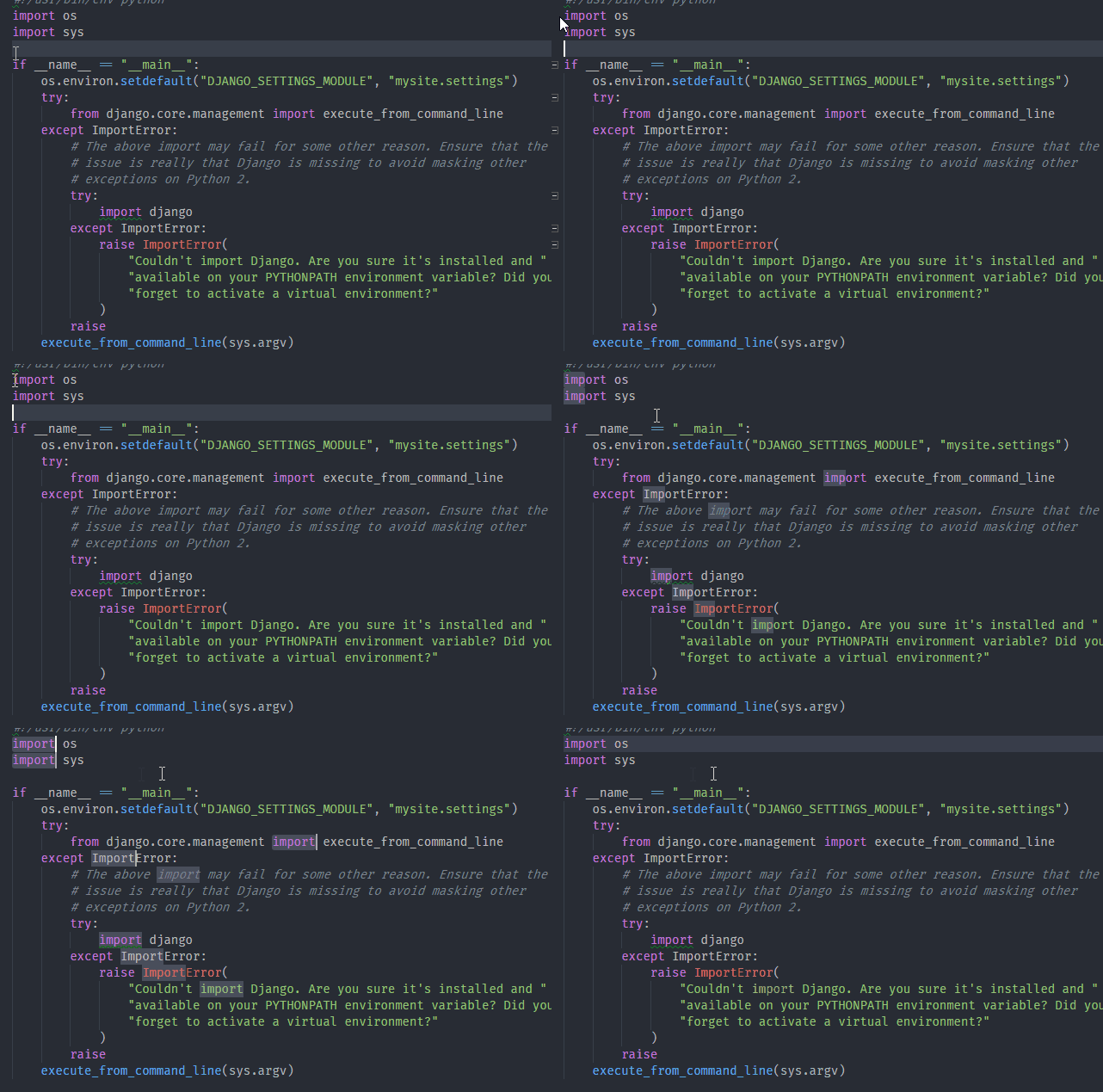
What did you expect to happen:
When VSCodeVim is disabled:
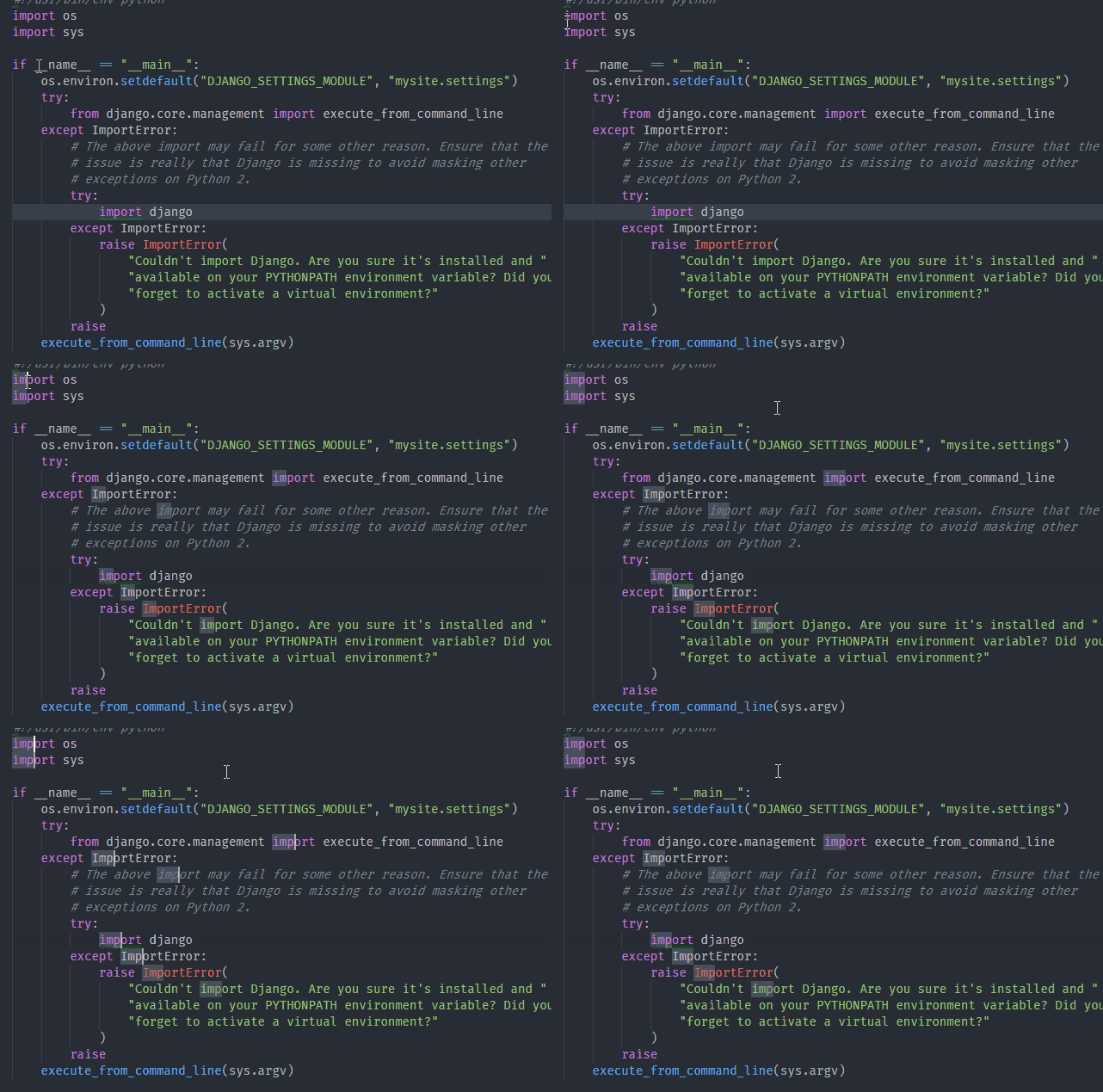
This is my VSCodeVim setting
// Vim settings
    "vim.startInInsertMode": true,
    "vim.useCtrlKeys": false,
    "vim.overrideCopy" :false,
 ghost
ghost
All 33 comments
Have been fighting this recently too; just discovered the problem goes away when I disable VSCodeVim, but I use it so much I don't want to do that.
 jdhines
on 14 Nov 2017
jdhines
on 14 Nov 2017
I did just find, reading the documentation, that if you're in normal or visual mode and hit gb, then you can hit Cmd+d to keep adding to the selection, which works if it isn't exactly intuitive. It would be nice thought if Cmd+d worked as expected in Insert mode.
However, there is an irritating thing: After a few selections are added, the screen's scroll position stays the same, it just flashes as selections are added, so you can't actually see each selection that's added as you can without VSCode Vim enabled.
jdhines
on 14 Nov 2017
Thanks, it worked in normal mode.
As you pointed out, after a few selection are added, it stops scrolling and just flashes the screen, somehow irritating, looks like I need to scroll the screen myself. Hope it will be improved
ghost
on 15 Nov 2017
The reason for this is that we don't support any semblance of "selections" in insert mode. The scroll position thing is something that should be fixable. I'll try to take a look sometime.
 Chillee
on 29 Nov 2017
Chillee
on 29 Nov 2017
I think https://github.com/VSCodeVim/Vim/pull/2269 resolves this issue? If not, feel free to re-open.
 jpoon
on 16 Jan 2018
jpoon
on 16 Jan 2018
If I understand correctly, ctrl+D will be Code default behavior now if vim.useCtrlKeys: false?
"vim.startInInsertMode": true,
"vim.overrideCopy" :false,
"vim.useCtrlKeys": false,
Looks like it's not fixed

OS: Arch Linux (x86_64 Linux 4.14.13-1-ARCH)
Code: 1.19.2
Vim: 0.10.10
| | useCtrlKeys = true | useCtrlKeys = false |
|--------------------- | ------------------------------|-----------------------------|
| handleKeys = true | VSCodeVim move page half down | VSCodeVim move page half down
| handleKeys = false | remap to <D-d> | remap to <D-d>
| undefined | VS Code default behavior | VS Code default behavior
If it's undefined. So if you don't have a <C-d> config set under handleKeys, it should use Code's behaviour for it.
jpoon
on 17 Jan 2018
@jpoon you just saved me from struggling ;-)
 rksys
on 17 Jan 2018
rksys
on 17 Jan 2018
For future dudes: handleKeys = true in @jpoon's table above means
"vim.handleKeys": {
    "<C-d>": true
}
and not vim.handleKeys: true. Was a little bit confusing for me personally. 👍
 MrYakobo
on 17 Jan 2018
MrYakobo
on 17 Jan 2018
Ok, seems like this is resolved.
jpoon
on 18 Jan 2018
How do I undefine handleKeys to get the default VS Code behavior? I've tried a number of options, including…
"vim.handleKeys": {}
…and…
"vim.handleKeys": null
…but ⌘-D still flickers like mad as the selection grows, and the page fails to scroll as expected. I also tried unmapping ⌘-D in Keyboard Shortcuts, but that just made things _worse!_ At this point, the only thing I can find as a workaround is adding a keyboard shortcut to "Vim: Toggle Vim Mode" so I can temporarily get VS Code's default behavior quickly when I need it.
Hopefully I'm just missing something "obvious"…would love to not need the above workaround! :)
 clozach
on 22 Mar 2018
clozach
on 22 Mar 2018
I think this issue should be reopened! When I select "foo-bar" in the following code snippet and press Ctrl-D, the next "foo-bar" is not selected. Instead, the next "bar" or the next "foo" is selected, depending on which word the cursor currently stands.
bla foo-bar bla
bla foobar bla
bla barfoo bla
bla foo bar bla
bla foo-bar bla
bla
This is my config:
"vim.useCtrlKeys": false,
"vim.handleKeys": {
    "<C-c>": false,
    "<C-d>": false,
    "<A-S-Up>": false,
    "<A-S-Down>": false
},
 t-animal
on 9 Jul 2018
t-animal
on 9 Jul 2018
In VIM mode to select all matches use cmd+shift+L shortcut.
To move selection to next find match and then add selection to the match stack without conflicts follow the next steps:
- install the next plugin:
https://marketplace.visualstudio.com/items?itemName=ryuta46.multi-command - go to user settings cmd+,
- add to the bottom:
"multiCommand.commands": [
{
"command": "multiCommand.moveAndSelectMatch",
"sequence": [
"editor.action.moveSelectionToNextFindMatch",
"editor.action.addSelectionToNextFindMatch"
]
}
] - go to the keybindings.json file (cmd+k cmd+s then press to the file relevant name)
- then add to the bottom of the file
{
"key": "cmd+d",
"command": "multiCommand.moveAndSelectMatch",
"when": "editorFocus"
}, - make sure that any more keys not assigned when editorFocus.
- remark: vim extension also have been installed!
https://marketplace.visualstudio.com/items?itemName=vscodevim.vim
Get done! Good luck!
 andrewLucky1
on 30 Aug 2018
andrewLucky1
on 30 Aug 2018
@andrewLucky1 I tried it but it didn't work for me. What I have done is disable the multicursor keyboard shortcut for vim, the problem is that select the whole word doesn't work for all the selected instances using Shit + Alt + ← or Shit + Alt + →.
{
    "key": "cmd+d",
    "command": "-extension.vim_cmd+d",
    "when": "editorTextFocus && vim.active && vim.use<D-d> && !inDebugRepl"
}
Anyone have figured out how to solve it?
 glrodasz
on 13 Sep 2018
glrodasz
on 13 Sep 2018
This seems to have broken rebinding of <C-d> in insert mode. It now ignores any insert-mode remapping.
 lanza
on 9 Dec 2018
lanza
on 9 Dec 2018
Try to use the trick instead before resolved:
useCtrlKeys": false- Move cursor to target text
- Set vim to normal mode with esc
- Select text with your mouse / touch pad
- Use cmd / ctrl + d of vscode
- Set vim to insert mode with i
- move your cursor, it may works with multiple cursors (not multiple selections)
 lzfee0227
on 25 Mar 2019
lzfee0227
on 25 Mar 2019
I confirm this is still a bug : the "vim.handleKeys": {"<C-d>": false} setting is only applied to Normal mode, the Vim extension still hijacks Ctrl + D in Insert mode.
EDIT : actually it also does something in Normal mode, the behavior of Ctrl + D is different when the extension is enabled.
 Askannz
on 21 May 2019
Askannz
on 21 May 2019
I have the same problem.
I've tried with
"vim.useCtrlKeys": false,
"vim.handleKeys": {
    "<C-d>": true,
}
and
"vim.useCtrlKeys": false,
"vim.handleKeys": {
    "<C-d>": false,
}
and
"vim.useCtrlKeys": false,
"vim.handleKeys": {
}
I'm on macOS. Nothing seems to work. The only working solution, for me, is disabling vim mode.
It "kinda works" in normal mode, but the scrolling is not working as intended.
 ferrarop
on 5 Jun 2019
ferrarop
on 5 Jun 2019
It might because of unexpected key binds. Try to press : then try again, it works for me.
 indrakaw
on 23 Jun 2019
indrakaw
on 23 Jun 2019
useCtrlKeys = true useCtrlKeys = false
handleKeys = true VSCodeVim move page half down VSCodeVim move page half down
handleKeys = false remap to<D-d>remap to<D-d>
undefined VS Code default behavior VS Code default behavior
If it's undefined. So if you don't have a<C-d>config set underhandleKeys, it should use Code's behaviour for it.
Excuse me, what does <D-d> mean?
 kigawas
on 2 Jul 2019
kigawas
on 2 Jul 2019
In VIM mode to select all matches use cmd+shift+L shortcut.
To move selection to next find match and then add selection to the match stack without conflicts follow the next steps:
- install the next plugin:
https://marketplace.visualstudio.com/items?itemName=ryuta46.multi-command- go to user settings cmd+,
- add to the bottom:
"multiCommand.commands": [
{
"command": "multiCommand.moveAndSelectMatch",
"sequence": [
"editor.action.moveSelectionToNextFindMatch",
"editor.action.addSelectionToNextFindMatch"
]
}
]- go to the keybindings.json file (cmd+k cmd+s then press to the file relevant name)
- then add to the bottom of the file
{
"key": "cmd+d",
"command": "multiCommand.moveAndSelectMatch",
"when": "editorFocus"
},make sure that any more keys not assigned when editorFocus.
remark: vim extension also have been installed!
https://marketplace.visualstudio.com/items?itemName=vscodevim.vim
Get done! Good luck!
Thanks a lot. this helped me to solve the problem on mac 🙏 is it possible to select one by one not all of the at once?
 paulina-grunwald
on 27 Jul 2019
paulina-grunwald
on 27 Jul 2019
@frarees @paulina-grunwald
I'm using Windows10. But I think it should be fine:
My configuration is:
"vim.handleKeys": {
        "<C-a>": false,
        "<C-c>": false,
        "<C-n>": false,
        "<C-x>": false,
        "<C-w>": false
    },
"vim.useCtrlKeys": false disables vim to use CTRL. Certainly you can't use CTRL-F/B for page down/up.
In my configuration, I just specified some shortcuts which should be handled by VSCode.
vim.handleKeys, "a keybinding': false means this keybinding is handled by VSCode instead of vim ((( if you enable vim mode, all keybindings will be handled by vim. We just select some common bindings to work in VSCode mode, like CTRL+a select all). I think some previous discussions are confusing.
By the way, I find "<C-,>": false, doesn't work which should open the settings of VSCode. However, it doesn't do anything(VIM doesn't map it to any functionality).
 sndnyang
on 5 Sep 2019
sndnyang
on 5 Sep 2019
Darn, none of these things are working for me.
@andrewLucky1 Tried this solution, but after selecting something and pressing ctrl+d it will deselect that thing and select a few of the other similar things.. but even that is not reliable sometimes it just deselects everything, sometimes it just picks something with that string within it and then starts selecting between all of those things and nothing...
and the other solutions using
vim.handleKeys
and
vim.useCtrlKeys
unfortunately, do not work either for me... they are fairly straight forward, just put those things in your settings, yet they don't work for my completely up to date vs code...
I've tried adding these and all the in betweens...
    "vim.handleKeys": {
        "<C-a>": false,
        "<C-c>": false,
        "<C-n>": false,
        "<C-x>": false,
        "<C-w>": false
    },
    "vim.useCtrlKeys": false,
and
    "vim.useCtrlKeys": false,
    "vim.handleKeys": {
        "<C-c>": false,
        "<C-d>": false,
        "<A-S-Up>": false,
        "<A-S-Down>": false
    },
I was really excited to use vim and level up my coding but vs code's multi-select is something I can't imagine losing!
@jpoon please this SHOULD DEFINITELY BE REOPENED thanks!
As you can see many are still having the same issues
 imnickvaughn
on 8 Sep 2019
imnickvaughn
on 8 Sep 2019
@imnickvaughn
In fact, both work for me(mine needs to add one line as below)...I'm not sure why your vs code can't do it.
"vim.handleKeys": {
    "<C-a>": false,                 // select all
    "<C-c>": false,                //  copy
    "<C-n>": false,               //  new file
    "<C-d>": false,                // you want to use Ctrl-D in VS Code mode, then vim should not handle this.  You forgot this line in my configuration.
    "<C-x>": false,               // cut?
    "<C-w>": false              // close the tab
},
"vim.useCtrlKeys": true,           // Be default, it's true. So I didn't write it in my configuration. I mentioned  "vim.useCtrlKeys": false  because  you certainly use 'ctrl-f/b' and vim must use ctrl key. I think   "vim.useCtrlKeys": false   is wrong   for a vim user.
I found that "vim.useCtrlKeys": false has some issues. Some works, such as Ctrl-a, Ctrl-n, but Ctrl-d still works in VIM mode. Again, just set "vim.useCtrlKeys": true for Ctrl-F/B
sndnyang
on 8 Sep 2019
[UPDATE: Fwiw, I was never able to properly get the hang of the workflow I've enumerated here. The best workaround for me so far is @commanderfun's from Jan 16.]
Thanks for your : workaround, @indrakaw! I like that it's both simple and configuration-free.
For anyone not wanting to experiment with vim.handleKeys and vim.useCtrlKeys, here's how @indrakaw's solution works for me. I'm spelling it out in great detail here, but don't worry: it's really quite simple. :)
- Exit _Insert Mode_ w/
esc - Make a visual selection, e.g., by placing the cursor on the word in question and hitting
v i w - Enter _Ex Mode_ w/
: - Expand your selection to include the next match w/
Command+D. (I'm on a Mac. Presumably this isCtrl+Don Linux or Windows.
- Add Shift (as in,
Shift+Command+D) to skip a selection. This is handy to avoid multi-selecting names with conflicting capitalization, like, say, you've got a class calledFooand a variable calledfooin a single file..
- Add Shift (as in,
- Hit
escto return to command mode. At this point, the multi-selection can be edited with any of the usual techniques, including both Normal Mode and Insert Mode edits.
clozach
on 16 Nov 2019
For future dudes:
handleKeys = truein @jpoon's table above means"vim.handleKeys": { "<C-d>": true }and not
vim.handleKeys: true. Was a little bit confusing for me personally. 👍
Bless you. Using "<C-b>": false for "vim.handleKeys" finally enabled me to hide/show the sidebar with Ctrl+B on Windows again (and likely Linux, macOS in particular doesn't have this problem because of the separate Cmd key).
 lalilulelost
on 21 Nov 2019
lalilulelost
on 21 Nov 2019
I think this issue should be reopen! I confirm none of the solutions presented here worked with my up-to-date VSCode / Ubuntu 19.10 env. There is a nice plugin that inserts mutiple-cursors functionality in Vim: https://github.com/terryma/vim-multiple-cursors. But I think it's easier just to solve the insert-mode <C-d>: false problem rather than implement this plugin functionality . If I'm mapping <C-d> off, so it should work as expected, right? At least in the Insert Mode.
 alac1984
on 28 Nov 2019
alac1984
on 28 Nov 2019
This is still now working with latest vscode and vim plugin. I think the issue should be reopen.
 bluedusk
on 16 Jan 2020
bluedusk
on 16 Jan 2020
Here's a workaround I came up with. It's not ideal but saved me from giving up on this plugin.
Add this to keybindings.json to quickly enable/disable VIM.
When you need to use cmd+d (like it was meant to be) you can disable the entire VIM plugin, do your multi-cursor editing, and then reenable VIM right afterwards.
{
     "key": "cmd+alt+v",
     "command": "toggleVim",
      "when": "editorFocus"
},
 commanderfun
on 16 Jan 2020
commanderfun
on 16 Jan 2020
Thanks guys!!
 sahilrajput03
on 10 Aug 2020
sahilrajput03
on 10 Aug 2020
Does anyone know why "ctrl+pageDown/pageUp" doesn't work when vim is in insert mode? How do you switch between opened tabs?
 beantowel
on 11 Sep 2020
beantowel
on 11 Sep 2020
I usually use g b to get the result of ctrl+d. The same is mentioned in the documentation
Although it’s flagged as experimental, I've never had a problem with it
 vitebo
on 14 Sep 2020
vitebo
on 14 Sep 2020
In VIM mode to select all matches use cmd+shift+L shortcut.
To move selection to next find match and then add selection to the match stack without conflicts follow the next steps:
@andrewLucky1 Do you have more insight on this shortcut, is it a VS code shortcut, does it have a meaning in Vim? It seems to do exactly what ctrl+d does usually, selecting all instances.
g b does not seem to be equivalent to me, as it selects values one by one on each press. Or maybe I don't understand the feature correctly?
In most case, I want to select all values, basically doing a research and replace but more intuitively with multiple cursors.
 eric-burel
on 1 Dec 2020
eric-burel
on 1 Dec 2020
Related issues
 stefanoio
·
3Comments
stefanoio
·
3Comments
 spinningarrow
·
3Comments
spinningarrow
·
3Comments
 Jimmy-Z
·
3Comments
Jimmy-Z
·
3Comments
 elithrar
·
3Comments
elithrar
·
3Comments
 AndersenJ
·
3Comments
AndersenJ
·
3Comments
Most helpful comment
For future dudes:
handleKeys = truein @jpoon's table above meansand not
vim.handleKeys: true. Was a little bit confusing for me personally. 👍