Vetur: Default FAQ js(ts)config for webpack aliases doesn't work.
Info
- Platform: macOS 10.13.6
- Vetur version: 0.12.6
- VS Code version: 1.26.1
Problem
When using the default provided js(ts)config.json file in the FAQ for webpack alias support, it doesn't work.
{
  "compilerOptions": {
    "baseUrl": ".",
    "paths": {
      "@/*": [
        "src/*"
      ]
    }
  }
}
jsconfig.json is located in my root project directory (I have tried moving it around but with the same result)
Information about my setup:
- Not using TypeScript (hence the jsconfig), but as far as I'm aware they are the same thing except for "allowJs".
- Using project generated with Vue CLI 3.
- Project is basically the initial project but with 1 small component added for the sole purpose of testing this.
- No error messages produced.
- Tried restarting VSCode, PC, etc... No luck.
Reproducible Case
- Generate a project with Vue CLI 3.
- Use the default config provided in the faq (or above).
- Try importing a component with the
@alias and you won't get any suggestions.
 marbuser
All 43 comments
same problem.
ref: https://github.com/Microsoft/vscode/issues/28004
 MarvinXu
on 10 Sep 2018
MarvinXu
on 10 Sep 2018
I use .js and .vue extensions but have the same issue. No suggestion in paths and can't go to file by clicking with ctrl. :sob:
I using the newest Vetur on Ubuntu.
Update:
I check and fix one more jsconfig.json and actually, suggestion and linking are working only in .js files. Vue extensions don't work but when I add .vue extension to path linking start working. :thinking:
 ppsirius
on 27 Nov 2018
ppsirius
on 27 Nov 2018
Not sure if you all have figured this one out, but I ran into this same issue and downloaded the vetur source code to see how it was retrieving the jsconfig.json file to ingest its settings. After looking at the code I discovered that it seems the jsconfig.json file has to be in your root workspace. It's important to note that the reference to workspace is super important here, because its the vscode workspace, not necessarily your project's location.
Turns out, in my particular setup, I had a separate workspace folder in which I was "adding project folders to", so therefore it was actually looking for the jsconfig.json within that workspace folder, even though I had the jsconfig.json file in the projects themselves. So the 2 solutions I tried are either:
put a jsconfig.json in the root of the workspace folder that you're using to load up other project folders. Configure the baseUrl and paths accordingly. This method is kind of wonky though because if you have several projects, things may get kind of weird trying to setup this config to behave correctly with all the projects.
_(What I'm doing now)_ don't use a separate workspace and just open your project folder directly as the workspace. So basically just go to: File > Open... > your project folder root, and just make sure that jsconfig.js is in that same folder. And of course you'll still need to make sure you have baseUrl and paths configured accordingly.
VSCode itself doesn't seem to have this issue as you all indicated with the .js files, because VScode actually searches for jsconfig.json no matter how deep it is in your project folders, and also knows to search through project folder paths added to a separate workspace you may have created. Maybe this is a potential improvement that can be made to Vetur so that it searches for the jsconfig.json file in the same way VSCode does.
 tmaowv
on 11 Jan 2019
tmaowv
on 11 Jan 2019
@tmaowv You are correct. Its specifically when you load several npm project folders using workspaces set up.
I can confirm that loading individually fixes this. VS Code issue?
 jamiecarter7
on 27 Jan 2019
jamiecarter7
on 27 Jan 2019
I encounter this problem too, I also follow the instruction of FAQ
Having a jsconfig.json in root folder:

{
"compilerOptions": {
"target": "es6",
"baseUrl": ".",
"paths": {
"@/*": [
"src/*"
]
},
"sourceMap": true
},
"include": [
"./src/**/*"
],
"exclude": [
"node_modules",
"dist"
]
}
then I use this alias import in a App.vue file, but it didn't show any autocompletes info:

It seems that Vetur didn't recognize components imported using webpack's alias, even though I did exactly what FAQ sugggested.
However, it works for normal js import in .js file:

But VSCode itself doesn't handle the .vue extension:

Any solutions ?
 Mactaivsh
on 27 Feb 2019
Mactaivsh
on 27 Feb 2019
Same problem, using vs code, having followed both the FAQ, and examples from other users. I get no intellisense for the path after @/ but especially no intellisence on what I imported.
For example:
import foo from '@/foo'
foo.<no intellisense here>
 romain20100
on 4 Mar 2019
romain20100
on 4 Mar 2019
@octref Would be interesting if you could take a look at this. Can provide more info since the original post.
It would appear jsconfig.json only gets applied to JS files specifically.
For example, this is my main.js file, and as you can see it works fine;

EXCEPT if I go to a folder that contains a .vue file, then it completely breaks as you can see below;

However, if you are inside an actual .vue file, then this whole thing just doesn't work at all.
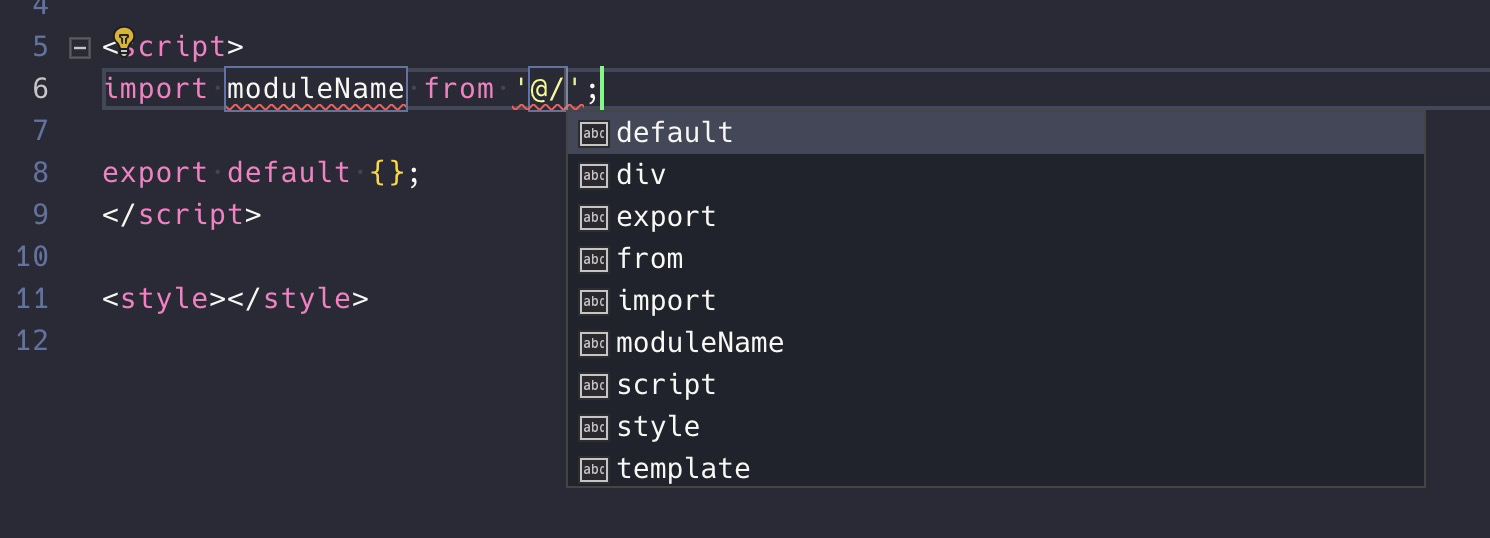
If you use relative paths though, then it works fine;

Hopefully this can be fixed as it's a little annoying have to constantly reference my file-explorer whenever I'm trying to find a specific component, and it can be even more annoying if you have a huge project where you have to open a bunch of folders to find that component.
marbuser
on 8 Mar 2019
This should become possible to fix after upgrading to TS 3.3 (#1163). Can anyone of you give me a repo with the path mapping you are using?
 octref
on 22 Mar 2019
octref
on 22 Mar 2019
@octref
Perhaps you could elaborate a little on what is required. I'm not a typescript guy so could you perhaps explain what "path mapping" is?
If no one else will, I'm happy to provide an example repo with the problem as well as this "path mapping" if you quickly explain it to me. :)
marbuser
on 26 Mar 2019
@marbuser Any project you generate out of vue-cli or forked out of https://github.com/octref/veturpack is fine, as long as it demonstrates the problem.
octref
on 26 Mar 2019
@octref Here it is. Sorry it took so long. Had a busy week.
https://github.com/marbuser/vue-vetur-example
You can see it in action by writing the TestComponent path.
marbuser
on 30 Mar 2019
I have jsconfig.json properly configured in a Nuxt project, but Go to Definition won't work if I import a component without .vue extension.
Btw, although path intellisense also doesn't work with webpack alias for me, install and config Path Intellisense like following kind of fix the problem(but it takes quite a while for the autosuggestion list to pop up):
"path-intellisense.mappings": {
"/": "${workspaceRoot}",
"@": "${workspaceRoot}",
"@@": "${workspaceRoot}",
"~": "${workspaceRoot}",
"~~": "${workspaceRoot}"
},
 blooddrunk
on 3 Apr 2019
blooddrunk
on 3 Apr 2019
@octref any update on this? Was the repo provided any help?
marbuser
on 18 Apr 2019
Hey guys, it loos like I have found a (maybe not perfect ) workaround , inspired by the former suggestions
Lets make it clear, we now face two problems:
- Path intelligence when import modules --> it is about the
path intelligenceplugin provided by Microsoft. - Method and attributes intelligence when use modules; --> it is truly about the
veturtool that we discussed.
And u need pay attention of the difference between a pure front-end project and a complete full-stack project (e.g. koa2+vue)
If you need a workaround for a pure front-end project, I mean like only one source code folder in a project , u can resolve the two problems above perfectly:
- edit
.vscode/settings.json,addpath-intellisense.mappingslike :
{
  "path-intellisense.mappings": {
    "@": "${workspaceRoot}/src"
  }
}
- edit
jsconfig.jsonortsconfig.jsonlike this
{
  "allowJs":true,
  "compilerOptions": {
    "baseUrl": ".",
    "paths": {
      "@/*": ["./src/*"]
    }
  },
  "include": ["src/**/*"],
  "exclude": ["node_modules"]
}
- check ur code , it should work perfectly in both path intelligence and method intelligence, no matter in
.jsor in.vue
However, if u are facing a more complicate project like me, u should consider putting the .vscode/settings.json and jsconfig.json/tsconfig.json under the root path, not the child folder.
My project structure is like:
MY_PROJECT
├── backend
│   ├── node_modules
│   ├── src
│   └── package.json
├── frontend
│   ├── node_modules
│   ├── src
│   └── webpack.config.js
└── readme.md
- Still, u should edit
.vscode/settings.jsonto tell path intelligence :
{
 "path-intellisense.mappings": {
    "@": "${workspaceRoot}/frontend/src"
  }
}
NOTE: the mappings is not the same one as before, because the
workspaceRootis just the root of my project,not the root of thefrontendone
- U should add
./jsconfig.jsonor./tsconfig.jsonlike :
{
  "allowJs":true,
  "compilerOptions": {
    "baseUrl": ".",
    "paths": {
      "@/*": ["./frontend/src/*"]
    }
  },
  "include": ["frontend/src/**/*"],
  "exclude": ["node_modules"]
}
- Now check the code , it should work perfectly in both path intelligence and method intelligence, for .js or .vue.
And I want to point out that u do remember to restart the window every time u change the .vscode/settings.json orjsconfig.json, cause the change may not be applied on time by vscode.
I wish my experience would help any of u
 AndyBoat
on 28 Apr 2019
AndyBoat
on 28 Apr 2019
@AndyBoat Are you on macOS or Windows?
I assume this works fine on macOS but not yet on Windows, see https://github.com/vuejs/vetur/issues/762.
octref
on 29 Apr 2019
@octref yes , I am working on macOS . It looks hard to deal with it on Windows.
AndyBoat
on 6 May 2019
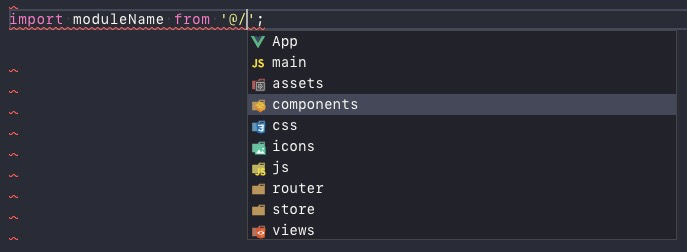
@octref You are able to close this now I believe. Your latest release has fixed this and it appears to be working perfectly!
marbuser
on 18 May 2019
~So which config gets it working now?~
Update: I'm stupid. Following the comment https://github.com/vuejs/vetur/issues/890#issuecomment-487358820 above, I just needed to update .vscode/settings.json and jsconfig.json. Works on macOS!
// .vscode/settings.json
{
  "path-intellisense.mappings": {
    "@": "${workspaceRoot}/src"
  }
}
// jsconfig.json
{
  "allowJs":true,
  "compilerOptions": {
    "baseUrl": ".",
    "paths": {
      "@/*": ["./src/*"]
    }
  },
  "include": ["src/**/*"],
  "exclude": ["node_modules"]
}
 mimischi
on 18 May 2019
mimischi
on 18 May 2019
I run a jsconfig.json on Windows with compiler option checkJs: true and it seems to work for me as well now.
 ajcool2k
on 20 May 2019
ajcool2k
on 20 May 2019
Closing since this is fixed in 0.21.0
octref
on 23 May 2019
still not work
 AmagiSakuya
on 29 Aug 2019
AmagiSakuya
on 29 Aug 2019
Still doesn't work for me. I have the latest VS Code and Vetur 0.22.2. I have even tried the settins.json fix.
I have my vscode opened at the root (folder with .vscode directory), tsconfig in the root which defines a path alias.
I don't get path completion in .vue files, and they don't recognize paths with a @. Consequently, it treats all imports as any.
Also...

VS Code says this setting doesn't exist
edit: TIL that Path Intellisense is another extension
 kbirger
on 4 Sep 2019
kbirger
on 4 Sep 2019
Not working
 AlbertMarashi
on 9 Sep 2019
AlbertMarashi
on 9 Sep 2019
Still does not work in .vue files. It works well in .js files.
VSCode version: 1.38.1
Vetur version: 0.22.3
@octref I think this issue should be reopened. Do you need help reproducing the problem?
 kabalage
on 23 Sep 2019
kabalage
on 23 Sep 2019
Not working on .vue files :(
 charlie632
on 25 Sep 2019
charlie632
on 25 Sep 2019
Yeah it seems still broken. I never had this problem with using @ but one day, vetur/vs code shows me errors and underlines the files, imported with @: "import Category from '@/shared/models/Category';" -> "Cannot find module '@/shared/models/Category". And I can't ctrl + click on it to navigate to it.
VS Code: 1.38.1
Vetur: 0.22.3
I've never had to change smth before or adding smth to it. I use the Vue CLI which generated my project months ago.
 Chris2011
on 25 Sep 2019
Chris2011
on 25 Sep 2019
I have reinstalled vscode and installed just this extension to see if it was finally working. Sadly, it wasn't.
To be fair, it does... if you open just a single folder and it happens to be the root of the project. Far from optimal if you ask me. So the bug seems to be "No intellisense for alias imports, in vue files, if workspace contains several projects (workspaceRoot != projectRoot)"
The solution of @AndyBoat will never be a thing for me. My workspaces typically contain several backend and frontend projects, and I won't spend my time modifying which one matches the alias in a vscode settings file...
I hope I'm not alone.
This issue needs be reopened.
romain20100
on 21 Oct 2019
I'm not sure if there was an update to the extension recently, but now, I'm even noticing that unless I periodically close and reopen VS Code, I lose all intellisense in Vue files, even when it is configured "Correctly". Not sure if it's related to the issue or not, but it certainly seems like it could be.
kbirger
on 25 Oct 2019
mimischi's comment is what got me working. Note that you need to restart VS Code, or at least I did before it started working in .vue files! For .js files, the jsconfig.json changes work immediately.
 mschlitz-trux
on 3 Nov 2019
mschlitz-trux
on 3 Nov 2019
You should follow other issues, not asking to reopen this dead issue:
- Pick up tsconfig from non-top-level folder #815
- Multi root support #424
octref
on 6 Nov 2019
With all due respect, it's usually the maintainers' job to link related issues to one that is closed if they are choosing to track items in a different way
kbirger
on 6 Nov 2019
{
    "compilerOptions": {
        "baseUrl": ".",
        "paths": {
            "@/*": ["./resources/*"],
            "icons/*": ["./node_modules/vue-material-design-icons/*"]
        }
    },
    "exclude": ["./server/dist", "./node_modules", "node", "node_modules"]
}
be sure to exclude any large folders as they'll slow down the intellisense
AlbertMarashi
on 7 Nov 2019
Moving jsconfig.json to my root directory and adding the "path-intellisense.mappings" setting to settings.json (even though VS Code tells me it's an unrecognized setting) fixed the issue for me. Thanks all for the help!
 dpgalloway
on 8 Nov 2019
dpgalloway
on 8 Nov 2019
I have no intellisense with latest vetur version whatsoever. I went through every past issue and tried all of the fixes and nothing worked.
Only solution for me to get intellisense is to include src js file and not using .vue at all
 oshell
on 14 Mar 2020
oshell
on 14 Mar 2020
For Nuxt ts On VSCode users I had the same issue.
I fixed by edting user settings.json add
eslint.validate:[
"vue"
]
quickly fixed the error I had
 iansamz
on 2 Apr 2020
iansamz
on 2 Apr 2020
It seems that I just need to reload VSCode after adding jsconfig.json, and wait long enough before normal complete (not working) turning into path complete (working!)
As @DominusVilicus says, it's a matter of time :smile:
 AllanChain
on 20 Jun 2020
AllanChain
on 20 Jun 2020
I have still same issue.
 syuilo
on 6 Sep 2020
syuilo
on 6 Sep 2020
@AndyBoat
why path intelligence can not work in scss ?
like background
.aa {
background: url('~@/images/xx.png')
}
 dadazhouRenee
on 12 Oct 2020
dadazhouRenee
on 12 Oct 2020
Still doesn't work for me. I have the latest VS Code and Vetur 0.22.2. I have even tried the settins.json fix.
I have my vscode opened at the root (folder with .vscode directory), tsconfig in the root which defines a path alias.
I don't get path completion in .vue files, and they don't recognize paths with a @. Consequently, it treats all imports as
any.Also...
VS Code says this setting doesn't exist
edit: TIL that Path Intellisense is another extension
Yep can confirm this doesn't work. It has everything to do with the workspace. When I open the folder without the workspace the import works. Anyone find a fix for this?
 michael-ottink
on 18 Nov 2020
michael-ottink
on 18 Nov 2020
I have the same issue as michael-ottink above. I open VSCode with a my-workspace.code-workspace file. The workspace file points to a folder that contains a tsconfig.json. When I open a .ts file they recognize the @/ alias correctly. In .vue files though, I get "Cannot find modue or it's corresponding type declarations" errors from Vetur.
EDIT: See response below, this is currently aimed to be fixed by yoyo in a PR for v 31
 3nuc
on 19 Nov 2020
3nuc
on 19 Nov 2020
I have the same issue as michael-ottink above. I open VSCode with a my-workspace.code-workspace file. The workspace file points to a folder that contains a tsconfig.json. When I open a .ts file they recognize the @/ alias correctly. In .vue files though, I get "Cannot find modue or it's corresponding type declarations" errors from Vetur.
This project don't support workspace now.
Please open project root and keep package.json and tsconfig in root.
Please follow #2377
 yoyo930021
on 19 Nov 2020
yoyo930021
on 19 Nov 2020
Hey guys, it loos like I have found a (maybe not perfect ) workaround , inspired by the former suggestions
Lets make it clear, we now face two problems:
- Path intelligence when import modules --> it is about the
path intelligenceplugin provided by Microsoft.- Method and attributes intelligence when use modules; --> it is truly about the
veturtool that we discussed.And u need pay attention of the difference between a pure front-end project and a complete full-stack project (e.g. koa2+vue)
If you need a workaround for a pure front-end project, I mean like only one source code folder in a project , u can resolve the two problems above perfectly:
- edit
.vscode/settings.json,addpath-intellisense.mappingslike :{ "path-intellisense.mappings": { "@": "${workspaceRoot}/src" } }
- edit
jsconfig.jsonortsconfig.jsonlike this{ "allowJs":true, "compilerOptions": { "baseUrl": ".", "paths": { "@/*": ["./src/*"] } }, "include": ["src/**/*"], "exclude": ["node_modules"] }
- check ur code , it should work perfectly in both path intelligence and method intelligence, no matter in
.jsor in.vueHowever, if u are facing a more complicate project like me, u should consider putting the
.vscode/settings.jsonandjsconfig.json/tsconfig.jsonunder the root path, not the child folder.
My project structure is like:MY_PROJECT ├── backend │ ├── node_modules │ ├── src │ └── package.json ├── frontend │ ├── node_modules │ ├── src │ └── webpack.config.js └── readme.md
- Still, u should edit
.vscode/settings.jsonto tell path intelligence :{ "path-intellisense.mappings": { "@": "${workspaceRoot}/frontend/src" } }NOTE: the mappings is not the same one as before, because the
workspaceRootis just the root of my project,not the root of thefrontendone
- U should add
./jsconfig.jsonor./tsconfig.jsonlike :{ "allowJs":true, "compilerOptions": { "baseUrl": ".", "paths": { "@/*": ["./frontend/src/*"] } }, "include": ["frontend/src/**/*"], "exclude": ["node_modules"] }
- Now check the code , it should work perfectly in both path intelligence and method intelligence, for .js or .vue.
And I want to point out that u do remember to restart the window every time u change the
.vscode/settings.jsonorjsconfig.json, cause the change may not be applied on time by vscode.I wish my experience would help any of u
This worked for me...
 noopurphalak
on 27 Jan 2021
noopurphalak
on 27 Jan 2021
I will lock this issue.
If you have any problem, please open a new issue.
Setup:
https://vuejs.github.io/vetur/guide/setup.html#project-setup
And we support multi-repo or monorepo with vetur.config.js.
yoyo930021
on 29 Jan 2021
Related issues
 muhajirdev
·
3Comments
muhajirdev
·
3Comments
 pdanpdan
·
3Comments
pdanpdan
·
3Comments
 LawrenceQxy
·
3Comments
LawrenceQxy
·
3Comments
 LukeLin
·
3Comments
LukeLin
·
3Comments
 shaunc
·
3Comments
shaunc
·
3Comments
Most helpful comment
Hey guys, it loos like I have found a (maybe not perfect ) workaround , inspired by the former suggestions
Lets make it clear, we now face two problems:
path intelligenceplugin provided by Microsoft.veturtool that we discussed.And u need pay attention of the difference between a pure front-end project and a complete full-stack project (e.g. koa2+vue)
If you need a workaround for a pure front-end project, I mean like only one source code folder in a project , u can resolve the two problems above perfectly:
.vscode/settings.json,addpath-intellisense.mappingslike :jsconfig.jsonortsconfig.jsonlike this.jsor in.vueHowever, if u are facing a more complicate project like me, u should consider putting the
.vscode/settings.jsonandjsconfig.json/tsconfig.jsonunder the root path, not the child folder.My project structure is like:
.vscode/settings.jsonto tell path intelligence :And I want to point out that u do remember to restart the window every time u change the
.vscode/settings.jsonorjsconfig.json, cause the change may not be applied on time by vscode.I wish my experience would help any of u