Vetur: Command "Vetur: Generate grammar from vetur.grammar.customBlocks" not found
After I installed vetur, and restart vscode, I run the command , it occurs "command not found error".

 tolerious
All 33 comments
You need to open a Vue file first, otherwise the extension won't be loaded.
 octref
on 12 Mar 2018
octref
on 12 Mar 2018
@octref hi,octref, I retry this command during opening a Vue file, but still prompt this error.

tolerious
on 13 Mar 2018
When you open Output -> Vue Language Server, any output?
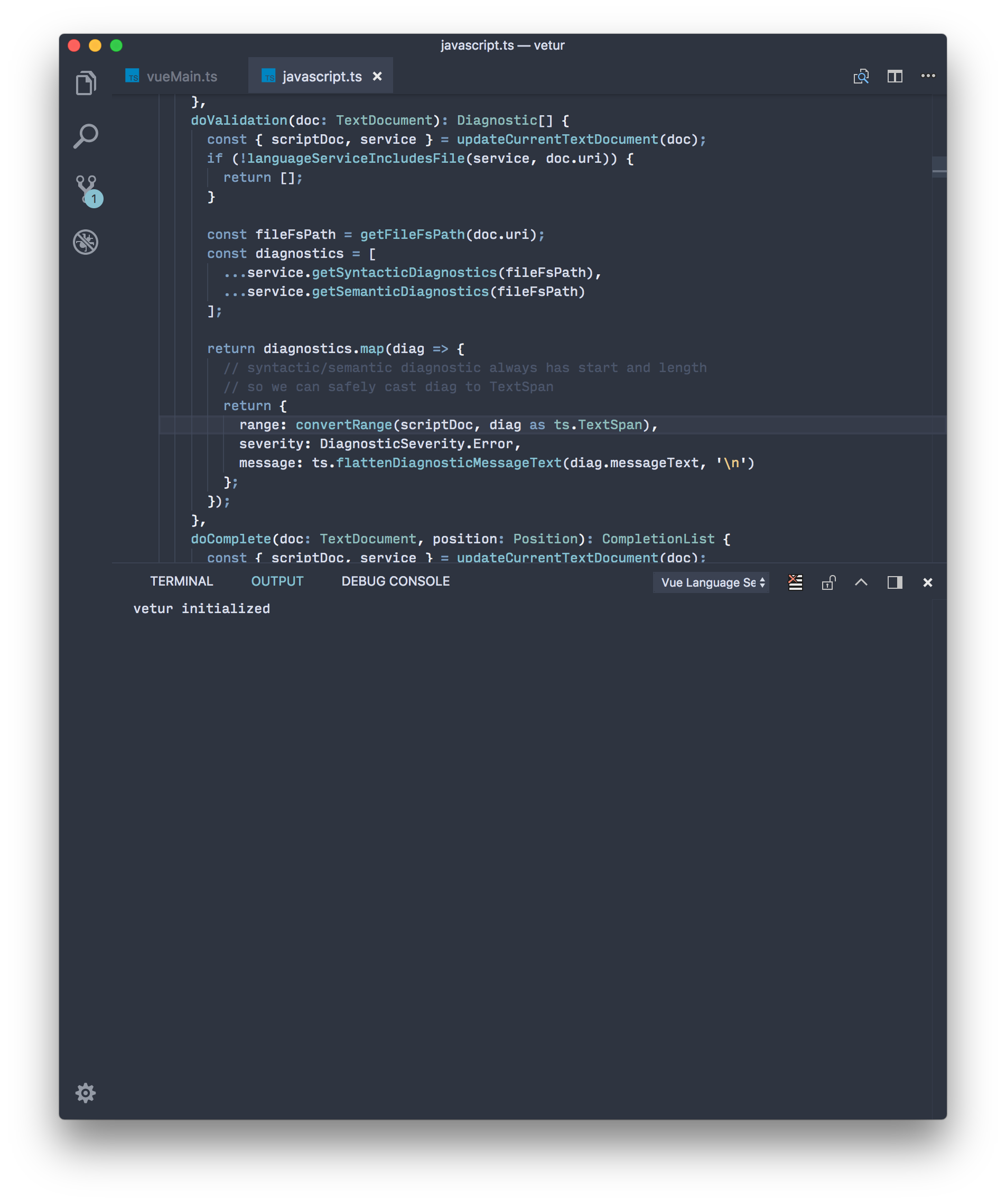
Also do you see any error in Help -> Developer Tools?
octref
on 13 Mar 2018
hi, @octref , there is nothing in "OUTPUT"
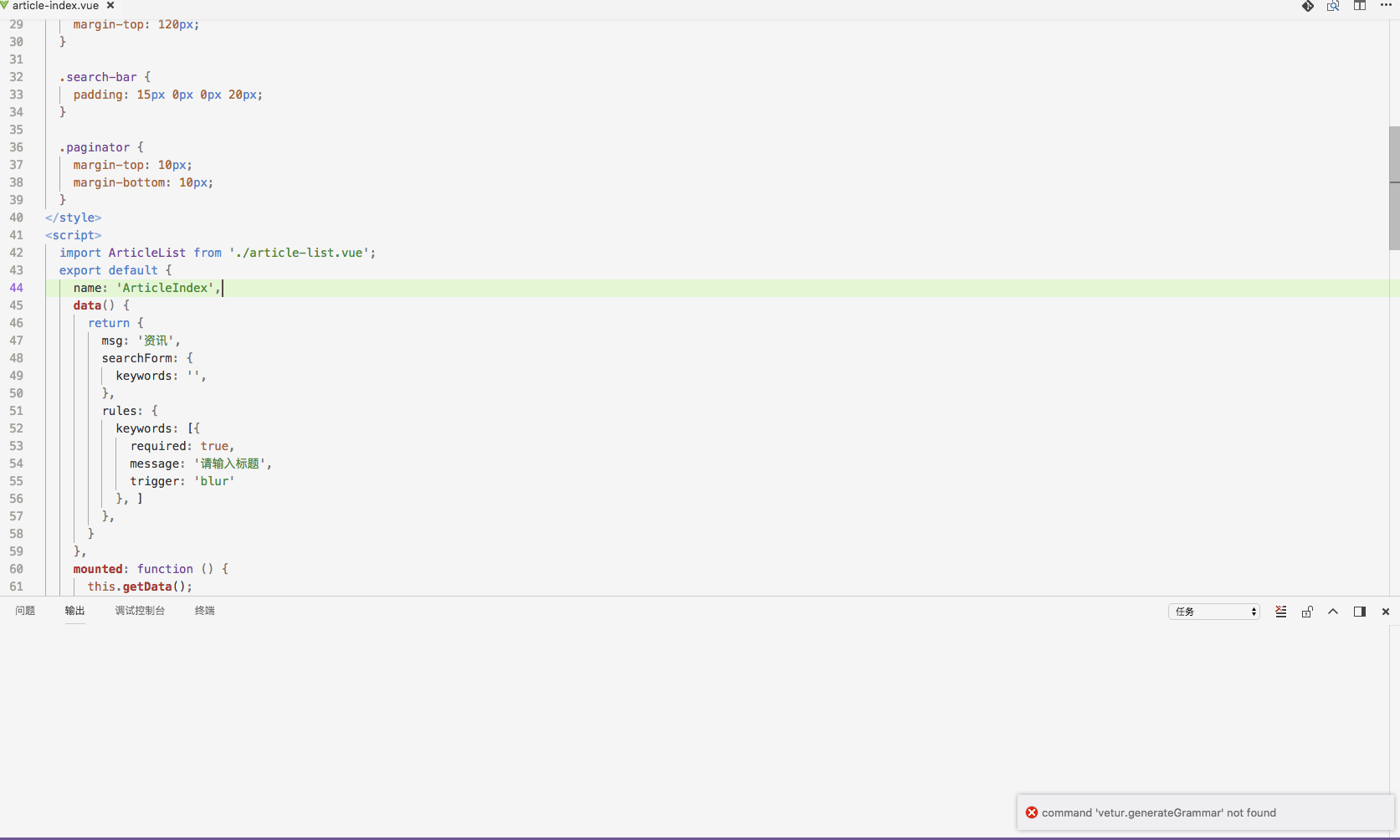
and this is in "dev tools"
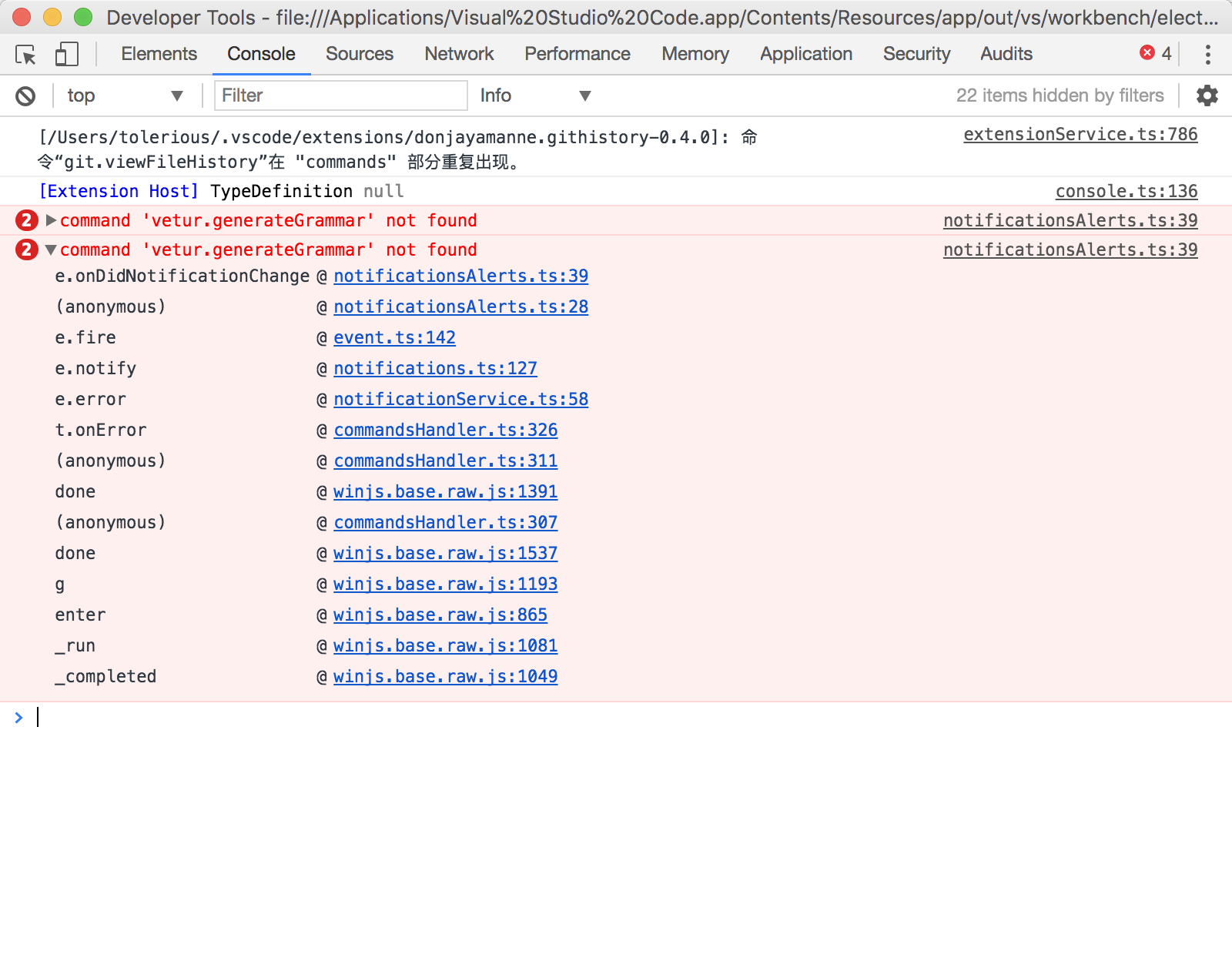
tolerious
on 14 Mar 2018
I'm guessing Vetur is not installed properly. You might be hitting this bug: https://github.com/Microsoft/vscode/issues/43813#issuecomment-372764264
Can you try running the command Developer: Reinstall Extension and choose Vetur and see if that fixes it for you?
octref
on 14 Mar 2018
hi, @octref , I follow your suggestions, but not work, reinstall extension and relaunch, there is still a mistake, my OS is MacOS, and the vsCode version is the latest.
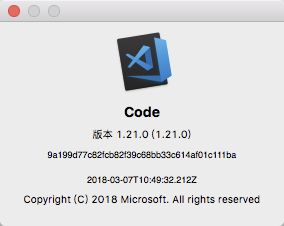
tolerious
on 14 Mar 2018
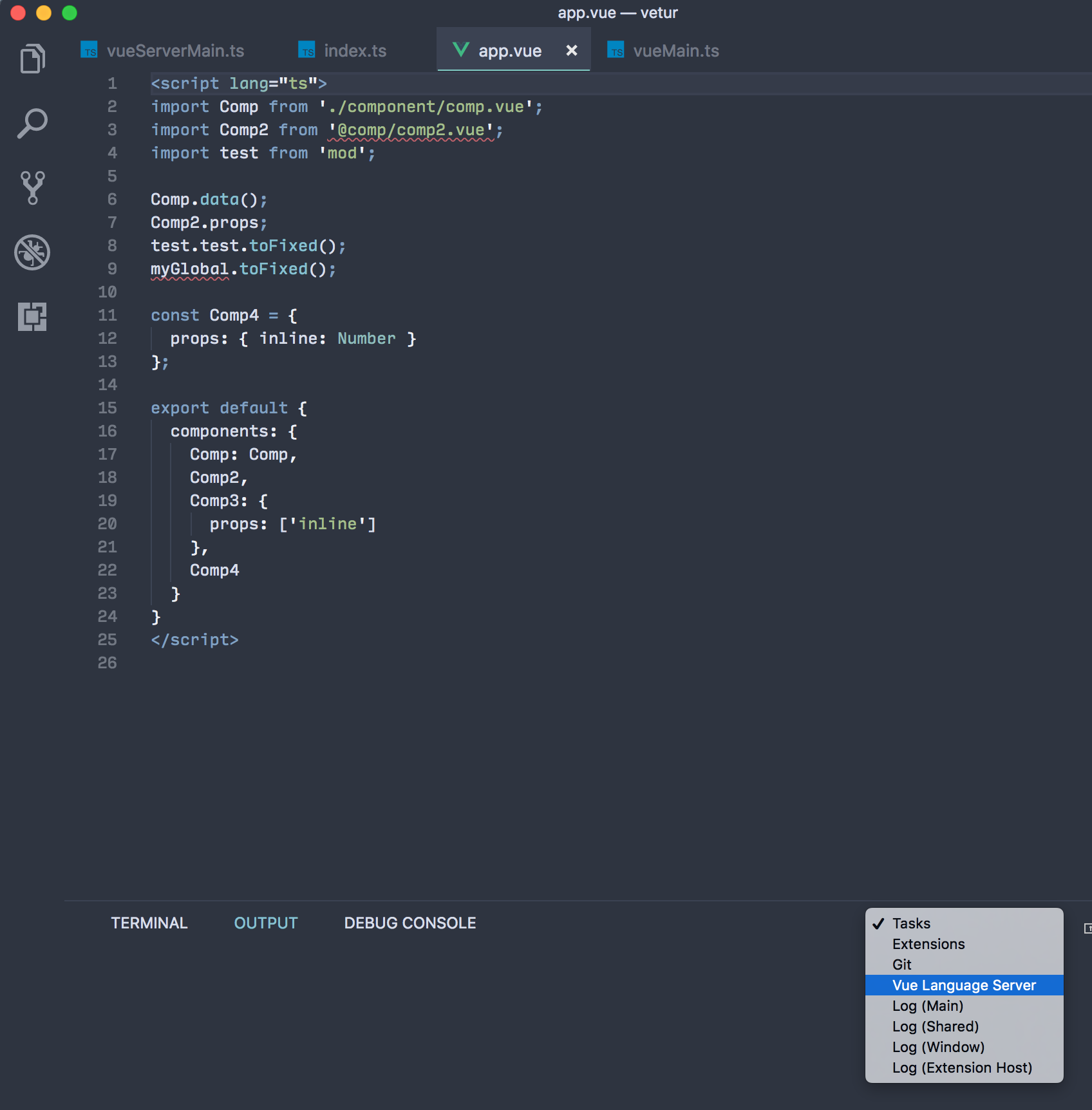
In output don't choose 输出 choose "Vue Language Server". Do you see the message vetur initialized?
octref
on 14 Mar 2018
no, I did not see the vetur initialized message in any window
tolerious
on 14 Mar 2018
Do you mean after I open a *.vue file I should see the Vue Language Server panel, at the bottom of vsCode? @octref
tolerious
on 14 Mar 2018
You need to choose Vue Language Server in the dropdown:
octref
on 14 Mar 2018
@octref there is no Vue Lannguage Server choice.

tolerious
on 14 Mar 2018
Interesting...So the server is not started, the extension is registered, but the command cannot be found...
The only issue I see is the error about git.viewFileHistory. If you disable the Git History extension, does it work?
octref
on 14 Mar 2018
Sorry for asking you for all these questions...but:
- Do you have other Vue extensions installed?
- Does this problem happen to Insiders version of VS Code too? https://code.visualstudio.com/insiders/
octref
on 14 Mar 2018

I uninstalled all extentions and reinstall Vetur, but still not work for me. @octref
tolerious
on 14 Mar 2018
Sorry for the inconvenience. This might be a serious issue with VS Code's extension management. I'll report to them and get back to you.
One final thing if you could check for me. Can you find the file ~/.vscode/extensions/octref.vetur-0.11.7/out/vueMain.js in your disk? If so can you paste its content in here?
octref
on 14 Mar 2018
hi, @octref , I donwloaded the vscode insiders version, and I saw the Vue Language Server choice.
tolerious
on 14 Mar 2018
hi, @octref , there is no file called vueMain.js in .vscode floder.

tolerious
on 14 Mar 2018
@tolerious Good catch. So the extension shows Vetur as installed, but you see no octref.vetur-0.11.7 folder under ~/.vscode?
octref
on 14 Mar 2018
yes, you are right. very very strange. @octref
tolerious
on 14 Mar 2018
One final thing that I need your help:
If you run the command Developer: Open Logs Folder, there should be a bunch of folders like this:

In each folder 20180313xxxx, you should see a log file called sharedprocess.log.
Can you paste the content of the sharedprocess.log from the folders that start from 20180314 (I think current time in China is 03/14)?
Thanks again for your help! These info can help VS Code fix the issue so it would not affect other users.
octref
on 14 Mar 2018
sharedprocess1.log
sharedprocess2.log
sharedprocess3.log
sharedprocess4.log
sharedprocess5.log
sharedprocess6.log
hi, @octref I have uploaded all the sharedprocess.log files today, hope to help you.
tolerious
on 14 Mar 2018
I see from log Vetur is installed into /Users/tolerious/.vscode/extensions/octref.vetur-0.11.7. However in your screenshot
it's ~/tongjimm-admin/.vscode. Is it that you don't have the folder ~/.vscode? Or are you launching VS Code using a separate extension dir with code --extensions-dir?
octref
on 14 Mar 2018
oh, sorry, @octref ,I have the .vscode floder in my home dir, post the vueMain.js file to you.
"use strict";
Object.defineProperty(exports, "__esModule", { value: true });
const fs = require("fs");
const path = require("path");
const vscode = require("vscode");
const vscode_1 = require("vscode");
const vscode_languageclient_1 = require("vscode-languageclient");
const grammar_1 = require("./grammar");
const protocol_colorProvider_proposed_1 = require("vscode-languageserver-protocol/lib/protocol.colorProvider.proposed");
const EMPTY_ELEMENTS = [
    'area',
    'base',
    'br',
    'col',
    'embed',
    'hr',
    'img',
    'input',
    'keygen',
    'link',
    'menuitem',
    'meta',
    'param',
    'source',
    'track',
    'wbr'
];
function activate(context) {
    /**
     * Custom Block Grammar generation command
     */
    context.subscriptions.push(vscode.commands.registerCommand('vetur.generateGrammar', () => {
        const customBlocks = vscode_1.workspace.getConfiguration().get('vetur.grammar.customBlocks') || {};
        try {
            const generatedGrammar = grammar_1.getGeneratedGrammar(path.resolve(context.extensionPath, 'syntaxes/vue.json'), customBlocks);
            fs.writeFileSync(path.resolve(context.extensionPath, 'syntaxes/vue-generated.json'), generatedGrammar, 'utf-8');
            vscode.window.showInformationMessage('Successfully generated vue grammar. Reload VS Code to enable it.');
        }
        catch (e) {
            vscode.window.showErrorMessage('Failed to generate vue grammar. `vetur.grammar.customBlocks` contain invalid language values');
        }
    }));
    /**
     * Vue Language Server Initialization
     */
    const serverModule = context.asAbsolutePath(path.join('server', 'dist', 'vueServerMain.js'));
    const debugOptions = { execArgv: ['--nolazy', '--inspect=6005'] };
    const serverOptions = {
        run: { module: serverModule, transport: vscode_languageclient_1.TransportKind.ipc },
        debug: { module: serverModule, transport: vscode_languageclient_1.TransportKind.ipc, options: debugOptions }
    };
    const documentSelector = ['vue'];
    const config = vscode_1.workspace.getConfiguration();
    const clientOptions = {
        documentSelector,
        synchronize: {
            // the settings to synchronize
            configurationSection: ['vetur', 'html', 'javascript', 'typescript', 'prettier', 'stylusSupremacy']
        },
        initializationOptions: {
            config
        },
        revealOutputChannelOn: vscode_languageclient_1.RevealOutputChannelOn.Never
    };
    // Create the language client and start the client.
    const client = new vscode_languageclient_1.LanguageClient('vue', 'Vue Language Server', serverOptions, clientOptions);
    const disposable = client.start();
    context.subscriptions.push(disposable);
    const isDecoratorEnabled = vscode_1.workspace.getConfiguration().get('vetur.colorDecorators.enable');
    if (isDecoratorEnabled) {
        client.onReady().then(registerColorProvider);
    }
    vscode_1.languages.setLanguageConfiguration('vue-html', {
        wordPattern: /(-?\d*\.\d\w*)|([^\`\~\!\@\$\^\&\*\(\)\=\+\[\{\]\}\\\|\;\:\'\"\,\.\<\>\/\s]+)/g,
        onEnterRules: [
            {
                beforeText: new RegExp(`<(?!(?:${EMPTY_ELEMENTS.join('|')}))([_:\\w][_:\\w-.\\d]*)([^/>]*(?!/)>)[^<]*$`, 'i'),
                afterText: /^<\/([_:\w][_:\w-.\d]*)\s*>$/i,
                action: { indentAction: vscode_1.IndentAction.IndentOutdent }
            },
            {
                beforeText: new RegExp(`<(?!(?:${EMPTY_ELEMENTS.join('|')}))(\\w[\\w\\d]*)([^/>]*(?!/)>)[^<]*$`, 'i'),
                action: { indentAction: vscode_1.IndentAction.Indent }
            }
        ]
    });
    function registerColorProvider() {
        const colorSubscription = vscode_1.languages.registerColorProvider(documentSelector, {
            provideDocumentColors(doc) {
                const params = {
                    textDocument: client.code2ProtocolConverter.asTextDocumentIdentifier(doc)
                };
                return client.sendRequest(protocol_colorProvider_proposed_1.DocumentColorRequest.type, params)
                    .then(symbols => symbols.map(symbol => {
                    const range = client.protocol2CodeConverter.asRange(symbol.range);
                    const color = new vscode.Color(symbol.color.red, symbol.color.green, symbol.color.blue, symbol.color.alpha);
                    return new vscode.ColorInformation(range, color);
                }));
            },
            provideColorPresentations(color, context) {
                const params = {
                    textDocument: client.code2ProtocolConverter.asTextDocumentIdentifier(context.document),
                    color,
                    range: client.code2ProtocolConverter.asRange(context.range)
                };
                return client.sendRequest(protocol_colorProvider_proposed_1.ColorPresentationRequest.type, params)
                    .then(presentations => presentations.map(p => {
                    const presentation = new vscode.ColorPresentation(p.label);
                    presentation.textEdit =
                        p.textEdit && client.protocol2CodeConverter.asTextEdit(p.textEdit);
                    presentation.additionalTextEdits =
                        p.additionalTextEdits && client.protocol2CodeConverter.asTextEdits(p.additionalTextEdits);
                    return presentation;
                }));
            }
        });
        context.subscriptions.push(colorSubscription);
    }
}
exports.activate = activate;
//# sourceMappingURL=vueMain.js.map
The file looks fine.
If you add a line console.log('hello vetur') right after
function activate(context) {
and you restart VS Code and open a vue file. Do you see anything in Help -> Toggle Developer Tools?
octref
on 14 Mar 2018
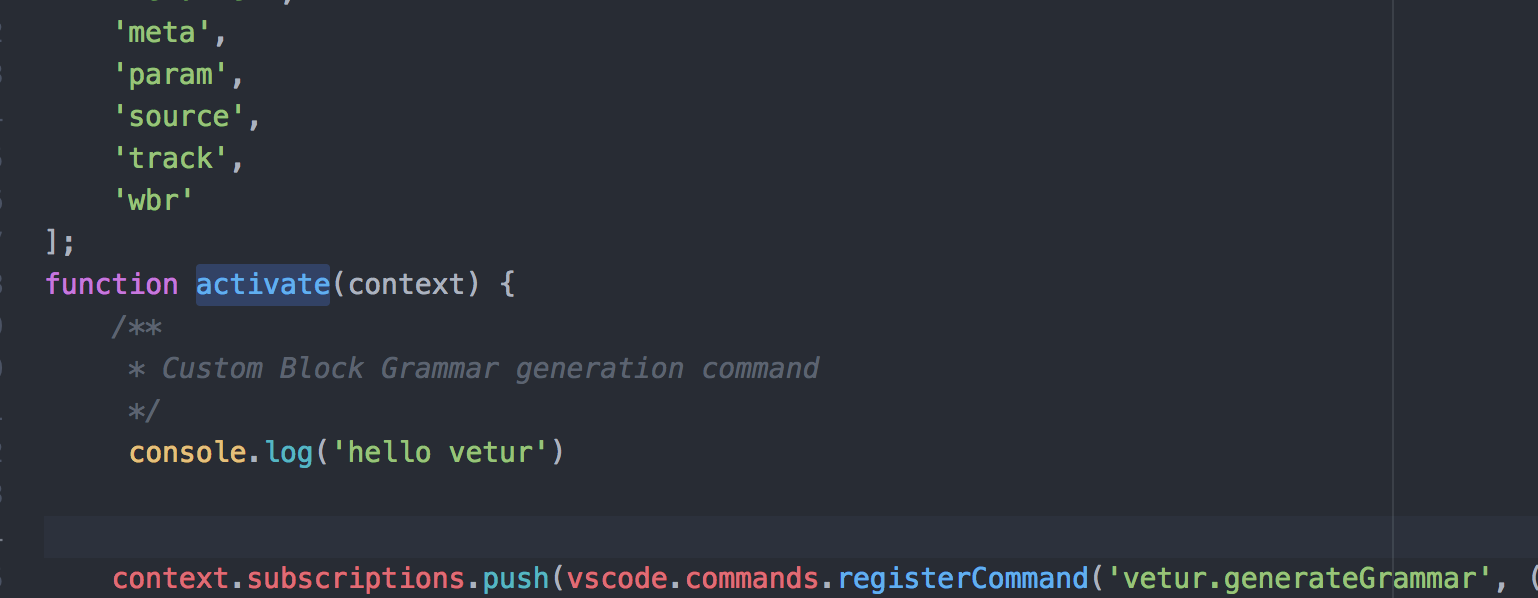
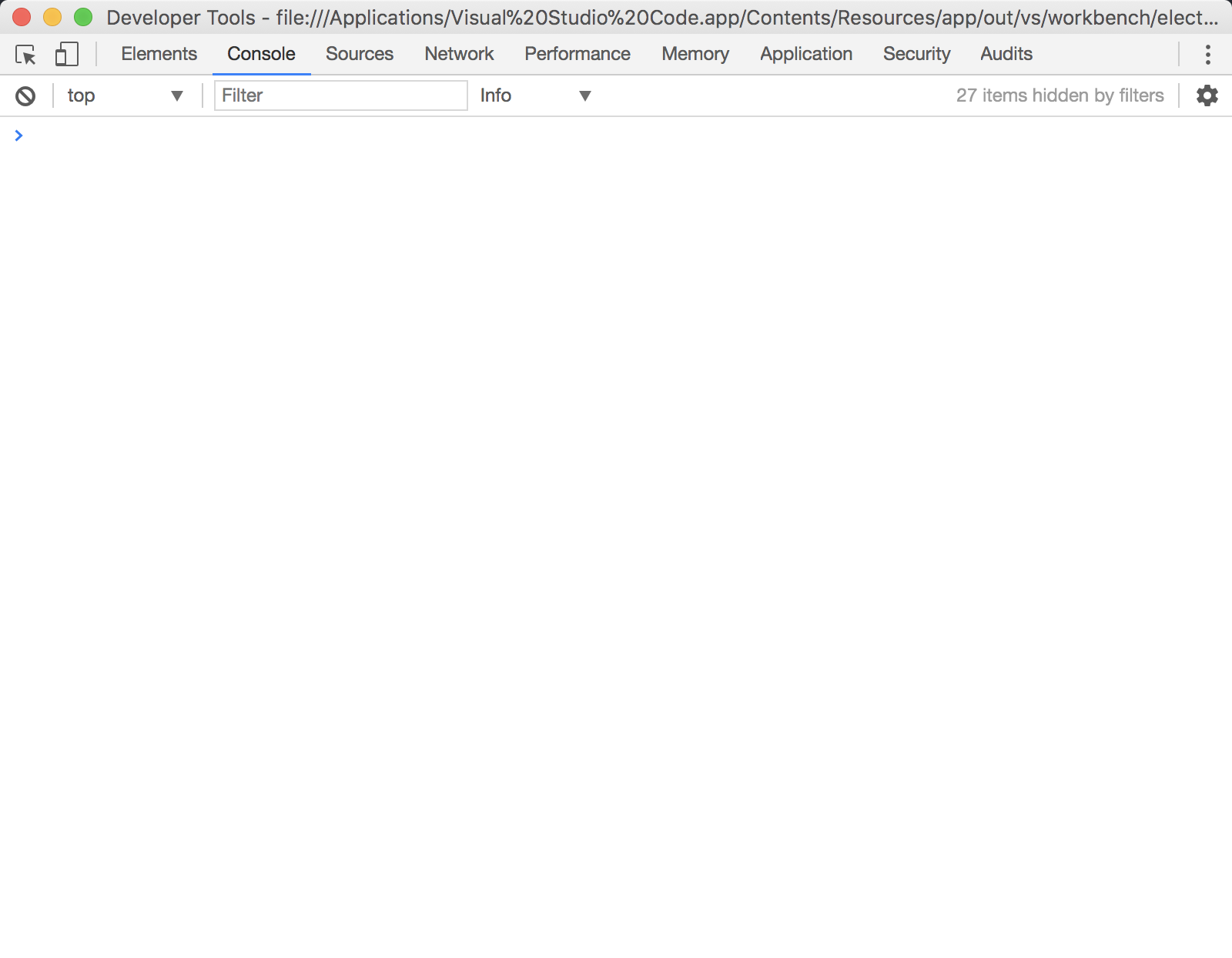
@octref there is nothing in the dev tools terminal.
tolerious
on 14 Mar 2018
Even after you open a Vue file, still nothing in Dev Tool, is that correct?
octref
on 14 Mar 2018
yes, nothing in Dev Tool. @octref
tolerious
on 14 Mar 2018
Thanks for all the information. The issue is that you associated vue to html files in files.associations. You should not do that. (Which tutorial or setup guide did you follow?)
octref
on 14 Mar 2018
And this is my latest config file.
{
    "workbench.colorTheme": "Quiet Light",
    "editor.fontSize": 14,
    "editor.fontFamily": "Menlo, Monaco, 'Courier New', monospace",
    "update.channel": "default",
    "html.format.enable": true,
    "html.format.indentHandlebars": true,
    "html.suggest.html5": true,
    "html.autoClosingTags": true,
    "editor.wordWrap": "on",
    "files.autoSave": "onWindowChange",
    "window.title": "${activeEditorLong}${separator}${rootName}",
    "explorer.confirmDelete": true,
    "editor.minimap.enabled": false,
    "git.enableSmartCommit": true,
    "git.autofetch": true,
    "files.exclude": {
        "**/.git": true,
        "**/.svn": true,
        "**/.hg": true,
        "**/CVS": true,
        "**/.DS_Store": true,
        "**/.idea":true,
        "**/node_modules": true
    },
    "zenMode.hideTabs": true,
    "zenMode.hideStatusBar": true,
    "zenMode.hideActivityBar": true,
    "zenMode.fullScreen": true,
    "zenMode.centerLayout": true,
    "workbench.editor.enablePreview": true,
    "workbench.editor.enablePreviewFromQuickOpen": true,
}
@octref
tolerious
on 14 Mar 2018
On the lowerright of this picture, I see HTML filetype:
So somehow your Vue files are marked as HTML. But you are saying you don't have any files.associations config?
octref
on 14 Mar 2018
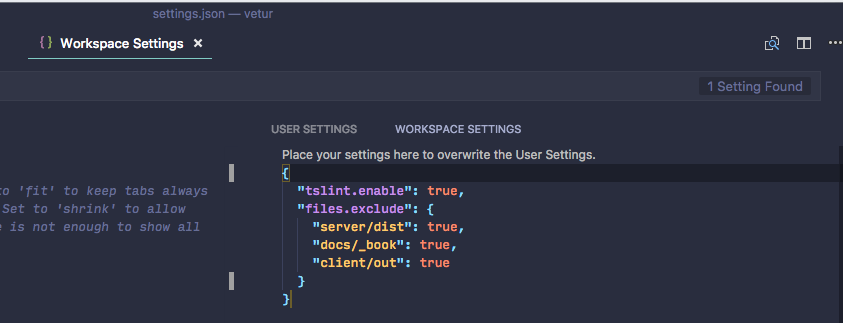
One thing you might check is your workspace setting. Maybe you have the files.associations there:
octref
on 14 Mar 2018
I am also getting command not found: Vetur.
I've check that the Vue Language Server is running. Any thoughts?
I'm in Mac OS using Visual Studio Code v1.51.1
 songololo
on 6 Dec 2020
songololo
on 6 Dec 2020
I am also getting
command not found: Vetur.I've check that the Vue Language Server is running. Any thoughts?
I'm in Mac OS using Visual Studio Code v1.51.1
Please open a new issue.
 yoyo930021
on 6 Dec 2020
yoyo930021
on 6 Dec 2020
Related issues
 OsterHuang
·
3Comments
octref
·
3Comments
octref
·
3Comments
OsterHuang
·
3Comments
octref
·
3Comments
octref
·
3Comments
 ghost
·
3Comments
ghost
·
3Comments
 LukeLin
·
3Comments
LukeLin
·
3Comments
Most helpful comment
You need to open a Vue file first, otherwise the extension won't be loaded.