Info
- Platform: macOs
- Vetur version: latest
- VS Code version: latest
Problem
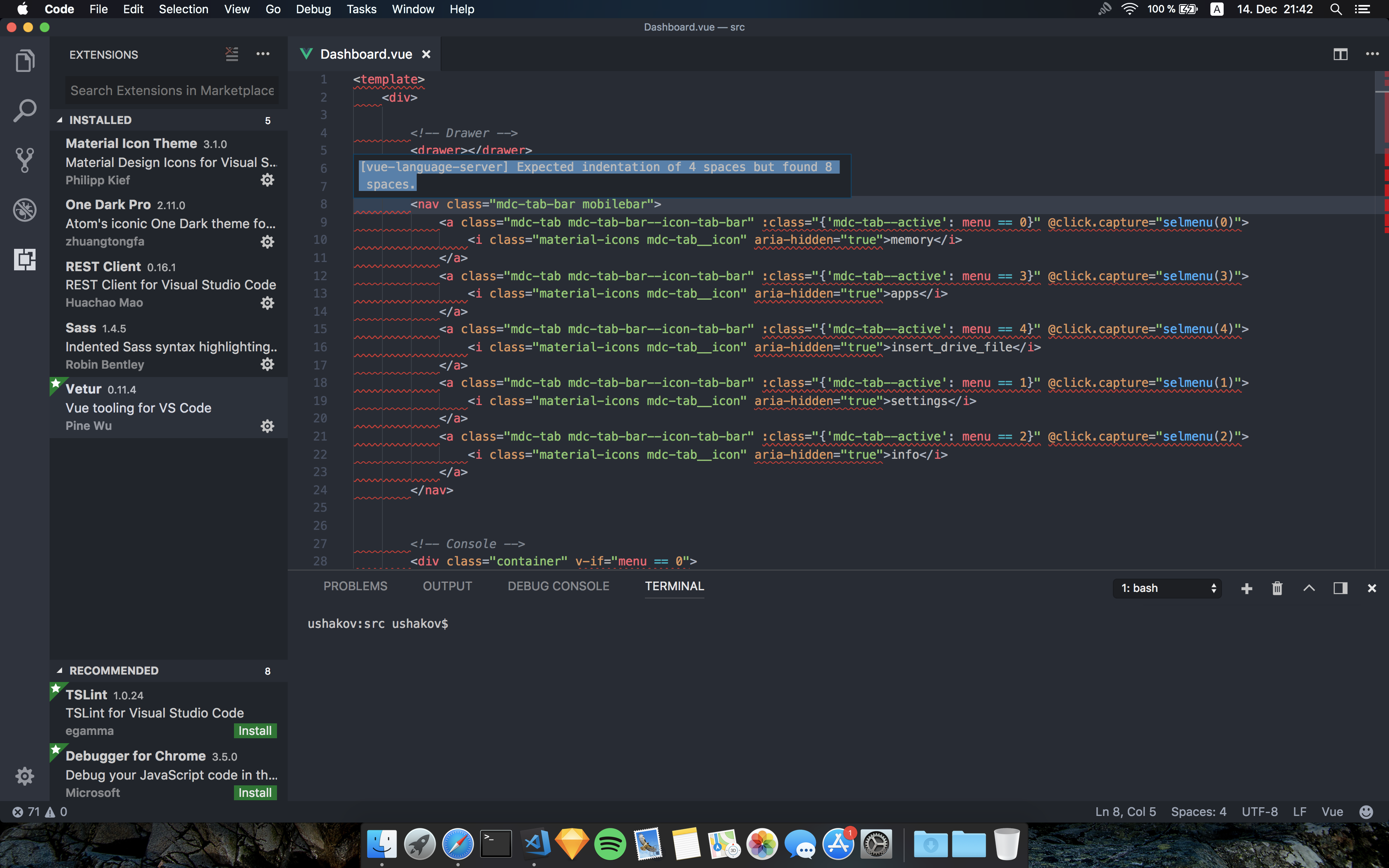
Impossible to write code, when using 4 spaces, please fix it. Very unsatisfied!
Reproducible Case
Use 4 Spaces in your editor instead of 2 and see the red blood flowing on your code
 mishushakov
All 20 comments
Yep, same here - looks like the latest update implicitly forced some stricter linting down our throats...
 cotej
on 14 Dec 2017
cotej
on 14 Dec 2017
Same problem here. Got the problem after upgrade to 0.11. 4.
 TongZhangzt
on 14 Dec 2017
TongZhangzt
on 14 Dec 2017
I don't see it happening in https://github.com/octref/veturpack. Do you have a repo where I can try reproing this issue? (Or try modifying veturpack to repro it).

 octref
on 14 Dec 2017
octref
on 14 Dec 2017
@octref Likely that's because you have explicit ESLint configuration in that repo and have set "vetur.validation.template": false in your vscode settings. The issue occurs when using vetur's template validation.
cotej
on 14 Dec 2017
FYI for the others affected by this, here's what you can do to rollback.
Download the previous version of the Vetur extension from here:
https://octref.gallery.vsassets.io/_apis/public/gallery/publisher/octref/extension/vetur/0.11.3/assetbyname/Microsoft.VisualStudio.Services.VSIXPackage?install=true
Then in VSCode, on the Extension pane, click the '...' button
-> Disable Auto Updating Extensions (so we don't wind up back at 0.11.4 automatically)
-> Install from VSIX... (selected the file you just download)
Then just wait for the 'Reload Window' notification... done!
cotej
on 14 Dec 2017
@cotej and @octref @TongZhangzt Thank you guys for the support! Hope next update will be pushed soon, so we can continue coding well again. Also noticed very strict rules on v-for tags, it requires me to set unique key, but I don't need or doesn't have to set them because it is not an actual error, so if vue team is reading this, please fix it, since it is just a good recommendation, not a requirement.
mishushakov
on 14 Dec 2017
The rule is: https://github.com/vuejs/eslint-plugin-vue/blob/master/docs/rules/html-indent.md
If you do not want Vetur to lint your Vue template, turn it off with VS Code setting vetur.validation.template: false.
If you do want Vetur to lint your Vue template, but without this rule, take a look at Veturpack's config: https://github.com/octref/veturpack/blob/master/.eslintrc
You can add an entry to relax any rule you want. For this one, it could be:
"vue/html-indent": "off"
Basically, Vetur uses the default config for eslint-plugin-vue when you don't have one installed in your project. If you want to customize it, do this:
yarn add -D eslint eslint-plugin-vue eslint-config-vue- Setup an eslintrc like this: https://github.com/octref/veturpack/blob/master/.eslintrc
I'll add more docs later.
octref
on 14 Dec 2017
npm WARN [email protected] requires a peer of eslint@^2.0.0 || ^3.0.0 but none is installed. You must install peer dependencies yourself.
I have "eslint": "^4.12.1" installed.
Will that cause any issues?
 GufNZ
on 14 Dec 2017
GufNZ
on 14 Dec 2017
Umm, ok https://github.com/vuejs/eslint-config-vue is actually deprecated. I had no idea...
I'll look into this later today. For now you can choose either use 0.11.3 by installing from VSIX, or disable the template linting.
octref
on 14 Dec 2017
That might explain all the Definition for rule 'vue/something' was not found errors I'm suddenly seeing.
GufNZ
on 15 Dec 2017
I am noticing that all the definition not found errors are agains JS files, and not vue files. Maybe I did something wrong when I configured ESLint?
Tried moving the vue/* rules to a new eslintrc.js under components/ but that just moved the errors to the component files instead.
GufNZ
on 15 Dec 2017
@octref I think we should simply change our default rule set to essential which only reports possible runtime error. So styling issue reporting like indentation and casing is opt-in. (by eslint-vscode plugin).
 HerringtonDarkholme
on 15 Dec 2017
HerringtonDarkholme
on 15 Dec 2017
This in an error from html-indent rule of eslint-plugin-vue.
In 0.11.4, I used the recommended set from eslint-plugin-vue, which includes html-indent. I've changed that to essential which does not include it.
So with 0.11.5, when you have vetur.template.validate: true, this won't be marked as error. I also updated the doc for configuring ESLint to use custom rules: https://vuejs.github.io/vetur/linting-error.html
I also upgrade https://github.com/octref/veturpack to use the newest eslint-plugin-vue.
@GufNZ In the past, rule sets of eslint-plugin-vue lived at https://github.com/vuejs/eslint-config-vue. However now the rule live in eslint-plugin-vue itself, so you can do:
yarn add -D eslint eslint-plugin-vue@nextWrite a
.eslintrclike so{ "extends": [ "eslint:recommended", "plugin:vue/recommended" ], "rules": { "vue/html-self-closing": "off" } }
Finally, updated doc for linting is at https://vuejs.github.io/vetur/linting-error.html.
Sorry for the problem.
octref
on 15 Dec 2017
So, I'm still a bit confused. I have vetur 0.11.5; have removed the vetur.validation.template: false line from my settings; have setup .eslintrc.js as above, but the rules don't seem to be getting applied at all.
Not sure what to try next...
module.exports = {
    root: true,

    parserOptions: {
        parser: 'babel-eslint',
        sourceType: 'module'
    },
    env: {
        browser: true
    },
    extends: ['airbnb-base', 'plugin:vue/recommended'],

    // Required to lint *.vue files:
    plugins: [
        'html',
        'vue'
    ],

    // Check if imports actually resolve:
    settings: {
        'import/resolver': {
            webpack: {
                config: 'build/webpack.base.conf.js'
            }
        }
    },

    // Add your custom rules here:
    rules: {
        'linebreak-style': ['error', 'unix'],

        // Don't require .vue extension when importing:
        'import/extensions': [
            'error',
            'always',
            {
                js: 'never',
                vue: 'never'
            }
        ],

//......8<...........

        'vue/mustache-interpolation-spacing': ['error', 'never'],
        'vue/require-default-prop': 'error',
        'vue/require-prop-types': 'error',
        'vue/v-bind-style': ['warn', 'shorthand'],
        'vue/v-on-style': ['warn', 'shorthand'],
        'vue/html-quotes': ['error', 'double'],
        'vue/no-confusing-v-for-v-if': 'error',

//......8<...........

    }
}
@GufNZ you also need to install vscode-eslint plugin. https://vuejs.github.io/vetur/linting-error.html
HerringtonDarkholme
on 19 Dec 2017
got vscode-eslint 1.4.3 already.
I was getting spotty linting - sometimes it would apply some rules, but normally none of the vue/* ones (except in .js files, like main.js).
I will try again tomorrow with the recommended config from that link.
GufNZ
on 19 Dec 2017
My user settings:
"vetur.validation.template": false,
"eslint.options": {
    "extensions": [".js", ".vue", ".html"]
},
"eslint.validate": [
    "javascript",
    "javascriptreact",
    {
        "language": "vue",
        "autoFix": true
    }
],
Selected entries from package.json:
"devDependencies": {

    "eslint": "^4.13.1",
    "eslint-config-airbnb-base": "^12.1.0",
    "eslint-friendly-formatter": "^3.0.0",
    "eslint-import-resolver-webpack": "^0.8.3",
    "eslint-loader": "^1.9.0",
    "eslint-plugin-html": "^4.0.1",
    "eslint-plugin-import": "^2.8.0",
    "eslint-plugin-vue": "next",

}
@octref How was your holiday? Meanwhile, any progress on this?
GufNZ
on 7 Jan 2018
@GufNZ Try removing the eslint-plugin-html and just use eslint-plugin-vue.
octref
on 16 Jan 2018
That plus restarting vsCode seems to have done it, at least for the one file I've checked so far.
GufNZ
on 16 Jan 2018
Related issues
 thibautguedou3
·
3Comments
thibautguedou3
·
3Comments
 LukeLin
·
3Comments
LukeLin
·
3Comments
 AnnAngela
·
3Comments
AnnAngela
·
3Comments
 ghost
·
3Comments
ghost
·
3Comments
 OsterHuang
·
3Comments
OsterHuang
·
3Comments
Most helpful comment
This in an error from
html-indentrule ofeslint-plugin-vue.In 0.11.4, I used the
recommendedset fromeslint-plugin-vue, which includeshtml-indent. I've changed that toessentialwhich does not include it.So with 0.11.5, when you have
vetur.template.validate: true, this won't be marked as error. I also updated the doc for configuring ESLint to use custom rules: https://vuejs.github.io/vetur/linting-error.htmlI also upgrade https://github.com/octref/veturpack to use the newest
eslint-plugin-vue.@GufNZ In the past, rule sets of
eslint-plugin-vuelived at https://github.com/vuejs/eslint-config-vue. However now the rule live ineslint-plugin-vueitself, so you can do:yarn add -D eslint eslint-plugin-vue@nextWrite a
.eslintrclike soFinally, updated doc for linting is at https://vuejs.github.io/vetur/linting-error.html.
Sorry for the problem.