Vetur: Can fix Intellisense and go to definition for absolute path
Info
- Platform: Win7
- Vetur version:0.9.7
- VSCode version:1.16.0
Problem
I know had go to definition for component and js file and 0.9.6 also had intellisense for component and props.But if i use absolute path that is not working.see below that is i mean.
import test from '@components/test.vue
I think that is possible.If I install Vue Peek.That can help me to definition even if i import absolute path.
I don't know what is "Find Definition for Vue components in ".If you want to imporve document thanks.
 kinanson
All 39 comments
Do you have jsconfig.json or tsconfig.json in your project?
Have you configured path mapping in it?
https://www.typescriptlang.org/docs/handbook/module-resolution.html
 HerringtonDarkholme
on 11 Sep 2017
HerringtonDarkholme
on 11 Sep 2017
Vue peek does awful guessing. https://github.com/fussinatto/vscode-vue-peek/blob/master/src/PeekFileDefinitionProvider.ts#L32
I don't like adding it.
HerringtonDarkholme
on 11 Sep 2017
Yes.You are right.I tested is ok.Thanks a lot
kinanson
on 11 Sep 2017
Thanks.
We also welcome PR to add configuration example / instructions to doc.
HerringtonDarkholme
on 11 Sep 2017
Sorry.I am wrong.I was success.But i don't know why doesn't working now.My computer is windows 10.I will test windows 7 tomorrow.But I want to give you some details.
my jsconfig.json is below
{
"include": [
"src/**/*"
],
"compilerOptions": {
"baseUrl": ".",
"paths": {
"components": [
"*",
"components/*"
]
}
}
}
below is my test example of gif

kinanson
on 11 Sep 2017
Can you change the lang to ts? It will show error if component isn't resolved. In case your mapping configuration is wrong.
HerringtonDarkholme
on 11 Sep 2017
Can you give me some example?I use resolve of alias and i follow typescript Module Resolution description below

Even if I can't resolve at vs code but i can run on website.Maybe we have some misunderstanding?
kinanson
on 12 Sep 2017
I had solve this problem.Sorry for wasted your time.Below is my final config.That is work very well for windows 10.
{
"include": [
"src/**/*"
],
"compilerOptions": {
"baseUrl": ".",
"paths": {
"@/*": [
"src/*"
]
}
}
}
kinanson
on 12 Sep 2017
H @HerringtonDarkholme @kinanson ,
i still experiencing some issue in .vue file not .ts file
Here some details
Diretory:
└── src
├── dir1
│ ├── a.vue
│ └── b.ts
├── dir2
│ ├── a.vue
│ └── b.vue
├── index.js
├── index.vue
└── jsconfig.json
jsconfig.json
{
"compilerOptions": {
"experimentalDecorators": true,
"baseUrl": ".",
"paths": {
"Dirone/*": [
"./dir1/*"
],
"Dirtwo/*": [
"./dir2/*"
]
}
}
}
 chocopowwwa
on 12 Sep 2017
chocopowwwa
on 12 Sep 2017
@chocopowwwa
try below:
{
"compilerOptions": {
"experimentalDecorators": true,
"baseUrl": ".",
"paths": {
"Dirone/*": [
"src/dir1/*"
],
"Dirtwo/*": [
"src/dir2/*"
]
}
}
}
thanks for your reply @kinanson
nope, that one doesn't work either
------ UPDATE ------
hmm looks like the problem is on Js Intellisense, not vetur, go to definition from .vue works perfectly fine, thanks
chocopowwwa
on 13 Sep 2017
Hi, i have some problem.
{
"compilerOptions": {
"allowSyntheticDefaultImports": true,
"baseUrl": ".",
"paths": {
"src/*": ["./*"]
}
}
}
import childApi from 'src/api/child';
import { mapperApi } from '../../utils/api';
import PageContainer from 'src/elements/PageContainer';
PageContainer vue-peek found, mapperApi found, childApi not found.
In .js childApi found.
 dimensi
on 18 Sep 2017
dimensi
on 18 Sep 2017
@edDimensi
Vetur doesn't support eliding .vue extension. (and probably will not support)
HerringtonDarkholme
on 18 Sep 2017
Why Vetur could not handle .vue file out of the box? It seems to be a main feature for an extension that aims to support Vue.
@edDimensi you can workaround by adding a definition for Vue files: https://alexjoverm.github.io/2017/06/28/Integrate-TypeScript-in-your-Vue-project/#Troubleshooting
But "going to definition" shortcut still won't work because it is now going to Vue internals!
 cr0cK
on 28 Oct 2017
cr0cK
on 28 Oct 2017
I don't like it. I don't think one should omit the extension. VSCode can use path completion so it even doesn't matter whether it requires four more key strokes. It also confuse users between plain script file and vue file. Also, you won't import a json/css file without extension. The same logic applies to vue, too.
On the other hand, resolving file type without extension requires much more code and syscall on both editor plugin and webpack loader. ts-loader requires file extension to appendSuffixTo certain file.
Unless one can list some objective advantages of omitting extension, I don't think vetur will support it.
HerringtonDarkholme
on 29 Oct 2017
@HerringtonDarkholme I'm agree with you :) I prefer to let vue extensions too.
I was talking about the need to add a definition to handle .vue files to avoid to have import errors in VS Code. If Vetur could handle this out of the box and could be able to link Vue files in script tags (like vue-peek does), it'd be great.
cr0cK
on 29 Oct 2017
Sadly vetur cannot change the behavior of TypeScript side. The only workaround is to add a declaration in type definition file.
HerringtonDarkholme
on 30 Oct 2017
@cr0cK you can try this TypeScript langauge service plugin.
https://github.com/HerringtonDarkholme/vue-ts-plugin
You still need to configure TypeScipt, however.
HerringtonDarkholme
on 30 Oct 2017
@HerringtonDarkholme I have this same problem, but cannot fix it with any of the solutions in the FAQs or here. As soon as I include the typings.d.ts file, Vetur won't recognise paths to modules in .vue files anymore, and changes in vue files are not picked up anymore by intellisense. Removing the .d.ts file fixes everything, but then I cannot have an index.ts file that kickstarts app.vue.
The culprit
declare module "*.vue" {
import Vue from 'vue'
export default Vue
}
 KokoDoko
on 10 Nov 2017
KokoDoko
on 10 Nov 2017
@KokoDoko have you tried the vue ts plugin?
HerringtonDarkholme
on 10 Nov 2017
Looking for the best place to file my issue with path mapping in a pseudo multi-root workspace—this issue looks like a relevant place.
I have a project setup as a mono-repo with client and server subdirectories. Those two subdirs have their own tsconfig.json and package.json files. Here is some basic workspace layout:
.
├── client
│ ├── jsconfig.json
│ ├── node_modules
│ ├── package-lock.json
│ ├── package.json
│ ├── src
│ ├── styles
│ └── tsconfig.json
├── project-memory.code-workspace
└── server
├── node_modules
├── package-lock.json
├── package.json
├── src
└── tsconfig.json
I have path aliases configured only for the client subdir. Webpack resolves @ to the src dir in client and @styles to the styles dir in client. I also have entered path mappings for my jsconfig.json and tsconfig.json to support this.
{
"compilerOptions": {
"baseUrl": ".",
"paths": {
"@styles/*": ["styles/*"],
"@/*": ["src/*"]
}
},
"include": ["src/**/*"],
"exclude": ["node_modules"]
}
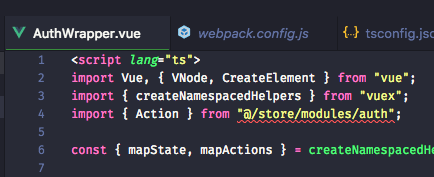
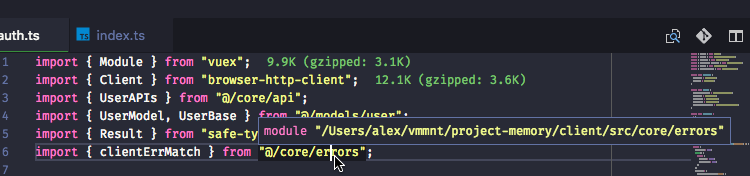
Path resolution is working great in my .ts files, but it's failing in my .vue files with lang="ts". If I open a new vscode window scoped just to the client directory, things do work though.
Am I missing something? Or is vetur not resolving the mapping relative to the correct directory?
 alexsasharegan
on 27 Feb 2018
alexsasharegan
on 27 Feb 2018
@alexsasharegan We haven't supported multi-root projects. Also see https://github.com/vuejs/vetur/issues/424
HerringtonDarkholme
on 28 Feb 2018
Faced the very same issue as @alexsasharegan, workaround as for now is to create tsconfig.json in the root of your workspace and make it extend your base tsconfig.json. So, your root tsconfig.json should include one configuration line:
{
  "extends": "./path/to/your/real/tsconfig.json"
}
After it, all the issues with missing aliased modules like https://github.com/vuejs/vetur/issues/762 or https://github.com/vuejs/vetur/issues/545 are gone, and TS type-checking and intellisense are working well in .vue files.
Should work well for multi-root projects as well following the same logic.
 evenfrost
on 25 Apr 2018
evenfrost
on 25 Apr 2018
To expand on @evenfrost's post (thank you; it saved me a lot of time), the root folder in a multi-root workspace corresponds to the first folder in the workspace folder list in VSCode.
So you would need to create the tsconfig.json file there that points to the tsconfig.json file in your web project in your workspace.
Another solution for a multi-root workspace is to rearrange it so your web project folder comes first in the list. Vetur then seems to pick up the tsconfig.json file in that folder correctly. This is what I ended up doing after chasing this issue around for a few hours. 😄
 neodon
on 17 Jul 2018
neodon
on 17 Jul 2018
Thanks @evenfrost, save my day
 danielschmitz
on 17 Jul 2018
danielschmitz
on 17 Jul 2018
Set VS Code user setting path-intellisense.extensionOnImpor to true.
 francoishill
on 21 Aug 2018
francoishill
on 21 Aug 2018
for those using vscode's multi root workspace feature:
make sure the first workspace root is your vue project, otherwise vetur won't pick up on your tsconfig
 blocka
on 14 Feb 2019
blocka
on 14 Feb 2019
@HerringtonDarkholme
I might have a use case that addressing the original issue might be worth looking into. It's related to a Vue CLI plugin for Nativescript-Vue that will allow code sharing between Web and Native platforms in a single project. It does use Webpack Resolve Extensions to do the heavy lifting from the build side of things.
I can open a new issue and reference this one if that would be better or I can continue in this issue with more details of the situation if you'd like.
 jawa-the-hutt
on 28 Feb 2019
jawa-the-hutt
on 28 Feb 2019
I use regular js (not ts) and I have this jsconfig.json and tsconfig.json in the root
{
"compilerOptions": {
"target": "ES6",
"baseUrl": "./src",
"paths": {
"@styles/*": ["styles/*"],
"@/*": ["src/*"]
}
},
"exclude": [
"node_modules",
"**/node_modules/*"
]
}
When I type imports nothing comes out while path input

 artfabrique
on 17 Apr 2019
artfabrique
on 17 Apr 2019
Hey @artfabrique , what I see is the _baseUrl_ seems strange, why is this ./src/ ? Or why do you add src/ again to the @/* ?
This will probably look for something like ./src/src/*
I have this working for me:
"baseUrl": ".",
"paths": {
"@/*": ["src/*"]
},
Maybe this helps! Cheers
 Cyclodex
on 18 Apr 2019
Cyclodex
on 18 Apr 2019
Hey @artfabrique , what I see is the _baseUrl_ seems strange, why is this
./src/? Or why do you add src/ again to the@/*?
This will probably look for something like./src/src/*
I have this working for me:"baseUrl": ".", "paths": { "@/*": ["src/*"] },Maybe this helps! Cheers
I'm on Windows10 and are you too?
artfabrique
on 19 Apr 2019
Nope, on mac.
Maybe you need backslash instead of slash? Not sure how windows is handling this...
Cyclodex
on 21 Apr 2019
I'm having the same issue. I have a multi project workspace: with a client/ directory where my Vue project lives.
I've put this in the client folder, and then also tried adding the "extends" jsconfig file at the root directory, like @evenfrost recommended.
{
"include": ["src/**/*"],
"compilerOptions": {
"baseUrl": ".",
"paths": {
"@/*": ["src/*"]
}
},
"exclude": ["node_modules"]
}
Intellisense works perfectly without the '@/', so if I do something like import Service from ../blah/service', that works, but@/blah/service` does not.
Any suggestions? Would love Intellisense to work, and I feel like I'm so close!
 ns412
on 19 May 2019
ns412
on 19 May 2019
Also have this problem.
Some time ago, VScode detects are error with experimentalDecorators and gave me a fast correction. This correction creates a jsconfig.json. I don't know why but since the create of this file, VSCode ignore tsconfig.json. I juste remove the jsconfig.json and reload window and everything works fine.
 VaultDeveloper
on 29 May 2019
VaultDeveloper
on 29 May 2019
For anyone interested, I just spent 2h on making my specific use case work with this issue of going to definition (+ autocompletion of methods and properties).
My monorepo project:
.
├─ node_modules
├─ packages
│ ├─ @configs
│ │ └─ tsconfig.base.json
│ ├─ core (JS)
│ ├─ app1 (VueJS)
│ ├─ app2 (VueJS)
│ └─ ...
└─ tsconfig.json
As you can see I have several VueJS apps (independant from each others but everyone is dependant of core) and I wanted to ctrl+click into my imports in order to peek inside.
My solutions is as follow:
./tsconfig.json
{
"extends": "./packages/@configs/tsconfig.base.json"
}
./packages/@configs/tsconfig.base.json
{
"compilerOptions": {
"allowSyntheticDefaultImports": true,
"experimentalDecorators": true,
"baseUrl": ".",
"paths": {
"@/*": ["*", "src/*", "../app1/src/*", "../app2/src/*"], // this is the secret ingredient, add all of your projects here
"@core/*": ["../core/src/*"]
}
}
}
Everything is not perfect tho, sometimes it works, sometime it doesn't. I didn't make sense of that yet (seems like it needs an export to work, so functional components without scripts won't make it) but I finally have 80% of my files I can open through ctrl+click so it's a win.
Hope it will help someone. :)
 speyou
on 7 Jun 2019
speyou
on 7 Jun 2019
@speyou Thanks the
"allowSyntheticDefaultImports": true
Worked for me in .jsconfig.json file
For anyone in the future looking for something simple:
// jsconfig.js
{
"compilerOptions": {
"allowSyntheticDefaultImports": true,
"baseUrl": ".",
"paths": {
"@/*": ["./src/*"],
}
},
"include": ["src"]
}
 JoePassanante
on 31 Jul 2019
JoePassanante
on 31 Jul 2019
Faced the very same issue as @alexsasharegan, workaround as for now is to create tsconfig.json in the root of your workspace and make it extend your base tsconfig.json. So, your root tsconfig.json should include one configuration line:
{
  "extends": "./path/to/your/real/tsconfig.json"
}
After it, all the issues with missing aliased modules like #762 or #545 are gone, and TS type-checking and intellisense are working well in .vue files.
Should work well for multi-root projects as well following the same logic.
Genius!
 segidev
on 3 Nov 2020
segidev
on 3 Nov 2020
css
WebStorm omits the file extensions by default (new project with Vue CLI). I can't find an IDE option to enforce extensions for .vue files and omit it for .js files. There is option to require to always add an extension
So to have code completion for all developers in my project I have to add .js extensions everywhere? Is that Vetur way of solving the problem for projects that use different editors?
I've tried to switch from WebStorm to VSCode (4 times by now) and these are the kind of issues that always bring me back to WebStorm.
 exarus
on 30 Nov 2020
exarus
on 30 Nov 2020
Faced the very same issue as @alexsasharegan, workaround as for now is to create tsconfig.json in the root of your workspace and make it extend your base tsconfig.json. So, your root tsconfig.json should include one configuration line:
{
  "extends": "./path/to/your/real/tsconfig.json"
}
After it, all the issues with missing aliased modules like #762 or #545 are gone, and TS type-checking and IntelliSense are working well in .vue files.
Should work well for multi-root projects as well following the same logic.
Thank you, you saved my time.
Deserve thumbs up!
 kjo1
on 2 Dec 2020
kjo1
on 2 Dec 2020
Related issues
 OsterHuang
·
3Comments
OsterHuang
·
3Comments
 octref
·
3Comments
octref
·
3Comments
 thibautguedou3
·
3Comments
thibautguedou3
·
3Comments
 muhajirdev
·
3Comments
muhajirdev
·
3Comments
 ghost
·
3Comments
ghost
·
3Comments
Most helpful comment
Faced the very same issue as @alexsasharegan, workaround as for now is to create tsconfig.json in the root of your workspace and make it extend your base tsconfig.json. So, your root tsconfig.json should include one configuration line:
After it, all the issues with missing aliased modules like https://github.com/vuejs/vetur/issues/762 or https://github.com/vuejs/vetur/issues/545 are gone, and TS type-checking and intellisense are working well in .vue files.
Should work well for multi-root projects as well following the same logic.