Vedo: font size of labels in 3D scalarbar
Hi @marcomusy
I couldn't find an argument for specifying the font size in 3D scalarbar
For instance, in this example here https://github.com/marcomusy/vedo/issues/182#issuecomment-704532335
I would like to increase the size of the fonts of nlabels in the colorbar.
nx_pts.addScalarBar3D(title='\mu - parameter',
                      titleFont='VictorMono',
                      labelFont='Quikhand',
                      #aboveText='above 1',
                      c='white')
Could you please suggest how this can be done?
 DeepaMahm
All 11 comments
Hi - you are right.. I forgot to add a labelSize property.
Meanwhile you can do it by unpacking the Assembly object with:
# ...
nx_pts.scalarbar.addPos(0.1,0,0).useBounds()
for a in nx_pts.scalarbar.unpack():
if a and a.name=='Text': a.scale(2)
 marcomusy
on 7 Nov 2020
marcomusy
on 7 Nov 2020
@marcomusy Thanks so much ! this helps.
If I may ask a side question,
plt = Plotter(shape=(nspecies, len(ts)), interactive=True, sharecam=1, bg='black')
plt.show(pts,
edg1,
txt,
axes=True,
at=at).screenshot('img.png')
I'm using the above to save screenshots of the 3D networks that are generated. In the interactive window that pops up, I change the orientation (e.g move the cursor a bit to the right) and zoom in a bit for visualization and I'd prefer to save the screenshot in the same orientation and magnification. I'm not sure how this can be done.
Could you please help me with this?
DeepaMahm
on 7 Nov 2020
For the second part of you question:
You can provide a camera (dictionary) in the show method.
camera = dict()
camera['viewup'] = [0, 0, 1]
camera['pos'] = camera_pos
camera['focalPoint'] = lookat
plt.show(......, camera=camera).screeenshot('img.png')
 RubendeBruin
on 7 Nov 2020
RubendeBruin
on 7 Nov 2020
Also, if you have multiple renderers (I see you have at=..) you can postpone the screenshot to the end with
plt.screenshot('img.png')
marcomusy
on 7 Nov 2020
@RubendeBruin
Thanks a lot for the suggestion.
Unfortunately, I don't know how to set the values of camera_pos and lookat. I tried something like the below
camera = dict()
    camera['viewup'] = [0, 0, 0]
    # camera['pos'] = [0, 1, 1] #is there a way to get this value
    camera['focalPoint'] = [0.8, 0.8, 0.8] #is there a way to get this value from the image window before saving the screenshot
The values assigned for focalPoint helps in obtaining the orientation that I want. I couldn't understand how this works though.
However, I am still not sure how to zoom in. The issue is I have a (2 x4) panel. The panel has been created as suggested here(https://github.com/marcomusy/vedo/issues/186#issuecomment-669232839). After I zoom in the figure size ( in each panel) gets adjusted i.e the blank space between adjacent panel gets reduced and the content panel is clearly visible. I'm not sure if the
the best way is to define the size of the figure in each panel or to fix the value for zooming in.
Suggestions will be of great help.
@marcomusy Thanks for the tip. I was wondering how to do that.
I'd also like to know how to define the settings for saving a better quality image of the screenshot. I tried
# settings.screeshotScale = 2
unfortunately, this creates an issue. I am able to find only a 1X2 panel in the screenshot instead of a 2X4 (defined in the Plotter).
DeepaMahm
on 7 Nov 2020
One quick way is to create a scene orient it the way you prefer and then press shift-C to get a text dump like:
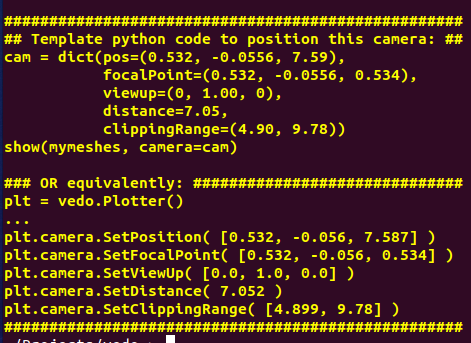
I tried # settings.screeshotScale = 2
Uhm.. with many renderings this is causing troubles - VTK doesn't support it very well. Maybe try some combination with screeshotLargeImage=True can do better..
marcomusy
on 7 Nov 2020
Uhm.. with many renderings this is causing troubles - VTK doesn't support it very well. Maybe try some combination with
screeshotLargeImage=Truecan do better..
:'C It didn't help, unfortunately.
One quick way is to create a scene orient it the way you prefer and then press
shift-Cto get a text dump like:
I'm sorry for too many questions. But could you please let me know how to do that? I'm using vedo in Pycharm on a windows machine.
Is it a good idea to run the code in command prompt and do Shift+ C?
DeepaMahm
on 7 Nov 2020
:'C It didn't help, unfortunately.
I'll try to reproduce the issue on some example that uses multiple renderers.
One other possibility which comes to my mind is to increase the size of the Plotter window with Plotter(size=...)
Is it a good idea to run the code in command prompt and do Shift+ C?
no, when the rendering window pops up you press shift-C (not ctrl-C) on that window (not in the pycharm terminal) - that will generate the dump which you can cut&paste in your code.
I'm sorry for too many questions.
no worries at all!
marcomusy
on 7 Nov 2020
I tried size=(1400,1400). The window gets maximized but the space between figure in (row, col) position and (row, col+1) position in the 2 x 4 panel still remains.
no, when the rendering window pops up you press
shift-C(notctrl-C) on that window (not in the pycharm terminal) - that will generate the dump which you can cut&paste in your code.
I ran this code https://github.com/marcomusy/vedo/issues/186#issuecomment-669232839 , https://user-images.githubusercontent.com/32848391/89426042-ff9fec80-d739-11ea-853c-f3363caebe49.png appears in the rendering window and I did a shift-C on the rendering window after slightly changing the orientation of the images using the cursor. This didn't generate a dump :-/
DeepaMahm
on 7 Nov 2020
This didn't generate a dump :-/
that's VERY strange! Does pressing h generate the helper dump?
The problem I have now with the code in #186 is that every time I run it gives a different output so it's a bit difficult to fix the layout.
You can try to add a zoom to the last call of show(zoom=1.2).
marcomusy
on 8 Nov 2020
that's VERY strange! Does pressing
hgenerate the helper dump?
This too didn't generate the dump :-/
The problem I have now with the code in #186 is that every time I run it gives a different output so it's a bit difficult to fix the layout.
You can try to add a zoom to the last call ofshow(zoom=1.2).
This helps me when [x,y,z] pos of nx_pts are provided as input for the real networks that I plot. Thank you
DeepaMahm
on 9 Nov 2020
Related issues
 drew-parsons
·
7Comments
drew-parsons
·
7Comments
 vianamp
·
3Comments
vianamp
·
3Comments
 hmralavi
·
7Comments
hmralavi
·
7Comments
 MarkusRosen
·
5Comments
DeepaMahm
·
5Comments
MarkusRosen
·
5Comments
DeepaMahm
·
5Comments
Most helpful comment
For the second part of you question:
You can provide a camera (dictionary) in the show method.