Ultisnips: Not working on neovim with custom snippets
Trying to add custom snippets but not working/loading
  let g:UltiSnipsJumpForwardTrigger="<c-j>"
  let g:UltiSnipsJumpBackwardTrigger="<c-k>"
  let g:UltiSnipsSnippetsDir="~/.config/UltiSnips"
  let g:UltiSnipsEnableSnipMate=0
 carlitux
All 3 comments
Working with this config
  let g:UltiSnipsExpandTrigger = "<tab>"
  let g:UltiSnipsJumpForwardTrigger = "<c-j>"
  let g:UltiSnipsJumpBackwardTrigger = "<c-k>"
  let g:UltiSnipsSnippetsDir = $HOME."/.config/UltiSnips"
  let g:UltiSnipsSnippetDirectories = ['UltiSnips', $HOME.'/.config/UltiSnips']
  let g:UltiSnipsEnableSnipMate = 0
Of the lines you modified, only one was necessary for me:
let g:UltiSnipsSnippetDirectories = ['UltiSnips', $HOME.'/.vim/UltiSnips']
I still don't understand what happened here though: the exact same (well... symlinked) .vimrc file worked with Ultisnips in regular vim but failed in nvim.
 jackkinsella
on 7 Mar 2018
jackkinsella
on 7 Mar 2018
This is another related issue posted here. But the answers given are not clear. The above settings given by @jackkinsella does not work for neovim unless directory $HOME/.vim is in the Neovim runtime path.
The documentation of UltiSnips has explained how the snippets are searched (see :h UltiSnips-how-snippets-are-loaded). But it is still not crystal clear how to configure so that our custom snippets can be found by UltiSnips.
From the documentation of UltiSnips:
UltiSnips will search each 'runtimepath' directory for the subdirectory names defined in g:UltiSnipsSnippetDirectories in the order they are defined. For example, if you keep your snippets in
~/.vim/mycoolsnippetsand you want to make use of the UltiSnips snippets that come with other plugins, add the following to your vimrc file.let g:UltiSnipsSnippetDirectories=["UltiSnips", "mycoolsnippets"]
The description above is both informative and confusing because it is written for Vim users, not Neovim users. As a result, if you follow the above example, you will find that the custom snippets are not available for auto-completion.
In the following, I will write what is working for Neovim.
First, open nvim and use the command :echo &runtimepath. This command will print all the runtime paths that Neovim searches. According to the documentaion, your custom snippets directory should be put under one of these runtime paths. On my Windows machine, the output is like (the full output is omitted for brevity):
C:\Users\Administrator\AppData\Local\nvim,C:\Users\Administrator\AppData\Local\nvim\plugged\deoplete.nvim,C:\Users\Administrator\AppData\Local\nvim\plugged\deoplete-jedi,C:\Users\Administrator\AppData\Local\nvim\plugged\neco-vim,.....
On my Linux machine, the output is like (the full output is omitted):
/home/haojiedong/.config/nvim,/home/haojiedong/.local/share/nvim/plugged/deoplete.nvim/,/home/haojiedong/.local/share/nvim/plugged/deoplete-jedi/,/home/haojiedong/.local/share/nvim/plugged/jedi-vim/,.....
Different runtime paths are separated by a comma. The steps of configuring custom snippets are the same for both Windows and Linux. So in the following part, I will only focus on Linux since it is more popular.
One of the runtime paths on Linux is /home/haojiedong/.config/nvim. We choose this directory and create a folder named my_snippets. Then we create a file named markdown.snippets under folder my_snippets. Add the following snippet to markdown.snippets:
snippet kbd "Keyboard tag"
<kbd>${1:KEY}</kbd> $0
endsnippet
This will create a snippet named kbd for markdown filetype.
In the third step, we add the following setting to init.vim:
" `my_snippets` is the directory we created before
let g:UltiSnipsSnippetDirectories=["UltiSnips", "my_snippets"]
Now, open a markdown file and start typing kbd and you should be able to see the kbd autocomplete item:
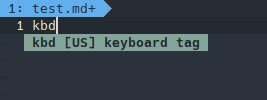
The completion engine I am using is deoplete and US means that this completion item is from UltiSnips.
 jdhao
on 28 Mar 2019
jdhao
on 28 Mar 2019
Related issues
 vanabel
·
7Comments
vanabel
·
7Comments
 raorm
·
4Comments
raorm
·
4Comments
 kirillbobyrev
·
4Comments
kirillbobyrev
·
4Comments
 PratikBhusal
·
3Comments
PratikBhusal
·
3Comments
 LinArcX
·
3Comments
LinArcX
·
3Comments
Most helpful comment
Working with this config