Theia: Add a presenter mode to view options
It would be great to have a presentation mode similar to IntelliJ's. Because the terminal and command panel are pretty key for Theia, I think we'd need to make sure that the terminal area can be quickly hidden/shown in presentation mode. We'd also want to make sure that the font size increase for the editor is done in the terminal as well:
Requirements
- Assign a hotkey to get in/out of this mode
- Hide the left nav
- Hide project explorer
- Hide the toolbar, leave top menu and tabs
- Collapse terminal and command panel so it's 5 terminal lines tall
- Increase font size for editor and terminal / command output (user configurable)
- Shrink terminal/command/info panel at the bottom of the window to ~5 terminal lines tall
 bmicklea
All 10 comments
I wonder can it be implemented as a VS Code extension or has to be backed-in?
 akosyakov
on 20 May 2020
akosyakov
on 20 May 2020
I wonder can it be implemented as a VS Code extension or has to be backed-in?
There is a vscode extension that supports a presentation mode but it relies on vscode's zen mode.
 vince-fugnitto
on 20 May 2020
vince-fugnitto
on 20 May 2020
We have toggle maximized mode plus zoom keybindings?
akosyakov
on 20 May 2020
We have toggle maximized mode plus zoom keybindings?
Yes I know, should we register the zen commands to internally trigger the maximized mode?
The zen-mode and maximized do differ however.
vince-fugnitto
on 20 May 2020
Maximized mode is helpful but there are a few issues:
- Lack of dedicated hotkeys for zoom in means it's awkward to zoom in large enough to be seen by a large audience at an event
- Zoom only affects the editor font - for presentations you want it to enlarge the terminal font as well (perhaps even the project explorer)
- Can't show the terminal and code window simultaneously in maximized mode
My use case is that I want to be able to setup my IDE for doing a presentation in a large room with a projector. I'm okay with swapping between some presentation-like mode that shows only the code and terminal as long as the enlarged font affects the editor, terminal and command palette. From there it would be okay to jump out of that mode to navigate the project hierarchy.
bmicklea
on 20 May 2020
Maximized mode is helpful but there are a few issues:
- Lack of dedicated hotkeys for zoom in means it's awkward to zoom in large enough to be seen by a large audience at an event
- Zoom only affects the editor font - for presentations you want it to enlarge the terminal font as well (perhaps even the project explorer)
- Can't show the terminal and code window simultaneously in maximized mode
Your comment is not necessarily true:
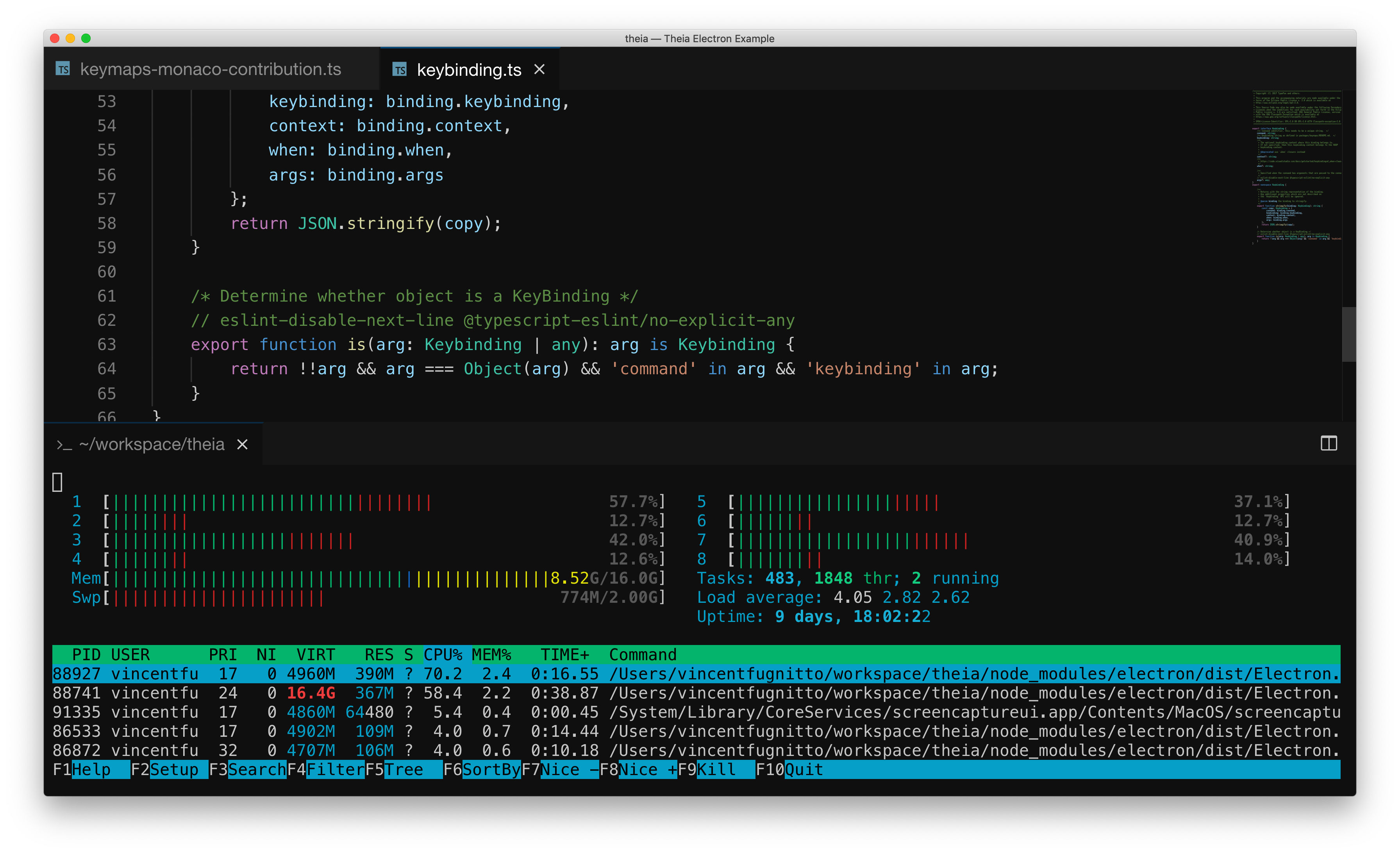
- you can have multiple views in maximized mode but they need to be present in the same panel (ex: main view)
- you can use the zoom to change the font-size and overall size of components
Please see the example below (simultaneous views (editor and terminal) all zoomed):
 vince-fugnitto
on 20 May 2020
vince-fugnitto
on 20 May 2020
Ah, I missed that @vince-fugnitto, thanks. That might be sufficient. In this case you'd need to use the browser zoom to enlarge everything?
bmicklea
on 20 May 2020
you can have multiple views in maximized mode but they need to be present in the same panel (ex: main view)
That can be awkward, especially if you want to open new terminals. But if you can preconfigure layout before the demo it looks like we have already everything.
Lack of dedicated hotkeys for zoom in means it's awkward to zoom in large enough to be seen by a large audience at an event
There are keybindings to toggle maximized mode and browser keybindings to zoom in/out.
akosyakov
on 20 May 2020
Ah, I missed that @vince-fugnitto, thanks. That might be sufficient. In this case you'd need to use the browser zoom to enlarge everything?
Yes I used the browser zoom.
On electron we have a zoom command which essentially performs the same action.
That can be awkward, especially if you want to open new terminals. But if you can preconfigure layout before the demo it looks like we have already everything.
Yes, I was thinking as a pre-configured demo. It is also possible to drag + drop the parts you need during a demo and then perform the 'toggle maximized mode')
vince-fugnitto
on 20 May 2020
Thanks @vince-fugnitto and @akosyakov, I'm closing this as solved. If I have more feedback after using it for a bit I'll let you know but this should get me and others >80% of the way there.
bmicklea
on 20 May 2020
Related issues
vince-fugnitto
·
3Comments
 kittaakos
·
3Comments
vince-fugnitto
·
3Comments
kittaakos
·
3Comments
vince-fugnitto
·
3Comments
 tetchel
·
3Comments
tetchel
·
3Comments
 vinokurig
·
3Comments
vinokurig
·
3Comments