Teslamate: TeslaMate.Api => Error: unknown => Mint.TransportError{reason: :nxdomain}
**SOLVED!!** Solution was to update Client & Server Docker Engine from v1.13.1 to v19.03.8
..........................................................................................
There seems to be a bug that references TeslaMate.Api
Once authenticated at https://teslamate.domain.com on port 4000 and proxied to the docker container, the initial login page requiring the Tesla official credentials puts out a "Error: unknown" message when using confirmed valid Tesla credentials.
Logs were monitored using: docker logs --follow
Logs include the following line repeating with each Tesla official credentials login attempt:
18:35:30.928 [info] Elixir.TeslaMate.Api / unhandled message: {#Reference<0.3488583564.223870977.230323>,
 {:error, %Mint.TransportError{reason: :nxdomain}}}
Operating environment
- TeslaMate version: v1.18.2
- Type of installation: Docker (Advanced install with Apache2, TLS, HTTP Basic Auth)
- OS: cPanel CentOS 7.7 with CSF csf: v14.02 (cPanel)
- Ports 3000 and 4000 were opened in CSF under both TCP_IN and TCP_OUT
- Docker version 1.13.1
- docker-compose version 1.25.2, build 698e2846
- docker-py version: 4.1.0
- CPython version: 3.7.5
- OpenSSL version: OpenSSL 1.1.0l 10 Sep 2019
 SemoTech
All 15 comments
There appears to be an issue with DNS resolution on your machine. NXDOMAIN means that the lookup of the required DNS entry returned a response of "domain does not exist"
 ngardiner
on 15 Apr 2020
ngardiner
on 15 Apr 2020
@ngardiner Thank you for the prompt reply.
Since this may be a DNS resolution problem, what is the domain the API is using to do the lookup for?
SemoTech
on 15 Apr 2020
There are multiple hostnames TeslaMate would need to resolve to work correctly, owner-api.teslamotors.com is one of them.
ngardiner
on 15 Apr 2020
Thank you @ngardiner
Do you know where the full list of servers are in the code, so I can test them all?
P.S. I did a ping on the server to the one you gave me and it resolved:
[root@host docker]# ping owner-api.teslamotors.com
PING owner-api.vn.tesla.services (205.234.31.120) 56(84) bytes of data.
Here are a few more domains that the car talks to - I don't think Teslamate talks to all of these but these are the ones I am aware of. But at the end of the day you might want to figure out the DNS issues. Maybe try the dig command (if you are on Linux) and then see what happens.
daws.tesla.services
x1.ap.tesla.services
owner-api.teslamotors.com
api-prd.vn.tesla.services
tesla-mothership-files-prd.s3.us-west-2.amazonaws.com
telemetry-prd.vn.tesla.services
hermes-stream-prd.vn.tesla.services
connman.vn.tesla.services
hermes-prd.vn.tesla.services
 bahree
on 15 Apr 2020
bahree
on 15 Apr 2020
P.S. I did a ping on the server to the one you gave me and it resolved:
The server itself may be able to resolve the record, but I would be testing this inside of the TeslaMate docker container which needs to be able to resolve these. Given the way docker networking works, the issue is likely only present for containers rather than for the host.
ngardiner
on 15 Apr 2020
Thanks @ngardiner that may be it. I temporarily bypassed login with the API Key, but would like to solve it for regular login.
OK, so I used:
docker exec -it docker_teslamate_1 /bin/bash
and pinged from inside the container
bash-5.0$ ping owner-api.teslamotors.com
and got
PING owner-api.teslamotors.com (205.234.31.120): 56 data bytes
So DNS resolved inside the container! At a loss now...
SemoTech
on 15 Apr 2020
This may or may not be related, but the Docker version you're using is from 2017. It might be a good idea to update it to the latest version.
 adriankumpf
on 15 Apr 2020
adriankumpf
on 15 Apr 2020
Thanks @adriankumpf for noticing and pointing that out, brilliant!
Updated Client & Server Docker Engine from v1.13.1 to v19.03.8 built March 2020
Docker Compose remained on v1.25.2, build 698e2846 as that was built January 2020
Login now works!!!
Quick Q: _How does Tesla credentials caching work in TeslaMate?_
A) Originally I had managed to inject the API Tokens to bypass the login, but they expire in 45 days. _I assume I have to re-do the process and update them ongoing in the DB every 45 days?_
B) Also, since I managed to get the login to work by upgrading Docker, _do I have to re-login on some cadence to ensure TeslaMate can always poll the vehicle?_
Thanks again!
SemoTech
on 16 Apr 2020
A) Originally I had managed to inject the API Tokens to bypass the login, but they expire in 45 days. I assume I have to re-do the process and update them ongoing in the DB every 45 days?
I thought that "refresh_token": "YOURREFRESHTOKEN" is for that, to refresh the token, I might be wrong of course.
 DariBer
on 16 Apr 2020
DariBer
on 16 Apr 2020
Yup, that's what the refresh token is for 👍
B) Also, since I managed to get the login to work by upgrading Docker, do I have to re-login on some cadence to ensure TeslaMate can always poll the vehicle?
That's not necessary. As long as it's running, data is being recorded.
adriankumpf
on 16 Apr 2020
I'm having similar issues on my Synology NAS. This has Docker 18.09.8, build 2c0a67b which unfortunately can't be upgraded to the latest.
 ramonsmits
on 8 May 2020
ramonsmits
on 8 May 2020
For reference, it's working on my Synology DS415+.
My problem was that I have my NAS configured to use a DNS service. This allowed only queries for my local subnet but not for the subnets of the various docker networks. The solution was to add 172.16.0.0/12 to the allowed subnets. The DNS server only allowed to enter this as 172.16.0.0/255.240.0.0
Although I tried adding DNS entries in the docker-compose.yml these seemed to be ignored by the Docker version 18.09.8, build 2c0a67bon my Synology NAS.
ramonsmits
on 8 May 2020
For reference, it's working on my Synology DS415+.
My problem was that I have my NAS configured to use a DNS service. This allowed only queries for my local subnet but not for the subnets of the various docker networks. The solution was to add
172.16.0.0/12to the allowed subnets. The DNS server only allowed to enter this as172.16.0.0/255.240.0.0Although I tried adding DNS entries in the
docker-compose.ymlthese seemed to be ignored by the Docker version18.09.8, build 2c0a67bon my Synology NAS.
Hey @ramonsmits, I'm having the same issue on my Synology. I'm pretty new to all of this. Would it be possible to explain where to add the /12 to the allowed subnets? Not sure if this should be done somewhere in the network configuration on the Synology or with the .yml file or somewhere else entirely.
 chrismcdonald3
on 24 Sep 2020
chrismcdonald3
on 24 Sep 2020
To extend my previous response. Tonight I helped resolve this issue for another Synology user by following the instructions from this blog post:
https://robinwinslow.uk/fix-docker-networking-dns
It involves creating the file /etc/docker/daemon.json with the following content and restarting the docker service (or nas).
{
    "dns": ["10.0.0.2", "8.8.8.8"]
}
This was not needed on my Synology NAS.
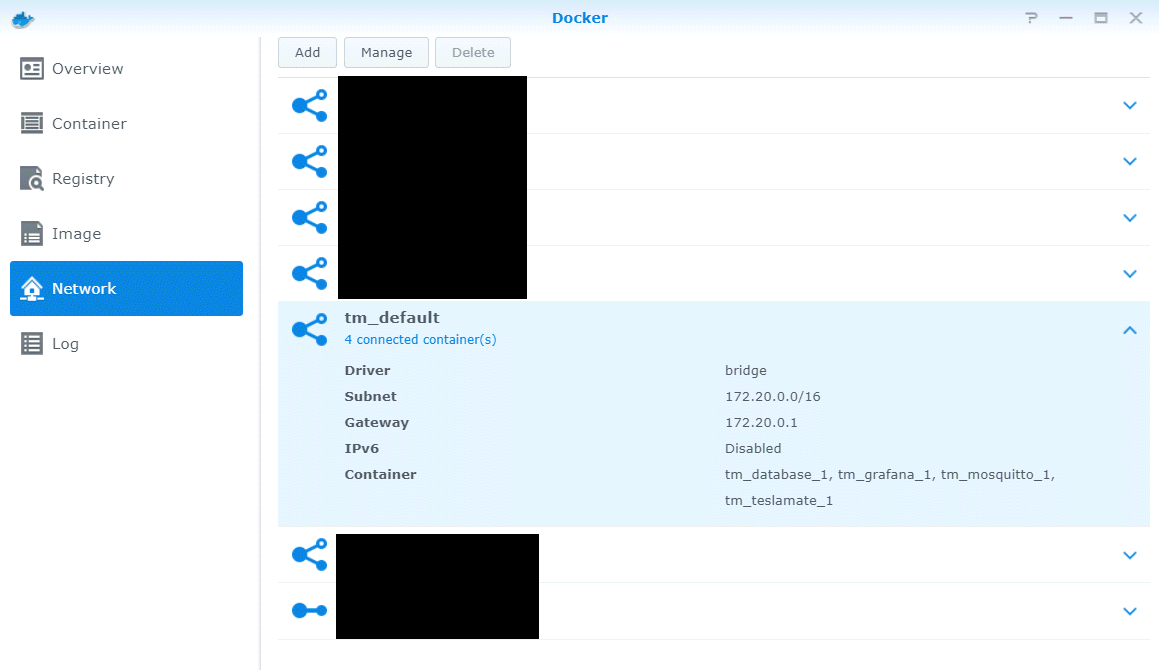
If you use Synology DNS then please ensure you use the correct subnet if you have limited the access to the service. You can locate the IP range via the Synology Docker Networks. Open the corresponding network and copy the correct subnetmask.
ramonsmits
on 12 Jan 2021
Related issues
 russinating
·
4Comments
russinating
·
4Comments
 Highlander1694
·
3Comments
Highlander1694
·
3Comments
 kongomongo
·
5Comments
kongomongo
·
5Comments
 netkruzer
·
6Comments
netkruzer
·
6Comments
 phantom1584
·
4Comments
phantom1584
·
4Comments