Teslamate: Tasker Setup Troubleshooting
As noted in the guide, @adriankumpf setup Teslamate with dynamic polling minimize the frequency your vehicle is polled when it is sleeping/inactive.
Tasker can automatically trigger Teslamate to resume polling the vehicle upon connecting to your Tesla's bluetooth.
With guidance from @IMgoRt :
"In tasker open a new task, add a javascriptlet and put the following:
xmlhttp = new XMLHttpRequest(); xmlhttp.open('PUT', 'https://192.168.1.1:4000/api/car/1/logging/resume');
where 192,168.1.1 is the IP address (I have mine over a VPN), 4000 is the port and 1 is the car number"

Unfortunately, this did not work for me - perhaps related to my NGINX setup. Perhaps I don't have Tasker configured properly yet. Maybe others can comment on what needs to be done to make this work.
I can however confirm this works without Secure HTTP.
Create a new Task : "Teslamate Resume"
Click the + sign to add a new Action>Net>HTTP Request
Set the Method to PUT
Set the URL to http://192.168.86.22:4000/api/car/1/logging/resume

You can then test it within Tasker by clicking the play button and checking against the Teslamate Server log.

Trigger the Task by connecting to your Model S Bluetooth
Select PROFILES
Click the + on the bottom right and name it : BT Connected
Choose STATE>Net>BT Connected
Name : click the magnifying glass to choose your Tesla
Address : click the magnifying glass to choose your Tesla
Select the Task Teslamate Resume


Setup a similar process to SUSPEND as required.
Hopefully others will find this useful. In the meantime, I will try and figure out how to make this work outside of my LAN.
 jun3280net
All 32 comments
To me it makes sense that it would not work over https, but it would over http. Teslamate, by default, listens to http requests (as far as I'm aware) and unless you have something else listening for https requests and terminating SSL it will not work.
Given that you are using the same port for both http and https it seems to me that it unlikely you have another NGINX server setup to accept https requests as that would cause port conflicts.
Maybe I'm missing something?
 Simple-Complexity
on 19 Aug 2019
Simple-Complexity
on 19 Aug 2019
Thanks @jun3280net for this.
I can confirm that using JavaScriptlet works over HTTPS whereas using HTTP Request only works over HTTP in my environment too (OpenVPN access)
I've no idea why.
 IMgoRt
on 19 Aug 2019
IMgoRt
on 19 Aug 2019
Hmmm, I cannot get it working. I get
teslamate_1 | 15:37:51.802 [info] GET /api/car/1/logging/resume
teslamate_1 | 15:37:51.802 [info] Sent 404 in 247µs
teslamate_1 | 15:37:51.802 [info] Converted error Phoenix.Router.NoRouteError to 404 response
when I try to access http://
 DrMichael
on 2 Sep 2019
DrMichael
on 2 Sep 2019
Hmmm, I cannot get it working. I get
teslamate_1 | 15:37:51.802 [info] GET /api/car/1/logging/resume
teslamate_1 | 15:37:51.802 [info] Sent 404 in 247µs
teslamate_1 | 15:37:51.802 [info] Converted error Phoenix.Router.NoRouteError to 404 responsewhen I try to access http://:4000/api/car/1/logging/resume
I'm not familiar with Tasker but you need a PUT request not GET. Make sure you select PUT Method.
 virtualm2000
on 2 Sep 2019
virtualm2000
on 2 Sep 2019
In addition is your IP correct or you have just removed it for posting here?
 bahree
on 2 Sep 2019
bahree
on 2 Sep 2019
Ah, ok, that gives me
teslamate_1 | 16:05:07.309 [info] PUT /api/car/1/logging/resume
teslamate_1 | 16:05:07.313 [info] Sent 204 in 3ms
What probably means, that it is ok...
DrMichael
on 2 Sep 2019
In addition is your IP correct or you have just removed it for posting here?
I replaced it by
DrMichael
on 2 Sep 2019
Ok @adriankumpf I finally got something that should works well enough! Anybody more technically inclined in the space of network security - feel free to chime in, as I'm new to all of this. I was largely unsuccessful getting NGINX to do what I needed it to do, so I started to simply looked into setting up a VPN (which i've had no previous experience with). I saw @IMgoRt mentioned using OPENVPN - so I decided to search that.
I spun up another instance of Ubuntu on VMWARE (I'm sure I could use the same image I have for TESLAMATE - but didn't want to risk corrupting it). That said, with the new instance of VMWARE - simply follow the guide here which takes no longer than 10 minutes to get OPENVPN server setup to allow you to connect to your LAN from the outside.
https://www.cyberciti.biz/faq/howto-setup-openvpn-server-on-ubuntu-linux-14-04-or-16-04-lts/
Once you have the server setup, be sure to port forward your server's LAN IP (eg 192.168.86.xxx) on port 1194 on your router.
Using your phone, disconnect from your LAN (eg shut off wifi to use LTE).
Install OPENVPN client on your phone and import the file.ovpn file your server created (I emailed this file to myself). Add the connection, and it should load up.
Once it is connected, you should be able to type your TESLAMATE's LAN IP (eg 192.168.86.22:4000) into your Chrome browser. Voila - you are connected to your server from the outside.
Use the TASKER setup I provided above to get your Tesla to trigger the Teslamate server each time your bluetooth connects to the car.
I hope this helps - and feel free to comment on how to improve this setup.
Is there a place this type of information can be added to help people setup?
jun3280net
on 14 Sep 2019
Thanks @jun3280net! I added a link to your comment to this new wiki page: Community Guides :)
 adriankumpf
on 14 Sep 2019
adriankumpf
on 14 Sep 2019
Thanks @jun3280net! I added a link to your comment to this new wiki page: Community Guides :)
Thanks @adriankumpf keep up the great work! Look forward to the future features down the pipe.
jun3280net
on 14 Sep 2019
Any luck with getting the Tasker to work when using HTTPS connection @jun3280net ? I'm using the Docker installation of TeslaMate and would love to wake up the connection when it senses and connects my phone via bluetooth.
Here's my guide on the Docker setup at DigitalOcean:
https://satheesh.net/2019/09/28/teslamate-digitalocean-docker-step-by-step-installation-guide/
When using HTTPS the port number isn't specified after the FQDN. Is there a way to access the command /api/car/1/logging/resume differently perhaps? Firewall issue maybe? Web-server? Maybe @adriankumpf have some tips?
 spacecosmos
on 1 Oct 2019
spacecosmos
on 1 Oct 2019
I'm not familiar with Tasker, but theoretically you just need to set the authorization header with your username and password (from .htpasswd):
xmlhttp.setRequestHeader("Authorization", "Basic " + btoa("yourusername:yourpassword"));
The port doesn't need to be specified:
https://teslamate.example.com/api/car/1/logging/resume
The port doesn't need to be specified:
https://teslamate.example.com/api/car/1/logging/resume@adriankumpf
I tried putting _just_ the url _with_/api/car/1/logging/resumein the browser address without success. Maybe I'm missing something? Is the "car/1" correct or is the value supposed to be something else? Since I'm already authenticated I would think it would work without specifying any additional credentials as long as I'm just opening another tab in the same browser session.
Example:
https://mydomain.com/api/car/1/logging/resume
That gives me this error in the browser window (and the car is still asleep):
Not Found
spacecosmos
on 1 Oct 2019
It cannot simply be opened in the browser because it must be a PUT request.
adriankumpf
on 1 Oct 2019
It cannot simply be opened in the browser because it must be a PUT request.
Ok - then my developer skills are a bust at this point. :)
PS! Maybe you can implement a link on the TeslaMate Dashboard? 💯
spacecosmos
on 1 Oct 2019
Any luck with getting the Tasker to work when using HTTPS connection @jun3280net ? I'm using the Docker installation of TeslaMate and would love to wake up the connection when it senses and connects my phone via bluetooth.
Here's my guide on the Docker setup at DigitalOcean:
https://satheesh.net/2019/09/28/teslamate-digitalocean-docker-step-by-step-installation-guide/When using HTTPS the port number isn't specified after the FQDN. Is there a way to access the command
/api/car/1/logging/resumedifferently perhaps? Firewall issue maybe? Web-server? Maybe @adriankumpf have some tips?
hi @spacecosmos - unfortunately, I was not able to get HTTPS working. I couldn't get NGINX working given my very limited understanding with networking and linux. As I was able to get it working using HTTP....I ended up just setting up a VPN. That worked best for me - because whenever I'm connected to the VPN, I can see my local area network.
On a separate note - for HTTPS - did you setup a DNS name? I think if you have a DNS name wouldn't you be able to bypass the port number that way?
@adriankumpf used to have a link to wake up /sleep the car on Teslamate (Port 4000), but I don't see it anymore.
jun3280net
on 1 Oct 2019
@adriankumpf used to have a link to wake up /sleep the car on Teslamate (Port 4000), but I don't see it anymore.
You mean the button to suspend / resume logging, right? It's still there. But it's not always visible, only when it makes sense, like when the car is online and locked, or when it's attempting to sleep.
adriankumpf
on 1 Oct 2019
@adriankumpf used to have a link to wake up /sleep the car on Teslamate (Port 4000), but I don't see it anymore.
You mean the button to suspend / resume logging, right? It's still there. But it's not always visible, only when it makes sense, like when the car is online and locked, or when it's attempting to sleep.
Weird - honestly I haven't seen it in a very long time (since like V 1.7 I think).
jun3280net
on 1 Oct 2019
On a separate note - for HTTPS - did you setup a DNS name? I think if you have a DNS name wouldn't you be able to bypass the port number that way?
@jun3280net
Yes, I do have a FQDN (fully qualified domain name). And everything is working pretty much perfectly! The only thing I want now is to be able to resume Teslamate when my car connects to he bluetooth.
But as @adriankumpf mentions, the PUT command is probably needed and I'm totally lost on how to get that to work on Tasker (or a website for that matter).
If anyone else out there has any pointers I would be very grateful!
spacecosmos
on 1 Oct 2019
On a separate note - for HTTPS - did you setup a DNS name? I think if you have a DNS name wouldn't you be able to bypass the port number that way?
@jun3280net
Yes, I do have a FQDN (fully qualified domain name). And everything is working pretty much perfectly! The only thing I want now is to be able to resume Teslamate when my car connects to he bluetooth.But as @adriankumpf mentions, the PUT command is probably needed and I'm totally lost on how to get that to work on Tasker (or a website for that matter).
If anyone else out there has any pointers I would be very grateful!
@spacecosmos - dumb question, but you copied the very first picture I posted - which was based on what @IMgoRt mentioned?
"In tasker open a new task, add a javascriptlet and put the following:
xmlhttp = new XMLHttpRequest(); xmlhttp.open('PUT', 'https://192.168.1.1:4000/api/car/1/logging/resume');
That was using HTTPS for him using the PUT command. @IMgoRt mentioned it took him a while to debug - but this worked for him.
jun3280net
on 1 Oct 2019
Thanks @jun3280net for this.
I can confirm that using JavaScriptlet works over HTTPS whereas using HTTP Request only works over HTTP in my environment too (OpenVPN access)I've no idea why.
@IMgoRt
Are you using a local server or a public reachable server with dns name? I just cannot get it to work with a public dns name. Why need to specify the port number when running HTTPS? I'm totally confused...
@jun3280net - Yes, I tried the first post as well. Without success I may add.
(PS! My coding skills are seriously bad.)
spacecosmos
on 2 Oct 2019
I actually found this from the original Tesla Logger manual in german. (I guess @adriankumpf wouldn't need the translation though.)
I put it through Google Translate and did some minor tweaks and got this: Wake up with Tasker.pdf
Wake up with Tasker
«Tasker» is a paid app for Android smartphones that are in the Google Play Store. Allows activities based on events on the phone to start automatically.Prerequisite: The phone is via Bluetooth with the vehicle as a hands-free device coupled and configured not only via the Tesla app as a car key.
With Tasker we catch the moment when the phone connects via Bluetooth to the car and then wake up Tesla Logger, as apparently now the vehicle is to be moved. But then it has to happen within the next 15 minutes.
This is how «Tasker» is configured for this use case:
- In the admin area of the Tesla Logger, display the log file and search for the lines in where the following lines can be found:
Server Port: https://teslalogger.de
Path: wakeup.php
Attributes: t = 1234abcd
(the value behind "t =" is individual for the vehicle)
Start Tasker on the phone and add a new "Profile", select "Status", «Network», then «Bluetooth connected». In the Name field, select the name of the Tesla. This can only be selected there if the phone is previously paired via Bluetooth has been (see above).
Select «New task» for the profile and select a name, ie «Teslalogger»
Select «+», «Network», then «HTTP Request»
Under "URL" it must be "https://teslalogger.de/wakeup.php" (case sensitive is important!). Under "Query Parameters" must be what is in the logfile when restarting from the Tesla logger, so for example "t = 0" (as shown in the picture). All other statements remain as they are.
Tasker must always be running, as indicated by a small icon in the bar at the top left.
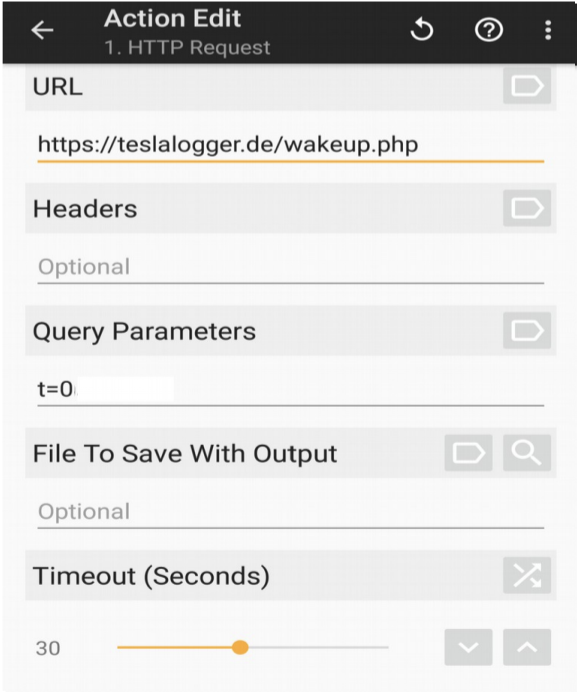
He uses a wakeup.php file on the webserver to get it to work. Maybe this is a solution @jun3280net?
spacecosmos
on 2 Oct 2019
Hi @spacecosmos
The wakeup.php file isn't going to help since it's doesn't exist in Teslamate.
I read your documentation on how you setup Teslamate in DigitalOcean. If you followed the advanced steps for setting up the .htpasswd file you need to install a Tasker plugin so you can authenticate using basic access authentication. I couldn't get authentication to work in Tasker without this plugin.
https://play.google.com/store/apps/details?id=com.freehaha.restask&hl=en_US
Let me know if you need more detailed instructions. I basically have the same setup as you except it's in AWS.
 MertonKnight
on 6 Oct 2019
MertonKnight
on 6 Oct 2019
Hi @spacecosmos
The wakeup.php file isn't going to help since it's doesn't exist in Teslamate.
I read your documentation on how you setup Teslamate in DigitalOcean. If you followed the advanced steps for setting up the .htpasswd file you need to install a Tasker plugin so you can authenticate using basic access authentication. I couldn't get authentication to work in Tasker without this plugin.
https://play.google.com/store/apps/details?id=com.freehaha.restask&hl=en_US
Let me know if you need more detailed instructions. I basically have the same setup as you except it's in AWS.
@MertonKnight, thanks for this and great to have someone who's in pretty much the same situation as I. But my skills with Tasker (and Docker) isn't all that good I'm afraid. So some exact guidelines from you would be helpful. Screenshots and examples would be really helpful.
Thanks again for reaching out!
spacecosmos
on 6 Oct 2019
I'm working on step by step instructions with screenshots, give me a few days and I'll have it ready.
 ngardiner
on 6 Oct 2019
ngardiner
on 6 Oct 2019
Awesome @ngardiner!!
spacecosmos
on 6 Oct 2019
@spacecosmos
Here are instructions for creating Tasker tasks to resume and suspend logging when Teslamate is behind a reverse-proxy with HTTPS and basic access authentication. Give these a try. Let me know if you run into any issues. Once you get this working you can create a profile that will automate running the tasks.
Install this plug-in for Tasker
https://play.google.com/store/apps/details?id=com.freehaha.restask&hl=en_USOpen Tasker.
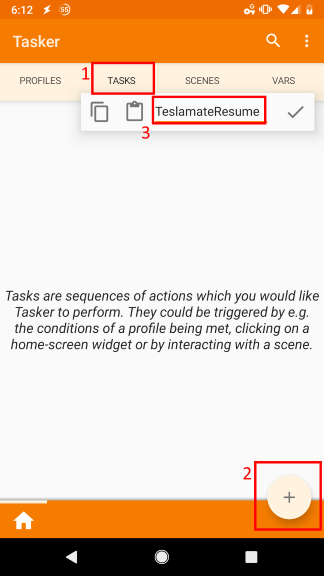
Do the following as shown in the picture below:
-Select the TASKS tab.
-Add a task by pressing the plus sign in the bottom right.
-Name the task TeslamateResume.
-Press the checkmark.
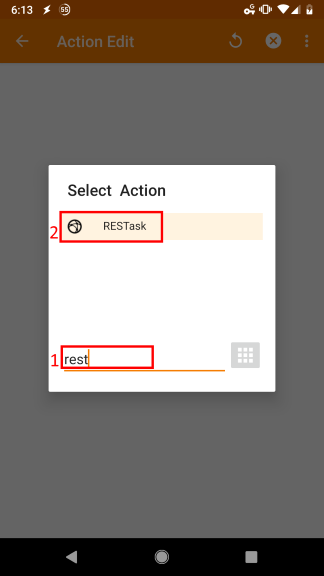
On the Select Action dialog do the following as shown below:
-Type rest in the filter field
-Select RESTask
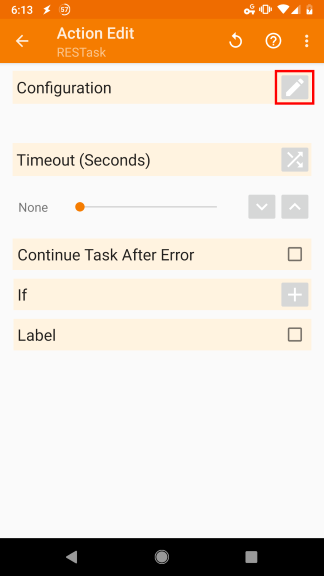
On the Action Edit screen press the configuration edit button as shown below:
-Optional: Set timeout to 30 seconds before editing.
On the RESTask screen do the following:
-Change Request Type to PUT.
-Change Host to https://YOUR_FQDN/api/car/1/logging/resume . Replace YOUR_FQDN with what FQDN_TM is set to in the .env file.
-Change Basic Auth to the credentials used for the .htpasswd file.
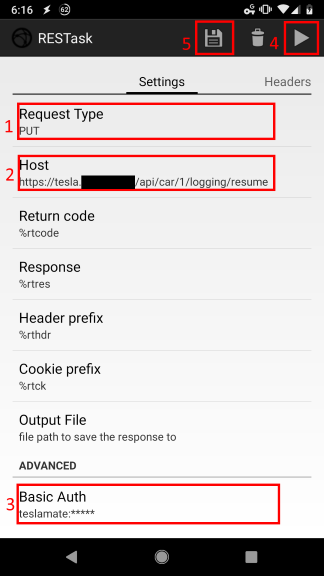
Press to play button to test. You should get a 204 response if it's successful and also something similar to below will appear in the Docker logs. If this does not appear double check your settings in step 6.

Press the save button. Go back to the Tasker home screen
Repeat steps 3 to 8 and create a suspend task make sure to do the following:
-On Step 3 use the name TeslamateSuspend
-On Step 6 use https://YOUR_FQDN/api/car/1/logging/suspend for the host
Once you get the above working you can create a profile that will automate running the tasks based on connecting to the car's Bluetooth. Let me know if you need help with that. Instructions are kind of in the first post.
MertonKnight
on 7 Oct 2019
@MertonKnight - Thank you for taking the time to do this. It worked instantly! Extremely excited and grateful for this and I'm sure others within this community are too.
I think I got a simple config running in Profiles as well:

Not sure if I actually need the suspend task to run though?
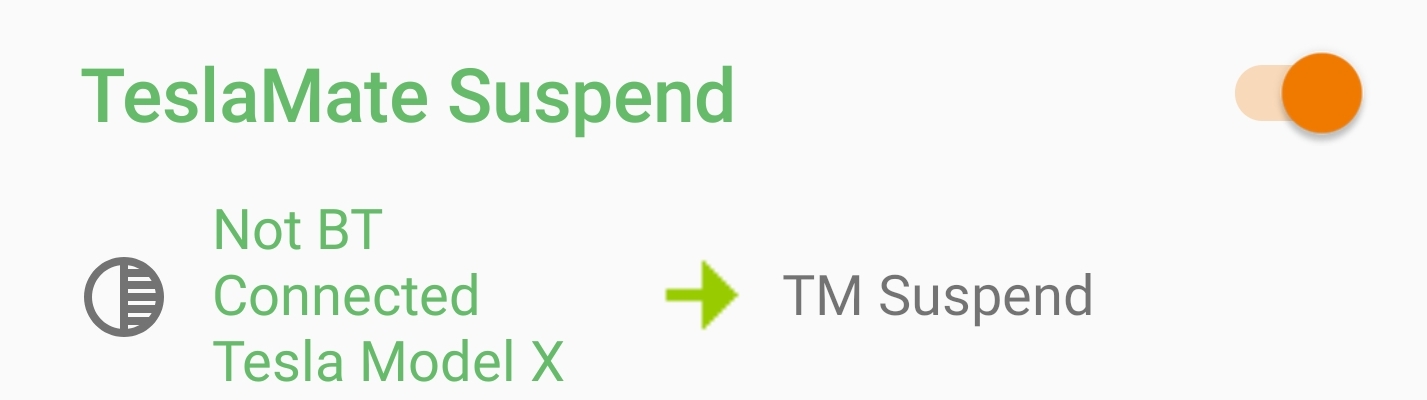
(I hope you don't mind me publishing this alongside my guide to get TeslaMate up and running on DigitalOcean?)
spacecosmos
on 7 Oct 2019
@spacecosmos - That's great to hear. Glad you got it working. Yes, you can publish it in your guide. Don't need to give me credit. Also, I'm planning to update my steps. I figured out how to create the task without without a plug-in. I'll post that within a day.
Having the suspend task is good to have. It will help your Tesla go to sleep faster and reduce vampire drain.
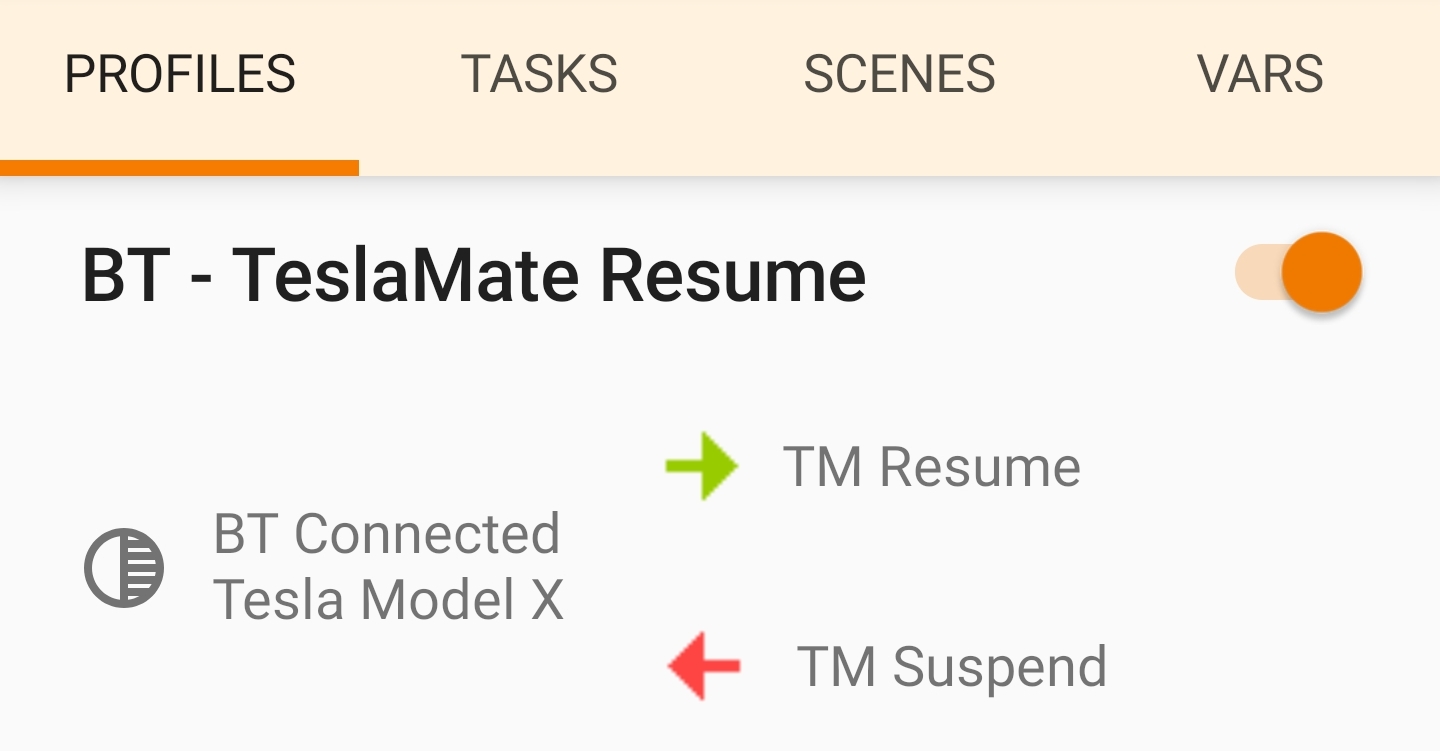
One small cosmetic suggestion for your profile setup. Instead of having two separate profiles you can combine them into one by creating an Exit Task. If you press hold on TM Resume you'll get some options.
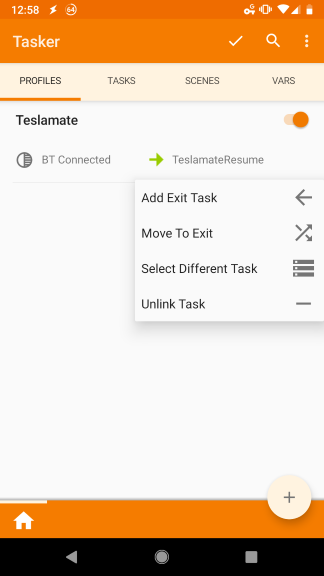
Tap Add Exit Task so can add a task for when the Bluetooth connection to your car disconnects. It'll look like this after you add it.
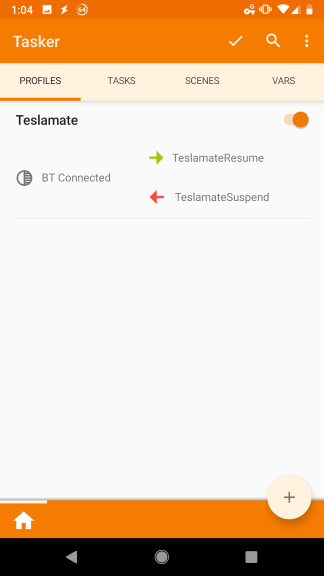
This does the same thing as what you already have but gets it all in one profile.
MertonKnight
on 7 Oct 2019
@MertonKnight - Again, worked like a charm! Thanks a lot for all the help! I also think it's best to combine them actually. Because it seems that the Suspend task runs all the time on my phone when it detects that I'm _not_ connected to the cars Bluetooth. But now, it should only work when the Resume task is "finished running" and disconnected I guess?
Next I want to try tapping an NFC-tag placed somewhere in the dash. (But that's for future testing...)
:)
spacecosmos
on 7 Oct 2019
Updated the guide to include the Tasker App setup as well. Thank you all for helping out! 💯
https://satheesh.net/2019/09/28/teslamate-digitalocean-docker-step-by-step-installation-guide/
spacecosmos
on 7 Oct 2019
The new documentation hopefully answers many of the questions that have been asked in this thread. If you have any further questions that aren't answered in the docs, don't hesitate to open a new issue.
adriankumpf
on 21 Oct 2019
Related issues
virtualm2000
·
4Comments
 natrlhy
·
6Comments
natrlhy
·
6Comments
 Try2Fly
·
5Comments
bahree
·
5Comments
Try2Fly
·
5Comments
bahree
·
5Comments
 olivercho
·
4Comments
olivercho
·
4Comments
Most helpful comment
@spacecosmos
Here are instructions for creating Tasker tasks to resume and suspend logging when Teslamate is behind a reverse-proxy with HTTPS and basic access authentication. Give these a try. Let me know if you run into any issues. Once you get this working you can create a profile that will automate running the tasks.
Install this plug-in for Tasker
https://play.google.com/store/apps/details?id=com.freehaha.restask&hl=en_US
Open Tasker.
Do the following as shown in the picture below:

-Select the TASKS tab.
-Add a task by pressing the plus sign in the bottom right.
-Name the task TeslamateResume.
-Press the checkmark.
On the Select Action dialog do the following as shown below:

-Type rest in the filter field
-Select RESTask
On the Action Edit screen press the configuration edit button as shown below:

-Optional: Set timeout to 30 seconds before editing.
On the RESTask screen do the following:

-Change Request Type to PUT.
-Change Host to https://YOUR_FQDN/api/car/1/logging/resume . Replace YOUR_FQDN with what FQDN_TM is set to in the .env file.
-Change Basic Auth to the credentials used for the .htpasswd file.
Press to play button to test. You should get a 204 response if it's successful and also something similar to below will appear in the Docker logs. If this does not appear double check your settings in step 6.

Press the save button. Go back to the Tasker home screen
Repeat steps 3 to 8 and create a suspend task make sure to do the following:
-On Step 3 use the name TeslamateSuspend
-On Step 6 use https://YOUR_FQDN/api/car/1/logging/suspend for the host
Once you get the above working you can create a profile that will automate running the tasks based on connecting to the car's Bluetooth. Let me know if you need help with that. Instructions are kind of in the first post.