Termux-app: FTP Client has only read access.
Today, I tried connecting ES File Explorer and Quoda Text Editor apps as FTP Client with Termux. I ran below command:
tcpsvd -vE 0.0.0.0 1024 ftpd /
And the apps logged in successfully. But when I tried creating new files, deleting files, renaming or modifying files, two of those apps are showing errors. Should I do any extra steps to solve this error?

--Error while tried creating a new folder in ES File Explorer.
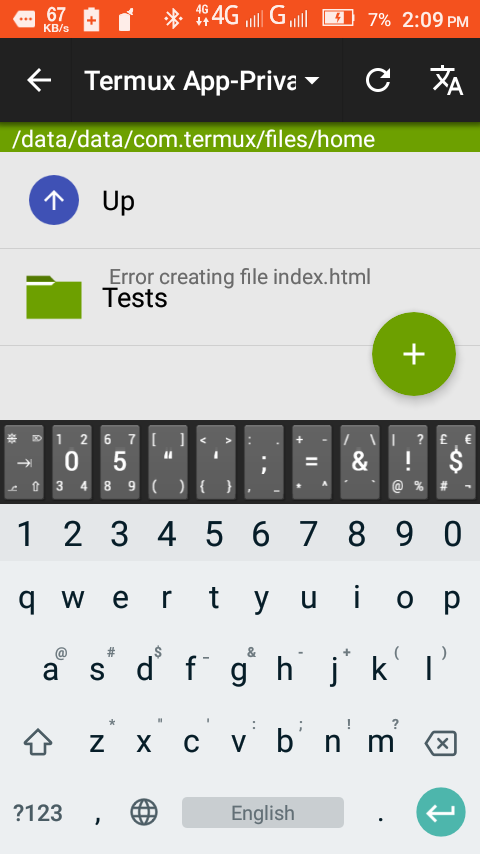
--Error while creating a new file in Quoda Text Editor.
Please somebody help me on solving this error.
 oscl
oscl
All 15 comments
I've also tried chmod -R 777 . command in that folder. Still not working. I have no root access.
oscl
on 2 Oct 2018
@AJ-Creations Try to launch it with -w argument. E.g. tcpsvd -vE 0.0.0.0 1024 ftpd -w /, it works after that in read-write mode.
 xeffyr
on 2 Oct 2018
xeffyr
on 2 Oct 2018
@xeffyr thanks a lot BRO....
it worked out!
Wow!
oscl
on 2 Oct 2018
How to access with quoda ? I have trying to connect them but no luck
 ardyfeb
on 7 Nov 2018
ardyfeb
on 7 Nov 2018
@ardyfeb Make sure that you entering correct port.
xeffyr
on 7 Nov 2018
@ardyfeb Make sure that you entering correct port.
The ftp connection are successfully, but when i navigating to file picker the file not showing and ftp server throw error log cannot open /. permission denied While i have to set the ftp root as /sdcard
ardyfeb
on 7 Nov 2018
Have you tried termux-setup-storage before starting ftp server ? Is ls /sdcard/ or touch /sdcard/myfile works ?
xeffyr
on 7 Nov 2018
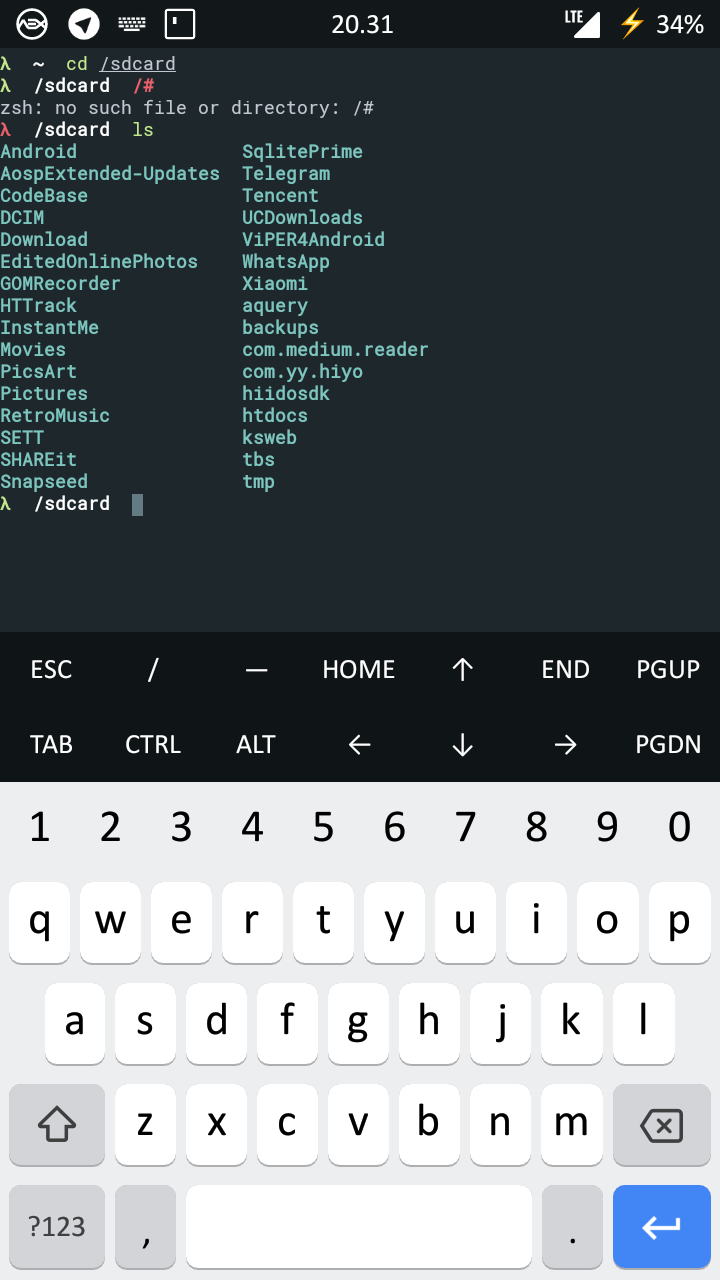
Everything works if i use pc terminal the ftp works correctly, but no quoda, quick edit, others
ardyfeb
on 7 Nov 2018
Complete step for connecting termux app private directory with Quoda text editor is given below:
Step.1: Open Termix and run this command - tcpsvd -vE 0.0.0.0 1024 ftpd /
Step.2: Open Quoda, go to it's settings/Cloud & Servers/Add Server
Step.3: Select server type as FTP, and fill below credentials to the input fields that are seen in that settings page -
Name: Any name as you wish(I gave it the name "Termux-App-Private")
Address: 0.0.0.0
Username: any name as you wish(The FTP server is started without specifying any username or password. So any username and password will work.
Password: Anything as you wish
Base URL: /data/data/com.termux/files/
Initial folder: /data/data/com.termux/files/
Port: 1024
Then below that form, you can see a button saying "test". Click over it to check whether the credentials are correct. If so, click over the "Save" button and start accessing termux's app private folder on your Quoda text editor.
For Node,js users, I have made a nodejs global module that will help you on starting the FTP server quickly and easily.
For nodejs users, install tap2p (Termux-App-Private Two Public) by running below command:
npm i -g tap2p and then run this command - tap2pAnd continue to above 2nd step.
Then later on whenever you want to access your termux's app-private-folder in Quoda Text Editor, just open termux and run
tap2pthen open Quoda Text Editor and enjoy!
if you use tap2p, you don't have run tcpsvd -vE 0.0.0.0 1024 ftpd / instead you just need to run tap2p.
I thing I could help...
oscl
on 7 Nov 2018
@AJ-Creations Why you prefer 0.0.0.0 over 127.0.0.1 in address field ?
xeffyr
on 7 Nov 2018
Complete step for connecting termux app private directory with Quoda text editor is given below:
Step.1: Open Termix and run this command -
tcpsvd -vE 0.0.0.0 1024 ftpd /
Step.2: Open Quoda, go to it's settings/Cloud & Servers/Add Server
Step.3: Select server type as FTP, and fill below credentials to the input fields that are seen in that settings page -Name: Any name as you wish(I gave it the name "Termux-App-Private")
Address: 0.0.0.0
Username: any name as you wish(The FTP server is started without specifying any username or password. So any username and password will work.
Password: Anything as you wish
Base URL: /data/data/com.termux/files/
Initial folder: /data/data/com.termux/files/
Port: 1024Then below that form, you can see a button saying "test". Click over it to check whether the credentials are correct. If so, click over the "Save" button and start accessing termux's app private folder on your Quoda text editor.
For Node,js users, I have made a nodejs global module that will help you on starting the FTP server quickly and easily. For nodejs users, install tap2p (Termux-App-Private Two Public) by running below command:npm i -g tap2pand then run this command -tap2pAnd continue to above 2nd step. Then later on whenever you want to access your termux's app-private-folder in Quoda Text Editor, just open termux and runtap2pthen open Quoda Text Editor and enjoy!
if you use tap2p, you don't have runtcpsvd -vE 0.0.0.0 1024 ftpd /instead you just need to run tap2p.I thing I could help...
Thanks for you to very good tutorial, but i no luck at this feature
Se video below : https://streamable.com/vz723
ardyfeb
on 7 Nov 2018
Complete step for connecting termux app private directory with Quoda text editor is given below:
Step.1: Open Termix and run this command -tcpsvd -vE 0.0.0.0 1024 ftpd /
Step.2: Open Quoda, go to it's settings/Cloud & Servers/Add Server
Step.3: Select server type as FTP, and fill below credentials to the input fields that are seen in that settings page -
Name: Any name as you wish(I gave it the name "Termux-App-Private")
Address: 0.0.0.0
Username: any name as you wish(The FTP server is started without specifying any username or password. So any username and password will work.
Password: Anything as you wish
Base URL: /data/data/com.termux/files/
Initial folder: /data/data/com.termux/files/
Port: 1024
Then below that form, you can see a button saying "test". Click over it to check whether the credentials are correct. If so, click over the "Save" button and start accessing termux's app private folder on your Quoda text editor.
For Node,js users, I have made a nodejs global module that will help you on starting the FTP server quickly and easily. For nodejs users, install tap2p (Termux-App-Private Two Public) by running below command:npm i -g tap2pand then run this command -tap2pAnd continue to above 2nd step. Then later on whenever you want to access your termux's app-private-folder in Quoda Text Editor, just open termux and runtap2pthen open Quoda Text Editor and enjoy!
if you use tap2p, you don't have runtcpsvd -vE 0.0.0.0 1024 ftpd /instead you just need to run tap2p.
I thing I could help...Thanks for you to very good tutorial, but i no luck at this feature
Se video below : https://streamable.com/vz723
From where have you downoaded Termux app ?
I mean from play store or from f-droid ?
oscl
on 7 Nov 2018
I can't understand please make full video for noob
 fahadali32
on 30 Nov 2019
fahadali32
on 30 Nov 2019
Complete step for connecting termux app private directory with Quoda text editor is given below:
Step.1: Open Termix and run this command -tcpsvd -vE 0.0.0.0 1024 ftpd /
Step.2: Open Quoda, go to it's settings/Cloud & Servers/Add Server
Step.3: Select server type as FTP, and fill below credentials to the input fields that are seen in that settings page -
Name: Any name as you wish(I gave it the name "Termux-App-Private")
Address: 0.0.0.0
Username: any name as you wish(The FTP server is started without specifying any username or password. So any username and password will work.
Password: Anything as you wish
Base URL: /data/data/com.termux/files/
Initial folder: /data/data/com.termux/files/
Port: 1024
Then below that form, you can see a button saying "test". Click over it to check whether the credentials are correct. If so, click over the "Save" button and start accessing termux's app private folder on your Quoda text editor.
For Node,js users, I have made a nodejs global module that will help you on starting the FTP server quickly and easily. For nodejs users, install tap2p (Termux-App-Private Two Public) by running below command:npm i -g tap2pand then run this command -tap2pAnd continue to above 2nd step. Then later on whenever you want to access your termux's app-private-folder in Quoda Text Editor, just open termux and runtap2pthen open Quoda Text Editor and enjoy!
if you use tap2p, you don't have runtcpsvd -vE 0.0.0.0 1024 ftpd /instead you just need to run tap2p.
I thing I could help...Thanks for you to very good tutorial, but i no luck at this feature
Se video below : https://streamable.com/vz723From where have you downoaded Termux app ?
I mean from play store or from f-droid ?
There is termux in playstore
 Sajid1500
on 2 Jun 2020
Sajid1500
on 2 Jun 2020
Ftp is not connected in my termux how can i fix it?
 aryankh71
on 25 Jul 2020
aryankh71
on 25 Jul 2020
Related issues
 nomxs
·
4Comments
nomxs
·
4Comments
 joakim-noah
·
5Comments
joakim-noah
·
5Comments
 darth-cequella
·
3Comments
darth-cequella
·
3Comments
 Areahints
·
4Comments
Areahints
·
4Comments
 coreyreichle
·
3Comments
coreyreichle
·
3Comments
Most helpful comment
@AJ-Creations Try to launch it with
-wargument. E.g.tcpsvd -vE 0.0.0.0 1024 ftpd -w /, it works after that in read-write mode.