Terminal: Mouse wheel doesn't scroll when terminal launched as "ubuntu"
Your Windows build number: (Type
verat a Windows Command Prompt)
16299.309What you're doing and what's happening: (Copy & paste specific commands and their output, or include screen shots)
Launch wsl terminal as Ubuntu from Start Menu
- output anything longer than the terminal window.
try scrolling with mouse wheel
What's wrong / what should be happening instead:
The view does not scroll up. If I launch cmd/powershell first and then Ubuntu, scrolling works as it should. Also dragging with the scroll bar works fine.
 wigster
All 22 comments
Edit: I've just discovered scrolling works when the console window is inactive, but stops to scroll when activated.
wigster
on 15 Mar 2018
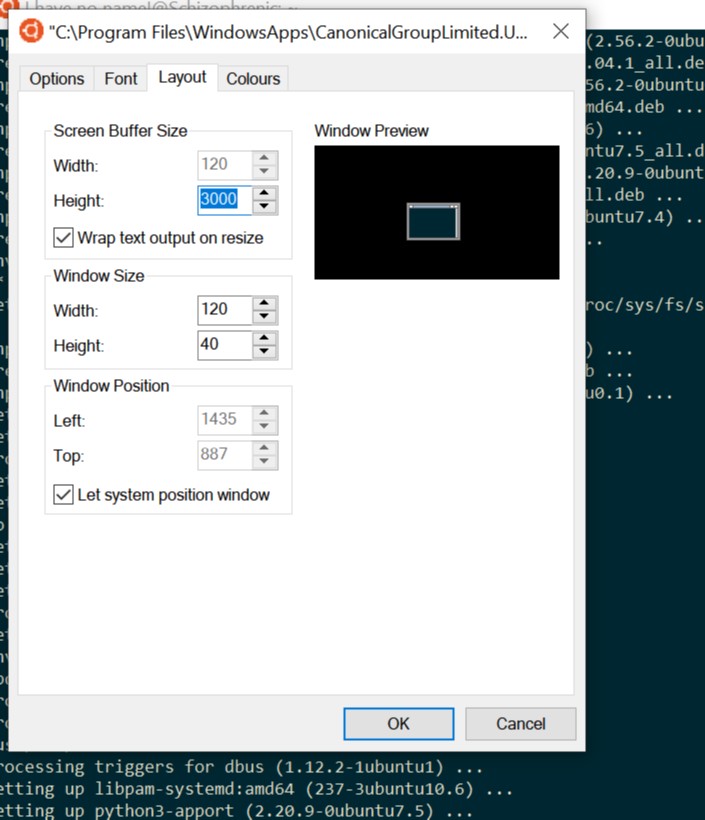
My guess is that for one reason or another, the buffer height got set to the window height for your ubuntu shortcut. Try changing the "Screen Buffer Height" of the ubuntu command prompt to something like 9001.


That should make the scroll bar re-appear.
 zadjii-msft
on 15 Mar 2018
zadjii-msft
on 15 Mar 2018
The scroll bar is there and I can scroll with it ok. The thing that is broken is scrolling using the mouse wheel, but it is only broken if the windows is active.
(The buffer is 3000 lines, so it's ok)
wigster
on 15 Mar 2018
What's in your .bashrc? Does pressing Ctrl+V (from the prompt), then scrolling echo anything to the input? It sounds like VT mouse mode might have gotten enabled for you.
Curious that the scrolling works when the windos is inactive, that might be a hole in the implementation
zadjii-msft
on 15 Mar 2018
wigster
on 15 Mar 2018
Well that's certainly curious. I have no idea why this would be happening. Does opening a mouse mode application like tmux, vim, or screen and closing it fix it? (each one has different steps for enabling mouse-mode).
Or, try executing echo -e "\033[?1000l\033[?1002l\033[?1005l\033[?1006l" - that should turn off any mouse mode if it's set.
I don't really know how else to debug this - it's particularly odd in that it happens with a fresh Ubuntu install and a new console window. That makes it particularly hard to recreate.
zadjii-msft
on 15 Mar 2018
Hi,
I've tried the echo command and it didn't fix it. Also running tmux and exiting has no effect.
I will add that the behaviour is the same with the precision touchpad in my surface book: two-finger scroll only works when the window is inactive.
wigster
on 19 Mar 2018
Oof. That's not great. I have no idea what's causing this now, sorry :/.
If anyone can get me steps that can reproduce this problem, that'd be greatly appreciated.
zadjii-msft
on 19 Mar 2018
@zadjii-msft I'm having this issue as well - fresh install of Windows 10 Pro, Ubuntu installed directly from the Microsoft Store, and scrolling does not work. It doesn't work in any program that uses the native MS-DOS emulator window.
 jeffreykaufman
on 14 Oct 2018
jeffreykaufman
on 14 Oct 2018
@jeffreykaufman does this only repro for you with active (focused) console windows?
If you try scrolling with another input method, does it work? For example, does scrolling with the touchscreen work?
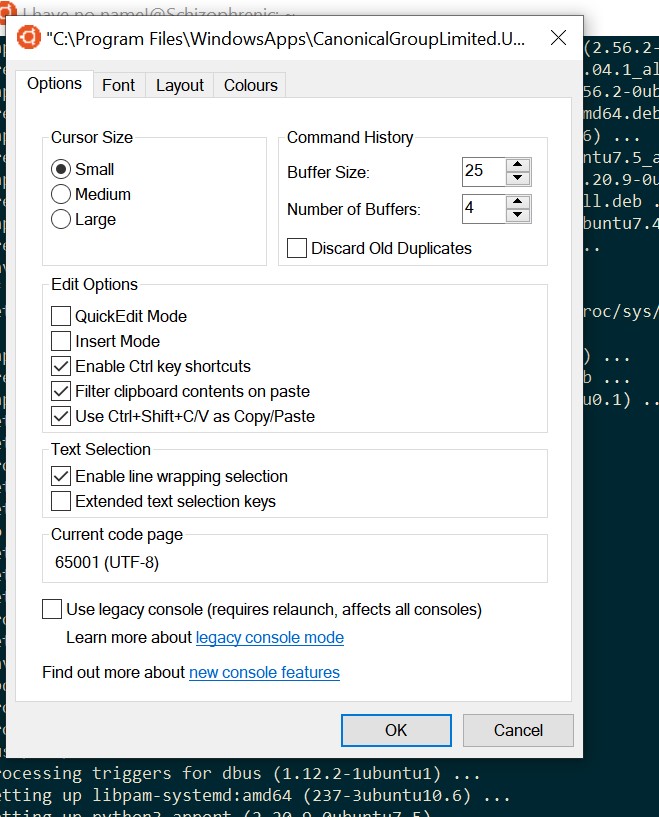
Could you post screenshots of the "Properties" pages? Specifically the options and layout pages? You can open them up by right clicking the title bar and selecting "Properties":

zadjii-msft
on 15 Oct 2018
I am having the same problem but strangely enough the scroll wheel works fine as long as I don't have the window selected. But as soon as I bring the window into the foreground the scroll wheel stops working.
 exal99
on 9 Nov 2018
exal99
on 9 Nov 2018
@wigster Same here with the scroll wheel not working, but not just in Terminal for me. Nothing scrolls at all in Ubuntu unless it's not the active window. Good find on the inactive window for the scroll wheel to "work." Hopefully this gets figured out.
 GearHeadPB
on 13 Nov 2018
GearHeadPB
on 13 Nov 2018
So to update: I am on build 17763.107, Ubuntu 18.04 on Surface Book 2 and this is still happening.
It is possible to scroll with touch (which activates the window), but not with the touchpad or the scroll wheel of an external mouse while the window is active.
I'm attaching my console properties.
wigster
on 13 Nov 2018
I have managed to solve this: I deleted the registry key for the Ubuntu console in HKCUConsole and the scrolling is back.
wigster
on 18 Dec 2018
@wigster Could you please be more specific? Did you delete the entire HKEY_CURRENT_USER/Console/C:_Program Files_...ubuntu.exe?
exal99
on 7 Jan 2019
Okay I seem to have solved it as well. For me I only had to change the options (I turned QuickEdit Mode on) and then the scrolling worked again.
exal99
on 7 Jan 2019
Just experienced this issue in the native Ubuntu terminal, as well as a random change of the font size to a much smaller font. Enabling Quick Edit mode restored the scrolling functionality. Doesn't appear to be related to the Terminal app, but no idea why this stopped working.
 jboeshart
on 27 Aug 2019
jboeshart
on 27 Aug 2019
Just experienced this issue in the native Ubuntu terminal, as well as a random change of the font size to a much smaller font. Enabling _Quick Edit_ mode restored the scrolling functionality. Doesn't appear to be related to the Terminal app, but no idea why this stopped working.
How do you enable quick edit?
 aguywithcode
on 4 Sep 2019
aguywithcode
on 4 Sep 2019
I cannot scroll in any shell in Windows Terminal. Not Powershell, not CMD, not Ubuntu. I can move up and down using ctrl+shift+arrow up. When I open Powershell or Ubuntu by itself, scrolling works.
 coupez
on 9 Sep 2019
coupez
on 9 Sep 2019
Holding shift and scrolling on the window seems to work for me :/
 TeamDman
on 6 Oct 2019
TeamDman
on 6 Oct 2019
Just experienced this issue in the native Ubuntu terminal, as well as a random change of the font size to a much smaller font. Enabling _Quick Edit_ mode restored the scrolling functionality. Doesn't appear to be related to the Terminal app, but no idea why this stopped working.
I have the same problem and I am not sure how to enable quick edit. Tried it with setting a Reg Key in HKEY_CURRENT_USER\Console\C:_Program Files_WindowsApps_CanonicalGroupLimited.Ubuntu18.04.../QuickEdit with type DWORD -> 1
But it didn't work.
It works for other shells such as PowerShell.
-- Update:
So it is a problem with tmux. If I close tmux it is working for me. Have to figure out a workaround here.
 AlessandroVol23
on 4 Nov 2019
AlessandroVol23
on 4 Nov 2019
I can confirm that disabling quick edit also breaks scrolling. Also why is there no context menu when quick edit mode is not on?
 suikki
on 1 Sep 2020
suikki
on 1 Sep 2020
Related issues
 warpdesign
·
3Comments
warpdesign
·
3Comments
 alabuzhev
·
3Comments
alabuzhev
·
3Comments
 carlos-zamora
·
3Comments
carlos-zamora
·
3Comments
 miniksa
·
3Comments
miniksa
·
3Comments
 TayYuanGeng
·
3Comments
TayYuanGeng
·
3Comments
Most helpful comment
Okay I seem to have solved it as well. For me I only had to change the options (I turned QuickEdit Mode on) and then the scrolling worked again.