Tabulator: Select in column-header filter
Hi Oli,
Can you please clarify whether I'm defining the column-header filter select-dropdown correctly.
I have a column which will contain either the value "Car" or "Van", and I want to filter using a column-filter dropdown offering selections "Car" and "Van", so I defined the column-header filter as follows:
columns: [
{title:"Type", field:"type", editor:"select", editorParams:{"car":"Car", "van":"Van"}, headerFilter:true, headerFilterParams:{"car":"Car", "van":"Van"}},
]
Is this defined correctly?
 qlj
qlj
All 24 comments
Hey @qlj
That looks correct, for efficiencies sake, you could always define your params into one variable and then reference it for both editorParams and headerFilterParams
Cheers
Oi :)
 olifolkerd
on 9 Apr 2018
olifolkerd
on 9 Apr 2018
Oli,
I've been having a problem with this. When I select from the dropdown, the table filters to empty. I've discovered the change required.
columns: [ {title:"Type", field:"type", editor:"select", editorParams:{"car":"Car", "van":"Van"}, headerFilter:true, headerFilterParams:{"Car":"Car", "Van":"Van"}}, ]
In short, you are mapping the select captions to the table values. This might not be what you've intended and might need correction.
So, to elaborate, when you select option value "car" from the dropdown, which has caption "Car", then tabulator maps the caption "Car" to the table column value "Car". If you do as I did before, it would be mapping the dropdown caption "car" to the table column data "Car" - since there is no dropdown caption "car" it filters to no data.
qlj
on 10 Apr 2018
Hey @qlj
I don't follow you there, from what i can see there is no mapping of captions to values, it works as documented. I have just run tests on several tables to confirm.
What version of Tabulator are you using?
In the code you have posted there, the headerFilterParams you are passing in are capitalized which is why it is searching for capitalized values.
If you are still struggling, could you post a copy of your table constructor so i can see how your table has been configured.
Cheers
Oli :)
olifolkerd
on 10 Apr 2018
Hi Oli,
The values in the vehicle-type column can be 'Car' and 'Van' - both capitalised
qlj
on 10 Apr 2018
@qlj
Im afraid i still dont understand,
Are you saying the values can be "van", "Van", "car" and "Car" and that you would like the values for both "car" and "Car" to be visible when you filter "car"?
Cheers
Oli :)
olifolkerd
on 10 Apr 2018
Hi Oli,
No, the values for the data in the vehicle-type column on each row can be "Car" and "Van", and that I would like the rows containing the value "Car" in the vehicle-type column to be visible when I filter "car"
qlj
on 10 Apr 2018
Im confused, where is the lowercase "car" coming from?
If everything is capitalised then you should use the following object for both your editorParams and your headerFilterParams
{"Car":"Car", "Van":"Van"}
Cheers
Oli :)
olifolkerd
on 10 Apr 2018
Hi Oli,
I followed your example for male/female, where you defined in both editorParams and headerFilterParams
{"male":"Male", "female":"Female"}
Using Webdeveloper Inspector I can see in the HTML that "male" and "female" are the option _values_ and "Male" and "Female" are the option _captions_, but I wasn't sure how these were supposed to relate to or filter with the column data-values across all the rows, as in your examples you have on every row in the Gender column only the data-values "Male" and "Female". Perhaps I'm not grasping something important in the example.
qlj
on 10 Apr 2018
Hey @qlj
In the example the data is stored in lower case.
The capitalised view is for display ownly, it does not get stored back to the data. in the params for the select editor, the properties are the data values and their values are the labels
Cheers
Oli
olifolkerd
on 10 Apr 2018
Hi Oli,
Thanks for your time and attention to this.
So, once the header filter has rendered in HTML the dropdown roughly as follows:
<select class='blah' more-attribs>
<option value='yes'>Yes</option>
<option value='no'>No</option>
</select>
Would I be correct in saying that the stored/data value is 'yes' or 'no' instead of 'Yes' or 'No'?
qlj
on 11 Apr 2018
that is correct, yes
olifolkerd
on 11 Apr 2018
Hi Oli,
I've since discovered that in Tabulator v. 3.5 for header filter select drop-downs, you need to define only the headerFilter option like so:
columns: [ {title:"Type", field:"type", editor:"select", headerFilter:true, headerFilterParams:{"car":"Car", "van":"Van"}}, ]
I hope this helps.
qlj
on 15 May 2018
@olifolkerd
Is there a simple way to have a headerFilter as dropdown, that just auto populates with data within the table?
Method: Load Data from HTML Table
 cgountanis
on 13 Oct 2020
cgountanis
on 13 Oct 2020
indeed I'm looking if such functionality exists too, have some auto columns and want some of them to find unique (distinct) values from the column cells and show them with a combobox-style editor (edit+dropdown) at the header filter, where the dropdown would have just those distinct values shown sorted ascending based on their type (or with custom sorting function)
 birbilis
on 16 Oct 2020
birbilis
on 16 Oct 2020
I figured it out actually, here is a sample from my HTML created table. It is just not that intuituve based on the documentation and the deprecation warnings you sometimes get, until you get it right. At least this is working, with no warnings, hope this helps.
JS Snippet:
 // Setup the tabulator table.
var table = new Tabulator("#summary-table", {
layout: "fitColumns",
pagination: "local",
paginationSize: 10,
paginationSizeSelector: [10, 25, 50, 100],
headerFilterPlaceholder: null,
responsiveLayout: "collapse",
columns: [
...
{
    title: "Type",
    minWidth: 100,
    headerFilter: "select",
    headerFilterParams: {
        values: true,
        sortValuesList: "asc"
    }
},
...
Bonus:
I have to add a reset button to the page to handle the clearing out of the dropdown along with the regular headerFilter inputs.
<a class="btn btn-outline-secondary clear-header-filters"><i class="fas fa-sync fa-fw"></i> Reset</a>
// Clears the header filters.
$(".clear-header-filters").on("click", function () {
table.clearHeaderFilter();
});
does it work with multiple such columns? that is if you filter column A, then do other column header filter dropdowns show only unique values from their remaining (after filtering due to column A header filter ui action) cells?
birbilis
on 16 Oct 2020
btw, would be nice to have a combobox (datalist in HTML5, there are polyfills for it too) apart from a dropdown too
https://github.com/olifolkerd/tabulator/issues/1382#issuecomment-710051669
birbilis
on 16 Oct 2020
You would have to build your own logic to populate the dropdowns, this example is just a show all distinct options sorted that are in table which is all we needed.
Just using Bootstrap 4 for the styling. For now...
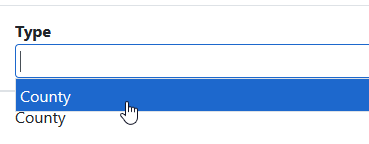
cgountanis
on 16 Oct 2020
seems the values:true isn't documented (found its usage at http://tabulator.info/examples/4.5?#filter in "Filter Data In Header" if I expand to see the source, but the two doc links it has at that section's title and text don't help much
regarding showing only values available for picking at the dropdowns of columns, maybe the Params lookup function could help (http://tabulator.info/docs/4.5/filter#header) if there is way to get from tabulator the filtered data of a given column to pass to that function
birbilis
on 16 Oct 2020
btw, @cgountanis didn't you find any way to do multi-select with that "select" control?
For HTML5 datalist (supposing it's added in the future since there's also a polyfill for it for older browsers), I've seen a way here but assumes the user writes values with ",". Would be nicer if they could also CTRL+click multiple values or CTRL+click a new value from the dropdown to also keep the older values that were selected
birbilis
on 17 Oct 2020
Hey @birbilis
The values:true is documented in the select editor documentation. all header filters are simply reusing the editors (a fact that is expained in the docs) Therefore if you want to understand how to use a particular header filter, simply look at the corresponding editor documentation.
Cheers
Oli :)
olifolkerd
on 18 Oct 2020
It seems that I can not get the select option to filter strictly; Active shows both Active and Inactive. I've tried with headerFilterFunc: "=" but then nothing is shown.
Any idea/hint?
 JAIC-be
on 26 Nov 2020
JAIC-be
on 26 Nov 2020
It seems that I can not get the select option to filter strictly; Active shows both Active and Inactive. I've tried with headerFilterFunc: "=" but then nothing is shown.
Any idea/hint?
@JAIC-be
Not sure what you might be running into, maybe some HTML in the column? Anyway here are a couple examples we use and seem to work fine.
Pre-generated values. Used due to server side pagination.
{
    title: "District",
    field: "district",
    width: 120,
    minWidth: 80,
    headerFilter: "select",
    headerFilterParams: {
        values: districtParams
    },
    headerFilterFunc: "="
}
Automatic values based on table full contents.
{
    title: "Type",
    minWidth: 100,
    headerFilter: "select",
    headerFilterParams: {
        values: true,
        sortValuesList: "asc"
    }
}
@cgountanis
If I use the following, nothing happens (the field stays an input);
title: "Status",
field: "status",
headerFilter: "select",
headerFilterParams: {
           values: {
                   "active": "Active",
                   "inactive": "Inactive",
                   "dismissed": "Dismissed",
           }
},
headerFilterFunc: "=",
responsive: 0,
(same with the automatic values code)
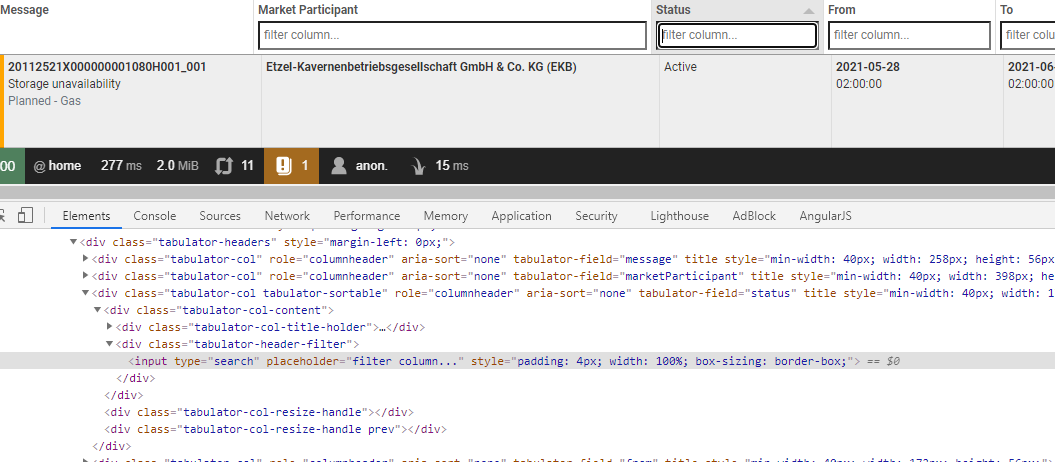
I got it working with setting the editor to select as well but we do not want the table to be editable;

Also, this makes the select perform a non-strict search...
Edit: Okay, that's weird. When using
{
    title: "Type",
    minWidth: 100,
    headerFilter: "select",
    headerFilterParams: {
        values: true,
        sortValuesList: "asc"
    }
}
and
headerFilterFunc: "=",
it works but not when using headerFilterFunc with hardcoded values... (and the editor still has to be set which I don't need or want)
JAIC-be
on 27 Nov 2020
Related issues
 mohanen
·
3Comments
mohanen
·
3Comments
 yaxino
·
3Comments
yaxino
·
3Comments
 cemmons
·
3Comments
cemmons
·
3Comments
 AndrewHutcheson
·
3Comments
AndrewHutcheson
·
3Comments
 Manbec
·
3Comments
Manbec
·
3Comments
Most helpful comment
I figured it out actually, here is a sample from my HTML created table. It is just not that intuituve based on the documentation and the deprecation warnings you sometimes get, until you get it right. At least this is working, with no warnings, hope this helps.
JS Snippet:
Bonus:
I have to add a reset button to the page to handle the clearing out of the dropdown along with the regular headerFilter inputs.