Hi,
It's been so long since the last update.
Sumtra pdf works good like always but
there are some features missing in sumtra like:
- Support for e-forms
- Morden look and feel
3.Some customization options etc.
So I just want to know is the project dead, should I move on to some other software?
 Ashutosh-Kukreti
All 10 comments
1) Unknown if anyone would do such a thing, however I personally don't want automatic 3rd party phone home actions imbedded in this lightweight viewer that could then be used to monitor my usage .
2) Can't get more modern than windows 10 imposed system colours and your choice of alternative icons here are mine what else is there to change ?
Not dead see recent commits just no one offering to add more features at present
 GitHubRulesOK
on 5 Apr 2019
GitHubRulesOK
on 5 Apr 2019
- Ok
- Ok
A Gui option to change themes, font and background colour can be very helpful.
Your reader looks a bit different from mine ,how?
Ashutosh-Kukreti
on 6 Apr 2019
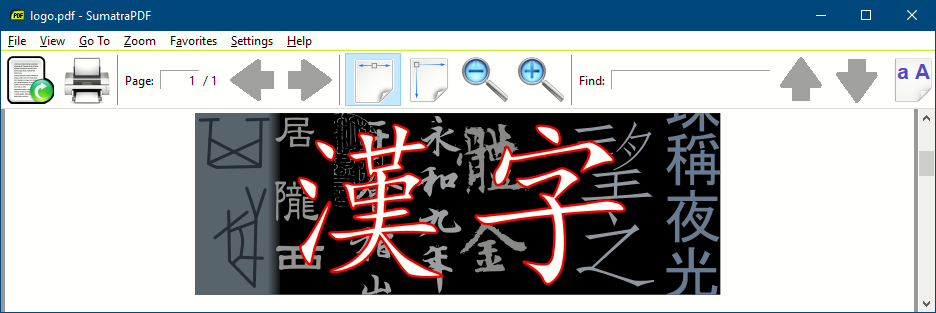
The Windows system colours and fonts control the top two lines you can switch the settings to use sys colours but I usually end up switching it off as it can confuse me.
The Icons are inbuilt in toolbar_11.bmp which can be overridden by an external one in the same folder as SumatraPDF-settings.txt the default one is 208 x16 (208=13 x16) i.e. keep them square https://github.com/sumatrapdfreader/sumatrapdf/blob/master/src/toolbar_11.bmp
So if you want multiple themed icons keep them in separate sub folders each with a themed settings file and call each one via -appdata command
R,G,B (FF, 0, FF) in the .bmp image (are transparent in the toolbar) more details here https://github.com/sumatrapdfreader/sumatrapdf/issues/16 first old link is dead but the last example one is here https://gist.githubusercontent.com/gl-bars/7842c590e884dae8f17c/raw/6ac21f49ba83b454b9ff85fd8a2a5c6da0c19805/toolbar_11.bmp this one is bigger at 22 x 22 x 13 = 286 x 22
Draw your own BMP icons at a size to suit your age (I am old my icons are big) so the ones you see are 624 x 48 (note that multiples of 8 are usually best so 24x24 is good 32x32, 40x40 etc.) this helps with scaling if using screen as 125% > 150% > 175%.
Although the file MUST be called toolbar_11.bmp there are 13 icons numbered 0-12 (confusing :-)
NOTE the Open button is replaced with a "Save As" icon for Plugin mode:
0 OPEN ICON and this position is ALSO used for number 12 (SAVE COPY)
1 PRINT DIALOG
icon bar will split here for GOTO_PAGE box
2 GOTO_PREV_PAGE
3 GOTO_NEXT_PAGE
4 VIEW_FIT_WIDTH/Continuous
5 VIEW_FIT_PAGE/Single Page
6 VIEW_ZOOMOUT
7 VIEW_ZOOMIN
icon bar will split here for find box
8 FIND_PREV
9 FIND_NEXT
10 FIND_MATCH
11 reserved for a blanking icon
12 see note above this is the SAVE_AS icon for imbedded mode
GitHubRulesOK
on 6 Apr 2019
Thank You :)
Ashutosh-Kukreti
on 6 Apr 2019
Since, last release is 2016, do you have any plan to issue a new version?
 silenceleaf
on 21 Apr 2019
silenceleaf
on 21 Apr 2019
 mooms06
on 22 Apr 2019
mooms06
on 22 Apr 2019
@silenceleaf there is never a plan to issue a new version (see wiki) it is continuous minor updates (e.g. 3 fresh languages this week) until a significant improvement is added by others. So until that happens the current release is 3.1.2 or pre-release towards next.
GitHubRulesOK
on 22 Apr 2019
Perhaps one option would be to embrace the pixelated toolbar icons until someone will be able to add SVG support (which in itself would cause blurry icons in low DPI displays).
One example here of a custom toolbar I made for my own use:

 Arty2
on 17 Aug 2019
Arty2
on 17 Aug 2019
@kjk similar to other "are you still alive" queries the initial question here was about xfa support which I see is MuPDF status "wontfix" the other options about cosmetic updates I think are covered by several other "feature requests" thus I would say this thread is basically a duplicate of other issues.
GitHubRulesOK
on 16 Nov 2019
Also, each issue should be about a single thing.
 kjk
on 18 Nov 2019
kjk
on 18 Nov 2019
Related issues
 gblazex
·
7Comments
gblazex
·
7Comments
 lRadha
·
4Comments
lRadha
·
4Comments
 lollita
·
5Comments
lollita
·
5Comments
 kloked
·
6Comments
kloked
·
6Comments
 banbonic
·
4Comments
banbonic
·
4Comments
Most helpful comment
The Windows system colours and fonts control the top two lines you can switch the settings to use sys colours but I usually end up switching it off as it can confuse me.
The Icons are inbuilt in toolbar_11.bmp which can be overridden by an external one in the same folder as SumatraPDF-settings.txt the default one is 208 x16 (208=13 x16) i.e. keep them square https://github.com/sumatrapdfreader/sumatrapdf/blob/master/src/toolbar_11.bmp
So if you want multiple themed icons keep them in separate sub folders each with a themed settings file and call each one via -appdata command
R,G,B (FF, 0, FF) in the .bmp image (are transparent in the toolbar) more details here https://github.com/sumatrapdfreader/sumatrapdf/issues/16 first old link is dead but the last example one is here https://gist.githubusercontent.com/gl-bars/7842c590e884dae8f17c/raw/6ac21f49ba83b454b9ff85fd8a2a5c6da0c19805/toolbar_11.bmp this one is bigger at 22 x 22 x 13 = 286 x 22
Draw your own BMP icons at a size to suit your age (I am old my icons are big) so the ones you see are 624 x 48 (note that multiples of 8 are usually best so 24x24 is good 32x32, 40x40 etc.) this helps with scaling if using screen as 125% > 150% > 175%.
Although the file MUST be called toolbar_11.bmp there are 13 icons numbered 0-12 (confusing :-)
NOTE the Open button is replaced with a "Save As" icon for Plugin mode:
0 OPEN ICON and this position is ALSO used for number 12 (SAVE COPY)
1 PRINT DIALOG
icon bar will split here for GOTO_PAGE box
2 GOTO_PREV_PAGE
3 GOTO_NEXT_PAGE
4 VIEW_FIT_WIDTH/Continuous
5 VIEW_FIT_PAGE/Single Page
6 VIEW_ZOOMOUT
7 VIEW_ZOOMIN
icon bar will split here for find box
8 FIND_PREV
9 FIND_NEXT
10 FIND_MATCH
11 reserved for a blanking icon
12 see note above this is the SAVE_AS icon for imbedded mode