Stride: ModalElement "Overlay Rectangle" doesn't fill whole screen when window is resized
Release Type: Release
Version: v4.0.0.1-beta2-0928
Platform(s): Windows
Describe the bug
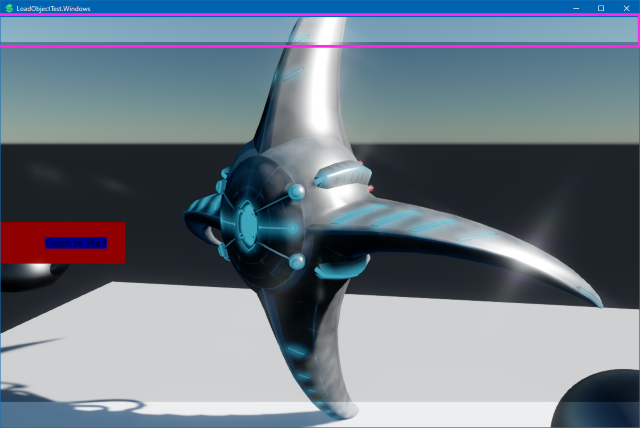
When using a ModalElement to bring up some UI and prevent interaction with the UI behind it, ModalElementRenderer draws a rectangle that's supposed to cover everything behind it. (to shade it a bit)
However, if the window is resizable with Game.Window.AllowUserResizing = true;, this rectangle doesn't fill the whole window properly when it's taller than wider. Not sure why this is. I think the drawing code is here:
Stride.UI/Renderers/DefaultModalElementRenderer.cs
I have noticed that the 2d UI virtual resolution seems to only scale proportional to window width. (the size of 2d items changes based on window width, but it does not change based on window height)
To Reproduce
Steps to reproduce the behavior:
(rewriting a new example test case)
Expected behavior
Expected the modal blocking panel to stay filling the window as it's resized.
Screenshots
I have highlighted the top bar in purple on the screenshot below, and I've provided a youtube video demonstration.
Video: Youtube - visual artifacts resizing a game window - Stride v4.0.0.1-beta2-0928
 jeske
jeske
All 6 comments
Could not reproduce on 'New Game' and 'Animation' sample, this might be related to the UI you have there ? A small repro might help if you have the time to prepare one
 Eideren
on 8 May 2020
Eideren
on 8 May 2020
My repo is available here:
jeske
on 8 May 2020
I tested your project, the 'dark' middle part is related to your UI code, and is only stretching horizontally.
I commented out Entity.Get<UIComponent>().Page = new UIPage { RootElement = mainMenuRoot }; and the whole screen was brighter.
As for why the UI is darkening the screen, that's probably what needs to be investigated more (I suspect there's some sort of black UI background with an alpha?)
EDIT: You're using a ModalElement, it has an OverlayColor defaulted to #99000000 which is why it's darkening. And you're not stretching vertically so it doesn't update its height.
 Basewq
on 8 May 2020
Basewq
on 8 May 2020
Thanks for that... my mistake...
jeske
on 8 May 2020
I better understand this now.. There is a bug... ModalElementRenderer draws a rectangle that is supposed to "fill the whole screen" to shade things behind it.. but somehow this isn't actually filling the whole screen when the window is resized.
jeske
on 13 May 2020
Not sure if this solves your issue or not, but the UI sample project code also updates the UIComponent's Resolution when the window's size changes
https://github.com/stride3d/stride/blob/273dfddd462fd3746569f833e1493700c070b14d/samples/UI/GameMenu/GameMenu.Game/UISceneBase.cs#L48-L52
Basewq
on 19 May 2020
Related issues
 EternalTamago
·
3Comments
EternalTamago
·
3Comments
 MichaelJ1423
·
3Comments
MichaelJ1423
·
3Comments
 mockc
·
3Comments
mockc
·
3Comments
 meriaizen86
·
5Comments
meriaizen86
·
5Comments
 tebjan
·
6Comments
tebjan
·
6Comments
Most helpful comment
Not sure if this solves your issue or not, but the UI sample project code also updates the UIComponent's Resolution when the window's size changes
https://github.com/stride3d/stride/blob/273dfddd462fd3746569f833e1493700c070b14d/samples/UI/GameMenu/GameMenu.Game/UISceneBase.cs#L48-L52