Staxrip: 2.1.7.0: 'Windows Terminal' menu does not respect Macro in 'Working Directory' parameter setting
Describe the bug
System: Windows 10 Home x64 19042.685
The Windows Terminal menu in Tools > Advanced does _not_ respect a macro in its Working Directory command parameter. It always opens a Windows Terminal window at the place set as the starting directory in the settings.json configuration file of Windows Terminal.
By contrast, Command Prompt opens at the place designated by the macro.
How to reproduce the issue
Right after launching StaxRip, go to
Tools>Edit Menu.Put a macro in
Working Directoryof theWindows Terminalmenu. (For example, I put%working_dir%.)

Save and close
Menu Editor.Launch Windows Terminal from within StaxRip by clicking
Tools>Advanced>Windows Terminalor using the shortcutCtrl + T.
You will see that Windows Terminal always opens at the starting directory configured in Windows Terminal settings regardless of whether a source/project is open or not. In my case, it's set to D:\Work, so Windows Terminal always opens there.
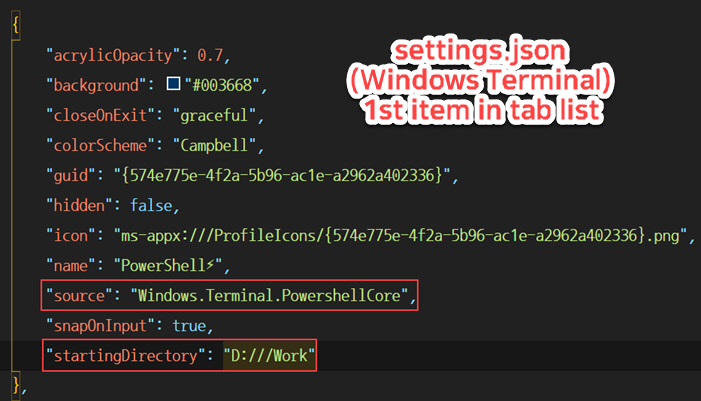
By contrast, Command Prompt opens at the right place with the same Working Directory setting as in Windows Terminal: %startup_dir% when no source/project is open, and %working_dir% when a source/project is open.
Extra
I'm wondering if this is a tool issue. Is it hard to make Windows Terminal accept the macro passed by StaxRip? 😣
 JJKylee
All 3 comments
I've added macro expansion and added %working_dir% as default for the command prompt and windows terminal menu items. Tested it and it works here. Hotfix for it is online. My defaults below, note I use "startingDirectory" : null for all profiles, KeyLauncher has Desktop as working dir, in Open with++ I use wt.exe as path and no arguments at all and in a global AutoIt shortcut I use ShellExecute("wt.exe", "", "C:\Users\frank\Desktop"), using numerous global shortcuts with Alt key.
// generated by Windows Terminal 1.4.3243.0

// To view the default settings, hold "alt" while clicking on the "Settings" button.

// For documentation on these settings, see: https://aka.ms/terminal-documentation

{
    // To learn more about global settings, visit https://aka.ms/terminal-global-settings

    "$schema": "https://aka.ms/terminal-profiles-schema",
    "defaultProfile": "{574e775e-4f2a-5b96-ac1e-a2962a402336}",
    "initialCols" : 100,
    "initialRows" : 25,
    "initialPosition" : "600,300",

    // If enabled, selections are automatically copied to your clipboard.
    "copyOnSelect": false,

    // If enabled, formatted data is also copied to your clipboard
    "copyFormatting": false,

    // A profile specifies a command to execute paired with information about how it should look and feel.
    // Each one of them will appear in the 'New Tab' dropdown,
    //   and can be invoked from the commandline with `wt.exe -p xxx`
    // To learn more about profiles, visit https://aka.ms/terminal-profile-settings
    "profiles":
    {
        "defaults":
        {
            "fontFace" : "Consolas",
            "acrylicOpacity" : 0.7,
            "fontSize" : 11,
            "useAcrylic" : true,
            "hidden": false,
            "startingDirectory" : null
        },
        "list":
        [
            {
                "name": "PowerShell",
                "commandline": "pwsh.exe -NoLogo",
                "guid": "{574e775e-4f2a-5b96-ac1e-a2962a402336}"
            },
            {
                "name": "PowerShell 5",
                "commandline": "powershell.exe -NoLogo",
                "guid": "{61c54bbd-c2c6-5271-96e7-009a87ff44bf}"
            },
            {
                "name": "CMD",
                "commandline": "cmd.exe",
                "guid": "{0caa0dad-35be-5f56-a8ff-afceeeaa6101}"
            },
            {
                "name": "Azure Cloud Shell",
                "source": "Windows.Terminal.Azure",
                "guid": "{b453ae62-4e3d-5e58-b989-0a998ec441b8}"
            }
        ]
    },

    // Add custom color schemes to this array.
    // To learn more about color schemes, visit https://aka.ms/terminal-color-schemes
    "schemes": [],

    // Add custom actions and keybindings to this array.
    // To unbind a key combination from your defaults.json, set the command to "unbound".
    // To learn more about actions and keybindings, visit https://aka.ms/terminal-keybindings
    "actions":
    [
        // Copy and paste are bound to Ctrl+Shift+C and Ctrl+Shift+V in your defaults.json.
        // These two lines additionally bind them to Ctrl+C and Ctrl+V.
        // To learn more about selection, visit https://aka.ms/terminal-selection
        { "command": {"action": "copy", "singleLine": false }, "keys": "ctrl+c" },
        { "command": "paste", "keys": "ctrl+v" },

        // Press Ctrl+Shift+F to open the search box
        { "command": "find", "keys": "ctrl+shift+f" },

        // Press Alt+Shift+D to open a new pane.
        // - "split": "auto" makes this pane open in the direction that provides the most surface area.
        // - "splitMode": "duplicate" makes the new pane use the focused pane's profile.
        // To learn more about panes, visit https://aka.ms/terminal-panes
        { "command": { "action": "splitPane", "split": "auto", "splitMode": "duplicate" }, "keys": "alt+shift+d" }
    ]
}
 stax76
on 11 Jan 2021
stax76
on 11 Jan 2021
I confirm the fix (2.1.7.1 Beta) works, but like you said, _only when_ the "startingDirectory" is set explicitly to null in user's Windows Terminal settings.
If it is not set, user's home directory(%USERPROFILE%) is opened instead when Windows Terminal is called from the StaxRip menu. This is to follow the _default_ Windows Terminal settings, "startingDirectory": "%USERPROFILE%".
And if it is set to a specific folder, that folder is opened instead of the working directory, which is quite natural.
(Windows Terminal 1.4.3243.0)
I think users need to be advised accordingly.
JJKylee
on 11 Jan 2021
I don't remember what we discussed some weeks ago, something like this can be done:
wt -- powershell -command cd '%working_dir%'
stax76
on 11 Jan 2021
Related issues
 ZeroCool22
·
3Comments
ZeroCool22
·
3Comments
 Rafawell
·
4Comments
Rafawell
·
4Comments
 ghost
·
3Comments
JJKylee
·
3Comments
ghost
·
3Comments
JJKylee
·
3Comments
 HASJ
·
3Comments
HASJ
·
3Comments
Most helpful comment
I've added macro expansion and added %working_dir% as default for the command prompt and windows terminal menu items. Tested it and it works here. Hotfix for it is online. My defaults below, note I use "startingDirectory" : null for all profiles, KeyLauncher has Desktop as working dir, in Open with++ I use wt.exe as path and no arguments at all and in a global AutoIt shortcut I use
ShellExecute("wt.exe", "", "C:\Users\frank\Desktop"), using numerous global shortcuts with Alt key.