Sql-docs: Can't follow instructions to Install to Azure SQL Database
These links:
- https://github.com/MicrosoftDocs/sql-docs/blob/live/docs/samples/adventureworks-install-configure.md#install-to-azure-sql-database
- https://docs.microsoft.com/en-us/sql/samples/adventureworks-install-configure?view=sql-server-ver15&source=docs#install-to-azure-sql-database
Have instructions to install to Azure SQL Database that I can't follow:
If you do not yet have a SQL Server in Azure, navigate to the Azure portal and create a new SQL Database. In the process of creating a database, you will create a server. Make note of the server. See this tutorial to create a database in minutes.
- Connect to your Azure portal.
- Select Create a resource in the top left of the navigation pane.
- Select Databases and then select SQL Database.
- Fill in the requested information.
- In the Select Source field, select Sample (AdventureWorksLT) to restore a backup of the latest AdventureWorksLT backup.
- Select Create to create your new SQL Database, which is the restored copy of the AdventureWorksLT database.
The option to use an existing sample database doesn't seem to be available.
 paulomorgado
All 9 comments
@paulomorgado -- Paulo, thank you for your feedback. Are you trying to follow these instructions and use your own sample database?
 WilliamAntonRohm
on 21 Apr 2020
WilliamAntonRohm
on 21 Apr 2020
@WilliamAntonRohm, no. As the instructions show, I was trying to create a sample AdventureWorksLT database and that option doesn't seem to be available anymore.
I can import any bacpac I have on any of my blobs, but that requires me to download the bacpac and upload to the blob.
paulomorgado
on 21 Apr 2020
@paulomorgado -- Paulo, please try the tutorial mentioned in your first comment, step 16, and let me know if that is applicable to this issue.
WilliamAntonRohm
on 22 Apr 2020
@WilliamAntonRohm, don't you mean https://docs.microsoft.com/en-us/azure/sql-database/sql-database-import?
Nevertheless, the feature to import a database from a set of sample databases provided by Microsoft doesn't seem to exist. Thus, the documentation should be corrected to point to a way for the user to get a sample database and import it.
paulomorgado
on 22 Apr 2020
@paulomorgado -- Paulo, thank you for clarifying.
@MashaMSFT -- Masha, please look into this issue.
WilliamAntonRohm
on 27 Apr 2020
@WilliamAntonRohm, no. As the instructions show, I was trying to create a sample AdventureWorksLT database and that option doesn't seem to be available anymore.
I can import any _bacpac_ I have on any of my blobs, but that requires me to download the _bacpac_ and upload to the blob.
@paulomorgado
My apologies, I'm not sure I'm following the conversation. From what I gather, you're trying to create a new Azure SQL Database using a sample database, but you're saying that the steps William pointed you to won't work for you? I'm not sure I understand, because when I look at the steps, I see that it's creating the AdventureWorksLT database, I've highlighted it here:
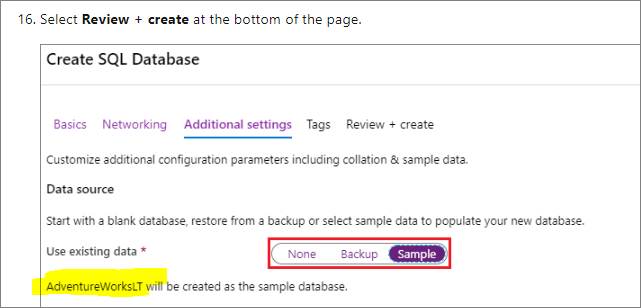
Would you mind clarifying what you're trying to do that is different than this step?
Thanks!
Masha from the SQL Docs team
 MashaMSFT
on 28 Apr 2020
MashaMSFT
on 28 Apr 2020
My bad, @MashaMSFT. I missed that.
But that is not exactly what it says here (source):
Install to Azure SQL Database
If you do not yet have a SQL Server in Azure, navigate to the Azure portal and create a new SQL Database. In the process of creating a database, you will create a server. Make note of the server. See this tutorial to create a database in minutes.
- Connect to your Azure portal.
- Select Create a resource in the top left of the navigation pane.
- Select Databases and then select SQL Database.
- Fill in the requested information.
- In the Select Source field, select Sample (AdventureWorksLT) to restore a backup of the latest AdventureWorksLT backup.
- Select Create to create your new SQL Database, which is the restored copy of the AdventureWorksLT database.
Is it?
paulomorgado
on 28 Apr 2020
Hi @paulomorgado , ahh, I see, yes, this portion of the article was written before the new create database experience. Thanks for bringing this to our attention, I'll get this updated :)
Thanks!
Masha from the SQL Docs team
MashaMSFT
on 28 Apr 2020
Hi @paulomorgado , thanks for your patience and my apologies for the delay :) this article has been significantly rewritten for clarity, and your issue should be addressed with the rewrite.
I hope that helps and please let us know if there's anything more we can assist you with? I'm going to close out this Git Issue but please comment should you need anything further.
Thanks again and hope you have a wonderful rest of your day!
Masha from the SQL Docs team
MashaMSFT
on 30 Jun 2020
Related issues
 ahdung
·
8Comments
ahdung
·
8Comments
 sidesw1pe
·
13Comments
sidesw1pe
·
13Comments
 BeginTry
·
8Comments
BeginTry
·
8Comments
 Chris3y
·
21Comments
Chris3y
·
21Comments
 thuannguy
·
10Comments
thuannguy
·
10Comments