Specflow: feature.cs and tests are not generated using SpecFlow.Tools.MsBuild.Generation 3.0.213
feature.cs and tests are not generated using SpecFlow.Tools.MsBuild.Generation 3.0.213
SpecFlow Version:
- [x] 3.0
- [ ] 2.4
- [ ] 2.3
- [ ] 2.2
- [ ] 2.1
- [ ] 2.0
- [ ] 1.9
Used Test Runner
- [ ] SpecFlow+Runner
- [ ] MSTest
- [x] NUnit
- [ ] Xunit
Version number: 3.11
Project Format of the SpecFlow project
- [x] Classic project format using
packages.config - [ ] Classis project format using
<PackageReference>tags - [ ] Sdk-style project format
.feature.cs files are generated using
- [x]
SpecFlow.Tools.MsBuild.GenerationNuGet package - [ ]
SpecFlowSingleFileGeneratorcustom tool
Visual Studio Version
- [x] VS 2019
- [ ] VS 2017
- [ ] VS 2015
Enable SpecFlowSingleFileGenerator Custom Tool option in Visual Studio extension settings
- [ ] Enabled
- [x] Disabled
Are the latest Visual Studio updates installed?
- [ ] Yes
- [x] No
.NET Framework:
- [x] >= .NET 4.5
- [ ] before .NET 4.5
- [ ] .NET Core 2.0
- [ ] .NET Core 2.1
- [ ] .NET Core 2.2
- [ ] .NET Core 3.0
Test Execution Method:
- [x] Visual Studio Test Explorer
- [ ] TFS/VSTS/Azure DevOps – Task – PLEASE SPECIFY THE NAME OF THE TASK
- [ ] Command line – PLEASE SPECIFY THE FULL COMMAND LINE
<SpecFlow> Section in app.config or content of specflow.json
<assemblyIdentity name="TechTalk.SpecFlow" publicKeyToken="07781....." culture="neutral" />
        <bindingRedirect oldVersion="0.0.0.0-3.0.0.0" newVersion="3.0.0.0" />
Repro Project
Issue Description
I am not seeing test hierarchy in test explorer and also I am not seeing feature.cs file generated. My setup is
Microsoft.NET.Test.Sdk
Specflow 3.0.213
SpecFlow.Tools.MsBuild.Generation 3.0.213
SpecFlow.NUnit 3.0.213
NUnit3 Test Adapter
NUnit 3.11
Upon building and rebuilding , I get this in VS2019 output tab
Running all tests in C:\...\bin\debug\something.dll
 NUnit failed to load  C:\...\bin\debug\something.dll
NUnit Adapter 3.13.0.0: Test execution complete
No test is available in C:\....\bin\debug\something.dll Make sure that test discoverer & executors are registered and platform & framework version settings are appropriate and try again.
There is no error in error tab.
I do not see feature.cs in solution explorer and neither do I see tests in test explorer
Steps to Reproduce
Once above described setup is done , build the project
 mygithub07
All 24 comments
Could you create a small example project where we can reproduce the issue?
 SabotageAndi
on 20 May 2019
SabotageAndi
on 20 May 2019
I'll be honest and say , I will try to create , if I get chance. I am unable to promise something. But meanwhile I can provide you information as much as you require.
mygithub07
on 20 May 2019
Does anyone has any idea about this issue, I am still having it. I matched the framework that SpecFlow.Tools.MsBuild.Generation was built against with my targeted framework but that didn't help either.
mygithub07
on 22 May 2019
I hope you find a solution soon. This is severely affecting our development work as well as our trust and reliance on SpecFlow as a tool for acceptance and integration testing.
In one of the projects in which I need to add feature files, when I try to add one using the "SpecFlow Feature File" template, I always get a build error Source file (...)\Feature1.feature.cs could not be found.
No code behind file is generated on save, nor is it generated on build.
I've reverted to the previous version of the extension as suggested in https://github.com/techtalk/SpecFlow/issues/1557#issuecomment-490827846 and, ate least, managed that existing feature files could be changed (which wasn't happening as well).
I've tried all suggestions, including:
- removing the custom tool "SpecFlowSingleFileGenerator"
- messing around with
.csprojfile;
-...
The project targets .NET Framework 4.6.2 and references the following:
<PackageReference Include="SpecFlow" Version="3.0.213" />
<PackageReference Include="SpecFlow.Tools.MsBuild.Generation" Version="3.0.213" />
The struggle my teammates and I have been having is costing the team too many unproductive development hours (and days, actually) with what should be a seamless procedure: add new scenarios and new features to existing projects.
 antoniomapinho
on 23 May 2019
antoniomapinho
on 23 May 2019
@antoniomapinho If you provide a project to reproduce the issue, we will have a look at it. There are so many different possibilities how the project could be setup, we often can't reproduce your issues only with a description of steps.
@mygithub07 I updated our MSBuild example to the latest version of SpecFlow. It is here: https://github.com/techtalk/SpecFlow-Examples/tree/master/MSBuild/OldCSProj_SpecFlow30 I would suggest that you compare your project with this one. This is working. So there have to be a difference between your project and this.
SabotageAndi
on 23 May 2019
@SabotageAndi I understand your point of there being a number of possibilities, but I find it hard to accept that the mere fact of an auto updating extension preventing us from simply adding a new scenario to a feature (or simply deleting a character and reentering it) and causing the project not to compile. Then, updating the package requiring so, so many changes and causing yet more different errors in each step.
I'm currently using SpecFlow for Visual Studio 2019 v2019.0.18.18989 with the following options:
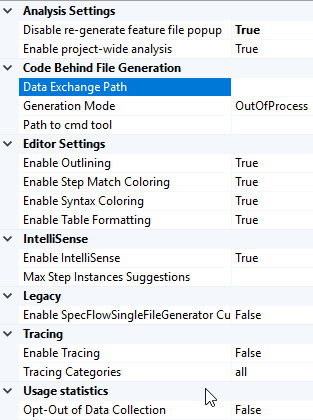
The current behavior is:
- Changes to existing feature files are not reflected on the existing
.csfiles; - Adding new feature files causes `Source file '...Feature1.feature.cs' could not be found.
I'm enclosing the .csproj file contents, stripped from sensitive information, hoping it's helpful.
Service.Host.Tests.Acceptance.zip
antoniomapinho
on 23 May 2019
@SabotageAndi , Thank you for sharing that. I compared the project you mentioned and added <None Include="Google.feature.cs"/> to .csproj , I can see feature.cs in solution explorer now but I cant see tests in test explorer. I am using nunit and the project you mentioned is using MSTest. Can that be the reason? When built, I see in output tab NUnit failed to load C:\
mygithub07
on 23 May 2019
@antoniomapinho
You have SpecFlowSingleFileGenerator set at your feature files. It's at the end of the csproj. This doesn't work with SpecFlow 3. You have to remove it.
SabotageAndi
on 24 May 2019
Hi @SabotageAndi, thanks for your reply. Despite them being in the example csproj, I had already tried removing those, both from the file properties and directly in the csproj, with the same outcome.
antoniomapinho
on 24 May 2019
@SabotageAndi - Thank you . I can run it now. I used MStest as yours and not NUnit , which I as using earlier
mygithub07
on 25 May 2019
@antoniomapinho After removing them, what did you do to get an error?
SabotageAndi
on 27 May 2019
Hi @SabotageAndi,
So, with the attached.csproj (removed all SpecFlow <ItemGroup>) it compiles correctly. However:
- If I change an already existing
.featurefile, it builds without errors but.csfiles are not regenerated (changes are not applied); - Adding a new
.featurefile (Add -> New Item -> Specflow Feature File) generates a.csfile immediately, as well as the following in .csproj:
<ItemGroup>
    <Compile Update="Features\Feature1.feature.cs">
      <DesignTime>True</DesignTime>
      <AutoGen>True</AutoGen>
      <DependentUpon>Feature1.feature</DependentUpon>
    </Compile>
  </ItemGroup>
  <ItemGroup>
    <SpecFlowFeatureFiles Update="Features\Feature1.feature">
      <Generator>SpecFlowSingleFileGenerator</Generator>
      <LastGenOutput>Feature1.feature.cs</LastGenOutput>
    </SpecFlowFeatureFiles>
  </ItemGroup>
Removing these <ItemGroup> entries and building, causes the following:

Service.Host.Tests.Acceptance.zip
antoniomapinho
on 27 May 2019
I managed to move forward, by moving back with these steps:
- created a brand new test project;
- install SpecFlow and SpecFlow.Tools.MSBuild.Generation v2.4.1;
- move all necessary code from the previous project;
- manually add
.featureand copy the content for each one;
With this procedure, code behind files were correctly created when saving, no build errors were encountered and tests ran as expected.
antoniomapinho
on 27 May 2019
@SabotageAndi I've prepared a sample project in which all these issues are happening. Please check it out.
Service.Host.Tests.Acceptance3.zip
antoniomapinho
on 27 May 2019
@SabotageAndi after some experiments, I've realized this probably has to do with my particular development environment, but I have yet to figure out the underlying issue. Any idea?
antoniomapinho
on 28 May 2019
An update on this: I managed to get it working by uninstalling both VS 2017 and 2019 and installing VS 2019 only. Not sure why, but it's working now.
antoniomapinho
on 4 Jun 2019
@antoniomapinho good to hear! Sorry for not answering. We had a public holiday in Austria and it was a little bit stressful in the last days
SabotageAndi
on 4 Jun 2019
Select Tools | Options from the menu in Visual Studio.
Browse to SpecFlow | General in the list on the left (you can use the search field to restrict the options).
Set Enable SpecFlowSingleFileGenerator CustomTool to true under Legacy.

 gshokar
on 29 Aug 2019
gshokar
on 29 Aug 2019
@gshokar .. You are my life saver. Now my TestExplorer is updating if change any tag for the scenario.
 umamahesh833
on 2 Sep 2019
umamahesh833
on 2 Sep 2019
@gshokar You are great. What I understand here is, people who started working with specflow versions less than 3 and used SpecFlowSingleFileGenerator as their custom tool have started getting this problem when they upgraded their SpecFlow version to 3.
SpecFlow 3 doesn't support SpecFlowSingleFileGenerator and considers it as a legacy feature.
If we want to continue using SpecFlowSingleFileGenerator as custom tool, enable it as shown by @gshokar
 ParthasarathyRaja
on 10 Sep 2019
ParthasarathyRaja
on 10 Sep 2019
I too had the issue related to feature file generation. I removed the SpecFlowSingleFileGenerator from all my feature files and i moved the specflow configurations from app.config to specflow.json file. Now feature files are getting generated. Thanks guys :+1:
 hariharan93m
on 20 Sep 2019
hariharan93m
on 20 Sep 2019
install these NPM-
1) SpecFlow-3.0.220
2) SpecFlow.MsTest - 3.0.220
3) SpecFlow.Tools.MsBuild.Generation-3.0.220
will generate .cs file and it will resolve the issue
 sanjus10
on 23 Sep 2019
sanjus10
on 23 Sep 2019
Select Tools | Options from the menu in Visual Studio.
Browse to SpecFlow | General in the list on the left (you can use the search field to restrict the options).
Set Enable SpecFlowSingleFileGenerator CustomTool to true under Legacy.
After setting the above option, if you still do not see the .cs file. It might probably be generated but not included in the project. Try selecting "show all files" in solution explorer and find and include generated file in project.
 amithkumar
on 9 Dec 2019
amithkumar
on 9 Dec 2019
Select Tools | Options from the menu in Visual Studio.
Browse to SpecFlow | General in the list on the left (you can use the search field to restrict the options).
Set Enable SpecFlowSingleFileGenerator CustomTool to true under Legacy.
Thanks very much @gshokar!!!! 😇
 hbkriz
on 27 May 2020
hbkriz
on 27 May 2020
Related issues
 PriyaSolanke286
·
5Comments
PriyaSolanke286
·
5Comments
 samholder
·
7Comments
samholder
·
7Comments
 gittadesushil
·
3Comments
gittadesushil
·
3Comments
 vkudley
·
4Comments
vkudley
·
4Comments
 TpRunWild
·
4Comments
TpRunWild
·
4Comments
Most helpful comment
Select Tools | Options from the menu in Visual Studio.

Browse to SpecFlow | General in the list on the left (you can use the search field to restrict the options).
Set Enable SpecFlowSingleFileGenerator CustomTool to true under Legacy.