Sonic-pi: Minor issues with high dpi displays
Just tested the application on a high dpi monitor on Windows 10. Overall, the application scales very well. However, there are a few minor issues listed below:
Autocompletion window is too small, not resizable:

The error window is too thin, only the height can be increased:

The application itself starts way too small and must be resized. The welcome dialog is to small and cannot be resized:

 reiner-dolp
All 6 comments
Thanks for pointing these issues out. If you are interested in contributing to the ongoing development of Sonic Pi - these would be great things to work on :-)
 samaaron
on 14 Aug 2016
samaaron
on 14 Aug 2016
Sam - This blog piece from MS might be worth reading with regards to DPI and scaling https://blogs.technet.microsoft.com/askcore/2016/08/16/display-scaling-changes-for-the-windows-10-anniversary-update/
reiner-dolp - are you able to update your Windows 10 release to the anniversary edition 1607 and testing the scaling again to see if the scaling changes have improved the experience for you?
Cheers
Paul
 sccmentor
on 19 Aug 2016
sccmentor
on 19 Aug 2016
@sccmentor upgrading to Windows 10 anniversary edition 1607 did not improve the scaling of the dialogs mentioned above.
reiner-dolp
on 29 Aug 2016
As a workaround for the current version you can run the EXE with these arguments:
sonic-pi.exe -platform windows:dpiawareness=0
As discussed at http://doc.qt.io/qt-5/highdpi.html this will set Qt into DPI Unaware mode, which looks fine on my machine (without it I see the same issues you report). The longer term fix would be to make this the default as described in the link.
 hegold
on 28 Nov 2016
hegold
on 28 Nov 2016
Hi!. I have a High DPI display on two computers, and here's what it looks like:
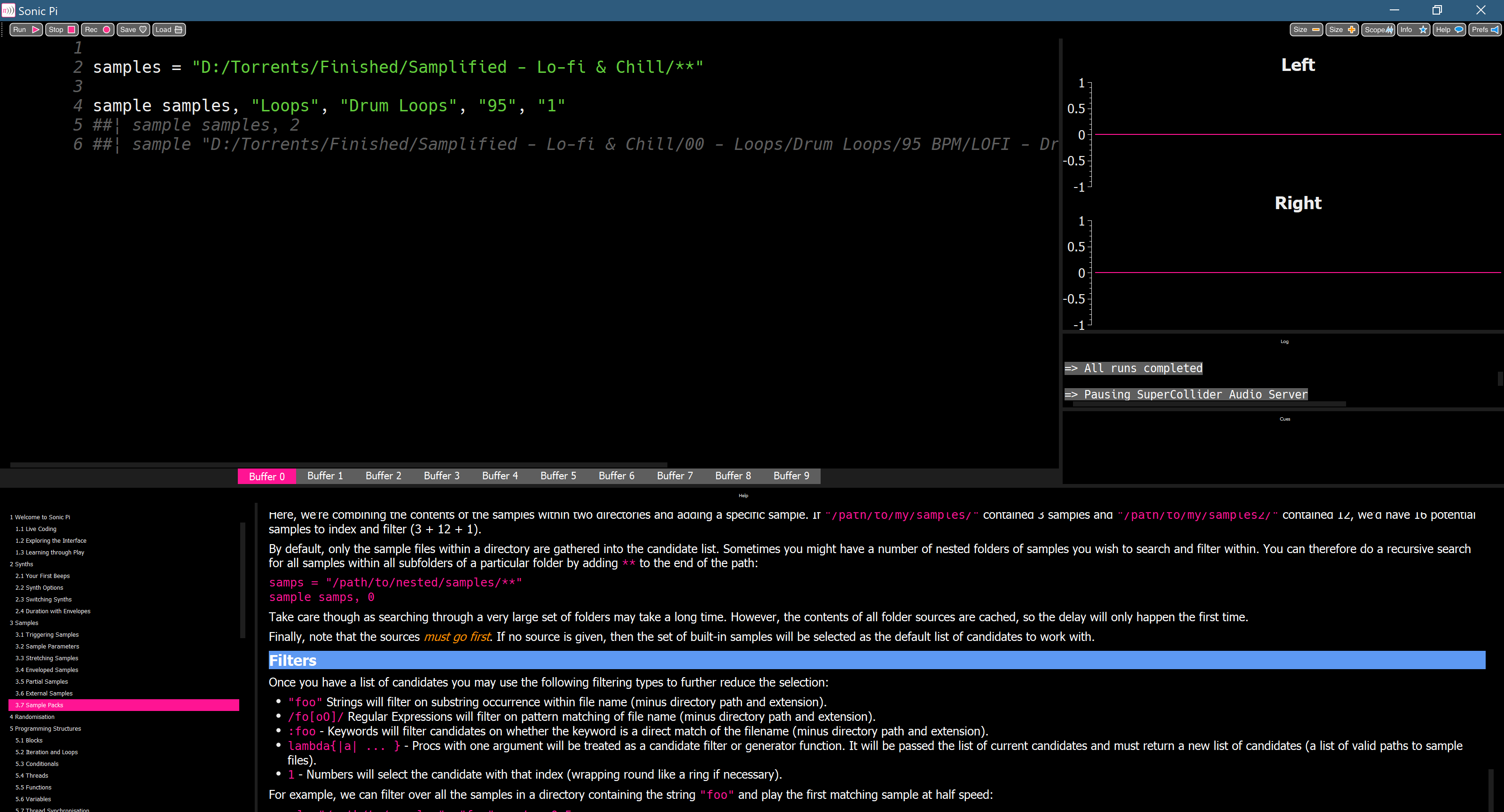
I could try to help fix this, but I'd need some pointers as to where to start with the source code.
 jbayardo
on 31 Jan 2019
jbayardo
on 31 Jan 2019
As a workaround for the current version you can run the EXE with these arguments:
sonic-pi.exe -platform windows:dpiawareness=0
In the latest version of Windows 10 you can achieve the same result by overriding DPI scaling behavior in the app's compatibility settings:
right click Sonic Pi icon > properties > compatibility > "change high DPI settings" > check "override high DPI behavior" > select "system (extended)" from drop-down menu
With both versions the font size of the auto-complete and help is large enough to read, but the font in the code editor looks much less crisp than it does normally (I'm using a Surface pro 6).
I think a better fix would be to allow changing the font size of text outside of the editor pane.
 Teebusch
on 1 Feb 2019
Teebusch
on 1 Feb 2019
Related issues
 GooDump
·
4Comments
GooDump
·
4Comments
 kivancguckiran
·
4Comments
kivancguckiran
·
4Comments
 xorik
·
7Comments
xorik
·
7Comments
 sbeaumont
·
3Comments
sbeaumont
·
3Comments
 chunseoklee
·
4Comments
chunseoklee
·
4Comments
Most helpful comment
In the latest version of Windows 10 you can achieve the same result by overriding DPI scaling behavior in the app's compatibility settings:
right click Sonic Pi icon > properties > compatibility > "change high DPI settings" > check "override high DPI behavior" > select "system (extended)" from drop-down menu
With both versions the font size of the auto-complete and help is large enough to read, but the font in the code editor looks much less crisp than it does normally (I'm using a Surface pro 6).
I think a better fix would be to allow changing the font size of text outside of the editor pane.