Simulator: Unity Editor enters an unresponsive black screen with the simulator
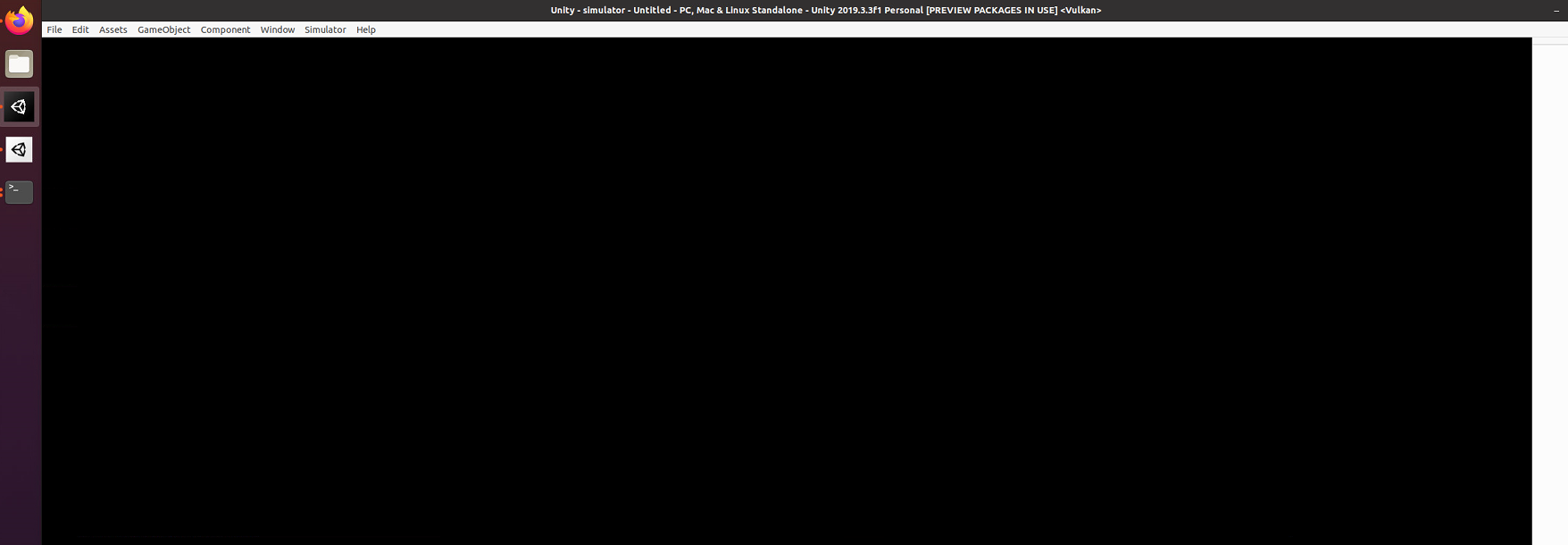
I followed the instructions on https://www.lgsvlsimulator.com/docs/build-instructions/ and when I click on the project simulator, it loaded up a black screen on the Unity Editor and I'm unable to do step 12, as this window (attached image below) won't close (but it minimizes) and it is unresponsive if I click on any options (for Simulator > Build WebUI..).
I tried creating a new project (not adding the cloned simulator) and it worked fine. I rebooted and I still had the same problem. How do I fix this issue?
 nniranjhana
All 5 comments
Sorry docs should read 2019.3.15f1 here is the change log. download and install Unity 2019.3.15f1 for the 06 release here. Be sure to include Windows modules, since you are on Linux.
Close unity and delete the Library folder in the root of the cloned repo. Open Unity and let it create the folder. Close Unity after it is done and open it again.
If you still have issues, please find the Editor player log here and post.
 EricBoiseLGSVL
on 4 Nov 2020
EricBoiseLGSVL
on 4 Nov 2020
I followed your instructions, unfortunately the problem still persists. PFA the Editor log.
nniranjhana
on 5 Nov 2020
This is your issue
Vulkan API version 1.1.0 (1.2.131 supported by driver)
Vulkan vendor=[Intel] id=[8086]
Vulkan renderer=[Intel(R) UHD Graphics 630 (CML GT2)] id=[9bc5]
Vulkan device type 1
Vulkan driverversion=[0x05000008] uint=[83886088]
Vulkan PSO: cache data not found [path=/tmp/LG Silicon Valley Lab/LGSVL Simulator/vulkan_pso_cache.bin]
Initialize mono
You need to be sure Simulator is using the GPU. Please see the linked issues here #1057
EricBoiseLGSVL
on 5 Nov 2020
Thanks for pointing me to the root of the issue! I checked #1057, #1076, #879, #753 which were all related. But I could not find the exact solution there (I had already added the PPA, my NVIDIA drivers installed, libvulkan1 and vulkan-tools installed (but vkcube didn't render) and I did not want to run LGSVL in a docker container to solve this).
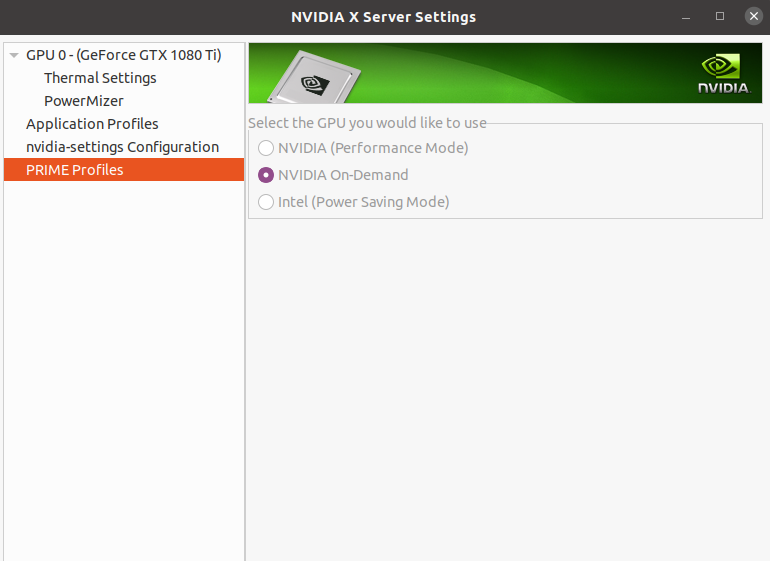
So on Ubuntu, I had to open NVIDIA X Server Settings, go to PRIME Profiles tab, and choose NVIDIA On-Demand (it was previously in Performance Mode) and then reboot. I am now able to work with the simulator on a responsive Unity Editor.
For anyone else who might need it in the future:
nniranjhana
on 5 Nov 2020
Awesome and thanks for posting your solution for others. You rock
EricBoiseLGSVL
on 6 Nov 2020
Related issues
 frontw
·
5Comments
frontw
·
5Comments
 fgrzeszc
·
4Comments
fgrzeszc
·
4Comments
 AlexandrZabolotny
·
4Comments
AlexandrZabolotny
·
4Comments
 dr563105
·
4Comments
dr563105
·
4Comments
 kmitri-dxc
·
5Comments
kmitri-dxc
·
5Comments