It would be great if in screenshot region mode i could add effect like this
https://www.screenpresso.com/how-to-create-gorgeous-magnifying-glass-effects/
or something like this
http://www.snapfiles.com/screenshots/n4magnify.htm
 szegi
szegi
All 11 comments
Main reason I didn't add this tool is because 2x enlarged image looks bad.
 Jaex
on 30 Oct 2017
Jaex
on 30 Oct 2017
Main reason I didn't add this tool is because 2x enlarged image looks bad.
I think the main idea is to get an image that you'll resize smaller later, especially email. So it's ugly in the editor but it looks better once you shrink it. Maybe there's a way to make the magnifying effect go along with shrinking the main image, I dunno.
Workaround
I occasionally build these inside PowerPoint or LibreOffice Impress:
- Paste in two of the same image:
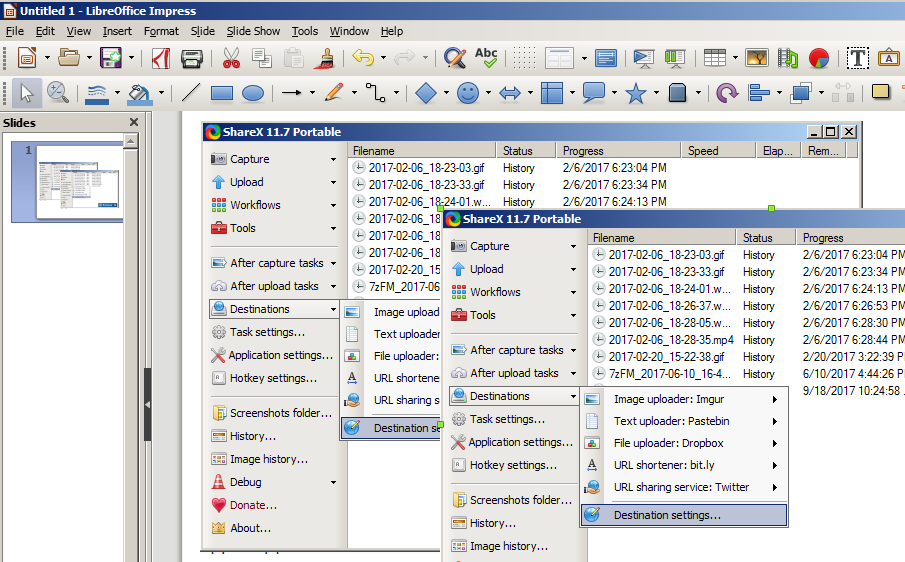
- Shrink the first image and crop the second:
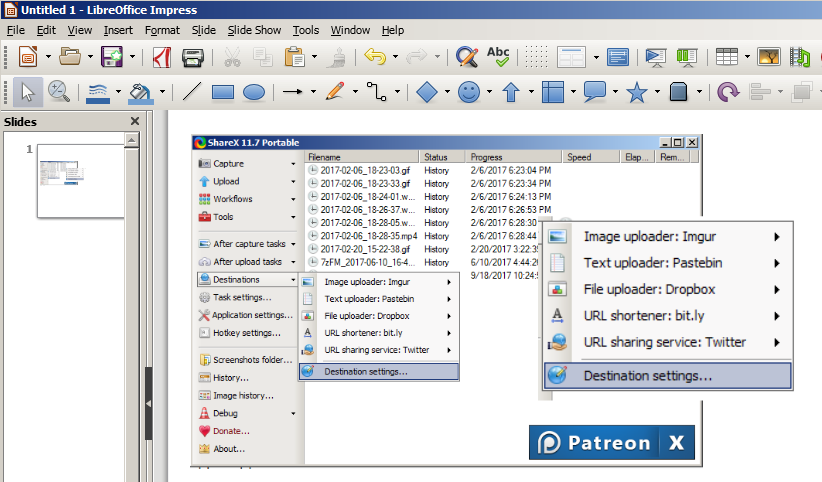
- Draw a frame around the area you want to zoom in and it's result, then add an arrow
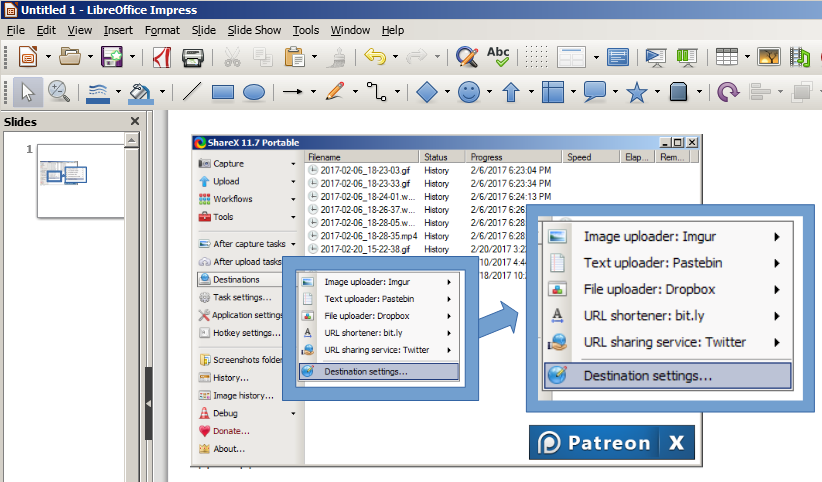
Hope that helps.
 vatterspun
on 23 Nov 2017
vatterspun
on 23 Nov 2017
yes maybe this approach is possible
szegi
on 23 Nov 2017
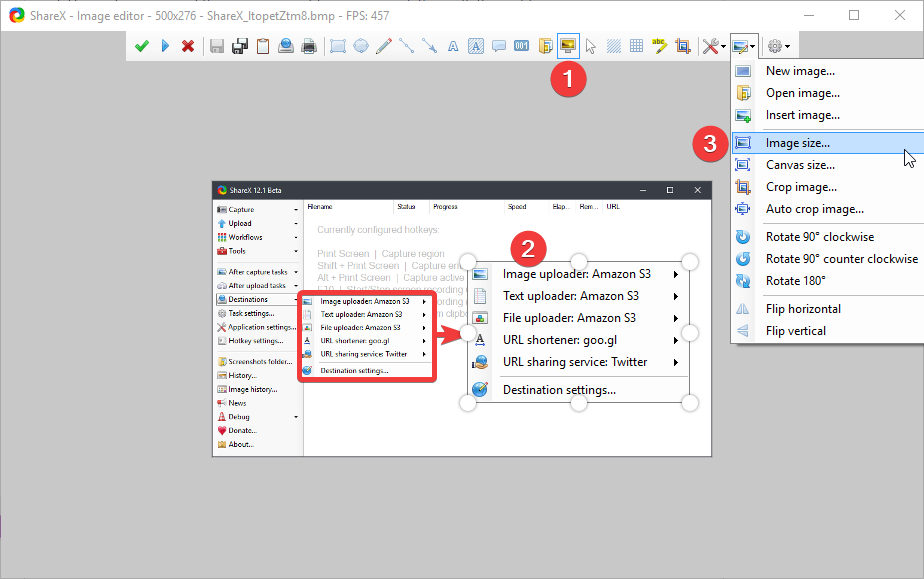
@vatterspun you can already do exactly that using "Image (Screen)" and resize:
Jaex
on 30 Dec 2017
@Jaex i dont see this options with size and canvas in my menu
szegi
on 31 Dec 2017
That menu not exists in region capture annotation, it is in after capture tasks -> image editor etc.
Jaex
on 31 Dec 2017
@Jaex i dont see option to change from greenshot editor to different
sorry for offtopic but i see it can solve my other issue;p
szegi
on 31 Dec 2017
In task settings window -> advanced tab -> UseShareXForAnnotation option.
Jaex
on 31 Dec 2017
you can already do exactly that using "Image (Screen)" and resize:
Oh nice! Thanks for that. That's much faster than my trick.
Other workarounds
This lit a fire under me so I did a bit of digging and came across a few other possible workarounds. None are any better than what Jaex already listed:
- A virtual magnifying glass: http://magnifier.sourceforge.net/
- SnapDraw Free - a rather old and not very good freeware image capture/editor from several years ago (http://www.crossgl.com/asc_overview.htm).
- Screenpresso has a tool for this but that program has several issues including loads of feature limitations for the pro version and requires a net connection for some reason (https://www.screenpresso.com/features/).
vatterspun
on 1 Jan 2018
Now I'm adding magnify tool but like I told before it looks bad when zoom is pixelated like this:
It looks even worse if I use anti aliasing because of blurry result.
Jaex
on 2 May 2019
Now I'm adding magnify tool but like I told before it looks bad when zoom is pixelated like this:
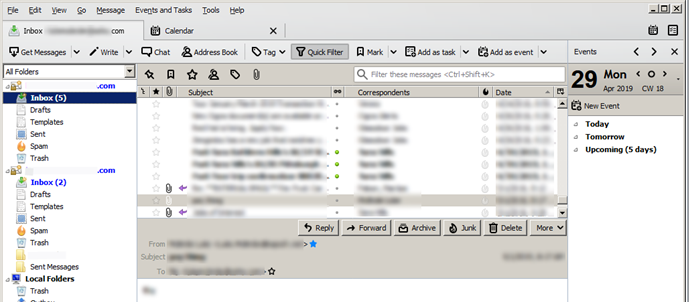
You're right that the pixelated image doesn't look good, but the ideal usage for zoom is to call attention to something on a big interface. I used this frequently at a previous job where our developers keep jamming more and more items onto an ever-growing interface. One example (though far from the worst) is Thunderbird with the Lightning calendar add-on enabled: on smaller screens it can be overwhelming. So a zoom view would highlight an area (in this case the Today Pane feature):
Before:
After:
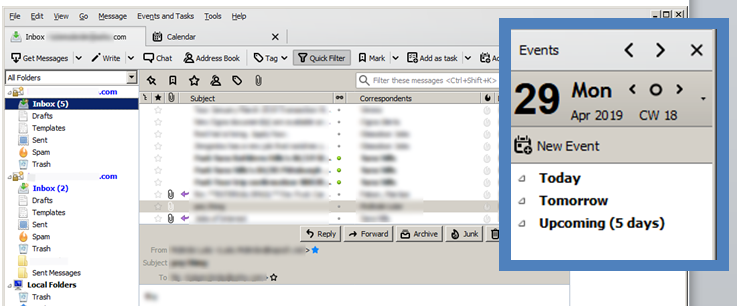
As such, I think what would make the most sense is to reduce the size of the image by ~40% and but keep the selected areas unchanged. So for the image you posted above it might look more like this:
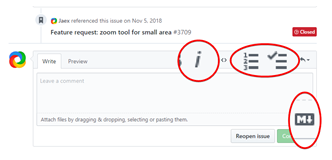
Note that I don't know of a way to easily add this to the main interface so maybe it's something in the _Add Image Effects_ area such as _Reduce Backgound Image_ so that all modified images appear larger. Just an idea.
vatterspun
on 3 May 2019
Related issues
 Centzilius
·
39Comments
Centzilius
·
39Comments
 makingbillions
·
28Comments
makingbillions
·
28Comments
 TrazzyDev
·
62Comments
TrazzyDev
·
62Comments
 EngineExt
·
18Comments
EngineExt
·
18Comments
 Zaczero
·
74Comments
Zaczero
·
74Comments