Shairport-sync: Add wiki page for using Digital Signal Processing
Shairport-Sync has the ability to do digital signal processing (DSP) to correct the audio signal being sent to the sound card.
These instructions explain how to use an application called Room EQ Wizard (REW) to generate an impulse response filter file for use with Shairport-Sync. REW can be used to play a sine-sweep through your speakers, while simultaneously recording that sine sweep from a microphone. REW compares the recorded sine-sweep against the baseline and then produces a correction filter to get a flat frequency response.
These instructions _are not_ an exhaustive explanation of how to use Room EQ Wizard - instead the goal here is to explain the bare minimum of how to generate a filter file that can be used with Shairport-Sync. There are a number of videos out there which go into much more depth on how to use REW. The quality of the correction depends on the quality of microphone and calibration done in Room EQ Wizard.
Requirements:
- Install the Room EQ Wizard application
- Microphone & Speakers
_Note_ that you can use any computer to take the measurement and produce the filter file - you do not have to use the computer which will be running Shairport-Sync.
Steps
- Launch Room EQ Wizard (REW)
- Click the _Preferences_ icon
- Select your speaker _Output Device_ and microphone _Input Device_
- From the _Levels_ drop down, choose _Use main speaker test signal to check/set levels_
- Click _Check Levels_ then click _Next_
- You should hear static coming out of the speakers and REW's SPL meter should show levels on the output and input. If you do not hear static, correct the _Output Device_ settings. If you do not see levels on the Input meter, check the _Input Device_ settings. If the levels are too high (clipping) turn your volume down.

- Click Finish to return to the main REW window
- Click the _Measure_ icon
- Click _Start Measuring_
- REW will output a sine sweep and record the result
- Click the _EQ_ Icon
- Under _Target Settings_ set the _Speaker Type_ to _Full Range_
- Under _Target Settings_ click the _Set target level_ (this is text, doesn't look like a button but it is)
- Under _Filter Tasks_ click _Match response to target_
- Note If you get a warning about the match range being above/below the target, you can adjust the _Target Level (dB)_ value manually up or down accordingly
- REW has now generated a filter profile that corrects the audio characteristics of your speaker and room. Now we can export this filter so that Shairport-Sync can use it in it's Digital Signal Processor.

- Close the EQ Window
- Click _File_, _Export_, _Export filters impulse response as WAV_
- Choose _Mono_, _16 Bit_, Sample Rate of _44100_
- save the file somewhere as
impulse.wav - Move this WAV file to the computer that will be running Shairport-Sync.
- Edit your
/etc/shairpoint-sync.conffile and add the following section:
dsp { convolution = "yes"; convolution_ir_file = "/path/to/impulse.wav"; }; - Restart
Shairport-Sync
When playing audio, Shairport Sync should now be applying the convolution filter to correct the sound characteristics.
Manually adjusting the filter
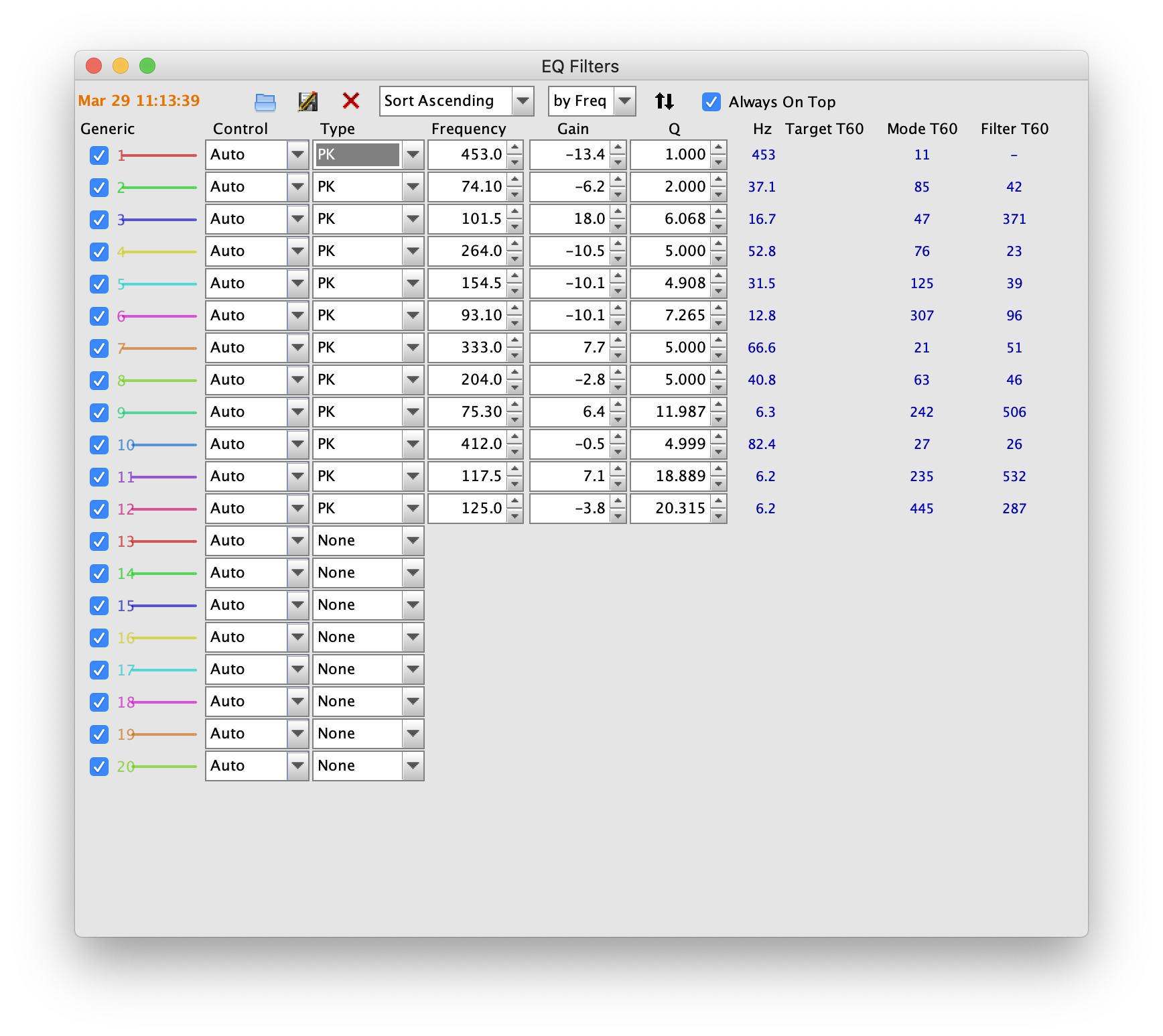
In step 5, there is a button at the top of the EQ window called EQ Filters. Clicking this button opens up another window that gives you the _Frequencey_, _Gain_ and _Q_ factor for each equalizer setting that was generated by REW.
REW's goal was to get a flat frequency response. You can manually adjust these values to change the filter before exporting it.
Checking the effect of the filter
You can toggle the filter on and off while music is playing in order to hear the effect the filter is having using the following commands:
- To turn off the filter:
dbus-send --print-reply --system --dest=org.gnome.ShairportSync /org/gnome/ShairportSync org.freedesktop.DBus.Properties.Set string:org.gnome.ShairportSync string:Convolution variant:boolean:false - Turn it back on:
dbus-send --print-reply --system --dest=org.gnome.ShairportSync /org/gnome/ShairportSync org.freedesktop.DBus.Properties.Set string:org.gnome.ShairportSync string:Convolution variant:boolean:true - Change the filter file:
/dbus-send --print-reply --system --dest=org.gnome.ShairportSync /org/gnome/ShairportSync org.freedesktop.DBus.Properties.Set string:org.gnome.ShairportSync string:ConvolutionImpulseResponseFile variant:string:"/path/to/impulse_2.wav"
 PaulWieland
All 8 comments
Wow! Just wow! Fantastic stuff -- let me take a day or two to take this on board.
 mikebrady
on 31 Mar 2021
mikebrady
on 31 Mar 2021
Unfortunately GitHub doesn't support PRs for Wiki pages, so I figured leaving an issue was the most efficient way to contribute. Let me know if you need the markdown version. I'm not sure if you can see my markdown (maybe by quoting it?).
PaulWieland
on 31 Mar 2021
I can see the Markdown alright, Paul.
mikebrady
on 31 Mar 2021
Hi Paul. I've added this as a Wiki page and put a mention in the main README.md, just at the bottom of this section.
What do you think?
mikebrady
on 2 Apr 2021
Great write up!
A couple of questions:
- Should the number REW mentions in the EQ filters screen at "headroom required" be enterend in the config file in the convolution_gain?
- When exporting to a 16 bit wav-file, I think you should also check the normalise box
- Why not export to a 32 bit float file? What type does the convolver use internally? I'm not sure, but I think it is a float as well.
 DeLub
on 3 Apr 2021
DeLub
on 3 Apr 2021
Great write up!
A couple of questions:
- Should the number REW mentions in the EQ filters screen at "headroom required" be enterend in the config file in the convolution_gain?
I found that the convolution_gain will not increase volume in any way. It only attenuates it - which could be useful if you had clipping for some reason (maybe by manually setting one of the equalizer gains too high).
- When exporting to a 16 bit wav-file, I think you should also check the normalise box
In my testing the normalize box was checked (it is by default) - I just forgot to mention it in the guide... Do you know what effect this has?
- Why not export to a 32 bit float file? What type does the convolver use internally? I'm not sure, but I think it is a float as well.
No reason in particular other than I suspect it will have more processing overhead. The 16 bit filter sounds _really_ good and further testing would be required to see if a 32 bit version somehow sounds better and how much (if any) overhead it would add to the signal processing.
PaulWieland
on 3 Apr 2021
Hi Paul. I've added this as a Wiki page and put a mention in the main README.md, just at the bottom of thissection.
What do you think?
Looks good and thanks for the shout out :)
What's funny is that now that I've discovered Convolver DSP filtering (thanks to Shairport-Sync), I want to use it in macOS but I can't find a way to do so.
I have blackhole audio, but what I can't find is a program that uses the FFTConvolver (or something similar) to apply REW's filters to an audio stream.
PaulWieland
on 3 Apr 2021
- When exporting to a 16 bit wav-file, I think you should also check the normalise box
In my testing the normalize box was checked (it is by default) - I just forgot to mention it in the guide... Do you know what effect this has?
The "volume" of the wav file will be increased so that the loudest sample will be 0dBFS. This makes sure that the full dynamic range of the 16 bits file is used. So this should sound better. For 32 bit float this is not necessary.
- Why not export to a 32 bit float file? What type does the convolver use internally? I'm not sure, but I think it is a float as well.
No reason in particular other than I suspect it will have more processing overhead. The 16 bit filter sounds _really_ good and further testing would be required to see if a 32 bit version somehow sounds better and how much (if any) overhead it would add to the signal processing.
If internally the convolver uses 32 bit float then this should not have extra processing overhead. But I'm not sure it does. You might be right though, that this is hardly audible if at all.
DeLub
on 3 Apr 2021
Related issues
 LinusU
·
4Comments
LinusU
·
4Comments
 asakaev
·
7Comments
asakaev
·
7Comments
 PeterPablo
·
8Comments
PeterPablo
·
8Comments
 vasilisvg
·
8Comments
vasilisvg
·
8Comments
 fundix
·
3Comments
fundix
·
3Comments