Hello. Setup RPi with Shairport-sync according to the instructions here:
https://www.matthewwegner.com/raspberry-pi-airplay/
...and I have no audio. Not from the jack, or the USB DAC (I bought the exact one he recommended in the guide). I can connect via AirPlay, but no sound.
Please let me know if you need any further info to help diagnose. I'm not very familiar with UNIX/Linux CLI, so extra hand-holding is appreciated.
 SalmonSurprise
All 62 comments
Hi there, and thanks for the post. I'd encourage you to look through the "simple" installation guide at INSTALL.md. It is oriented towards the Raspberry Pi. There are some slight differences with Matthew's guide, and they may be causing the issue. It is aimed at using the built-in DAC, and I would encourage you to get that going first. When it's working, you can easily switch to the USB DAC for better quality results.
 mikebrady
on 10 Sep 2018
mikebrady
on 10 Sep 2018
Started from scratch with those instructions, and can't even see the Pi in the AirPlay list. Was there something about the instructions on the other site that were bad? I need to get this thing working :(
SalmonSurprise
on 10 Sep 2018
Thanks for the update. Matthew's guide is for the pre-built binary package, which is rather old; there have been lots of useful updates since then. Also, the method he uses of changing the module priority of audio devices is unnecessary and, IMHO, a little inelegant: you don't need to change the configuration of the Pi. If you have done that and lost track of it all, it would be better to start over with a fresh copy of Raspbian.
In line with the idea of extra hand-holding, I hope you'll permit me to make a few quick suggestions / points:
- The syntax and grammar of command line arguments and of configuration files is very precise: everything is case-sensitive and must be written correctly. No 0s for Os or ls for 1s, and so on.
- Missing or incorrect punctuation marks like a semicolon, or like a colon instead of a semicolon, etc. will cause problems.
- Everything must be done _exactly_ as specified.
With that in mind, it might be useful to see whether any information about Shairport Sync. First, what version is installed – enter:
$ shairport-sync -V
Notice that it is an uppercase 'V'. It should come back with something like:
3.2.1-OpenSSL-Avahi-ALSA-soxr-sysconfdir:/etc
Next, see if any information is available as to why Shairport Sync is not running. Enter:
$ sudo systemctl status shairport-sync
If it's running, you'll get something like this:
● shairport-sync.service - Shairport Sync - AirPlay Audio Receiver
Loaded: loaded (/lib/systemd/system/shairport-sync.service; enabled; vendor preset: enabled)
Active: active (running) since Tue 2018-09-11 12:01:33 IST; 3s ago
Main PID: 11978 (shairport-sync)
CGroup: /system.slice/shairport-sync.service
└─11978 /usr/local/bin/shairport-sync
Sep 11 12:01:33 raspberrypi systemd[1]: Started Shairport Sync - AirPlay Audio Receiver.
If it's not running, you'll get something else. For example, this is where there's a syntax error – a missing { in the configuration file:
$ sudo systemctl status shairport-sync
● shairport-sync.service - Shairport Sync - AirPlay Audio Receiver
Loaded: loaded (/lib/systemd/system/shairport-sync.service; enabled; vendor preset: enabled)
Active: failed (Result: exit-code) since Tue 2018-09-11 12:04:13 IST; 2s ago
Process: 12057 ExecStart=/usr/local/bin/shairport-sync (code=exited, status=1/FAILURE)
Main PID: 12057 (code=exited, status=1/FAILURE)
Sep 11 12:04:13 raspberrypi systemd[1]: Started Shairport Sync - AirPlay Audio Receiver.
Sep 11 12:04:13 raspberrypi shairport-sync[12057]: fatal error: Line 66 of the configuration file "/etc/shairport-sync.conf":
Sep 11 12:04:13 raspberrypi systemd[1]: shairport-sync.service: Main process exited, code=exited, status=1/FAILURE
Sep 11 12:04:13 raspberrypi systemd[1]: shairport-sync.service: Unit entered failed state.
Sep 11 12:04:13 raspberrypi systemd[1]: shairport-sync.service: Failed with result 'exit-code'.
- Sometimes there'll be no error message, or it might be misleading – don't take an error message as unchallengeable truth.
Please let us know how you're doing!
mikebrady
on 11 Sep 2018
Thanks for your reply! I redid everything from scratch with your instructions. I have everything working but no audio. When I do the shairport-sync V, it says fatal error: could not establish a service on port 5000 -- program terminating. Is another instance of Shairport Sync running on this device?
status shows it is running.
SalmonSurprise
on 11 Sep 2018
Thanks for the update. Remember that everything is case-sensitive: If you enter shairport-sync -V (that is, with a capital V), you will not get the fatal error message, you'll get a long version string like 3.2.1-OpenSSL-Avahi-ALSA-soxr-sysconfdir:/etc, but if you entered shairport-sync -v (that is, with a small v) or if you omitted the -, then you might get the error message you mention. Remember your must also enter the little - sign too!
The good news is that the error message means that Shairport Sync is already running, presumably because it started up automatically as it should. So, if you enter sudo systemctl status shairport-sync you should get a message as indicated above. Could you post that?
mikebrady
on 11 Sep 2018
Also, could you post the contents of the configuration file at /etc/shairport-sync.conf please?
mikebrady
on 11 Sep 2018
// Sample Configuration File for Shairport Sync
// Commented out settings are generally the defaults, except where noted.
// General Settings
general =
{
// name = "%H"; // This means "Hostname" -- see below. This is the name the service will advertise to iTunes.
// The default is "Hostname" -- i.e. the machine's hostname with the first letter capitalised (ASCII only.)
// You can use the following substitutions:
// %h for the hostname,
// %H for the Hostname (i.e. with first letter capitalised (ASCII only)),
// %v for the version number, e.g. 3.0 and
// %V for the full version string, e.g. 3.0-OpenSSL-Avahi-ALSA-soxr-metadata-sysconfdir:/etc
// Overall length can not exceed 50 characters. Example: "Shairport Sync %v on %H".
// password = "secret"; // leave this commented out if you don't want to require a password
// interpolation = "basic"; // aka "stuffing". Default is "basic", alternative is "soxr". Use "soxr" only if you have a reasonably fast processor.
// output_backend = "alsa"; // Run "shairport-sync -h" to get a list of all output_backends, e.g. "alsa", "pipe", "stdout". The default is the first one.
// mdns_backend = "avahi"; // Run "shairport-sync -h" to get a list of all mdns_backends. The default is the first one.
// port = 5000; // Listen for service requests on this port
// udp_port_base = 6001; // start allocating UDP ports from this port number when needed
// udp_port_range = 100; // look for free ports in this number of places, starting at the UDP port base. Allow at least 10, though only three are needed in a steady state.
// drift_tolerance_in_seconds = 0.002; // allow a timing error of this number of seconds of drift away from exact synchronisation before attempting to correct it
// resync_threshold_in_seconds = 0.050; // a synchronisation error greater than this number of seconds will cause resynchronisation; 0 disables it
// ignore_volume_control = "no"; // set this to "yes" if you want the volume to be at 100% no matter what the source's volume control is set to.
// volume_range_db = 60 ; // use this advanced setting to set the range, in dB, you want between the maximum volume and the minimum volume. Range is 30 to 150 dB. Leave it commented out to use mixe$
// volume_max_db = 0.0 ; // use this advanced setting, which must have a decimal point in it, to set the maximum volume, in dB, you wish to use.
// The setting is for the hardware mixer, if chosen, or the software mixer otherwise. The value must be in the mixer's range (0.0 to -96.2 for the software mixer).
// Leave it commented out to use mixer's maximum volume.
// volume_control_profile = "standard" ; // use this advanced setting to specify how the airplay volume is transferred to the mixer volume.
// "standard" makes the volume change more quickly at lower volumes and slower at higher volumes.
// "flat" makes the volume change at the same rate at all volumes.
// run_this_when_volume_is_set = "/full/path/to/application/and/args"; // Run the specified application whenever the volume control is set or changed.
// The desired AirPlay volume is appended to the end of the command line – leave a space if you want it treated as an extra argument.
// AirPlay volume goes from 0 to -30 and -144 means "mute".
// regtype = "_raop._tcp"; // Use this advanced setting to set the service type and transport to be advertised by Zeroconf/Bonjour. Default is "_raop._tcp".
// playback_mode = "stereo"; // This can be "stereo", "mono", "reverse stereo", "both left" or "both right". Default is "stereo".
// alac_decoder = "hammerton"; // This can be "hammerton" or "apple". This advanced setting allows you to choose
// the original Shairport decoder by David Hammerton or the Apple Lossless Audio Codec (ALAC) decoder written by Apple.
// interface = "name"; // Use this advanced setting to specify the interface on which Shairport Sync should provide its service. Leave it commented out to get the default, which is to select the in$
// audio_backend_latency_offset_in_seconds = 0.0; // Set this offset to compensate for a fixed delay in the audio back end. E.g. if the output device delays by 100 ms, set this to -0.1.
// audio_backend_buffer_desired_length_in_seconds = 0.15; // If set too small, buffer underflow occurs on low-powered machines. Too long and the response time to volume changes becomes annoying. Defaul$
// audio_backend_silent_lead_in_time = 2.0; // This optional advanced setting, from 0.0 and 4.0 seconds, sets the length of the period of silence that precedes the start of the audio. The default is th$
// dbus_service_bus = "system"; // The Shairport Sync dbus interface, if selected at compilation, will appear
// as "org.gnome.ShairportSync" on the whichever bus you specify here: "system" (default) or "session".
// mpris_service_bus = "system"; // The Shairport Sync mpris interface, if selected at compilation, will appear
// as "org.gnome.ShairportSync" on the whichever bus you specify here: "system" (default) or "session".
// drift_tolerance_in_seconds = 0.010; // this is no longer necessary if you have updated the Pi's firmware using rpi-update (see above).
volume_range_db = 50;
};
// Advanced parameters for controlling how Shairport Sync runs a play session
sessioncontrol =
{
// run_this_before_play_begins = "/full/path/to/application and args"; // make sure the application has executable permission. If it's a script, include the shebang (#!/bin/...) on the first line
// run_this_after_play_ends = "/full/path/to/application and args"; // make sure the application has executable permission. If it's a script, include the shebang (#!/bin/...) on the first line
// wait_for_completion = "no"; // set to "yes" to get Shairport Sync to wait until the "run_this..." applications have terminated before continuing
// allow_session_interruption = "no"; // set to "yes" to allow another device to interrupt Shairport Sync while it's playing from an existing audio source
// session_timeout = 120; // wait for this number of seconds after a source disappears before terminating the session and becoming available again.
};
// Back End Settings
// These are parameters for the "alsa" audio back end.
alsa =
{
// output_device = "default"; // the name of the alsa output device. Use "alsamixer" or "aplay" to find out the names of devices, mixers, etc.
// mixer_control_name = "PCM"; // the name of the mixer to use to adjust output volume. If not specified, volume in adjusted in software.
// mixer_device = "default"; // the mixer_device default is whatever the output_device is. Normally you wouldn't have to use this.
// output_rate = 44100; // can be 44100, 88200, 176400 or 352800, but the device must have the capability.
// output_format = "S16"; // can be "U8", "S8", "S16", "S24", "S24_3LE", "S24_3BE" or "S32", but the device must have the capability. Except where stated using (*LE or *BE), endianness matches that of $
// disable_synchronization = "no"; // Set to "yes" to disable synchronization. Default is "no".
// period_size = <number>; // Use this optional advanced setting to set the alsa period size near to this value
// buffer_size = <number>; // Use this optional advanced setting to set the alsa buffer size near to this value
// use_mmap_if_available = "yes"; // Use this optional advanced setting to control whether MMAP-based output is used to communicate with the DAC. Default is "yes"
// use_hardware_mute_if_available = "no"; // Use this optional advanced setting to control whether the hardware in the DAC is used for muting. Default is "no", for compatibility with other audio player$
 output_device = "hw:0";
  mixer_control_name = "PCM";
How do I copy the whole thing? It only copies one screen.
SalmonSurprise
on 11 Sep 2018
If you $ cat /etc/shairport-sync you'll get the full file printed out. Then copy it all.
mikebrady
on 11 Sep 2018
// Sample Configuration File for Shairport Sync
// Commented out settings are generally the defaults, except where noted.
// General Settings
general =
{
// name = "%H"; // This means "Hostname" -- see below. This is the name the service will advertise to iTunes.
// The default is "Hostname" -- i.e. the machine's hostname with th e first letter capitalised (ASCII only.)
// You can use the following substitutions:
// %h for the hostname,
// %H for the Hostname (i.e. with first letter capi talised (ASCII only)),
// %v for the version number, e.g. 3.0 and
// %V for the full version string, e.g. 3.0-OpenSSL -Avahi-ALSA-soxr-metadata-sysconfdir:/etc
// Overall length can not exceed 50 characters. Example: "Shairport Sync %v on %H".
// password = "secret"; // leave this commented out if you don't want to re quire a password
// interpolation = "basic"; // aka "stuffing". Default is "basic", alternat ive is "soxr". Use "soxr" only if you have a reasonably fast processor.
// output_backend = "alsa"; // Run "shairport-sync -h" to get a list of all output_backends, e.g. "alsa", "pipe", "stdout". The default is the first one.
// mdns_backend = "avahi"; // Run "shairport-sync -h" to get a list of all mdns_backends. The default is the first one.
// port = 5000; // Listen for service requests on this port
// udp_port_base = 6001; // start allocating UDP ports from this port numbe r when needed
// udp_port_range = 100; // look for free ports in this number of places, s tarting at the UDP port base. Allow at least 10, though only three are needed in a steady state.
// drift_tolerance_in_seconds = 0.002; // allow a timing error of this numb er of seconds of drift away from exact synchronisation before attempting to corr ect it
// resync_threshold_in_seconds = 0.050; // a synchronisation error greater than this number of seconds will cause resynchronisation; 0 disables it
// ignore_volume_control = "no"; // set this to "yes" if you want the volum e to be at 100% no matter what the source's volume control is set to.
// volume_range_db = 60 ; // use this advanced setting to set the range, in dB, you want between the maximum volume and the minimum volume. Range is 30 to 150 dB. Leave it commented out to use mixer's native range.
// volume_max_db = 0.0 ; // use this advanced setting, which must have a de cimal point in it, to set the maximum volume, in dB, you wish to use.
// The setting is for the hardware mixer, if chosen, or the softwar e mixer otherwise. The value must be in the mixer's range (0.0 to -96.2 for the software mixer).
// Leave it commented out to use mixer's maximum volume.
// volume_control_profile = "standard" ; // use this advanced setting to sp ecify how the airplay volume is transferred to the mixer volume.
// "standard" makes the volume change more quickly at lower volumes and slower at higher volumes.
// "flat" makes the volume change at the same rate at all volumes.
// run_this_when_volume_is_set = "/full/path/to/application/and/args"; // Run the specified application whenever the volume control is set or changed.
// The desired AirPlay volume is appended to the end of the command line – le ave a space if you want it treated as an extra argument.
// AirPlay volume goes from 0 to -30 and -144 means "mute".
// regtype = "_raop._tcp"; // Use this advanced setting to set the service type and transport to be advertised by Zeroconf/Bonjour. Default is "_raop._tcp" .
// playback_mode = "stereo"; // This can be "stereo", "mono", "reverse ster eo", "both left" or "both right". Default is "stereo".
// alac_decoder = "hammerton"; // This can be "hammerton" or "apple". This advanced setting allows you to choose
// the original Shairport decoder by David Hammerton or the Apple L ossless Audio Codec (ALAC) decoder written by Apple.
// interface = "name"; // Use this advanced setting to specify the interfac e on which Shairport Sync should provide its service. Leave it commented out to get the default, which is to select the interface(s) automatically.
// audio_backend_latency_offset_in_seconds = 0.0; // Set this offset to compens ate for a fixed delay in the audio back end. E.g. if the output device delays by 100 ms, set this to -0.1.
// audio_backend_buffer_desired_length_in_seconds = 0.15; // If set too small, buffer underflow occurs on low-powered machines. Too long and the response time to volume changes becomes annoying. Default is 0.15 seconds in the alsa backend, 0.35 seconds in the pa backend and 1.0 seconds otherwise.
// audio_backend_silent_lead_in_time = 2.0; // This optional advanced setting, from 0.0 and 4.0 seconds, sets the length of the period of silence that precedes the start of the audio. The default is the latency, usually 2.0 seconds. Values greater than the latency are ignored. Values that are too low will affect initi al synchronisation.
// dbus_service_bus = "system"; // The Shairport Sync dbus interface, if select ed at compilation, will appear
// as "org.gnome.ShairportSync" on the whichever bus you specify here: "syste m" (default) or "session".
// mpris_service_bus = "system"; // The Shairport Sync mpris interface, if sele cted at compilation, will appear
// as "org.gnome.ShairportSync" on the whichever bus you specify here: "syste m" (default) or "session".
// drift_tolerance_in_seconds = 0.010; // this is no longer necessary if you hav e updated the Pi's firmware using rpi-update (see above).
volume_range_db = 50;
};
// Advanced parameters for controlling how Shairport Sync runs a play session
sessioncontrol =
{
// run_this_before_play_begins = "/full/path/to/application and args"; // m ake sure the application has executable permission. If it's a script, include th e shebang (#!/bin/...) on the first line
// run_this_after_play_ends = "/full/path/to/application and args"; // make sure the application has executable permission. If it's a script, include the s hebang (#!/bin/...) on the first line
// wait_for_completion = "no"; // set to "yes" to get Shairport Sync to wai t until the "run_this..." applications have terminated before continuing
// allow_session_interruption = "no"; // set to "yes" to allow another devi ce to interrupt Shairport Sync while it's playing from an existing audio source
// session_timeout = 120; // wait for this number of seconds after a source disappears before terminating the session and becoming available again.
};
// Back End Settings
// These are parameters for the "alsa" audio back end.
alsa =
{
// output_device = "default"; // the name of the alsa output device. Use "alsam ixer" or "aplay" to find out the names of devices, mixers, etc.
// mixer_control_name = "PCM"; // the name of the mixer to use to adjust output volume. If not specified, volume in adjusted in software.
// mixer_device = "default"; // the mixer_device default is whatever the output _device is. Normally you wouldn't have to use this.
// output_rate = 44100; // can be 44100, 88200, 176400 or 352800, but the devic e must have the capability.
// output_format = "S16"; // can be "U8", "S8", "S16", "S24", "S24_3LE", "S24_3 BE" or "S32", but the device must have the capability. Except where stated using (*LE or *BE), endianness matches that of the processor.
// disable_synchronization = "no"; // Set to "yes" to disable synchronization. Default is "no".
// period_size = <number>; // Use this optional advanced setting to set the als a period size near to this value
// buffer_size = <number>; // Use this optional advanced setting to set the als a buffer size near to this value
// use_mmap_if_available = "yes"; // Use this optional advanced setting to cont rol whether MMAP-based output is used to communicate with the DAC. Default is " yes"
// use_hardware_mute_if_available = "no"; // Use this optional advanced setting to control whether the hardware in the DAC is used for muting. Default is "no", for compatibility with other audio players.
output_device = "hw:0";
mixer_control_name = "PCM";
};
// Parameters for the "sndio" audio back end. All are optional.
sndio =
{
// device = "snd/0"; // optional setting to set the name of the output device. Default is the sndio system default.
// rate = 44100; // optional setting which can be 44100, 88200, 176400 or 3528 00, but the device must have the capability. Default is 44100.
// format = "S16"; // optional setting which can be "U8", "S8", "S16", "S24", "S24_3LE", "S24_3BE" or "S32", but the device must have the capability. Except w here stated using (*LE or *BE), endianness matches that of the processor.
// round = <number>; // advanced optional setting to set the period size near t o this value
// bufsz = <number>; // advanced optional setting to set the buffer size near t o this value
};
// Parameters for the "pa" PulseAudio backend.
pa =
{
// application_name = "Shairport Sync"; //Set this to the name that should appe ar in the Sounds "Applications" tab when Shairport Sync is active.
};
// Parameters for the "pipe" audio back end, a back end that directs raw CD-styl e audio output to a pipe. No interpolation is done.
pipe =
{
// name = "/path/to/pipe"; // there is no default pipe name for the output
};
// These are no configuration file parameters for the "stdout" audio back end. N o interpolation is done.
// These are no configuration file parameters for the "ao" audio back end. No i nterpolation is done.
// Static latency settings are deprecated and the settings have been removed.
dsp =
{
//////////////////////////////////////////
// This convolution filter can be used to apply almost any correction to the au dio signal, like frequency and phase correction.
// For example you could measure (with a good microphone and a sweep-sine) the frequency response of your speakers + room,
// and apply a correction to get a flat response curve.
//////////////////////////////////////////
//
// convolution = "yes"; // Activate the convolution filter.
// convolution_ir_file = "impulse.wav"; // Impulse Response file to be convolv ed to the audio stream
// convolution_gain = -4.0; // Static gain applied to prevent clip ping during the convolution process
// convolution_max_length = 44100; // Truncate the input file to this len gth in order to save CPU.
//////////////////////////////////////////
// This loudness filter is used to compensate for human ear non linearity.
// When the volume decreases, our ears loose more sentisitivity in the low rang e frequencies than in the mid range ones.
// This filter aims at compensating for this loss, applying a variable gain to low frequencies depending on the volume.
// More info can be found here: https://en.wikipedia.org/wiki/Equal-loudness_co ntour
// For this filter to work properly, you should disable (or set to a fix value) all other volume control and only let shairport-sync control your volume.
// The setting "loudness_reference_volume_db" should be set at the volume repor ted by shairport-sync when listening to music at a normal listening volume.
//////////////////////////////////////////
//
// loudness = "yes"; // Activate the filter
// loudness_reference_volume_db = -20.0; // Above this level the filter will ha ve no effect anymore. Below this level it will gradually boost the low frequenci es.
};
// How to deal with metadata, including artwork
metadata =
{
// enabled = "no"; // set this to yes to get Shairport Sync to solicit meta data from the source and to pass it on via a pipe
// include_cover_art = "no"; // set to "yes" to get Shairport Sync to solic it cover art from the source and pass it via the pipe. You must also set "enable d" to "yes".
// pipe_name = "/tmp/shairport-sync-metadata";
// pipe_timeout = 5000; // wait for this number of milliseconds for a block ed pipe to unblock before giving up
// socket_address = "226.0.0.1"; // if set to a host name or IP address, UD P packets containing metadata will be sent to this address. May be a multicast a ddress. "socket-port" must be non-zero and "enabled" must be set to yes"
// socket_port = 5555; // if socket_address is set, the port to send UDP pa ckets to
// socket_msglength = 65000; // the maximum packet size for any UDP metadat a. This will be clipped to be between 500 or 65000. The default is 500.
};
// Diagnostic settings. These are for diagnostic and debugging only. Normally yo u sould leave them commented out
diagnostics =
{
// disable_resend_requests = "no"; // set this to yes to stop Shairport Syn c from requesting the retransmission of missing packets. Default is "no".
// statistics = "no"; // set to "yes" to print statistics in the log
// log_verbosity = 0; // "0" means no debug verbosity, "3" is most verbose.
// log_show_time_since_startup = "no"; // set this to yes if you want the t ime since startup in the debug message -- seconds down to nanoseconds
// log_show_time_since_last_message = "no"; // set this to yes if you want the time since the last debug message in the debug message -- seconds down to na noseconds
// drop_this_fraction_of_audio_packets = 0.0; // use this to simulate a noi sy network where this fraction of UDP packets are lost in transmission. E.g. a v alue of 0.001 would mean an average of 0.1% of packets are lost, which is actual ly quite a high figure.
};
Thanks. I edited it slightly for layout. It looks fine. Now would you mind posting the response to $ sudo systemctl status shairport-sync?
mikebrady
on 12 Sep 2018
Unit shairport-syncsudo.service could not be found.
Unit systemctl.service could not be found.
Unit status.service could not be found.
● shairport-sync.service - Shairport Sync - AirPlay Audio Receiver
Loaded: loaded (/lib/systemd/system/shairport-sync.service; enabled; vendor pres
Active: active (running) since Tue 2018-09-11 12:45:48 CDT; 4h 48min ago
Main PID: 18136 (shairport-sync)
CGroup: /system.slice/shairport-sync.service
└─18136 /usr/local/bin/shairport-sync
Sep 11 12:45:48 PORKPI systemd[1]: Started Shairport Sync - AirPlay Audio Receiver.
lines 1-11/11 (END)
Unit shairport-syncsudo.service could not be found.
Unit systemctl.service could not be found.
Unit status.service could not be found.
● shairport-sync.service - Shairport Sync - AirPlay Audio Receiver
Hmm, there is some odd stuff there — are you certain you entered the command correctly? Without the $ (sorry to labour the point).
mikebrady
on 12 Sep 2018
Wait...something might have been wrong. I’m on a tablet that is remoted into a box that is SSHed into the pi on the lan. Might not have copied and pasted into shell properly. Please see new output below.
pi@PORKPI:~ $ sudo systemctl status shairport-sync
● shairport-sync.service - Shairport Sync - AirPlay Audio Receiver
Loaded: loaded (/lib/systemd/system/shairport-sync.service; enabled; vendor pres
Active: active (running) since Tue 2018-09-11 12:45:48 CDT; 8h ago
Main PID: 18136 (shairport-sync)
CGroup: /system.slice/shairport-sync.service
└─18136 /usr/local/bin/shairport-sync
Sep 11 12:45:48 PORKPI systemd[1]: Started Shairport Sync - AirPlay Audio Receiver.
lines 1-8/8 (END)
● shairport-sync.service - Shairport Sync - AirPlay Audio Receiver
Loaded: loaded (/lib/systemd/system/shairport-sync.service; enabled; vendor preset: enabled)
Active: active (running) since Tue 2018-09-11 12:45:48 CDT; 8h ago
Main PID: 18136 (shairport-sync)
CGroup: /system.slice/shairport-sync.service
└─18136 /usr/local/bin/shairport-sync
Sep 11 12:45:48 PORKPI systemd[1]: Started Shairport Sync - AirPlay Audio Receiver.
Thanks, that looks better. It looks like Shairport Sync is installed and running. Now let us verify that it is the correct version. Could you run the command shairport-sync -V again please and post the response?
mikebrady
on 12 Sep 2018
I think maybe it didn’t work before because your query was missing the - in the -V switch? Idk. Here is the output. Had to use a screenshot due to the way I am connected right now.

SalmonSurprise
on 12 Sep 2018
You were right -- I did omit the -. So I just fixed it, thanks. Now, your screen shot is great, and it does indicate that you have the most recent release in place. So you are making good progress.
Okay, so we need to see that's going on with the sound devices. There is a program called alsamixer. It may already be in your system -- just enter the command alsamixer. If it's there, you will get something like this:

If not, install it using sudo apt-get install alsa-utils. Could you post that screen please? The screen I'm looking for is the first screen that opens when you execute the command. Then, if you use the function key F6, you'll get something like this:

What's interesting is the new blue pane in the centre. Could you give us a look at that too please?
mikebrady
on 12 Sep 2018

SalmonSurprise
on 12 Sep 2018
Great. That means that the built-in DAC is indeed device hw:0 and, BTW, the USB DAC is hw:1.
So, the next thing is to figure out where the sound is going in the built-in DAC.
There is another command in the alsa utilities installation called speaker-test. The following command gets white noise alternating between the left and right channels:
speaker-test -r44100 --device=hw:0 -c2
It's saying: use device hw:0 and it's got two channels and send the audio at 44,100 frames per second. Can you hear it?
[Comment -- command argument has been changed from -d to --device=]
mikebrady
on 12 Sep 2018
BTW, it should be audible from the headphone jack.
mikebrady
on 12 Sep 2018
No sound.
SalmonSurprise
on 12 Sep 2018
Do you have anything in the HDMI port? If so, can you remove it?
mikebrady
on 12 Sep 2018
Already did, thought about that. No dice.
SalmonSurprise
on 12 Sep 2018
Also tried testing hw:1 and the DAC, no sound.
SalmonSurprise
on 12 Sep 2018
Let me try here...
mikebrady
on 12 Sep 2018
FWIW I am using the latest Raspbian Stretch Lite. Not sure if the Lite version has anything to do with sound...
SalmonSurprise
on 12 Sep 2018
Raspbian Stretch Lite is exactly the right version to be using. It seem that speaker-test is ignoring a device specified with -d, but it works if it's specified with --device. This works for me on my USB DAC:
speaker-test --device=hw:1 -r44100 -c2
You might have to use alsamixer to set the volume up high...
Any joy?
mikebrady
on 12 Sep 2018
Wait...yes!!!
SalmonSurprise
on 12 Sep 2018
I am getting sound out of the DAC!
SalmonSurprise
on 12 Sep 2018
Now how do I get the music to work through Shairport-sync?
SalmonSurprise
on 12 Sep 2018
Cool. Which DAC?
mikebrady
on 12 Sep 2018
USB - Mini USB DAC by Signstek Audio - the same one in Matthew's instructions.
SalmonSurprise
on 12 Sep 2018
So, use alsamixer to get the name of the mixer control -- use F6 to select it. On the built-in DAC it's called "PCM". What's it called on USB?
mikebrady
on 12 Sep 2018
USB Audio DAC
SalmonSurprise
on 12 Sep 2018
What I mean is to use F6 to see the selection list in that blue pane. Use the arrow keys to select the USB device there and press return. I see this:
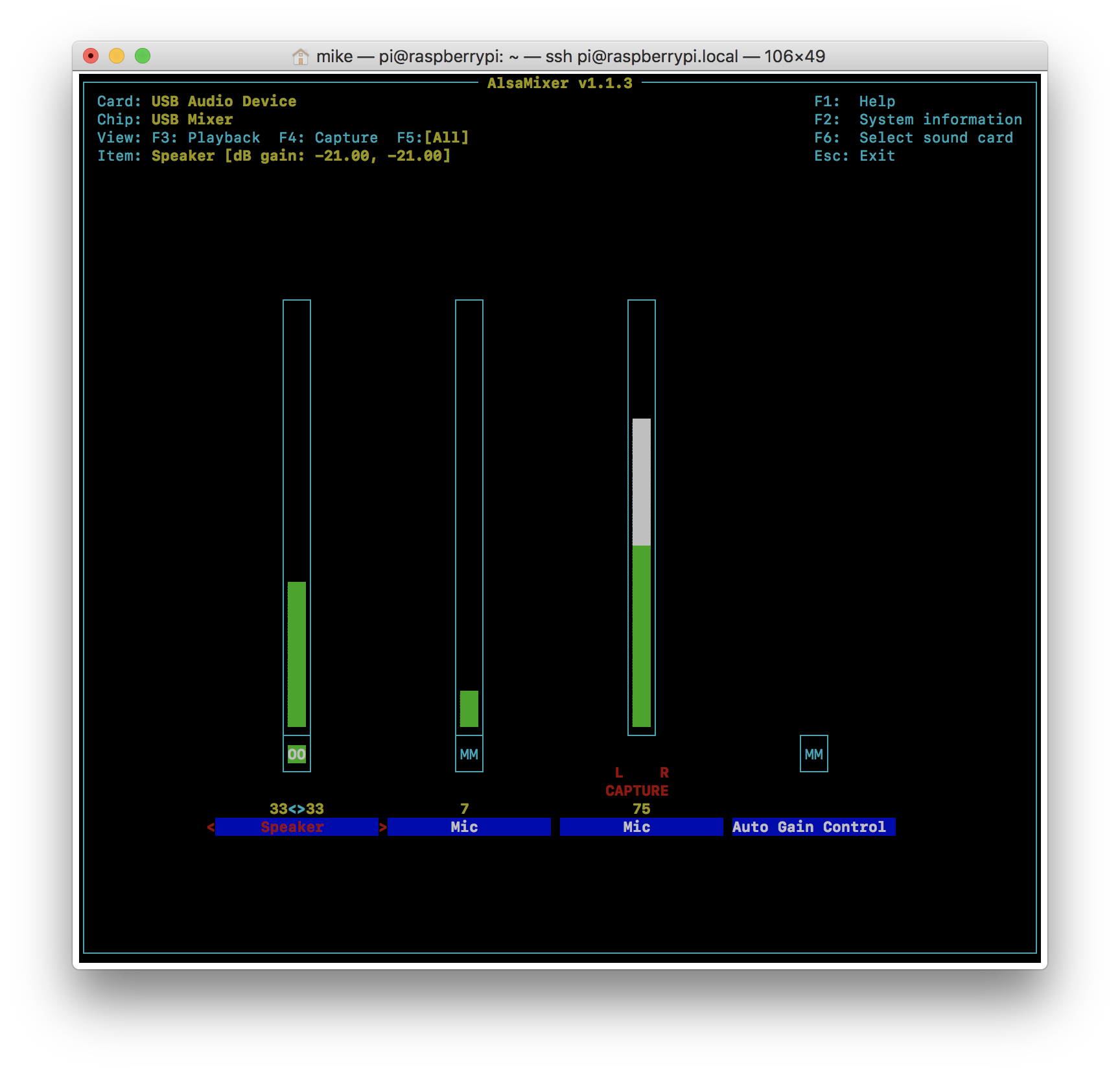
So I know the name of the mixer is "Speaker". Could you post that screenshot please?
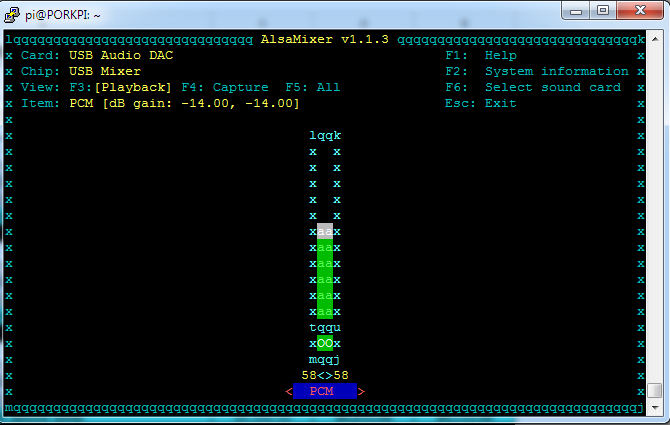
mikebrady
on 12 Sep 2018
Name is PCM.
SalmonSurprise
on 12 Sep 2018
Thanks, so it seems to be called "PCM". So, you should edit your /etc/shairport-sync.conf file and change:
output_device = "hw:0";
mixer_control_name = "PCM";
to
 output_device = "hw:1";
  mixer_control_name = "PCM";
That is, leave the mixer name at "PCM", because that's what you've discovered above, but change the device to "hw:1".
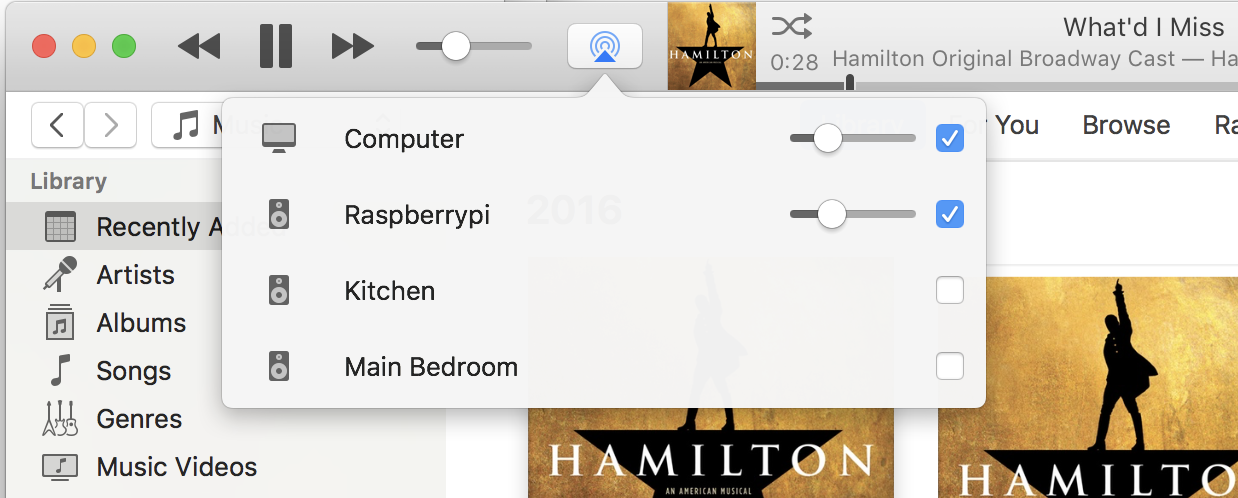
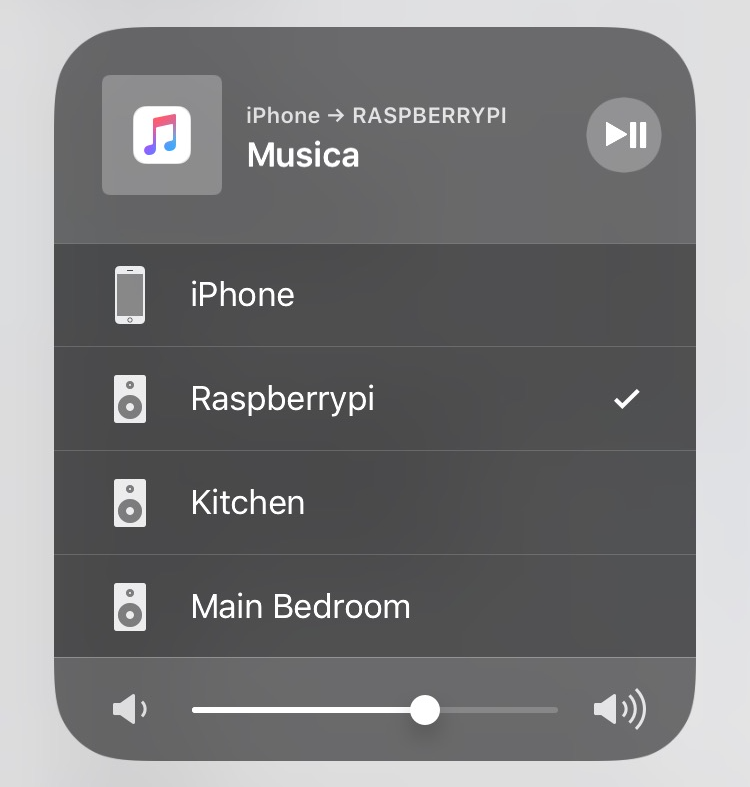
Then reboot the machine. When it shows up on your iTunes or iOS device (which are you using?), select it, play something to it and it should come out.
mikebrady
on 12 Sep 2018
This is what it would look like from iTunes (the computer speakers and the Raspberry Pi):
...and here it is from iOS:
mikebrady
on 12 Sep 2018
Woo hoo! It works! Thank you so much for your help! To answer your question, I'm using iOS.
Also I have a few questions for you.
- How do I get my AlsaMixer to look like yours instead of ASCII like mine? (minor)
- What are your thoughts regarding the HiFi Berry DAC+ Pro vs. The one I have?
- Do you have a donations page? I really appreciate your help and want to support what you do.
SalmonSurprise
on 12 Sep 2018
Great -- well done; you've probably got to know more Linux than you expected!
- Not too sure -- it's got something to do with what your "terminal" is seen as by the Pi. Maybe ask a real Linux expert!
- I don't have experience with the DAC+ Pro. I am generally rather impressed with even cheap USB DACs, although they sometimes have a restricted range of allowable volumes, e.g. 40 dB. The
volume_range_dbcan be used to augment it to, e.g. 60 or 70dB. I have used IQaudIO stuff, both a DAC and a DAC/Amplifier and I think they are super. I've also used a Pimoroni PHAT DAC and it's good, and cheap too. Other users might have opinions too. - It's not really necessary, but if you insist, I have a PayPal account you can use at https://www.paypal.me/UMBr.
mikebrady
on 12 Sep 2018
(I'm hiding one or two comments and editing one or two others, thinking of people who might come upon this issue in the future. I hope you don't mind.)
mikebrady
on 12 Sep 2018
Great! Thanks again Mike!
SalmonSurprise
on 12 Sep 2018
Hi Mika,
I have a problem like Salmon.
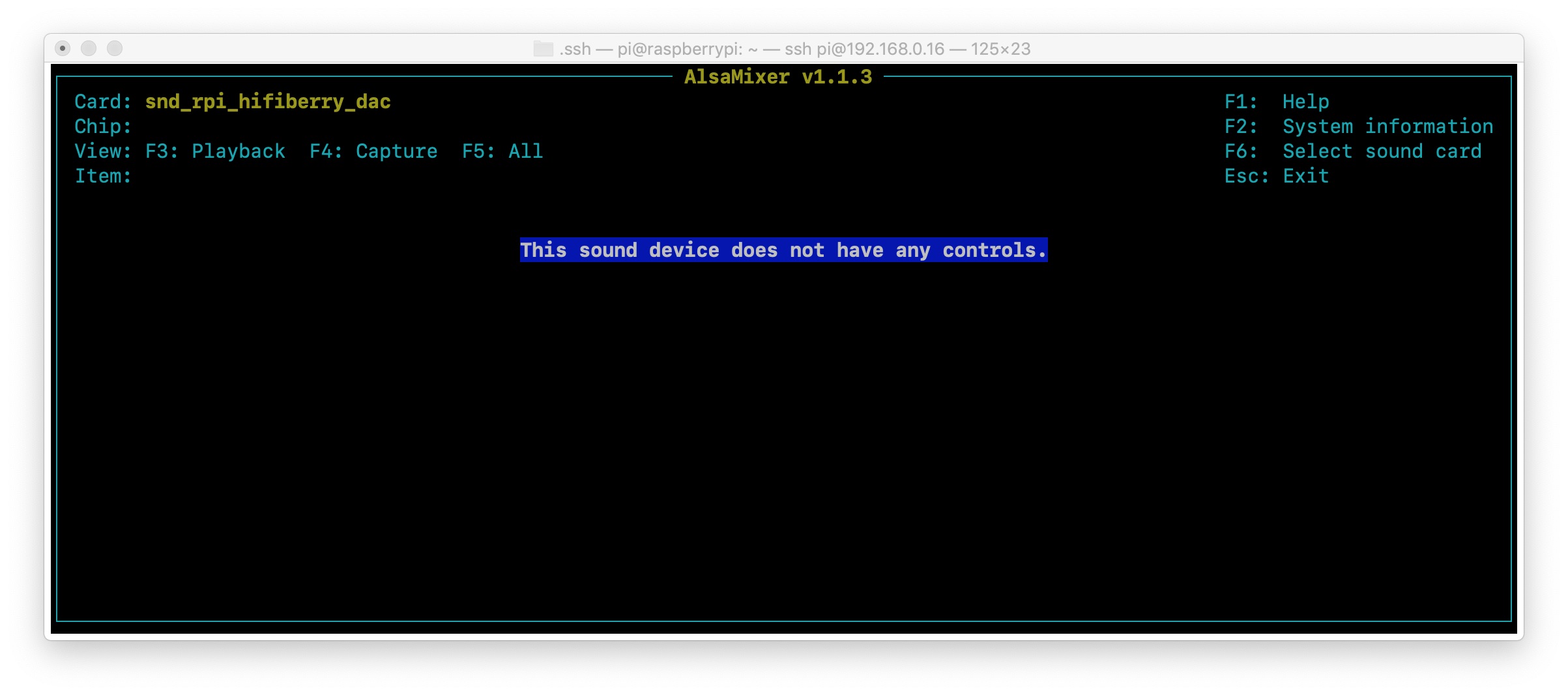
I installed shairport-sync, and it looks activated. Then I tried alsamixer command.
My screenshot tells there is no "chip".
Could you give some advice?
 rydeen7
on 19 Dec 2018
rydeen7
on 19 Dec 2018
Thanks for the post. Your interpretation of the screenshot is mistaken. What the screenshot means is that the output device selected is been driven by the hifiberry DAC driver, and that it doesn't have a mixer. (I get this screen when I use alsamixer to view my Pimoroni pHAT DAC.)
The remaining question is what the name of the output device. So, if you get back to that screen and enter the F6 function key, you should get something like this:
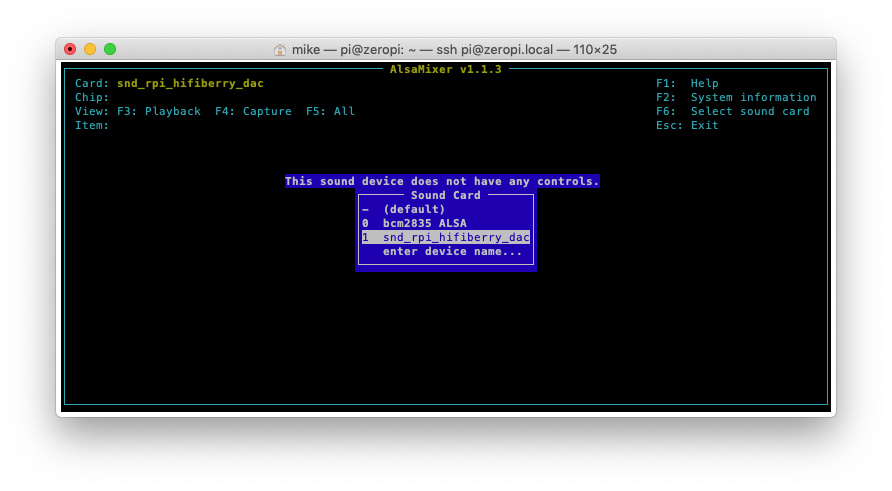
The fact that the line for device 1 is highlighted would indicate that the device name is hw:1.
mikebrady
on 19 Dec 2018
Thank you quick reply.
I'm using pHAT DAC.
The screenshot you instruct is below.
I set output device "hw:0,0" on shairport-sync.conf file.
But my speaker don't respond.
At where am I wrong?

rydeen7
on 19 Dec 2018
The output device is hw:0, not hw:0,0.
mikebrady
on 19 Dec 2018
Hi Mika.
Thank you for your help, but I failed to connect.
I’ll try by myself for the time being.
rydeen7
on 20 Dec 2018
Dear mikebrady,
Hi, thanks a lot for your shairport-sync and support. I've read this issue thoroughly and then followed.
However, mine doesn't work yet. (I need USB output for external DAC)
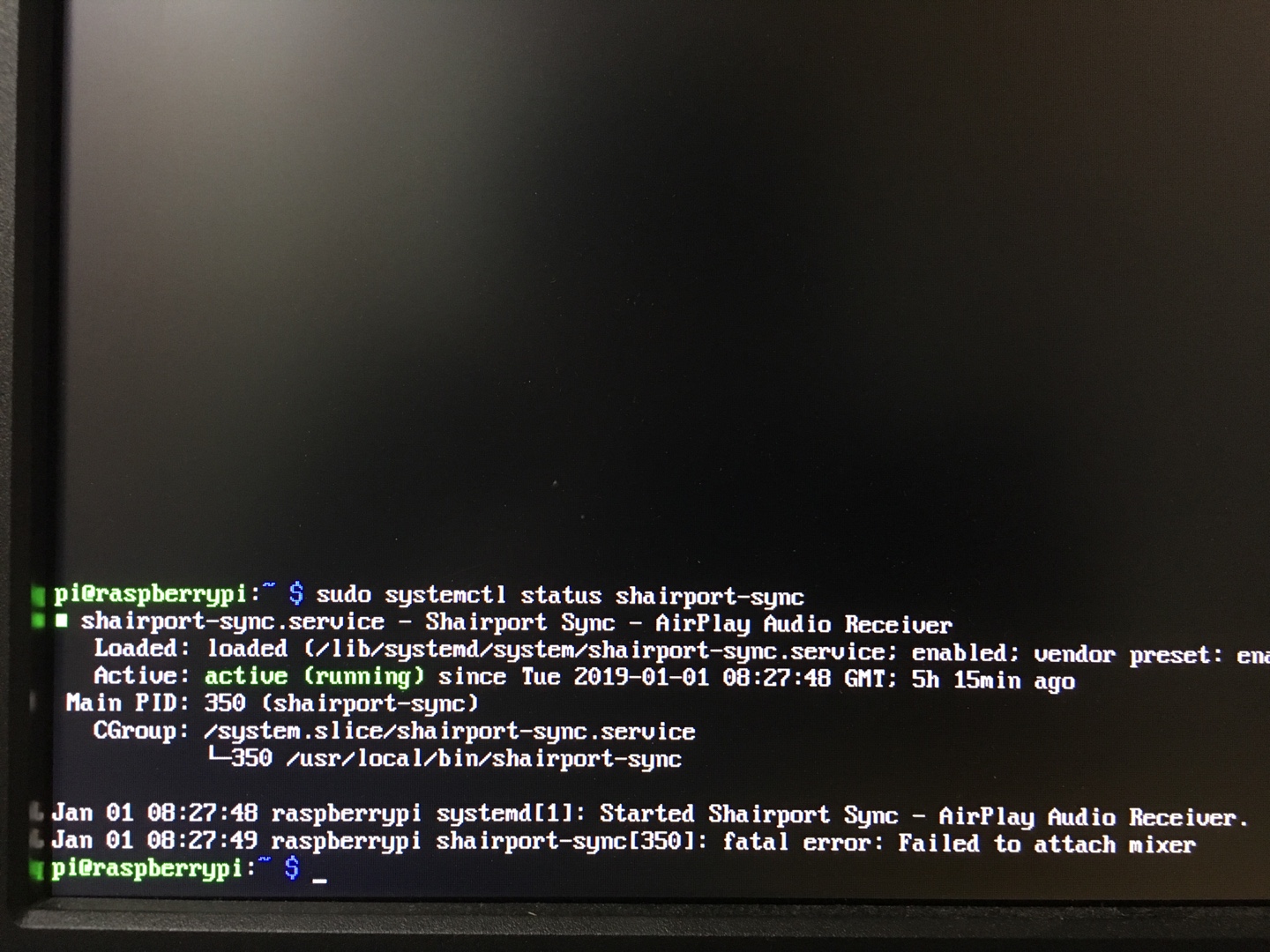
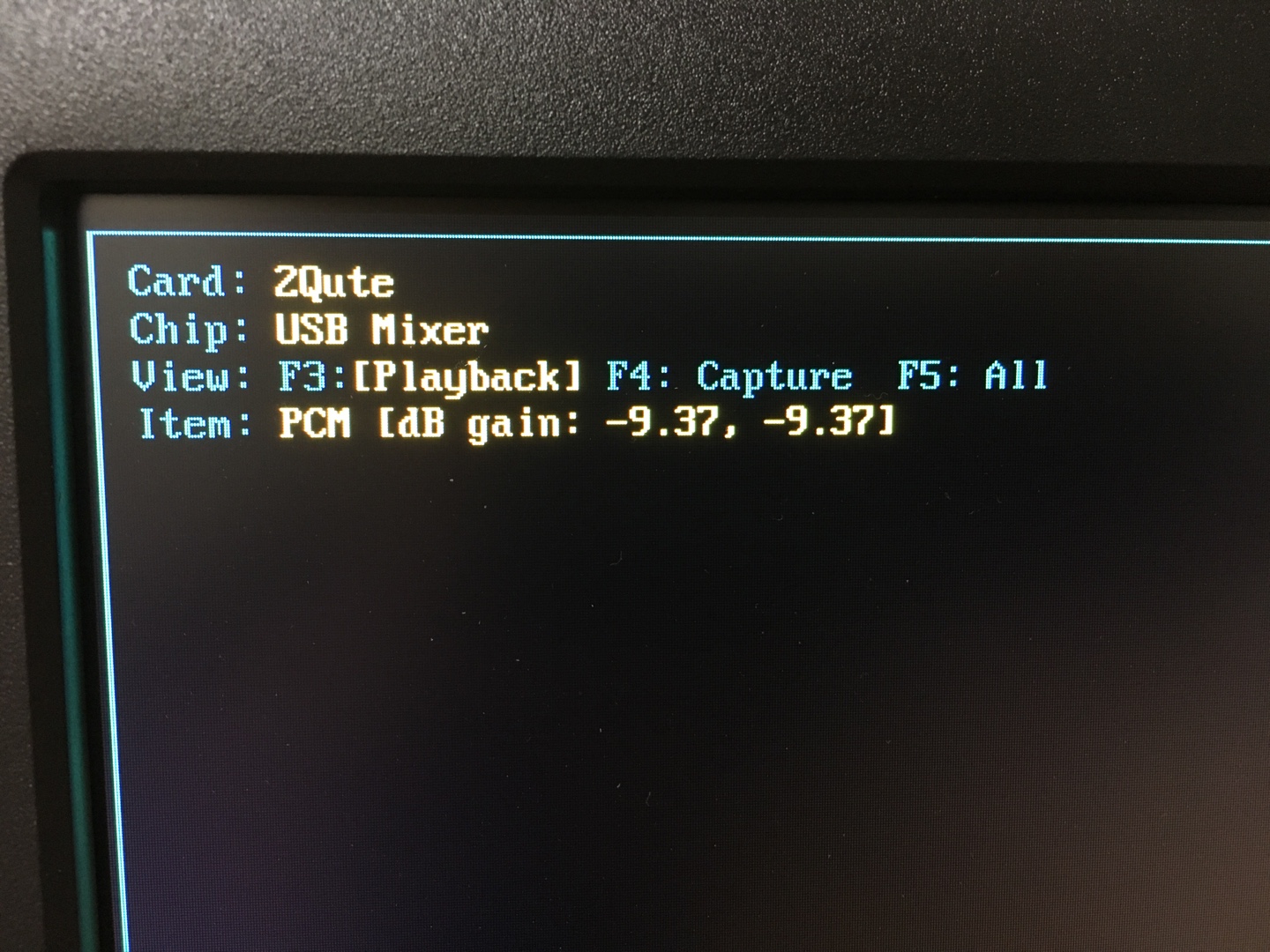
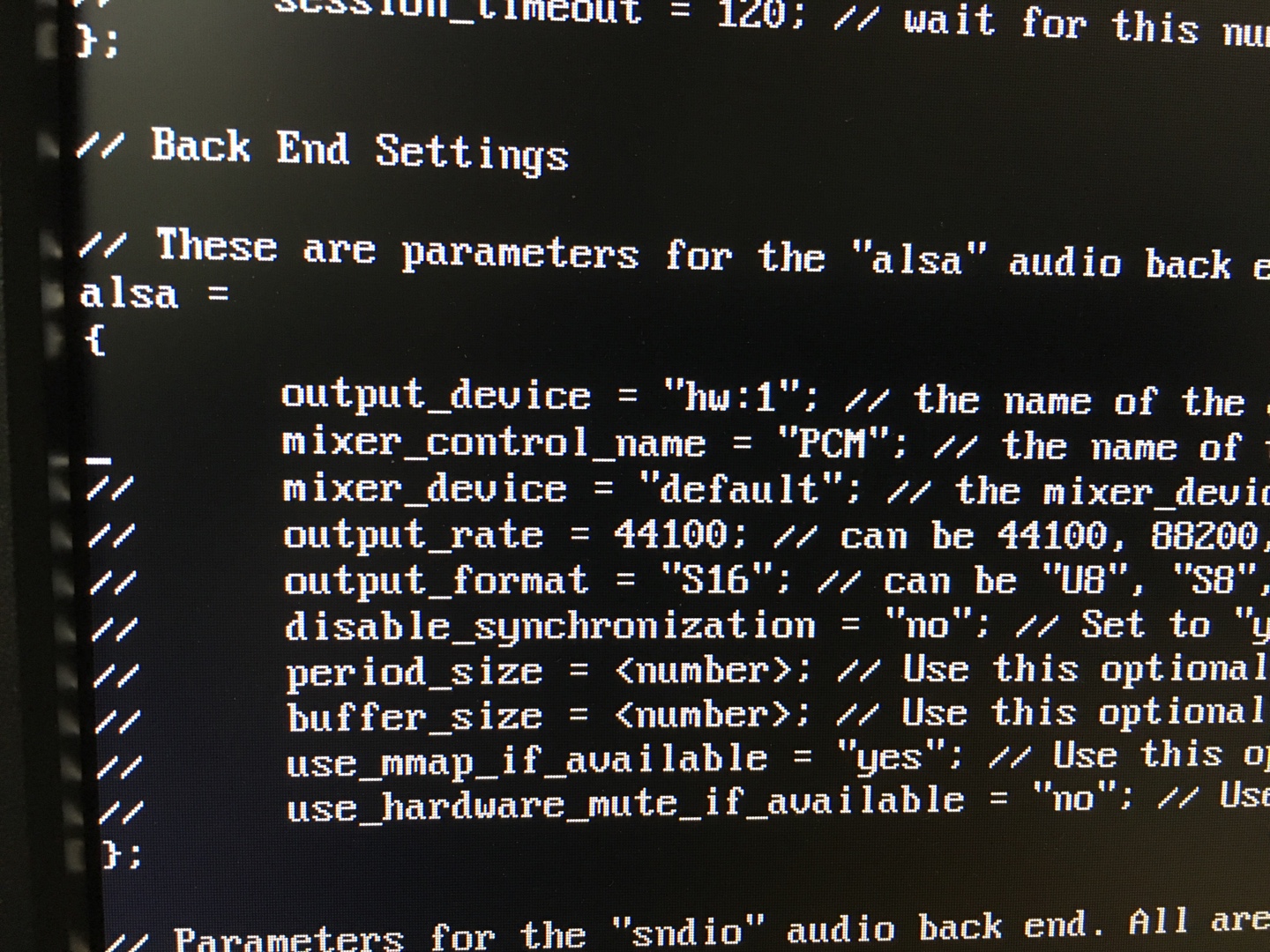
It appears that my external DAC as hw1 and name being PCM (I checked by using alsamixer).
Therefore, I modified the /etc/shairport-sync.conf as you explained. (hw:1 & PCM)
Also, I conducted the speaker-test, which worked in hw:0 but failed in hw:1.
Is there any possibilities that I can solve this problem?
Thanks a lot, in advance!


 embossyflat
on 1 Jan 2019
embossyflat
on 1 Jan 2019
Dear mikebrady,
Hi, thanks a lot for your shairport-sync and support. I've read this issue thoroughly and then followed.
However, mine doesn't work yet. (I need USB output for external DAC)It appears that my external DAC as hw1 and name being PCM (I checked by using alsamixer).
Therefore, I modified the /etc/shairport-sync.conf as you explained. (hw:1 & PCM)Also, I conducted the speaker-test, which worked in hw:0 but failed in hw:1.
Is there any possibilities that I can solve this problem?
Thanks a lot, in advance!
I changed alsa settings, output format into S32, it works finally!
However, the sound has some irritating noise.. is there any similar symptoms?
embossyflat
on 1 Jan 2019
Thanks for the posts. I’m glad you got it working. To see what the cause of that noise might be, could you enable the gathering of statistics please? The setting is in the diagnostics section at the end of the configuration file. Then run Shairport Sync for a while, gather some statistics and post them here. That might help with identifying the cause.
mikebrady
on 1 Jan 2019
Thanks for the posts. I’m glad you got it working. To see what the cause of that noise might be, could you enable the gathering of statistics please? The setting is in the
diagnosticssection at the end of the configuration file. Then run Shairport Sync for a while, gather some statistics and post them here. That might help with identifying the cause.
Thank you for your reply. I modified to 'yes' for statistics. However, I don't know how to "gather" statistics. I'm literally illiteracy to programming.. (just copy-and-paste level)
Could you let me know how to gather statistics?
Also, volume control via my iPhone is not working at all right now.
FYI, through 3.5 stereo jack connection(hw:0), there was no noise at all.
embossyflat
on 1 Jan 2019
When statistics are enabled, figures are logged in the system log. You can look at the log using the command:
sudo journalctl -n 50 -f
which will list the most recent 50 (-n 50) lines and will follow (-f) any changes. Just copy and paste the statistics.
If the iPhone's volume control isn't affecting the volume, open alsamixer, play some music and while it's playing, change the volume on the iPhone. You should see the relevant control changing in the alsamixer window. If you do, and the audible volume isn't changing, then it would seem that you have chosen the wrong mixer.
If you have chosen hw:1, then it wold not send any output to hw:0.
mikebrady
on 1 Jan 2019
When statistics are enabled, figures are logged in the system log. You can look at the log using the command:
sudo journalctl -n 50 -fwhich will list the most recent 50 (
-n 50) lines and will follow (-f) any changes. Just copy and paste the statistics.
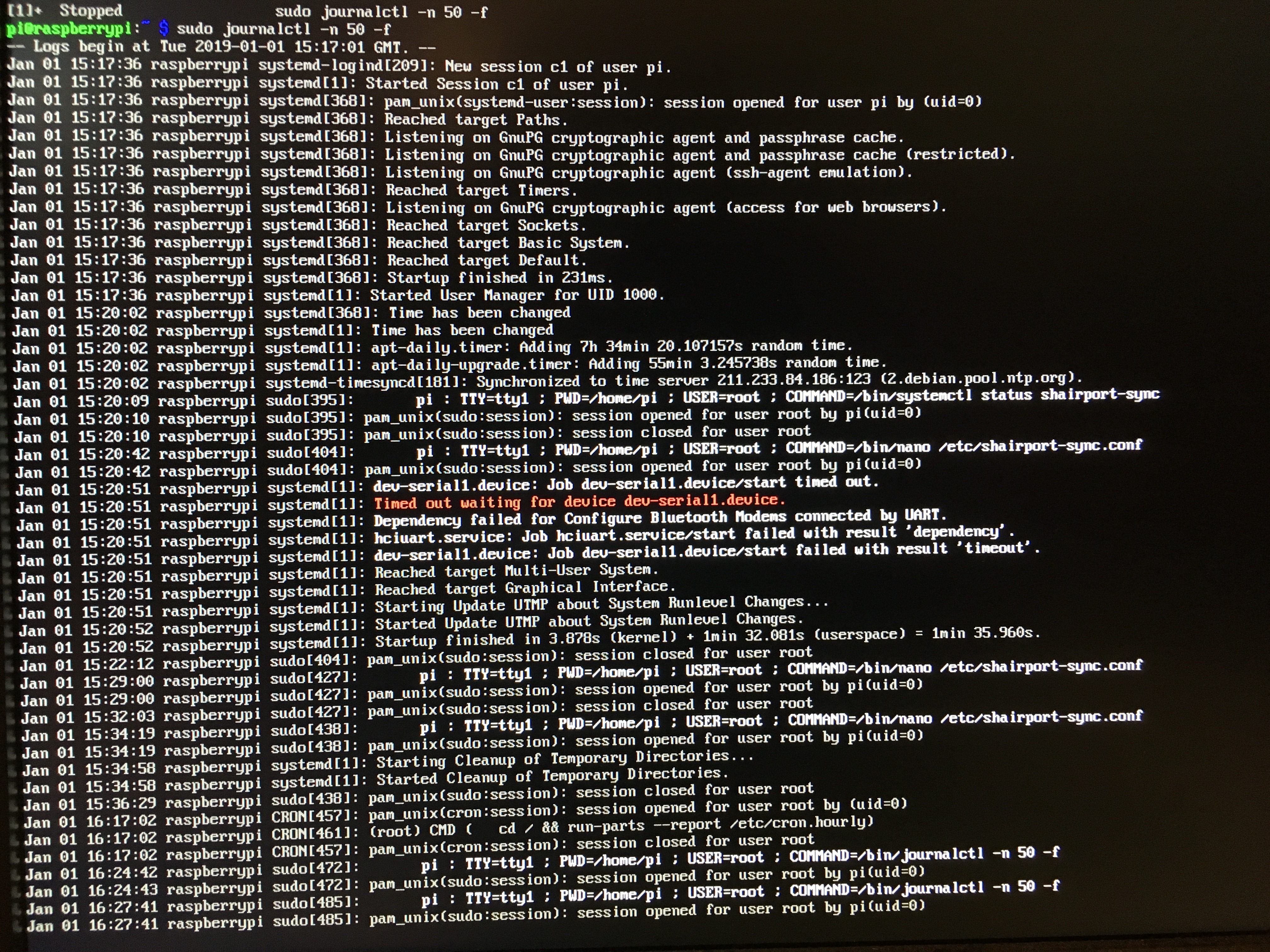
Here I attach my statistics log. Sorry that I keep attaching pictures, since I don't know how to copy texts from rpi.
embossyflat
on 1 Jan 2019
Thanks. There are no statistics from Shairport Sync there. You need to restart Shairport Sync to get it to take notice of the changes to the configuration file -- sorry, I should have mentioned that.
mikebrady
on 1 Jan 2019
Towards the bottom of the picture, you can see that Shairport Sync was started, so any statistics would appear after that -- you'd have to play some music to generate the lines of statistics.
The other mixer's name is "PCM 1", so you should try that as the mixer name -- be careful to use exactly the right name, including the space between the "M" and the "1": "PCM 1".
mikebrady
on 1 Jan 2019
Thank you. After I play music, it generated the statistics log.
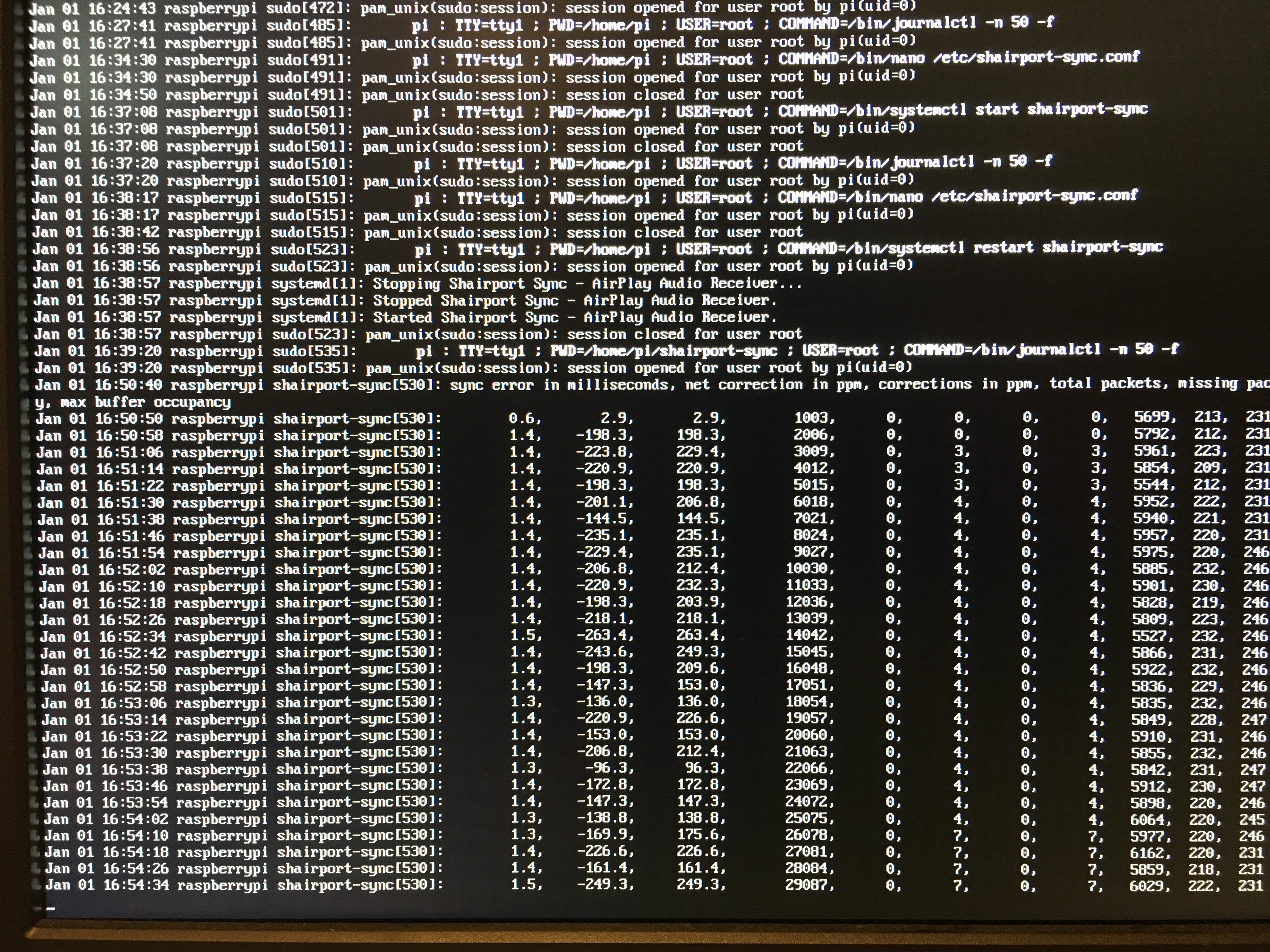
Also, I tried "PCM 1" as a mixer_control_name, however, the status showed mixer error and the iPhone couldn't find the airplay. After I turned back to "PCM", airplay was activated again. (Still cannot change volume through iPhone control)
embossyflat
on 1 Jan 2019
Thanks for the statistics log. It indicates that there is a wide divergence between the frame rate of the audio coming in to Shairport Sync and the frame rate of the output device, presumable the "2Qute". To compensate for the divergence, Shairport interpolates by adding or removing frames, and this can show up as a kind of noise if a lot of it is going on, as appears to be in your case. In my experience, the Raspberry Pi and the iPhone's clocks are pretty accurate, so what I'm seeing here is between three and ten times what I would expect. Offhand, I'm afraid I don't know why the divergence is so great.
One way to reduce the audibility of the interpolation it is to use soxr interpolation. To enable it, you have to have included the setting --with-soxr at the ./configuration… stage (which requires you have to installed libsoxr-dev) and then you have to select it in the configuration file. It makes the interpolation much less audible. However, if you have really good ears and really good equipment (and a 2Qute might be in that category!), you might still hear it.
Regarding the mixer issue, I'm afraid I don't know the 2Qute device -- maybe someone else can offer some guidance...
mikebrady
on 1 Jan 2019
I tried the soxr activation as you explained, however unfortunately, the noise is still here.
(BTW, the volume control issue by iPhone is solved when I commented out the mixer_control_name in the config.)
One thing is, as I modified the output rate into 88200 or 352800, the noise gets extremely higher and I almost cannot recognize the music.
Now I’m with 44100 output rate and S32 for alsa setting. (Only S32 works, not S16 nor S24)
Maybe it’s the problem of compatibility with my DAC?
(The manufacturer is Chord, and the DAC model is 2Qute.)
embossyflat
on 2 Jan 2019
Thanks for the update. I had a quick look at the 2Qute user manual. It looks like it only does 32-bit via USB, so that explains that part of the problem. It looks like an impressive piece of equipment.
Regarding the noise, I am at a bit of a loss, as the only source of noise should be the interpolation, and soxr-based interpolation is usually unobtrusive for most listening.
One way to check, experimentally, is to turn off synchronisation. There is a setting for that -- in the alsa section of the configuration file, set the disable_synchronization setting to "yes" and reboot. If the noise is gone, then it's highly suggestive of the interpolation being the culprit.
It would be useful for me also if you set the log_verbosity to 1, further down in the diagnostics field, and let us see the start of the diagnostics output on the log.
mikebrady
on 2 Jan 2019
Thank you for your support. I'll try again and upload the diagnostics log, as soon as I can do the test.
BTW,
- My Raspberry Pi H/W version is 1B. Is that can be a problem? (maby lack of computing power?)
- I have a question on the bit rate transmitted by Shairport Sync.
As far as I know, Airport Express transmits 16 bit/44.1kHz digital output(optical). Even if my DAC(Chord 2Qute) can accept 24bit/192kHz optical input, connection between AE and external DAC is quite perfect to listen (with no noise by interpolation I could hear).
My question is, is there any possibility that Shairport Sync transmits 16 bit (without interpolation), and my DAC can accept that input?
embossyflat
on 3 Jan 2019
Apologies for the delay in responding.
The 1B would be fine, apart from soxr interpolation, which would make it bog down.
By default, Shairport Sync uses 16 bit / 44.1 kHz sampling. As far as I can tell, the 2Qute can accept 24 bit via optical input, but only accepts 32 bit via USB. Shairport Sync translates from 16 to 32 bits simply by multiplying the 16 bit sample by 65536, i.e. by left shifting 16 bit positions. So going from 16 to 32 should make no audible difference. Would it be possible to record the output and post it here so that we could listen to it?
Shairport Sync will add dither if you are otherwise modifying the data. For example, if you are using the software volume control rather than a hardware mixer, dither will be added. Unfortunately, there is a bug in the dither generation. It is supposed to sound like very low level background white noise but actually sounds like a mechanical drone, albeit at a very low level. (It’s fixed in the latest development branch, BTW.) So, it would be great to hear the output of at all possible.
mikebrady
on 6 Jan 2019
I'm also facing the same issue. I'm unable to hear the music that is being air-played however the speaker-test is able to play sound on earphones (3.5 jack)
I'm using:
- Raspberry Pi 3 Model B+ (64-bit)
- Raspberry Pi OS Lite (32-bit)
As explained in this thread, I've changed the /usr/local/etc/shairport-sync.conf with output_device="hw:1" and also changed mixer_control_name = "Headphone" [this is what shows up with alsamixer command]
Much appreciate any help on this. Thank you!
 kguggulotu
on 20 Apr 2021
kguggulotu
on 20 Apr 2021
Related issues
 mc002b
·
7Comments
mc002b
·
7Comments
 LinusU
·
4Comments
LinusU
·
4Comments
 purefan
·
5Comments
purefan
·
5Comments
 mcopete
·
3Comments
mcopete
·
3Comments
 pawpawhe
·
6Comments
pawpawhe
·
6Comments
Most helpful comment
Thanks, so it seems to be called "PCM". So, you should edit your
/etc/shairport-sync.conffile and change:to
That is, leave the mixer name at "PCM", because that's what you've discovered above, but change the device to "hw:1".
Then reboot the machine. When it shows up on your iTunes or iOS device (which are you using?), select it, play something to it and it should come out.