Service-fabric: 'Invalid provider type specified.' during deploy local cluster even with default project template using https
Service Fabric Runtime Version:
7.1.456.9590
Environment:
Dev cluster
Description:
When updating to 1.7.1 of the MSBuild tools for Service Fabric I got the following error during deployment from Visual Studio 2019:
1>------ Build started: Project: Application3, Configuration: Debug x64 ------
2>------ Deploy started: Project: Application3, Configuration: Debug x64 ------
2>Invalid provider type specified.
2>
========== Build: 1 succeeded, 0 failed, 1 up-to-date, 0 skipped ==========
========== Deploy: 0 succeeded, 1 failed, 0 skipped ==========
This is the Build in the Ouput window.
So I upgraded my local cluster to the newest version, but still got the error. So I created a new project and that did run. But then I created an new project with https support and got the same error. And if I only change the Protocol in the ServiceManifest of the service to "http" it builds and deploys again:
1>------ Build started: Project: Application3, Configuration: Debug x64 ------
2>------ Deploy started: Project: Application3, Configuration: Debug x64 ------
2>Started executing script 'GetApplicationExistence'.
2>Finished executing script 'GetApplicationExistence'.
2>Time elapsed: 00:00:00.9909319
However the code with the upgraded 1.7.1 package does run on our test cluster on Azure. And I'm therefore also quite sure that this did at least once deployed to my local cluster.
OS:
Windows
If this is a regression, which version did it regress from?
Yes, but unsure which version I had installed locally.
Assignees: /cc @microsoft/service-fabric-triage
 ezuidema
All 10 comments
Running Visual Studio in non-admin mode does not give this error. But then when the application is started wants to restart under different credentials, and then it get the same error again.
Also using the Deploy options from the context menu on the Solution works.
I did a reinstall of the SDK, reinstall of Visual Studio. Both didn't work. Solution does run fine on another developer's machine. Windows is up to date.
ezuidema
on 8 Sep 2020
I did some more digging. I remembered that I got a popup to add the "ASP.NET Core HTTPS development certificate" for only one of the projects in the solution.
So I removed all those kind of certificates from my machine.
And the solution would run again.
But I did get the message again.

And if you don't check remember my choice you get a different error:
2>C:ProgramDataMicrosoftCryptoKeys
With that key not existing on disk, but the ASP.NET Core HTTPS development certificate was added to my Local ComputerPersonal certificates.
If I remove the newly created certificate again it again works and runs.
When you do check remember, it will recreate the certificate during the first run after you got the popup. Then if you close the solution and then try to run it, you get the same error again:
2>C:ProgramDataMicrosoftCryptoKeys
This appears to be a setting of Service Fabric:

So I switched it to AutoNo and everything runs fine now.
ezuidema
on 8 Sep 2020
@ezuidema , thanks for posting this! I was running into the same issue and it had me scratching my head till I found this.
SF SDK Version:
4.1.428.9590
Visual Studio:
2017 Enterprise
Unfortunately, in my case, I don't have a yes/no option for that popup you got:
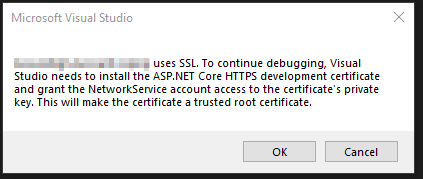
Addtionally, The setting where you selected "AutoNo" just doesn't exist for me:
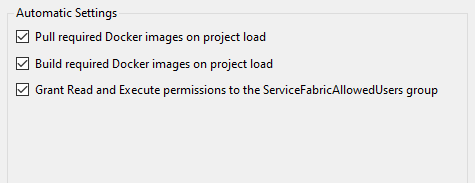
So I'm still trying to figure out a more permanent solution, but deleting the Personal cert does work as a temporary workaround for me.
 IronhideIvan
on 14 Sep 2020
IronhideIvan
on 14 Sep 2020
Glad to be of help. Part of the reason I posted the issue, besides from the fact that the functionality is broken.
I'm running:
Visual Studio 2019:
Service Fabric SDK: 4.1.456.9590
But I noticed they have released a newer version at Sept 4, 2020:
4.1.458
So maybe updating SDK's will give you those options?
ezuidema
on 14 Sep 2020
It's related to the Visual Studio version, I grabbed 2019 to confirm. The options are present in 2019 but not in 2017. Unfortunately, I can't upgrade to 2019 at the moment due to some dependencies. So that's what's going on there.
IronhideIvan
on 14 Sep 2020
The issue is that the ASP.NET development certificate being imported to Local Computer was incomplete. We are working on addressing this issue in the VS Tooling. Meanwhile please use the following workaround which is needed only once per machine.
- Export the asp net development certificate
dotnet dev-certs https -ep "%TEMP%\aspcert.pfx" -p <password> - Launch local machine certificate manager

- Import the certificate that was exported in step1 (%TEMP%aspcert.pfx) to both 'Personal' and 'Trusted Root Certification Authorities' of Local Computer. Please use all the default options while importing the certificate.
Now the deployment of the SF application will work.
 ravipal
on 21 Sep 2020
ravipal
on 21 Sep 2020
@ravipal this worked for me, thank you!
 emmet-m
on 21 Sep 2020
emmet-m
on 21 Sep 2020
@ravipal this works as a workaround, any idea when will the fix be delivered?
 sarajang
on 22 Sep 2020
sarajang
on 22 Sep 2020
@sarajang The fix will be available in the next preview release (16.8 Preview 4) which is planned for 10/13.
ravipal
on 24 Sep 2020
The latest updated (16.7.6) to VS 2019 has the fix. The fix is also available in the latest preview (16.8 Preview 4).
If your machine had the old invalid certificate and causes debugging failure, then run Get-ChildItem cert:"LocalMachine\My" | Where-Object { $_.FriendlyName -eq "ASP.NET Core HTTPS development certificate" } | Remove-Item in admin powershell to clean up the invalid certificate. The next F5 will create a valid certificate.
ravipal
on 14 Oct 2020
Related issues
 spottedmahn
·
8Comments
spottedmahn
·
8Comments
 lukeholbertmsft
·
5Comments
lukeholbertmsft
·
5Comments
 lucasmaj
·
6Comments
lucasmaj
·
6Comments
 sistoimenov
·
7Comments
sistoimenov
·
7Comments
 dagirard
·
6Comments
dagirard
·
6Comments
Most helpful comment
The issue is that the ASP.NET development certificate being imported to Local Computer was incomplete. We are working on addressing this issue in the VS Tooling. Meanwhile please use the following workaround which is needed only once per machine.
dotnet dev-certs https -ep "%TEMP%\aspcert.pfx" -p <password>Now the deployment of the SF application will work.