Saleor: Additional Cloud Deployment Options
Is it possible to add guides for deployment on alternative cloud services?
I really like Heroku but I have an issue with how pricey it is to have SSL with a custom domain. Ideally, I would also like to host my Saleor instance on a different cloud provider, say Digital Ocean or Google Cloud Compute.
Does anyone have a written guide for alternative cloud deployments?
This is only a request. Thank you.
 raybesiga
All 51 comments
There's a Dockerfile in the repository so you can readily deploy to any Docker-capable cloud (including Google Cloud). You can also follow our deployment docs and Django's standard deployment procedures to get it running on any host, physical or virtual, as long as it's running Linux.
 patrys
on 9 Aug 2018
patrys
on 9 Aug 2018
Hi @patrys so I can deploy to any Docker capable cloud with Linux but I would still have to use AWS for the media files, right? I hope this is not a dumb question.
raybesiga
on 9 Aug 2018
You're not forced to use S3, it's just convenient to do so, especially if you're deploying the Docker container to AWS infrastructure and can utilize features like Elastic Load Balancer and CloudFront. You can however use local media directory (and map it to a volume outside of your Docker container as Docker storage is volatile) or use a different backend from django-storages.
We would very much welcome a pull request that adds some of this information to our docs 😉
patrys
on 9 Aug 2018
Noted @patrys I will update the docs once I am able to a solid deployment and have documented it.
raybesiga
on 10 Aug 2018
Hi @raybesiga have you already got a solid deployment, and a documentation of it?
Thank you!
 jdivins
on 8 Nov 2018
jdivins
on 8 Nov 2018
Hi @jdivins I am about to make a new deployment in about 10 days on both Heroku and AWS. I will make sure to document it thoroughly and then share that in a PR. Regards.
raybesiga
on 8 Nov 2018
And what about Google Cloud? I have found https://cloud.google.com/python/django/ could be a good start point?
jdivins
on 8 Nov 2018
This is a great option as well but I have not explored it. Do you have any experience with it @jdivins?
raybesiga
on 8 Nov 2018
Not with saleor. Maybe with the documentation https://cloud.google.com/python/django/ and with the saleor deployment documentation we can achieve it, if anyone hasn't done it yet.
jdivins
on 8 Nov 2018
Do you want to start on it? I am a little busy at the moment but maybe I can join to help down the line @jdivins
raybesiga
on 9 Nov 2018
Sorry for no response @raybesiga I am waiting for this PR #2702 It was a recomendation of @stephenmoloney in this issue: #2694
jdivins
on 3 Dec 2018
I'm currently working on a saleor helm chart. It's still WIP. You can find the work here
https://github.com/stephenmoloney/saleor-helm/tree/master/deployment/helm
I will update the PR #2702 once I've completed the roadmap.
 stephenmoloney
on 14 Dec 2018
stephenmoloney
on 14 Dec 2018
Thank you very much @stephenmoloney !
jdivins
on 20 Dec 2018
By GCP we can do it on GAE Flexible Environtment with _custom runtimes_.
- Build image with docker and place it to _GCR_. Name it:
saleorand tag:latest
(I use _Codefresh_. You can get US$ 500 credits on Google Free Tier there) - Create Postgres in Cloud SQL. Add user/password/database:
saleor - Then you may try to deploy at your _Console Cloudshell_ like this:
$ git clone https://github.com/mirumee/saleor.git
$ cd saleor
$ sudo cat <<EOF app.yaml >/dev/null
env: flex
runtime: custom
entrypoint: safe_load(stream)
env_variables:
  SECRET_KEY: [DJANGO_SECRET_KEY]
  ALLOWED_HOSTS: [PROJECT_ID].appspot.com
  DATABASE_URL: 'postgresql://saleor:[email protected]:5432/saleor'
beta_settings:
  cloud_sql_instances: [PROJECT_ID]:[REGION]:[CLOUD_SQL_INSTANCE_NAME]=tcp:5432
EOF
$ gcloud app deploy --image-url=gcr.io/[PROJECT_ID]/saleor:latest
$ gcloud app instances enable-debug
Akses app instances by SSH :

Then run:
~$ sudo docker exec -it gaeapp /bin/bash
root@id:/app# python manage.py migrate
root@id:/app# python manage.py populatedb
root@id:/app# python manage.py createsuperuser
root@id:/app# exit
Point your browser to https://[PROJECT_ID].appspot.com
In case any problem please see the step on database connection or docker containers for more details.
 chetabahana
on 2 Mar 2019
chetabahana
on 2 Mar 2019
By GCP we can do it on GAE Flexible Environtment with _custom runtimes_.
- Build image with docker and place it to _GCR_. Name it:
saleorand tag:latest
(I use _Codefresh_. You can get US$ 500 credits on Google Free Tier there)- Create Postgres in Cloud SQL. Add user/password/database:
saleor- Then you may try to deploy at your _Console Cloudshell_ like this:
$ git clone https://github.com/mirumee/saleor.git $ cd saleor $ sudo cat <<EOF app.yaml >/dev/null env: flex runtime: custom entrypoint: safe_load(stream) env_variables: SECRET_KEY: [DJANGO_SECRET_KEY] ALLOWED_HOSTS: [PROJECT_ID].appspot.com DATABASE_URL: 'postgresql://saleor:[email protected]:5432/saleor' beta_settings: cloud_sql_instances: [PROJECT_ID]:[REGION]:[CLOUD_SQL_INSTANCE_NAME]=tcp:5432 EOF $ gcloud app deploy --image-url=gcr.io/[PROJECT_ID]/saleor:latest --version=v1 $ gcloud app instances enable-debug Akses app instances by SSH :~$ sudo docker exec -it gaeapp /bin/bash root@id:/app# python manage.py migrate root@id:/app# python manage.py populatedb root@id:/app# python manage.py createsuperuser root@id:/app# exitPoint your browser to https://[PROJECT_ID].appspot.com
Hey,
I'm following exactly what you did, but got a problem with python manage.py migrate step.
django.db.utils.OperationalError: could not connect to server: Connection timed out
Is the server running on host "xxxxxxxxxxxx" and accepting
TCP/IP connections on port 5432?
Seem like my app engine couldn't connect to cloud SQL.
 chuanman2707
on 3 Apr 2019
chuanman2707
on 3 Apr 2019
Hey,
I'm following exactly what you did, but got a problem with python manage.py migrate step.Is the server running on host "xxxxxxxxxxxx" and accepting TCP/IP connections on port 5432?``` Seem like my app engine couldn't connect to cloud SQL.
@chuanman2707
Here are some points to check connection:
- To run Cloud SQL, you need to Enable Billing and SQL Admin API
- Follow Quickstart to create PostgreSQL on Cloud SQL.
- Make user:
saleorwith password:saleorand database:saleor - Check connection to the instance using gcloud sql
~$ gcloud sql connect [CLOUD_SQL_INSTANCE_NAME] --user=saleor
- The response should be like this
Whitelisting your IP for incoming connection for 5 minutes...done.
Connecting to database with SQL user [saleor].
Password for user saleor: _
psql (9.6.10)
SSL connection (protocol: TLSv1.2, cipher: ECDHE-RSA-AES128-GCM-SHA256,
bits: 128, compression: off)
Type "help" for help.
saleor=> \q
- Describe the instance using command below and copy the value of:
connectionName
~$ gcloud sql instances describe [CLOUD_SQL_INSTANCE_NAME]
- Put the value in beta_settings of your
app.yamlto enable the proxy via TCP port:
beta_settings:
cloud_sql_instances: [PROJECT_ID]:[REGION]:[CLOUD_SQL_INSTANCE_NAME]=tcp:5432
- Check the port of Cloud Proxy by Enable Debugging the Instance
~$ gcloud app instances enable-debug
Connect to the instance via SSH button that is shown in your console

Run this command to obtain docker containers that are running:
<user>@<instance_id>: $ sudo docker ps
It will show that one of containers is running sql-proxy for Cloud SQL
CONTAINER ID IMAGE COMMAND
ba72d25928cd gcr.io/[PROJECT_ID]/saleor "uwsgi --ini /app/sa…"
c0fdcc8ecab0 gcr.io/google-appengine/api-proxy "/proxy"
- Run netstat command to check the address of the container that running proxy
<user>@<instance_id>: $ netstat -nlt
It will response like this:
Active Internet connections (only servers)
Proto Recv-Q Send-Q Local Address Foreign Address State
tcp 0 0 172.17.0.1:8080 0.0.0.0:* LISTEN
tcp 0 0 0.0.0.0:22 0.0.0.0:* LISTEN
tcp 0 0 172.17.0.1:5432 0.0.0.0:* LISTEN
tcp6 0 0 :::22 :::* LISTEN
tcp6 0 0 :::8443 :::* LISTEN
tcp6 0 0 :::10402 :::* LISTEN
- Check the connection to Cloud SQL via psql to the local address of the port: 5432
<user>@<instance_id>: $ psql postgresql://saleor:[email protected]:5432/saleor
saleor-# \q
- Put the local address on env_variable of
DATABASE_URLin yourapp.yaml:
DATABASE_URL: postgresql://saleor:[email protected]:5432/saleor
- Redeploy the image
~$ gcloud app deploy --image-url=gcr.io/[PROJECT_ID]/saleor:latest
- When the connection is in place you shall be able to migrate via the SSH
<user>@<instance_id>: $ sudo docker exec -it gaeapp /bin/bash
root@id:/app# python manage.py migrate
root@id:/app# python manage.py populatedb
root@id:/app# python manage.py createsuperuser
root@id:/app# exit
Note:
~$means the terminal is on your cloud shell or on your local pc<user>@<instance_id>: $means the terminal when connected to your instanceroot@id:/app#means the terminal when acsessing docker container that is running in your instance
chetabahana
on 7 Apr 2019
@chetabahana thanks mate i think i found my mistake, in DATABASE_URL instead of putting exactly 172.17.0.1 i did put my cloud sql public ip in there.
by the way do you know how to serves static files using google cloud storages bucket ? it would be nice if you have tutorial to do so.
chuanman2707
on 8 Apr 2019
@chetabahana thanks mate i think i found my mistake, in DATABASE_URL instead of putting exactly 172.17.0.1 i did put my cloud sql public ip in there.
by the way do you know how to serves static files using google cloud storages bucket ? it would be nice if you have tutorial to do so.
@chuanman2707
I'm working on it but in the mean time you may follow PR#2626 which detail can be viewed _here_.
chetabahana
on 9 Apr 2019
By GCP we can do it on GAE Flexible Environtment with _custom runtimes_.
- Build image with docker and place it to _GCR_. Name it:
saleorand tag:latest
(I use _Codefresh_. You can get US$ 500 credits on Google Free Tier there)- Create Postgres in Cloud SQL. Add user/password/database:
saleor- Then you may try to deploy at your _Console Cloudshell_ like this:
$ git clone https://github.com/mirumee/saleor.git
$ cd saleor
$ sudo cat <<EOF app.yaml >/dev/null
env: flex
runtime: custom
entrypoint: safe_load(stream)
env_variables:
  SECRET_KEY: [DJANGO_SECRET_KEY]
  ALLOWED_HOSTS: [PROJECT_ID].appspot.com
  DATABASE_URL: 'postgresql://saleor:[email protected]:5432/saleor'
beta_settings:
  cloud_sql_instances: [PROJECT_ID]:[REGION]:[CLOUD_SQL_INSTANCE_NAME]=tcp:5432
EOF
$ gcloud app deploy --image-url=gcr.io/[PROJECT_ID]/saleor:latest
$ gcloud app instances enable-debug
Akses app instances by SSH :~$ sudo docker exec -it gaeapp /bin/bash root@id:/app# python manage.py migrate root@id:/app# python manage.py populatedb root@id:/app# python manage.py createsuperuser root@id:/app# exitPoint your browser to https://[PROJECT_ID].appspot.com
@chetabahana
I followed all the steps but I'm stuck in the command:
$ sudo docker exec -it gaeapp /bin/bash
Error: No such container: gaeapp
Could there be any solution? please
 acabezasg
on 14 May 2019
acabezasg
on 14 May 2019
@chetabahana
I followed all the steps but I'm stuck in the command:$ sudo docker exec -it gaeapp /bin/bash
Error: No such container: gaeapp
Could there be any solution? please
@acabezasg
Make sure you run the command by connecting to the instance via SSH

You may follow the detail step on how to connect then run this to check the Containers
$ sudo docker ps
Look at <NAMES>, it might be the name is not gaeapp .
$ sudo docker exec -it <NAMES> /bin/bash
You could also run it using <CONTAINER ID> like so:
$ sudo docker exec -it ba72d25928cd /bin/bash
chetabahana
on 14 May 2019
@chetabahana
I followed all the steps but I'm stuck in the command:
$ sudo docker exec -it gaeapp /bin/bash
Error: No such container: gaeapp
Could there be any solution? please@acabezasg
Make sure you run the command by connecting to the instance via SSH
You may follow the detail step on how to connect then run this to check the Containers
$ sudo docker psLook at
<NAMES>, it might be the name is notgaeapp.
$ sudo docker exec -it <NAMES> /bin/bashYou could also run it using
<CONTAINER ID>like so:
$ sudo docker exec -it ba72d25928cd /bin/bash
@chetabahana
great! that works. Now I have another error :(
admin@saleor ~/urpi-final $ python manage.py migrate
Traceback (most recent call last):
File "manage.py", line 8, in
from django.core.management import execute_from_command_line
ImportError: No module named django.core.management
acabezasg
on 14 May 2019
@chetabahana
great! that works. Now I have another error :(
admin@saleor ~/urpi-final $ python manage.py migrate
Traceback (most recent call last):
File "manage.py", line 8, in
from django.core.management import execute_from_command_line
ImportError: No module named django.core.management
@acabezasg
It may be caused by the image, try using mine..
$ gcloud app deploy --image-url=chetabahana/saleor
chetabahana
on 14 May 2019
@chetabahana
great! that works. Now I have another error :(
admin@saleor ~/urpi-final $ python manage.py migrate
Traceback (most recent call last):
File "manage.py", line 8, in
from django.core.management import execute_from_command_line
ImportError: No module named django.core.management@acabezasg
It may be caused by the image, try using mine..
$ gcloud app deploy --image-url=chetabahana/saleor
@chetabahana
Hello! Now that puts this

I think that's not the id of the container (41a7397fa030). but it's the only id that comes out when i put "sudo docker ps"

I think it's supposed to be this
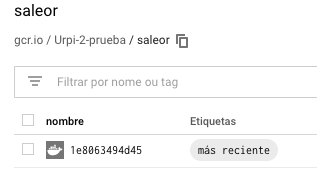
sorry for bothering :(
acabezasg
on 15 May 2019
@acabezasg
The output of $ sudo docker ps in your terminal was not what is expected.
When looking in to your terminal screen, it seems that you haven't connected to your instance via SSH.
Let's put this way:
- Ensure to enable debugging on your instance after deploying your docker image.
$ gcloud app instances enable-debug
Click this link to go to your console page:
https://console.cloud.google.com/appengine/instancesWait till the page is completely loaded. Then select it to your instance name.
Go to the bottom of page. Find the SSH button at the far right.

Click the button. It will open a SSH terminal. Wait till SSH is connected.
Make sure your terminal is prompted to your instance id that is shown in your console page :
#The prompt shall be one of the followings:
<user>@<google_app_engine_instance_id>: ~$
<user_gmail_com>@<google_app_engine_instance_id>:~$

#For example, in the above case it will be:
<user>@aef-default-20161110t131742-jf76:~$
<user_gmail_com>@aef-default-20161110t131742-jf76:~$
- Put the
$ sudo docker pscommand. Your terminal screen shall be responded similar like this:
chetabahana_gmail_com@aef-default-20161110t131742-jf76:~$ sudo docker ps
CONTAINER ID        IMAGE                                    COMMAND                  CREATED             STATUS              PORTS                                                                  NAMES
ba72d25928cd        gcr.io/chetabahana/saleor                "uwsgi --ini /app/sa…"   5 hours ago         Up 5 hours          8000/tcp, 172.17.0.1:8080->8080/tcp                                    gaeapp
c0fdcc8ecab0        gcr.io/google-appengine/api-proxy        "/proxy"                 5 hours ago         Up 5 hours                                                                                 api
829f7a631c00        gcr.io/google-appengine/nginx-proxy      "/var/lib/nginx/bin/…"   5 hours ago         Up 5 hours          8080/tcp, 0.0.0.0:8443->8443/tcp, 8090/tcp, 0.0.0.0:10402->10402/tcp   nginx_proxy
00b8be4f0ef4        gcr.io/google-appengine/iap-watcher      "./start_iap_watcher…"   5 hours ago         Up 5 hours                                                                                 iap_watcher
b671d1701612        gcr.io/google-appengine/fluentd-logger   "/opt/google-fluentd…"   5 hours ago         Up 5 hours                                                                                 fluentd_logger
@chetabahana
hello again! going forward.
great, now when I put "python manage.py migrate"
It put that error

acabezasg
on 17 May 2019
@acabezasg
Glad that you have resolve your previous case.
For the new error please follow another step that I have explained regarding Database Connection.
chetabahana
on 17 May 2019
@acabezasg
Glad that you have resolve your previous case.
For the new error please follow another step that I have explained regarding Database Connection.
Hey just wondering did you figure out the way to serve static files using cloud bucket ?
chuanman2707
on 17 May 2019
@acabezasg
Me alegro de que haya resuelto su caso anterior.
Para el nuevo error, siga otro paso que he explicado con respecto a la conexión de base de datos .
@chetabahana agaiin hahaha.
I follow all the steps, but I have an error in the command:
$ psql postgresql://saleor:[email protected]:5432/saleor

thank you very much for your help
acabezasg
on 17 May 2019
@chetabahana agaiin hahaha.
I follow all the steps, but I have an error in the command:
$ psql postgresql://saleor:[email protected]:5432/saleor
thank you very much for your help
@acabezasg
Never mind. I am glad to help.
Please show me your app.yaml file and the respond of this command:
~$ gcloud sql connect [CLOUD_SQL_INSTANCE_NAME] --user=saleor
also
<user>@<instance_id>: $ netstat -nlt
@chetabahana agaiin hahaha.
I follow all the steps, but I have an error in the command:
$ psql postgresql://saleor:[email protected]:5432/saleor
thank you very much for your help@acabezasg
Never mind. I am glad to help.
Please show me your app.yaml file and the respond of this command:~$ gcloud sql connect [CLOUD_SQL_INSTANCE_NAME] --user=saleoralso
<user>@<instance_id>: $ netstat -nlt@chetabahana
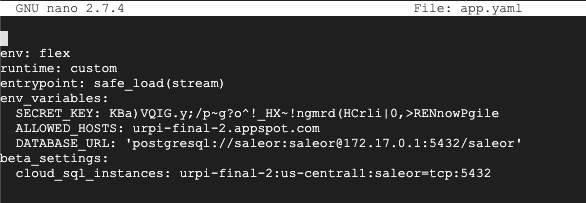


there is :(
acabezasg
on 17 May 2019
@chuanman2707
Hey just wondering did you figure out the way to serve static files using cloud bucket ?
Yes. By using _Cygwin/Venv_ finally I got the way to serve the files using Google Storage as below:
DEBUGneed to be set toFalse(run in--productionmode).Static files(templates/webpack) wiil remain serve using Django staticMedia files(images) are generated by celery to cloud bucket and served from there.
env_variables:
  DEBUG: False
  ALLOWED_HOSTS: .appspot.com
  GS_MEDIA_BUCKET_NAME: [NAME]
  SECRET_KEY: [DJANGO_SECRET_KEY]
  REDIS_URL: redis://[Redis-IP]:6379/0
  CELERY_BROKER_URL: redis://[Redis-IP]:6379/1
  DATABASE_URL: postgres://saleor:saleor@[IP]:5432/saleor
  GOOGLE_APPLICATION_CREDENTIALS: /srv/the/path/to/json/key/file
You may see the image url when Saleor is running with Google bucket. They will present as _Signed URLs_:
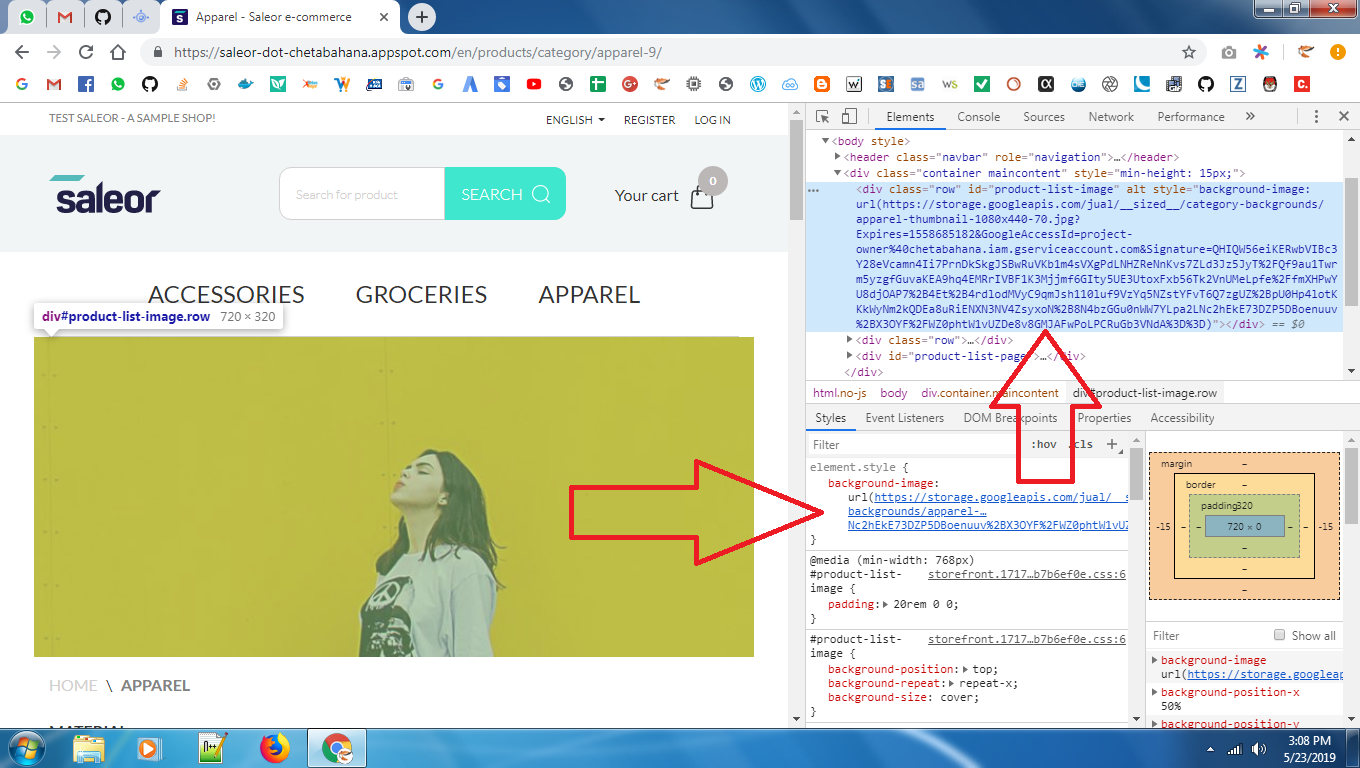
You can go ahead using this feature as it have been set by a pull request along with documentation.
chetabahana
on 17 May 2019
@chetabahana
there is :(
@acabezasg
Everything are in order. It should be connected actually. Let me think what the problem is.
It could be a typo. Please make sure [region] in beta_settings is
not
nor
us-centrall
@chetabahana
there is like us-central1
acabezasg
on 17 May 2019
@chetabahana Unfortunately I could not solve the problem :(
acabezasg
on 19 May 2019
@acabezasg
I have been thinking it is blocked by Firewall Rules or SSL
Try to expose IP Address on Cloud SQL Server (disable sslmode).
$ psql "sslmode=disable dbname=saleor user=saleor hostaddr=[INSTANCE_IP]"
By the way please ensure that you have enabling Cloud SQL Admin API and Service Account Role.
chetabahana
on 19 May 2019
@chetabahana
a question. I have to put that command in the SSH?

acabezasg
on 19 May 2019
@chetabahana
a question. I have to put that command in the SSH?
@acabezasg
Yes. Akses app instances by SSH, then locate the psql
<root>@<instance_id> $ locate psql
/usr/lib/postgresql/9.6/bin/psql
<root>@<instance_id> $ export PATH=/usr/lib/postgressql/9.6/bin:$PATH
<root>@<instance_id> $ psql "sslmode=disable dbname=saleor user=saleor hostaddr=172.17.0.1"
<root>@<instance_id> $ psql postgresql://saleor:[email protected]:5432/saleor
<root>@<instance_id> $sudo docker exec -it gaeapp /bin/bash
root@id:/app# python manage.py migrate
root@id:/app# python manage.py populatedb
root@id:/app# python manage.py createsuperuser
root@id:/app# exit
@chetabahana
and if I get the answer -bash: psql: command not found?
in the path /usr/lib/ is not: /postgressql

acabezasg
on 21 May 2019
Actualy psql is not a must. It is used only to test the connection.
In your path there is google-cloud-sdk, means you could use gcloud
chetabahana
on 21 May 2019
@chetabahana
finally after all these days I was able to do the deploy hahaha. really thank you very much, you are the best
acabezasg
on 23 May 2019
@chetabahana
finally after all these days I was able to do the deploy hahaha. really thank you very much, you are the best
@acabezasg
Really nice to hear that, I was also face the same when begin to learn on Google AppEngine (GAE). You can go forward to explore more on GCP such as using bucket, integrate Celery by running Docker Compose on Google Compute (GCE), or even play with Load Balancing and HELM Charts on Google Kubernetes (GKE).
chetabahana
on 23 May 2019
@chetabahana
Hello again! a question. if I want to put two or more allowed hosts, where do I put them?
acabezasg
on 24 May 2019
@chetabahana
Hello again! a question. if I want to put two or more allowed hosts, where do I put them?
@acabezasg
You can put them in the environtment variable separated by using comma like below:
ALLOWED_HOSTS: 127.0.0.1, localhost, .appspot.com, .example.com
Moreover if you put a dot (.domain.com) as above then it will allow all sub-domains under that domain.
chetabahana
on 24 May 2019
@chetabahana
One last thing, how do I redirect the domain to https? already has ssl but I can not get it to redirect from http to https
acabezasg
on 27 May 2019
@chetabahana
One last thing, how do I redirect the domain to https? already has ssl but I can not get it to redirect from http to https
@acabezasg
Actually Google will maintain _an automatic renewal of ssl certificate_ for your domain free of charge as long you use the cloud services so you don't need to get one.
You just need to verify the domain:
$ gcloud domains verify example.com
Then set a CNAME record to ghs.googlehosted.com and _add it_ in to the AppEngine.s domain page.
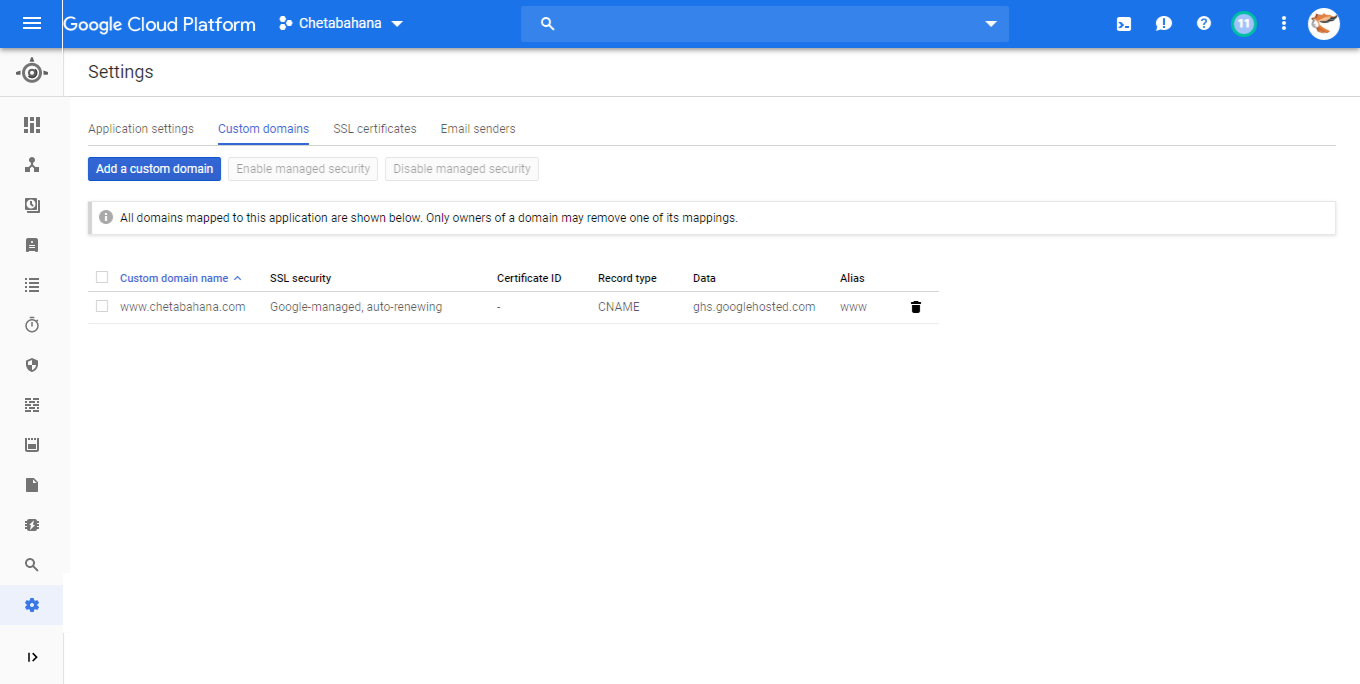
chetabahana
on 27 May 2019
@chetabahana
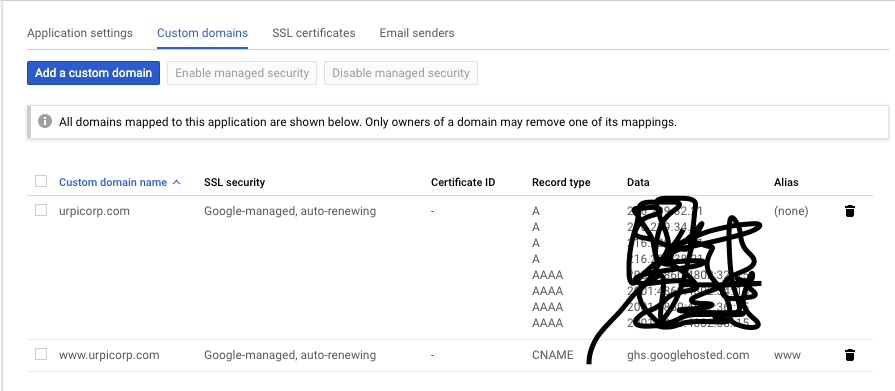
I already did it but it does not redirect to https
acabezasg
on 27 May 2019
@acabezasg
Try to add "secure: always" to your yaml file
handlers:
- url: /.*
  secure: always
  redirect_http_response_code: 301
  script: auto
In case the domain is purchased or transferred to _Google Domain_ then you could do the redirect in G-Suite under the Synthetic records section:

chetabahana
on 27 May 2019
@chetabahana hi!
that worked, but then caused a loop on the web, will it be because I did it in both ways? by google cloud domains and by the domain panel of app engine?
acabezasg
on 28 May 2019
@acabezasg
I think in your case the secure always is the right option. I have read somewhere that redirect setting by fiil in A and AAAA in dns panel is deprecated in vapor of G Suite.
chetabahana
on 29 May 2019
Do you guys know how to add the saleor storefront (PWA) through google cloud?
 Gugure
on 3 Sep 2019
Gugure
on 3 Sep 2019
This issue has been automatically marked as stale because it has not had recent activity. It will be closed if no further activity occurs. Thank you for your contributions.
![stale[bot] picture](https://avatars3.githubusercontent.com/in/1724?v=4&s=40) stale[bot]
on 2 Nov 2019
stale[bot]
on 2 Nov 2019
Related issues
 mad-anne
·
3Comments
mad-anne
·
3Comments
 maltitco
·
3Comments
maltitco
·
3Comments
 timuric
·
3Comments
timuric
·
3Comments
 Pacu2
·
3Comments
Pacu2
·
4Comments
Pacu2
·
3Comments
Pacu2
·
4Comments
Most helpful comment
By GCP we can do it on GAE Flexible Environtment with _custom runtimes_.
saleorand tag:latest(I use _Codefresh_. You can get US$ 500 credits on Google Free Tier there)
saleorAkses app instances by SSH :

Then run:
Point your browser to https://[PROJECT_ID].appspot.com
In case any problem please see the step on database connection or docker containers for more details.