Rufus: Question: is GPT/MBR relevant for Ubuntu?
Hi, I'm an author of multiple Rufus-based tutorial (Windows, Ubuntu, soon videos on both). I'd like to get the story straight before giving out bad advice.
It's crystal-clear that Windows will only be installed in the same GPT or MBR "mode" as the USB drive itself (thanks for that FAQ, it was really helpful). I'd like to understand if the same is true for Ubuntu. I mean: will Ubuntu install in GPT/MBR based on the Rufus-generated USB drive or the FAQ is for Windows only?
Thanks!
 ZaneCEO
All 6 comments
yes it will, GPT/MBR are not based on O like Windows or Ubuntu, UEFI use GPT and BIOS use MBR
 lukino563
on 12 Sep 2019
lukino563
on 12 Sep 2019
Thanks for your reply, but I didn't undestrand what you mean. To clarify: please answer "Yes" or "No" to this: "Does MBR or GPT selected in Rufus for an Ubuntu USB make any difference when you install from it"?
Thanks again.
ZaneCEO
on 12 Sep 2019
@ZaneCEO,
First of all, I think you shouldn't be using "GPT mode" or "MBR mode", as you are clearly talking about "UEFI mode" and "BIOS/Legacy mode", and conflating the two is actually a great source of confusion for many users.
Please be very aware that you can absolutely install an OS in UEFI mode from an MBR drive (since the UEFI specs state that UEFI should support __BOTH__ MBR and GPT partition schemes). Therefore, if you are using "MBR mode" to mean "BIOS installation", you are going to continue to confuse users.
So, to get to your points:
Windows will only be installed in the same GPT or MBR "mode" as the USB drive itself
Should be _"Windows will only be installed in the same UEFI-only or BIOS-only "mode" (or either of those if the drive was created in dual BIOS+UEFI mode with the Alt-E cheat mode) as the USB drive itself."_
Furthemore, the part in parenthesis about dual BIOS + UEFI mode is actually important, as this is very relevant to Ubuntu. So, to answer your (properly reformulated) question:
Will Ubuntu install in UEFI/BIOS based mode on the Rufus-generated USB drive or the FAQ is for Windows only?
Current Ubuntu ISOs are designed to be booted in either BIOS or UEFI mode, so, __as opposed to what it does for Windows__, Rufus will preserve that capability and allow the bootable USB generated from that ISO to also be bootable in BIOS or UEFI mode.
Now, the thing is, Windows ISOs are also that way (they can be booted in dual BIOS or UEFI mode), but, unless the user applies the Alt-E cheat mode, Rufus actively restricts the bootable USB to one mode only, on account that we consider that, overall, Windows users are going to be less experienced than Linux users, and might end up installing Windows in Legacy mode on UEFI systems, whereas they wanted to install it in UEFI mode, forcing them to go through a complete system reinstallation. So, by default, we make sure that Windows can install in one mode and one mode only, so that, if a user selected "UEFI" for _Target system_ in Rufus and has either a BIOS-only system or a UEFI system with Legacy being the default, the USB will not boot at all because we consider that the user wanted to install Windows in UEFI mode, and should be prevented to proceed if that isn't the case. It may sound arbitrarily restrictive (and somewhat not user friendly) but if we weren't doing that, then we'd expect a lot of irate users to complain to us that, for instance, they can't activate _Secure Boot_ on their platform, on account that their UEFI BIOS was set to Legacy and that they installed Windows in BIOS mode.
On the other hand, we estimate that Linux users are a bit more tech-savvy and do understand that they need to pay attention to whether Legacy is enabled or disabled before installing a distro, so we don't restrict the dual BIOS+UEFI boot capability of ISOs that provide it.
However, because BIOS has no knowledge of that partition scheme, if you do select GPT for the _Partition scheme_ with a Linux ISO (and you aren't writing that ISO in DD mode, in which case all the options selected in Rufus go through the window, as it's the ISO itself that decides the partition scheme and boot mode), then of course, that bootable USB will only ever boot in "pure" UEFI mode.
Now, the trick, and I hope this is what you are going to point out to your users, is to __always pay attention to what Rufus says for _Target system___ because it will tell you __exactly__ what kind of systems you are going to be able to boot with the drive you created.
For instance, if you pick ubuntu-19.04-desktop-amd64.iso and don't change anything, you will see that _Target system_ says _BIOS or UEFI_, which means that the USB created will be bootable in either BIOS/Legacy mode or pure UEFI mode:

But now, if you change the partition scheme to _GPT_ (which is incompatible with BIOS) Rufus tells you that the resulting drive will only be bootable in pure UEFI mode (note: "CSM" is another word for "Legacy" which basically means "BIOS emulation in UEFI", so when Rufus says "non CSM", it means that the drive is not compatible with "UEFI Legacy mode", a.k.a. "BIOS mode"):

Now, for Windows, the same applies; _Target system_ __ALWAYS__ tells you what kind of system you can boot with the drive you are going to create. By default, because UEFI systems are more prevalent than BIOS ones these days, Rufus will default to GPT and therefore pure UEFI:

Again, Rufus tells you very explicitly that you won't be able to boot that drive in BIOS mode. So, if you want to do that, you need to first change the partition scheme to MBR and now you can get the BIOS / UEFI-CSM (i.e. "UEFI Legacy") mode:

However, if you do use the Alt-E cheat mode, you will find that you can also create a dual BIOS+UEFI drive, as reflected by _Target system_, which then clearly states _BIOS or UEFI_:
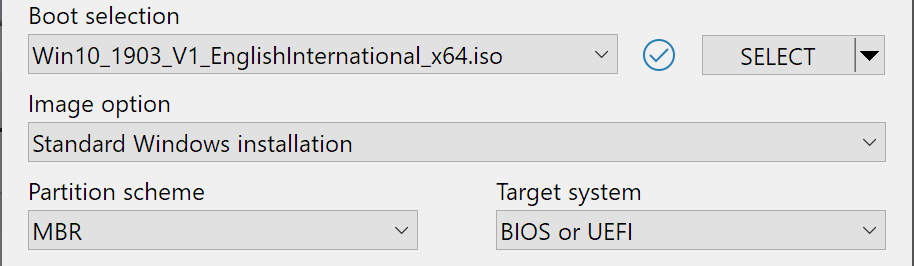
So, really, the __ONLY__ thing one needs to pay attention is what Rufus says for _Target system_, and make sure that, as a user, you both know what type of system you are planning to boot and then modify the _Partition scheme_ until you get what you want for _Target system_.
I will also point out that I added __extensive tooltips__ in the application when you hover on _Target system_ (which, sadly, nobody seems to pay attention to) as well as a tooltip for the small question mark (?) that appears whenever the term "CSM" is mentioned in the dropdown, that explains what this means (which, also, people don't seem to pay attention to).
Now, I reckon this is probably not the "Yes" or "No" answer you were hoping for, because, even if you don't consider Windows, it's a bit more complex than it seems (again, you can force a Ubuntu drive to boot BIOS only rather than dual BIOS+UEFI depending on the options you select, and, if you write that drive in DD mode, then the options you pick in Rufus don't matter). But I hope this helped you find out what you were looking for.
 pbatard
on 12 Sep 2019
pbatard
on 12 Sep 2019
Oh, and I should add that, when it comes to the installation part itself, and this applies to every OS, the OS does get installed in the mode that it was booted as.
So, if you booted your USB in pure UEFI mode, the OS will be installed in UEFI mode as well, and if you booted it in BIOS or UEFI-CSM/UEFI-Legacy mode, then the OS will be installed in BIOS mode.
As far as I'm aware, there isn't any OS installer that would effectively deviate from the mode in which its installation media was booted (say UEFI) and allow installation in a different mode (say BIOS/Legacy), even if it can assume that the firmware supports both. In other words, if you do boot Ubuntu in UEFI mode on the target system, whereas it may allow you to partition your target drive as MBR (since, again, MBR does not equate BIOS and is fully supported and allowed by pure UEFI installs) it's not going to propose to install BIOS bootloaders such as Syslinux, so that you would then be able to boot that system in BIOS mode. Instead, it's going to consider that, since you booted in UEFI mode, then it should install UEFI bootloaders, such as the GRUB ones.
pbatard
on 12 Sep 2019
You're not only an excellent developer, but an amazing communicator too! Your answer fully addresses the matter, thanks!
ZaneCEO
on 12 Sep 2019
This thread has been automatically locked since there has not been any recent activity after it was closed. Please open a new issue if you think you have a related problem or query.
![lock[bot] picture](https://avatars1.githubusercontent.com/in/6672?v=4&s=40) lock[bot]
on 11 Dec 2019
lock[bot]
on 11 Dec 2019
Related issues
 chazste
·
4Comments
chazste
·
4Comments
 Saentist
·
7Comments
Saentist
·
7Comments
 devilaltard
·
5Comments
devilaltard
·
5Comments
 duytrung
·
4Comments
duytrung
·
4Comments
 djoris
·
6Comments
djoris
·
6Comments
Most helpful comment
@ZaneCEO,
First of all, I think you shouldn't be using "GPT mode" or "MBR mode", as you are clearly talking about "UEFI mode" and "BIOS/Legacy mode", and conflating the two is actually a great source of confusion for many users.
Please be very aware that you can absolutely install an OS in UEFI mode from an MBR drive (since the UEFI specs state that UEFI should support __BOTH__ MBR and GPT partition schemes). Therefore, if you are using "MBR mode" to mean "BIOS installation", you are going to continue to confuse users.
So, to get to your points:
Should be _"Windows will only be installed in the same UEFI-only or BIOS-only "mode" (or either of those if the drive was created in dual BIOS+UEFI mode with the Alt-E cheat mode) as the USB drive itself."_
Furthemore, the part in parenthesis about dual BIOS + UEFI mode is actually important, as this is very relevant to Ubuntu. So, to answer your (properly reformulated) question:
Current Ubuntu ISOs are designed to be booted in either BIOS or UEFI mode, so, __as opposed to what it does for Windows__, Rufus will preserve that capability and allow the bootable USB generated from that ISO to also be bootable in BIOS or UEFI mode.
Now, the thing is, Windows ISOs are also that way (they can be booted in dual BIOS or UEFI mode), but, unless the user applies the Alt-E cheat mode, Rufus actively restricts the bootable USB to one mode only, on account that we consider that, overall, Windows users are going to be less experienced than Linux users, and might end up installing Windows in Legacy mode on UEFI systems, whereas they wanted to install it in UEFI mode, forcing them to go through a complete system reinstallation. So, by default, we make sure that Windows can install in one mode and one mode only, so that, if a user selected "UEFI" for _Target system_ in Rufus and has either a BIOS-only system or a UEFI system with Legacy being the default, the USB will not boot at all because we consider that the user wanted to install Windows in UEFI mode, and should be prevented to proceed if that isn't the case. It may sound arbitrarily restrictive (and somewhat not user friendly) but if we weren't doing that, then we'd expect a lot of irate users to complain to us that, for instance, they can't activate _Secure Boot_ on their platform, on account that their UEFI BIOS was set to Legacy and that they installed Windows in BIOS mode.
On the other hand, we estimate that Linux users are a bit more tech-savvy and do understand that they need to pay attention to whether Legacy is enabled or disabled before installing a distro, so we don't restrict the dual BIOS+UEFI boot capability of ISOs that provide it.
However, because BIOS has no knowledge of that partition scheme, if you do select GPT for the _Partition scheme_ with a Linux ISO (and you aren't writing that ISO in DD mode, in which case all the options selected in Rufus go through the window, as it's the ISO itself that decides the partition scheme and boot mode), then of course, that bootable USB will only ever boot in "pure" UEFI mode.
Now, the trick, and I hope this is what you are going to point out to your users, is to __always pay attention to what Rufus says for _Target system___ because it will tell you __exactly__ what kind of systems you are going to be able to boot with the drive you created.
For instance, if you pick
ubuntu-19.04-desktop-amd64.isoand don't change anything, you will see that _Target system_ says _BIOS or UEFI_, which means that the USB created will be bootable in either BIOS/Legacy mode or pure UEFI mode:But now, if you change the partition scheme to _GPT_ (which is incompatible with BIOS) Rufus tells you that the resulting drive will only be bootable in pure UEFI mode (note: "CSM" is another word for "Legacy" which basically means "BIOS emulation in UEFI", so when Rufus says "non CSM", it means that the drive is not compatible with "UEFI Legacy mode", a.k.a. "BIOS mode"):
Now, for Windows, the same applies; _Target system_ __ALWAYS__ tells you what kind of system you can boot with the drive you are going to create. By default, because UEFI systems are more prevalent than BIOS ones these days, Rufus will default to GPT and therefore pure UEFI:
Again, Rufus tells you very explicitly that you won't be able to boot that drive in BIOS mode. So, if you want to do that, you need to first change the partition scheme to MBR and now you can get the BIOS / UEFI-CSM (i.e. "UEFI Legacy") mode:
However, if you do use the Alt-E cheat mode, you will find that you can also create a dual BIOS+UEFI drive, as reflected by _Target system_, which then clearly states _BIOS or UEFI_:
So, really, the __ONLY__ thing one needs to pay attention is what Rufus says for _Target system_, and make sure that, as a user, you both know what type of system you are planning to boot and then modify the _Partition scheme_ until you get what you want for _Target system_.
I will also point out that I added __extensive tooltips__ in the application when you hover on _Target system_ (which, sadly, nobody seems to pay attention to) as well as a tooltip for the small question mark (?) that appears whenever the term "CSM" is mentioned in the dropdown, that explains what this means (which, also, people don't seem to pay attention to).
Now, I reckon this is probably not the "Yes" or "No" answer you were hoping for, because, even if you don't consider Windows, it's a bit more complex than it seems (again, you can force a Ubuntu drive to boot BIOS only rather than dual BIOS+UEFI depending on the options you select, and, if you write that drive in DD mode, then the options you pick in Rufus don't matter). But I hope this helped you find out what you were looking for.