Roslyn: VS2019 intellisense completes with bad quality results
Version Used: Visual Studio 2019
Maybe my mind is playing tricks on me, but since I updated to VS 2019 I feel like I'm fighting a lot against Intellisense.
Specifically: I would very quickly type the beginning of what I'm intending to write, hit complete (tab, space, enter -- depends on the situation)... and not get the expected (best) result.
So I have to backspace, start again (slowly), get the "right" completion and move on.
This was not the case in VS2017, I could write code quickly, completing everything along the way.
Because writing code is the "core loop" of coder, having to stop and backspace because of bad Intellisense is very irksome and a major frustration after my upgrade.
I may be completely off, but I have a suspicion / theory about what has changed:
My guess is that new Intellisense is completely async and I am getting its best suggestion at the time I hit "complete". So when typing int<tab> I think I might get the completion for in if Intellisense has not finished filtering and sorting the int prefix.
I love the improved "snapiness" of VS 2019, but if I'm correct about Intellisense it should wait for the full suggestions to complete before completing text in editor.
 jods4
jods4
All 28 comments
Tagging @ivanbasov to see if there are any known async issues that cropped up that might explain the above.
@jods4 What you have described is absolutely not the design of IntelliSense, but certainly may have crept in due to bugs as well as the large rewrite. We take 'muscle memory' seriously, and the design and impl are intended to ensure that the experience you state that you wanted is the one you should get. Rest assured that this is taken seriously and efforts will be made to try to stamp this out and get things to the expected consistent and behavior that you've grown to expect.
--
As an aside, while this may be due to the 'async rewrite', there's nothing about 'asynchrony' that should affect the desired design. Prior to the rewrite we were 'async' as well, but we took an approach that ensured that the typing interaction model would behave as if it was totally sync, even if it could use async for performance. We should still be able to achieve that post-rewrite.
Thanks for the report!
 CyrusNajmabadi
on 13 May 2019
CyrusNajmabadi
on 13 May 2019
Is it possible that this is caused by IntelliCode (those starred results in IntelliSense)? I think that got enabled by default in VS 2019 and could affect muscle memory, since it means a different result might be pre-selected.
 svick
on 13 May 2019
svick
on 13 May 2019
Yes. There's a known issue (since fixed) where inllicode can break things due to the fact that the item shows up twice. Once at the top in teh intellicode list, and again in the normal alphabetized list. So you could end up not having the right behavior if your item matched against that item. This has been fixed and should be in an upcoming release. But i'm not sure if that's the case here.
CyrusNajmabadi
on 13 May 2019
Thank you for reporting this, @jods4 ! Thank you for investigations and explanations, @CyrusNajmabadi !
As I understand, this sounds very similar with the following VS Feedback issue: https://developercommunity.visualstudio.com/content/problem/525684/intellisense-changing-to-incorrect-keywords-on-spa.html
We made a ton of attempts to reproduce the issue trying to simulate fast typing but nothing helped yet. We would appreciate if you could help us with investigations.
If you have a more or less stable repro of the issue, @AmadeusW will be happy to provide you some experimental bits adding telemetry on your typing. Then, if it would happen again, you could send us this telemetry.
Please let us know the specific version of VS.
@AmadeusW , please let us know if you prefer to move this discussion into the VS Feedback item or keep it here.
 ivanbasov
on 14 May 2019
ivanbasov
on 14 May 2019
Hi @jods4, thank you for reporting this and we're sorry that it's happening for you.
We're having hard time reproducing this so if you're willing to reinstall VS or install another one side-by-side your regular VS instance, we would be happy to share a .vsix which installs over VS 16.0.3 and collects extra telemetry on what's happening with completion.
Alternatively, could you please try VS 16.1 preview and see if the issue is still there?
Please let us know if we've got these assumptions right:
- You're working in .cs file, and not .cshtml
- The issue happens during regular usage of VS, and not just during the first couple minutes when VS performs background tasks and is a bit slower
- The issue happens only when completion UI does not appear at all. If UI appears, even for a brief flash, there is no issue
- You're using VS 16.0.x, and not VS 16.1 preview
@ivanbasov let's keep talking here
 AmadeusW
on 14 May 2019
AmadeusW
on 14 May 2019
Thanks for your answers!
It's a vague issue and it doesn't reproduce every time, so give me some time and I'll try to capture concrete examples.
This issue is also an opportunity for others to confirm or disconfirm my impressions.
As far as IntelliCode goes, it's the suggestions with star icons, right? I have none. If I need to explicitely enable them, I haven't done so.
jods4
on 14 May 2019
I believe I am experiencing this too.
If I turn on the _Auto cancel long running auxiliary operations on typing_ I can experience it in C#. Try setting the _Maximum allowed typing latency_ to 0 - that makes the typing unusable for me.
Unfortunately this does not seem to apply to XAML. Even when disabled, my experience typing in XAML has been totally broken as unless I wait enough time for the intellisense to appear, it ignores it completely - and <ColumnDefinition/> typed by muscle memory turns into <c/>.
I am happy to provide extra telemetry if needed.
 miloush
on 14 May 2019
miloush
on 14 May 2019
Here is a video I was able to capture of this happening: https://gfycat.com/inconsequentialnimbleagouti
Its a bit hard to tell from the video, but both times that I tried to type return, I really did fully type out all of the letters on my keyboard, followed by space. However, due to some lag in VS, you don't see all the letters before it gets autocompleted to ref.
Here are some related VS reports on this:
- https://developercommunity.visualstudio.com/content/problem/525684/intellisense-changing-to-incorrect-keywords-on-spa.html (already linked above)
- https://developercommunity.visualstudio.com/content/problem/488359/break-is-autocorrected-to-base-in-a-switch-stateme.html
- https://developercommunity.visualstudio.com/content/problem/460038/vs-2019-preview-30-intellisense-issues.html
 ascott18
on 14 May 2019
ascott18
on 14 May 2019
@ascott18 thank you for the video, it's very helpful - it shows that completion appeared just briefly, and uint was selected, while you were typing user. I would like to figure out why completion did not process the remaining ser characters.
Can you, @miloush @jods4 any anyone else experiencing this share what are the values of "Auto cancel long running auxiliary operations on typing"? Specifically, whether this on, and if the value is automatic or set to a specific number:
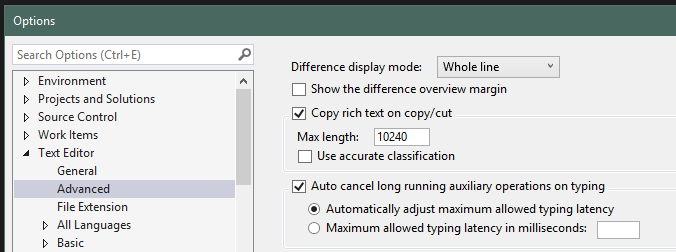
AmadeusW
on 14 May 2019
@AmadeusW I'm unfamiliar with:
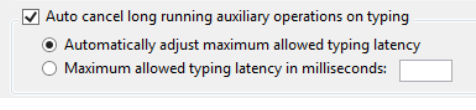
Can you give a brief rundown on what the design is there and what user visible behavioral difference this is expected to have? Thanks!
CyrusNajmabadi
on 14 May 2019
@CyrusNajmabadi, Editor uses an additional cancellation token when user presses an alphanumeric character, including space. Currently, the default cancellation time is 1500ms. Therefore, you should not be seeing the wait dialog when typing.
Tab, Enter Ctrl+Space and many other gestures are not considered typing, and, if unhandled for over 2000ms, Visual Studio will display the wait dialog. Pressing the cancel button on the dialog will cancel the token.
In our experience, setting the typing delay cancellation threshold too low (below 100ms) disrupts brace completion and other editor features. We should definitely do better job framing the threshold selection to reliable values.
AmadeusW
on 15 May 2019
@AmadeusW I have "Auto cancel long running..." checked and "Automatically adjust maximum allowed..." is selected.
I have never touched this setting, it's either the default or migrated from a previous version upgrade (I had VS 2017 and prob. even older versions on this machine).
jods4
on 15 May 2019
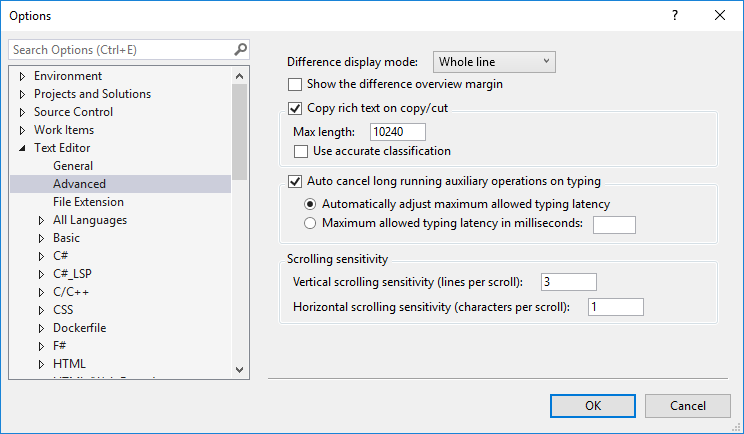
@jods4 In Text Editor → Advanced, do you have non-blocking completion checked? I remember seeing issues like you describe in earlier versions of Visual Studio 2019, but I don't remember seeing them recently.
 sharwell
on 15 May 2019
sharwell
on 15 May 2019
@sharwell I don't see _non-blocking completion_
jods4
on 15 May 2019
@jods4 Thank you. It looks like 16.1 added that option, but it's not the option I was thinking of anyway. I was wondering if BlockForCompletionItems was disabled in some way, but unless you were editing the registry to turn it off (seems unlikely) then this would still be enabled for you.
sharwell
on 15 May 2019
No fiddling with registry.
This is a new install and I've touched nothing.
I had other VS installed on my machine, though (VS 2017, no beta or RC).
jods4
on 15 May 2019
- Does your project or solution contain any typescript file?
- Does status bar display any message when incorrect item is completed?
- What happens when completion UI does not appear at all before typing space? For example, when you type very quickly
b- wouldbaseorbreakappear, or will you be left with just theb?
AmadeusW
on 16 May 2019
To best understand what's going on, I added diagnostic logging to the Editor dll which drives the completion. This should work with VS 16.0.3 and 16.0.4. It logs everything you type into %temp%/completion.txt but you get to view the log file and you send it to us manually.
▶ Download Microsoft.VisualStudio.Platform.VSEditor.dll.zip Updated 2019.05.17 12:45pm PST
To install, go to <vs installation directory>\Common7\IDE\CommonExtensions\Microsoft\Editor and back up Microsoft.VisualStudio.Platform.VSEditor.dll
Unzip the downloaded file and place the .dll in the Editor directory
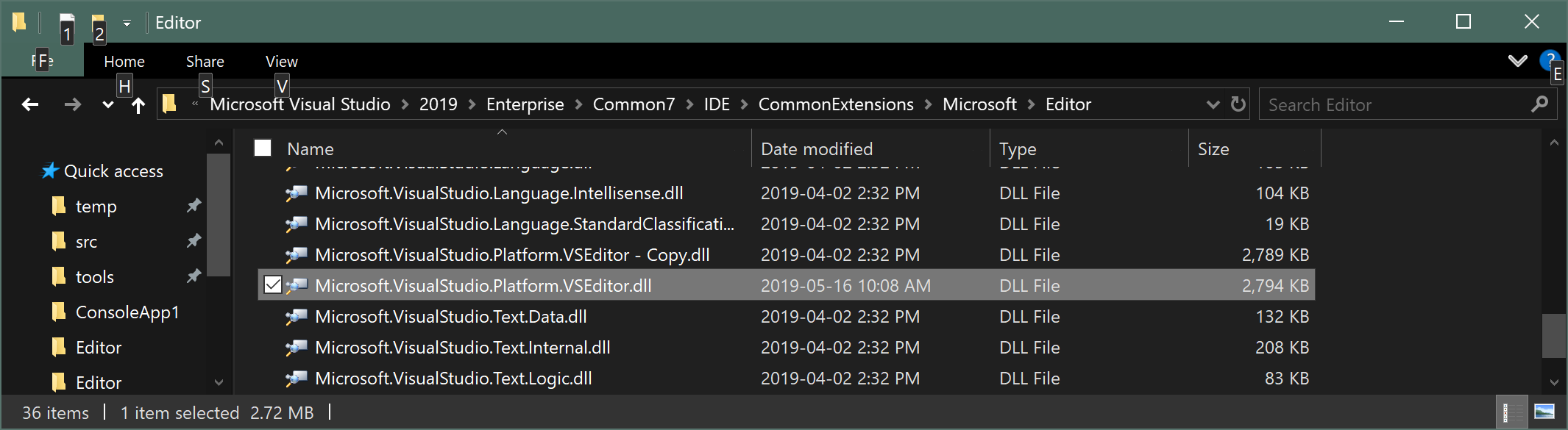
Go to file properties and check Unblock
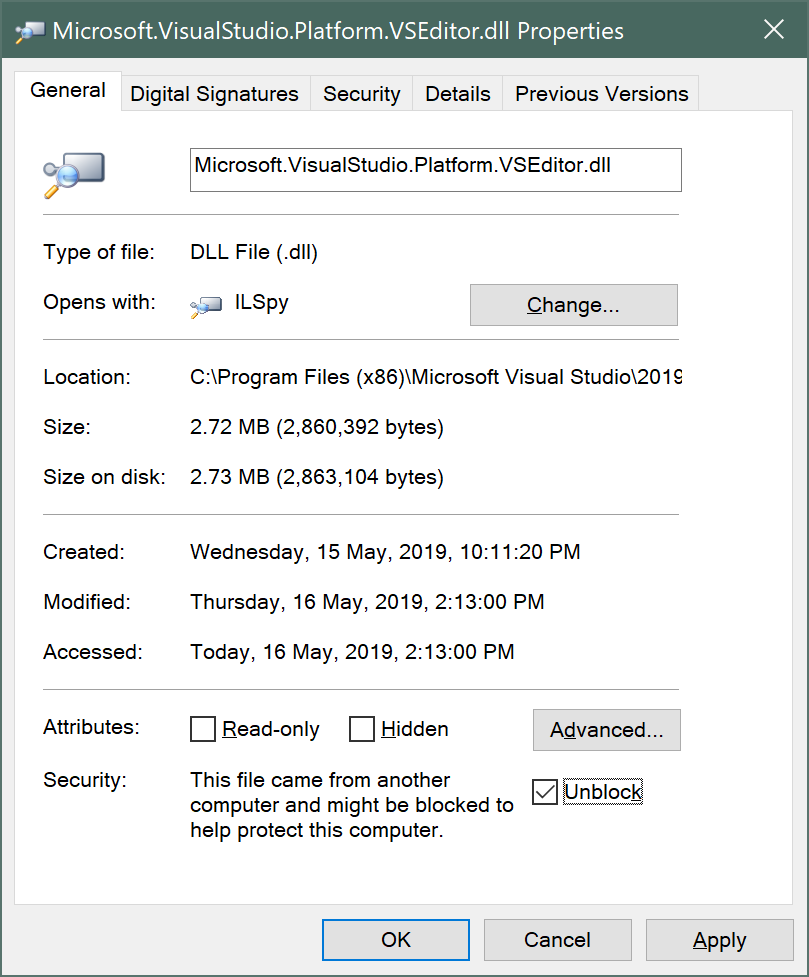
Use completion. When you observe an issue, please record what you typed, the time and your timezone (the log records UTC time). Please attach completion.txt here or send it to me at [email protected]
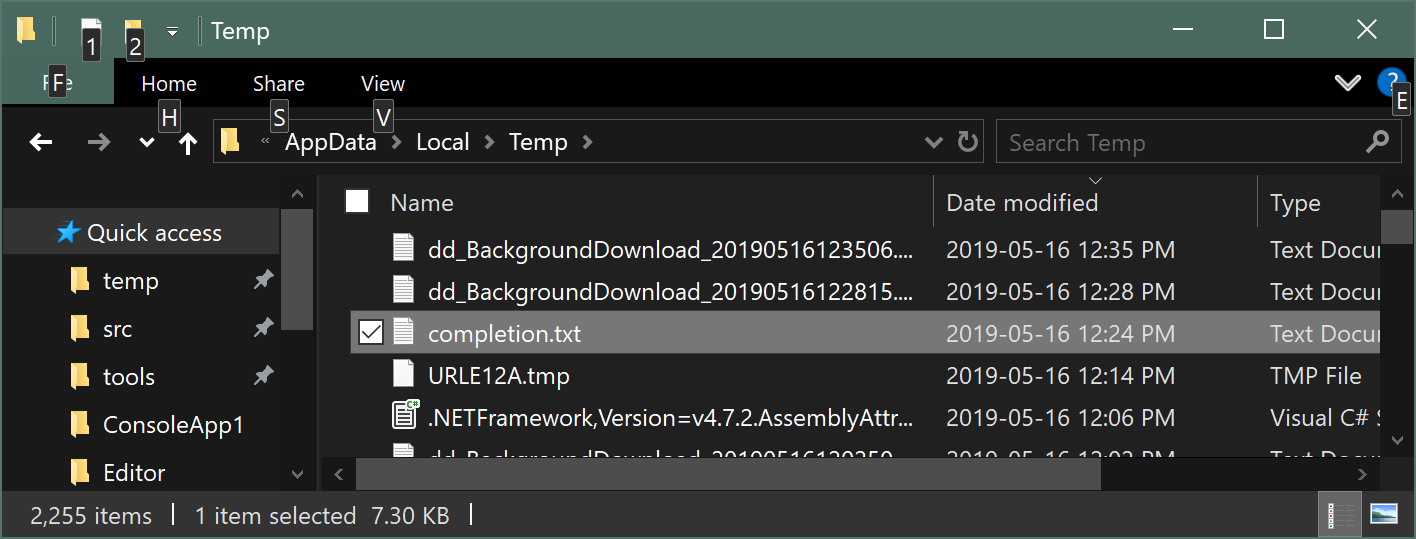
To uninstall:
Close, VS, remove the modified Microsoft.VisualStudio.Platform.VSEditor.dll and restore the original Microsoft.VisualStudio.Platform.VSEditor.dll
Thank you for your support!
AmadeusW
on 16 May 2019
If I enable auto cancel and set the maximum allowed latency to 0, I am getting doubled curly braces and doubled semicolons (i.e. I type one, two appear), can anyone reproduce that?
miloush
on 19 May 2019
@AmadeusW Do you have one that works with 16.1.0 previews?
@sharwell I have _Non-blocking completion_ disabled
miloush
on 20 May 2019
@AmadeusW I have obtained some output from this additional logging. See attached. There is a method called "init", and IntelliSense kept correcting my fully-typed "int" to "init". This happened a few times in a row, before I slowed down a bit and was able to actually get "int" to work.
 Lyelt
on 20 May 2019
Lyelt
on 20 May 2019
Thank you @Lyelt
Your trace is aligned with I see in my repro. That’s really great, because it confirms we're looking at the same issue.
To fully fix this issue, I'd like to know how you get in this state. For me, after I open and type in a TypeScript file, completion to start misbehaving for the remainder of the VS session.
Do you recall working with .ts file? Were there any other code files that you’ve been working on?
Thank you!
AmadeusW
on 20 May 2019
@AmadeusW I definitely did not work on any .ts files, as there are none in the solution. The only files I worked on were .cs and .csproj files (with some .cshtml files open, though I did not type in them). I have not noticed whether opening any particular file type causes the issue to start occurring.
Lyelt
on 20 May 2019
with some .cshtml files open, though I did not type in them
This is likely the trigger, as inline JavaScript in these would be running through the TypeScript completion engine.
sharwell
on 20 May 2019
We have reproduced this issue, found a sequence of events that cause the problem, identified a fix and a possible workaround.
When intellisense completion is used in a TypeScript or F# file, it sets intellisense to _non-blocking mode_ for the whole time Visual Studio remains open, even after new solution is opened.
A possible* workaround in 16.0 is to go to Tools > Options > Preview Features and disable the _Async Completion_ option:
*_I'm sharing this update as soon as it's available, and we haven't fully verified this workaround yet._
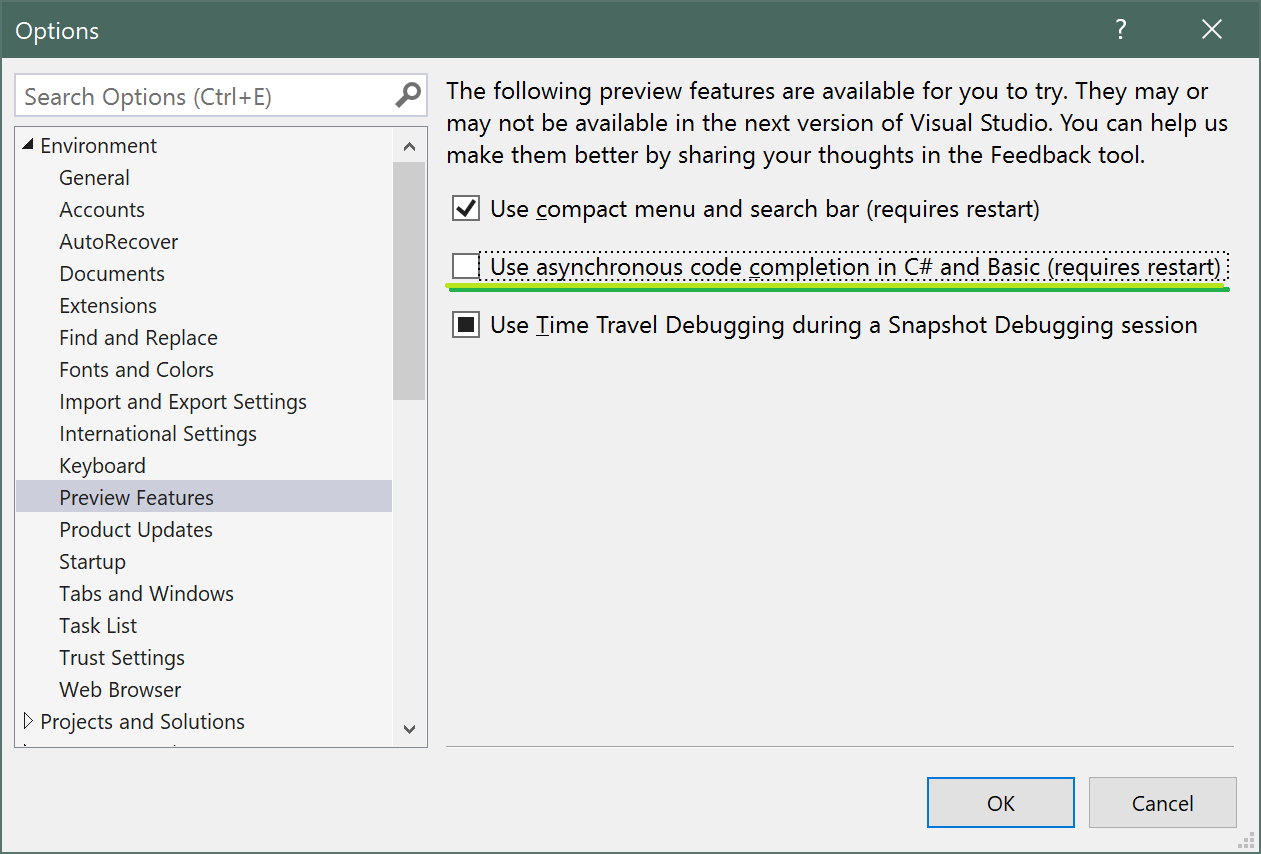
16.1 will be released within couple days, where this Preview Feature option is unavailable.
We will be pushing a bugfix to 16.1 as soon as we can, and we will notify you when 16.1 is fixed.
We are considering pushing a bugfix to 16.0 as well, and we will notify you if and when 16.0 is fixed.
Now, onto the issue with non-blocking mode:
- Every time user types, we enqueue a task to filter down the list of completions and to select the best candidate based on what user has typed. Non blocking mode does not wait on completion of these tasks, and instead uses _last known_ answer. In OP's example,
inwould have been selected after processingi, and we don't wait to processnt. Therefore,intgets selected - Responsive mode is something Editor is introducing in 16.1 and rolling out in 16.2, which is a take on non blocking mode: we similarly won't block on getting the initial list of items, but once we have received items, we will wait on filtering and selection tasks.
- Non blocking mode (with its flaw) appears to be redundant because TypeScript is already using suggestion mode, which is non blocking by design (and does not change what user has typed)
AmadeusW
on 21 May 2019
Thanks to help of members of this community, we found out the sequence of events that led to experiencing this bug:
- Interaction with completion in TypeScript of F# file incorrectly put the entire Visual Studio in "non blocking completion mode"
- Incorrect implementation of "non blocking completion mode" ignored some typed characters, causing incorrect item to be inserted after typing space or punctuation character
- Completion code is slow, which exacerbated the issue
We take all three issues seriously, and here is how we're going to deal with this:
- will be fixed by https://github.com/dotnet/roslyn/pull/35837. This will be available in 16.2 preview, and we are considering pushing a bugfix to 16.1
- is fixed in 16.1. This means that completion will not insert incorrect item, effectively fixing this issue.
- I'm working on this, and this is a high priority issue.
Please update to 16.1 and don't hesitate to reach out if you continue to have problems.
Extra details:
_Until 1 is fixed, interaction in .ts and .fs files will put Visual Studio in "non blocking completion mode",
where phrases typed quicker than completion can catch up, and not fully spelled out, will not be expanded.
For example: If you type "r;" quickly, it will not be expanded to "return;"
However, since 2 is fixed, typing "int" quickly will not result "item", and typing "item" quickly will not result in getting "int"_
AmadeusW
on 22 May 2019
- The original issue seems to be fixed in 16.1. So, there are two options to resolve it for 16.0: either upgrade to 16.1 or turn off "Use asynchronous code completion..."
- https://github.com/dotnet/roslyn/pull/35837 has been merged into 16.2. The target is preview 2. It fixes a switch between blocking and non-blocking completion modes used by different languages. We do not see a reason to merge it into 16.1 (as servicing) because both modes should work fine there. Moreover, improvements coming in 16.2 will make the default scenarios close to the non-blocking mode. So, we will have more updates here.
Please do not hesitate to contact us if:
- You see any similar issue in 16.1 or later.
- There are any muscle memory typing issues related to the switch between blocking and non-blocking modes.
We appreciate your feedback! Thank you very much!
ivanbasov
on 23 May 2019
Please do not hesitate to contact us if:
- You see any similar issue in 16.1 or later.
- There are any muscle memory typing issues related to the switch between blocking and non-blocking modes.
We appreciate your feedback! Thank you very much!
@ivanbasov Since updating to VS 2019 16.7.2 when I rebuilt my computer last weekend (I don't remember what previous version of VS 2019 I was using prior to this, but this wasn't a problem in VS2017 either) I've noticed IntelliSense/Autocompletion - and the editor in general - being sluggish and jittery (e.g. when the suggestion list popup is on-screen and I'll rapidly press my Down arrow key, the selection highlight in the suggestion list won't change instantly, nor smoothly, nor consistently. It's not bad enough to be a breaking/major issue but it certainly is bad enough to make VS _moderately uncomfortable_ to use.
Previously this issue also happened in VS2017 whenever I'd have the Error List window open (because the Error List window is very slow to recalculate its layout for some reason - it was fine in VS2015 but got worse in VS2017, especially with full solution analysis enabled, but the jitters would go away in VS2017 when I closed the Error List window, but in VS2019 the jitters remain even with the Error List window closed.
I suspect the IntelliCode extension was the cause, but I can't disable the extension because that breaks TypeScript right now.
I saw the new Help > Performance Manager, but that only shows zeroes in every category (why can't it see that VS is slow?!?!)
I'm surprised that the VS team haven't added a performance-issue-identification system that logs and traces whenever an intellisense/completion update after a keypress takes longer than 16ms (the frame-time at 60Hz). Is this something you could add? Having a built-in way to prove issues relating to sluggishness would help with the many issues post about sluggishness but they get closed after the OP is asked to go through the hoops to collect performance data which can take hours and requires knowledge and experience of Windows ETW/perf-tracing/etc.
Update:
I just alt-tabbed back to VS2019 after writing this and for some reason arrow-key selection responsiveness is fine, but there's still a noticeable delay between pressing . and the next set of suggestions appearing - I'd say it feels like 100-200ms? (and for some reason in .aspx files VS2019's suggestions window does not display data-type information at all, only member names - I have to press F12 to jump-to-definition to see type information now, grrrr).
Update 2:
Something is definitely slowing down the VS2019 editor - I put a macro on my keyboard just now that types out four space characters: Loop 4 times: ( [Space] down, wait 5ms, [Space] up, wait 5ms ) and when I run this macro in this Markdown textbox on GitHub or in Notepad then the cursor/caret moves smoothly and immediately, but in VS2019 it's markedly slower. And yet the Help > Performance Manager > Typing list is empty.
Update 3:
By sheer luck, I found out a contributory cause of slowness in VS2019: I saw that my desktop PC's Power Plan (in the classic Control Panel > Power Options) was set to "Balanced (Recommended)" - which is the default, and I saw in Task Manager that my desktop CPU (an i7-6850K) was idling at around ~1.2-1.5GHz in Task Manager when Visual Studio 2019 was open and I was editing C# files with rather sluggish IntelliSense.
I changed my Power Plan to "Ultimate Performance" so that it idled at 3.6GHz and VS2019's editor was much more fluid and responsive - though still not as perfectly smooth as VS2017, but a definite improvement nonetheless. I imagine that changing the "Minimum processor state" and PCI Express Power Management settings in any plan would have had a similar effect.
So in this case, a specific sub-issue in my specific case is that Visual Studio 2019 is very sluggish when Windows 10 is using its default power settings.
Some questions:
- Does the hardware test-matrix for Visual Studio 2019 include quantitative for minimum UI responsiveness when Windows 10 is using default power settings? If not, then it really should.
- Visual Studio _should_ be measuring the time from keypress-to-edit-completion, and if it's longer than 16ms it should show an infobar and include checking the computer's power-plan settings as a suggestion _but this shouldn't be necessary_ because VS should be responsive when Windows is using its default power settings, no?
 Jehoel
on 22 Aug 2020
Jehoel
on 22 Aug 2020
Related issues
 codingonHP
·
3Comments
codingonHP
·
3Comments
 NikChao
·
3Comments
NikChao
·
3Comments
 orthoxerox
·
3Comments
orthoxerox
·
3Comments
 dpoeschl
·
3Comments
dpoeschl
·
3Comments
 glennblock
·
3Comments
glennblock
·
3Comments