React-native: Can't Open Developer Menu
I am on React Native 0.17.0 and trying to open the Developer Menu by shaking the simulator(Hardware> Shake Gesture) after downloading code from my local server. Nothing appears.
My schemes and build configurations are not named "Debug" and "Release". Are the names of the configuration important to making the developer menu work? Or perhaps can I directly include some variable in the .xcconfig files?
 jkhustler
All 38 comments
Hey jkhustler, thanks for reporting this issue!
React Native, as you've probably heard, is getting really popular and truth is we're getting a bit overwhelmed by the activity surrounding it. There are just too many issues for us to manage properly.
- If you don't know how to do something or something is not working as you expect but not sure it's a bug, please ask on StackOverflow with the tag
react-nativeor for more real time interactions, ask on Discord in the #react-native channel. - If this is a feature request or a bug that you would like to be fixed, please report it on Product Pains. It has a ranking feature that lets us focus on the most important issues the community is experiencing.
- We welcome clear issues and PRs that are ready for in-depth discussion. Please provide screenshots where appropriate and always mention the version of React Native you're using. Thank you for your contributions!
 facebook-github-bot
on 5 Jan 2016
facebook-github-bot
on 5 Jan 2016
yeah you must be in Debug mode for the dev menu to works.
How have you bootstrapped the project? If you bootstrap with react-native init you should have the 2 modes available in _Product → Scheme → Edit Scheme... (or press ⌘ + <)._
 gre
on 5 Jan 2016
gre
on 5 Jan 2016
I am integrating react native with a pre-existing project. So React Native literally looks at the name of the build configuration and not a flag inside the actual build configuration file?
I've made custom schemes named "Local", "Staging", "Prod" and "Release" and corresponding build configurations. So I don't have a "Debug" configuration.
jkhustler
on 5 Jan 2016
I ran into the same issue. It would be nice if the dev menu wasn't tied to the configuration name. This basically limits us to one config for development. I have defined some others, and can't reload or debug with these.
 mikeygee
on 16 Jan 2016
mikeygee
on 16 Jan 2016
@mikeygee @jkhustler You can customise whether to enable dev menu in MainActivity.
 satya164
on 17 Jan 2016
satya164
on 17 Jan 2016
@satya164 This issue applies to XCode / iOS development
mikeygee
on 19 Jan 2016
@mikeygee Ah. I'm sure there should be something in iOS for this also. Need to check.
satya164
on 19 Jan 2016
Yes something like that for iOS would be tremendously helpful.
jkhustler
on 19 Jan 2016
Can anyone with iOS experience try to debug why this happens?
@nicklockwood is there an obvious place where we rely on the configuration being named 'Debug'?
 mkonicek
on 21 Feb 2016
mkonicek
on 21 Feb 2016
It's not based on the configuration name, it depends on the DEBUG preprocessor macro being set to 1. This is set up automatically if you use the default Debug target, but you can add it manually in build settings if you're using custom targets.
 nicklockwood
on 22 Feb 2016
nicklockwood
on 22 Feb 2016

nicklockwood
on 22 Feb 2016
Awesome, thank you so much Nick!
@chrisbianca Can you verify? Let's close this issue if that works.
mkonicek
on 22 Feb 2016
It is not using the DEBUG macro based on what I've observed. If you even just change the configuration name from Debug to something else, it will stop working. Change it back to Debug, and it works again. Cloning the Debug configuration, which includes the macros also does not work.
mikeygee
on 22 Feb 2016
Agree with @mikeygee - his findings match what I identified in https://github.com/facebook/react-native/issues/6011.
There's more detail of the different things I tried (and failed) to get this working there.
 chrisbianca
on 22 Feb 2016
chrisbianca
on 22 Feb 2016
I can assure you that it _is_ using the DEBUG macro - you can see the code that references it inside RCTDefines.h.
I suspect the issue is that the Debug target in your project is separate from the one in the React framework's subproject.
When they are both named "Debug", Xcode seems to know to set them both, but if you rename the one in your project, I guess that switching to the Debug profile in your project no longer has the effect of toggling the React library itself to Debug mode as well.
I'm not sure how to work around that though.
nicklockwood
on 22 Feb 2016
@nicklockwood Thanks for the tip. I got it working by clicking on the React.xcodeproj in the Libraries directory, and adding a config with the same name as I use in my app project. This makes things much easier, thank you!
mikeygee
on 22 Feb 2016
@nicklockwood thanks for pointing out the file. This seems resolved. Closing.
jkhustler
on 15 Mar 2016
@mikeygee can you please tell me which steps you specifically took to resolve this? I got the same problem today without me (knowingly) changing something
 thorbenandresen
on 4 Apr 2016
thorbenandresen
on 4 Apr 2016
@Thorbenandresen Check your scheme settings. The current scheme shows at the top of Xcode. Click on it, then Edit Scheme. Under "Run", make sure the build configuration is set to Debug. If it's set to something different, you won't get the dev menu.
If you want to use a configuration not named "Debug" like me, then it's a little more work to add a config to the React library, but it doesn't sound like you need that.
mikeygee
on 5 Apr 2016
@mikeygee thanks but that seems fine. I have described my issue here in more detail: http://stackoverflow.com/questions/36413602/cant-open-dev-menu-via-cmdd-or-reload-via-cmdr-any-longer
thorbenandresen
on 5 Apr 2016
Check out my comment on issue 2246.
 jeffbowen
on 5 May 2016
jeffbowen
on 5 May 2016
@mikeygee above wrote
@nicklockwood Thanks for the tip. I got it working by clicking on the React.xcodeproj in the Libraries directory, and adding a config with the same name as I use in my app project. This makes things much easier, thank you!
I would like to confirm that this is working and I would also like to add that I had to do this with RCTWebSocket.xcodeproj or the chrome debugging tools would not work.
With the above fixes, setting up DEV, PROD, and STAGE environments is working for me. Chrome debugging and live reload are working as well. I followed the tutorial here Migrating IOS apps through multiple environments which uses multiple Project - Info - configuration setups.
 NickJorgensen
on 6 May 2016
NickJorgensen
on 6 May 2016
We came across this problem, and altered both the RN bundle script (to match any build configuration with the name *Debug) and then wrote a ruby script to sync the build configurations throughout our Pods.
This also solves the problem of not being able to open "Debug in Chrome" (and a lot of other bugs...)
Check steps 4 and 5 here: https://zeemee.engineering/how-to-set-up-multiple-schemes-configurations-in-xcode-for-your-react-native-ios-app-7da4b5237966#.ucgthnlfd
 alekhurst
on 10 May 2016
alekhurst
on 10 May 2016
I am unable to open dev menu, using all the above stated methods. Anyone has any other alternative solutions?
 jomaint
on 5 Nov 2016
jomaint
on 5 Nov 2016
@jomaint hey! did you manage to solve it? seems like we're having the same issues. i cant open the dev-menu on my emulator (genymotion)
 AmalinaMakhtar
on 6 Dec 2016
AmalinaMakhtar
on 6 Dec 2016
I think I've solved this in a somewhat generic way that will allow everyone to share the solution. You just put your schemes in your package.json and the script deals with the build configs and script steps.
https://www.npmjs.com/package/react-native-schemes-manager
@alekhurst your work is the basis for this, thanks! I took what you did in Ruby and moved it over to Node, as well as added an automatic step to update the run script step in the build so that it should be pretty plug and play.
@thundenilla, @jomaint: it's really early days and I've only tried it on one project of mine, but feel free to give the package above a whirl and see if it works for you. Any feedback would be awesome.
 thekevinbrown
on 24 Jan 2017
thekevinbrown
on 24 Jan 2017
@jomaint did you ever solve this? We just ran into this issue randomly and have no idea what is going on.
react-native: 0.42.0
 jnrepo
on 21 Mar 2017
jnrepo
on 21 Mar 2017
@jnrepo I have the same issue with react-native 0.42.0.
It started happing after I changed my navigation to the new React Navigation and added the Native Animation library.
Have you fixed the issue?
 stuartjeasyodds
on 28 Mar 2017
stuartjeasyodds
on 28 Mar 2017
@stuartjeasyodds I had to remove React from my Podfile and had to manually move the libraries I needed into my Xcode project, which let me use it again. I followed what others did on this ticket https://github.com/facebook/react-native/issues/10366
jnrepo
on 28 Mar 2017
thanks @jnrepo. Fingers crossed the next few react native updates aren't as painful!
stuartjeasyodds
on 29 Mar 2017
@stuartjeasyodds seriously, its like playing with fire
jnrepo
on 29 Mar 2017
@blargity hey Kenvin, thanks!
 ngnclht1102
on 12 May 2017
ngnclht1102
on 12 May 2017
I solved it by making sure that the project that builds React target (sometimes it might not be in your primary xcodeproj) has the preprocessor flag DEBUG=1
For example, i'm using detached expo project, which creates a Pods.xcodeproj next to the main xcodeproj within the xcworkspace.
I made sure in my bottom section of the Podfile, this happens
  post_install do |installer|
    installer.pods_project.targets.each do |target|
      # Build React Native with DEBUG enabled
      if target.name == 'React'
        target.build_configurations.each do |config|
          config.build_settings['GCC_PREPROCESSOR_DEFINITIONS'] ||= []
          config.build_settings['GCC_PREPROCESSOR_DEFINITIONS'] << 'DEBUG=1'
        end
      end
    end
  end
Then run $ pod install in the ios folder to make sure that your project configuration contains that flag, then off you go!
I assume this goes to same principle to others who has trouble with their own react-native project. I hope this helps.
 pencilcheck
on 4 Jun 2017
pencilcheck
on 4 Jun 2017
It's still not working for me on Genymotion Android Emulator.
@thundenilla Were you able to fix this?
 witbybit
on 25 Aug 2017
witbybit
on 25 Aug 2017
same to me, it's strange but on real devices it works, it seems like debugging schemes are over-complicated so many issues. separate projects for managing this and still lot's of issues.
 sneerin
on 10 Sep 2017
sneerin
on 10 Sep 2017
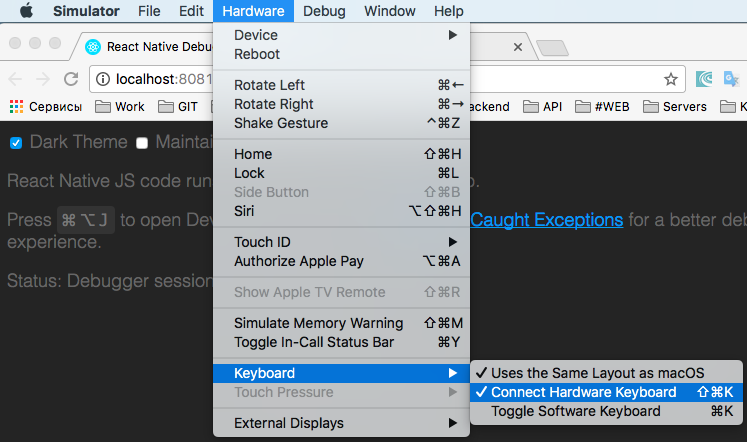
I do not pretend to solve the problem, but as an option you can:
Simulator > Hardware > Keyboard > Connect Hardware Keyboard (to active)
 av-k
on 13 Oct 2017
av-k
on 13 Oct 2017
i found ansewer from stackoverflow: Go back to debugging after created release version with react-native bundle (Android)
I had open development menu use Ctrl + M on ubuntu
thanks mriza1815!
 anhnnp
on 19 Dec 2017
anhnnp
on 19 Dec 2017
Here is the answer for this This applies for Android.
It happens with wrong import statement in MainApplication.java, You have to check if any statement like import com.facebook.react.BuildConfig; is in the imports. If so, remove that and run
react-native run-android
No need to delete assets folder
 deva11
on 3 Mar 2018
deva11
on 3 Mar 2018
Related issues
 josev55
·
3Comments
josev55
·
3Comments
 jlongster
·
3Comments
jlongster
·
3Comments
 vikeri
·
3Comments
vikeri
·
3Comments
 axelg12
·
3Comments
axelg12
·
3Comments
 anchetaWern
·
3Comments
anchetaWern
·
3Comments
Most helpful comment
I do not pretend to solve the problem, but as an option you can:

Simulator > Hardware > Keyboard > Connect Hardware Keyboard (to active)