React-native-screens: [native-stack] [iOS]: headerTranslucent doesn't work and causes issues with layout
Hi,
When adding headerTranslucent: true on iOS, the header does NOT get translucent, but instead, some new issues are caused by it.
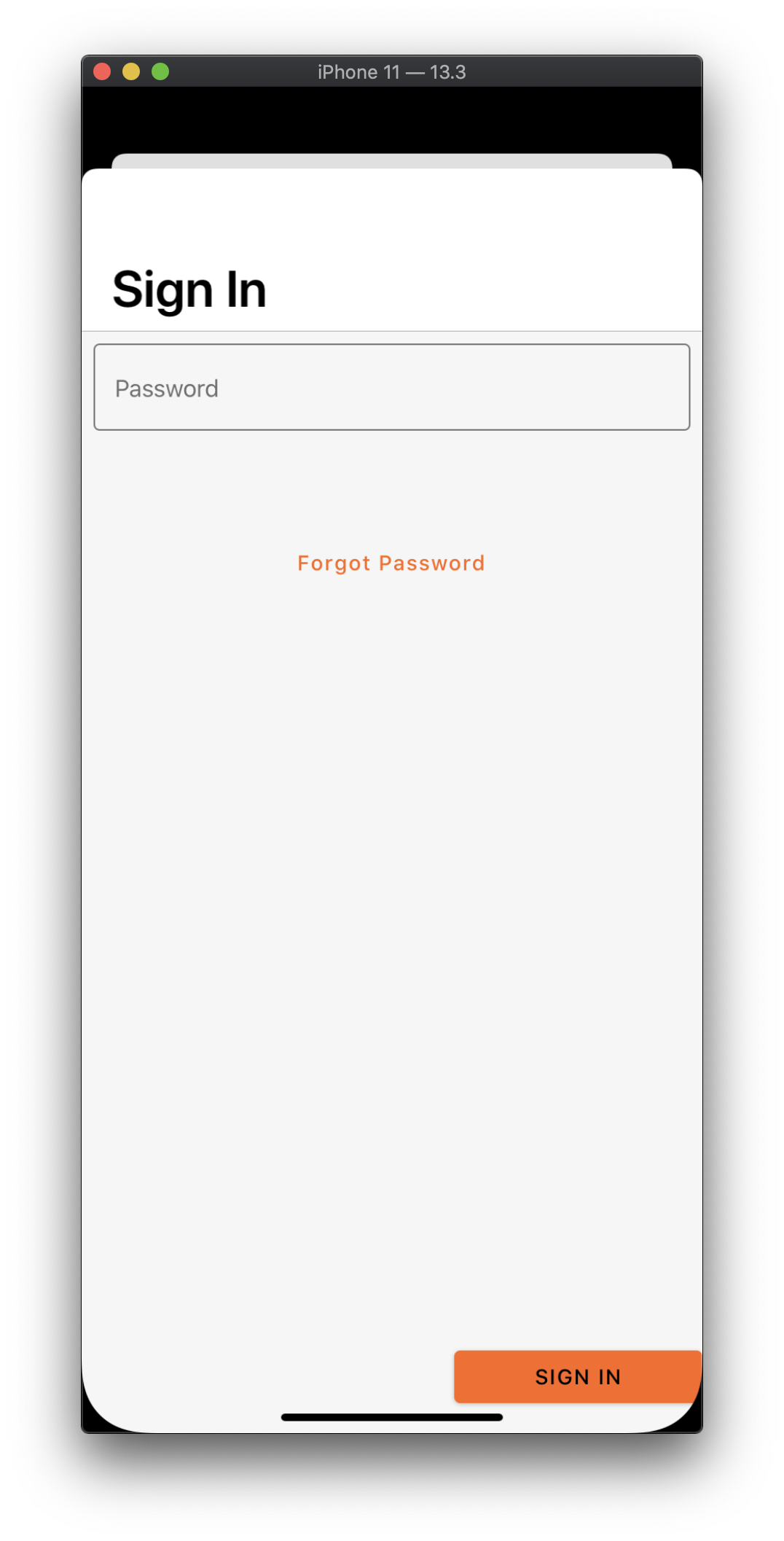
Without headerTranslucent:

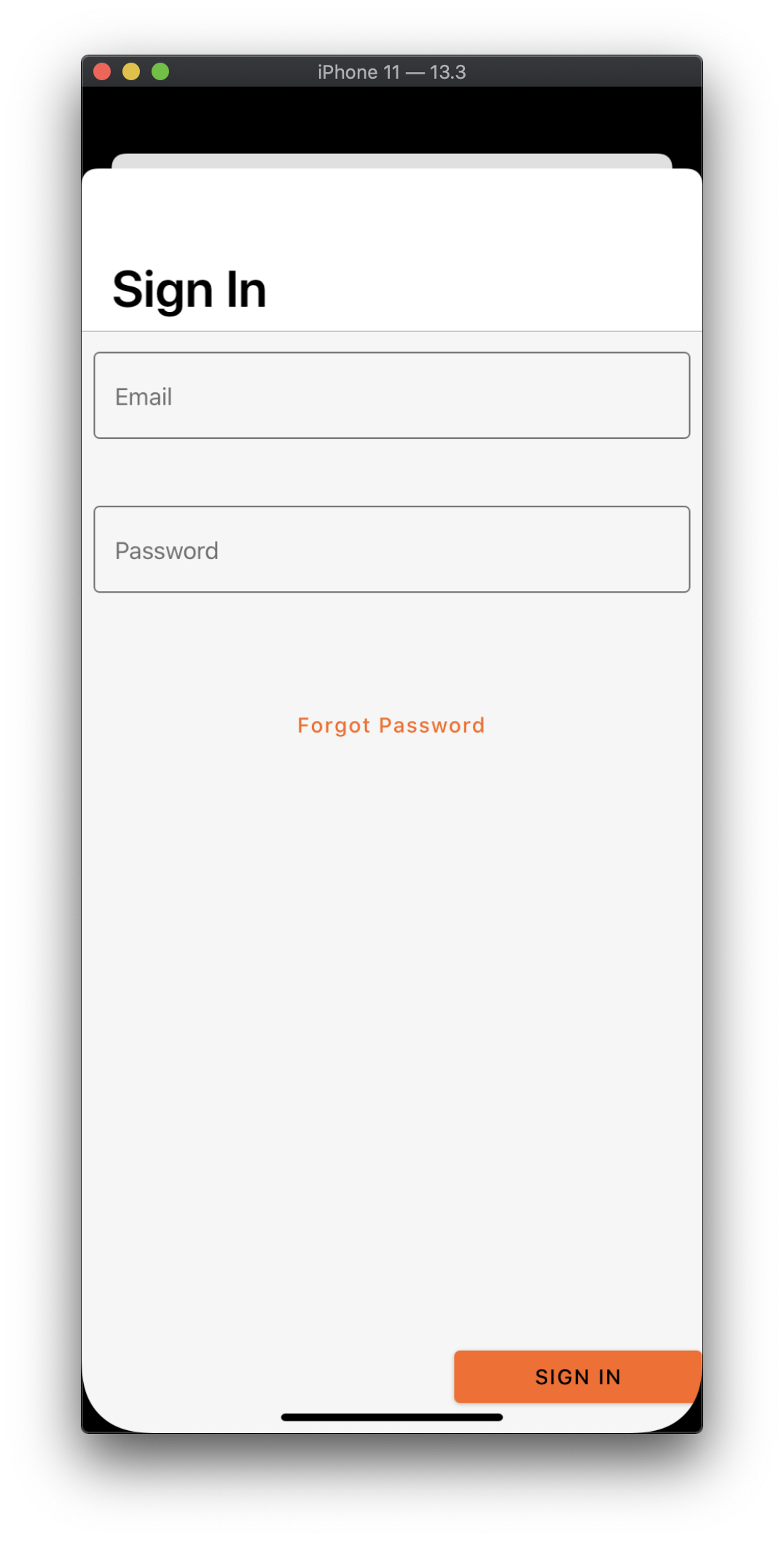
With headerTranslucent:

Note that the spacing from top is wrong and the content are now under the header (the week strip is not shown). And also the header does not turn translucent.
I'm using [email protected] and @react-navigation/[email protected]
 sallar
All 29 comments
This is still the case in 2.2.0
sallar
on 3 Mar 2020
This still remains on 2.3.0
Without headerTranslucent:
With headerTranslucent:
 zcmgyu
on 20 Mar 2020
zcmgyu
on 20 Mar 2020
Ran into the same issue
 AzzouDuGhetto
on 7 May 2020
AzzouDuGhetto
on 7 May 2020
What behavior do you want to achieve? setting headerTranslucent: true on iOS 13 makes the content not respect the header's height and appears under it. If you want to see the content below the header, use semi-transparent header backgroundColor, e.g.
headerTranslucent: true,
headerStyle: {backgroundColor: 'rgba(255,255,255,.8)'},
 WoLewicki
on 12 May 2020
WoLewicki
on 12 May 2020
@WoLewicki that makes sense. Two questions:
1- Isn't headerTranslucent supposed to make the header look blurred? Will setting a translucent background colour achieve this?
2- How do I find out what body padding to use so the content appears at the right spot?
sallar
on 12 May 2020
- In the current implementation, setting
headerTranslucenttotruewill resolve toconfigureWithDefaultBackgroundof appearance (https://github.com/software-mansion/react-native-screens/blob/master/ios/RNSScreenStackHeaderConfig.m#L271). It makes the content appear under the header, which gives the opportunity to see the content when applying backgroundColor with alpha < 1 to the header. react-native-screensdon't provide a method which will give you the current height of header + status bar, for now, so you have to implement the padding by yourself.
WoLewicki
on 13 May 2020
@WoLewicki I see. thanks. So there's no way currently to also make it blurred like native iOS apps?
Seems like background effect needs to be applied. https://developer.apple.com/documentation/uikit/uibarappearance/3197994-backgroundeffect?language=objc
sallar
on 13 May 2020
Hmm I can add backgroundEffect as a prop to RNScreens.
WoLewicki
on 14 May 2020
I added PR for it #512. Can you check if it is what you would like to have @sallar?
WoLewicki
on 14 May 2020
@WoLewicki thanks! I’ll check in a minute.
sallar
on 14 May 2020
@WoLewicki that's it :) works nicely.
      navigationOptions: () => ({
        title: 'Start',
        headerStyle: {
          blurEffect: 'prominent',
        },
        translucent: true,
        largeTitle: true,
      }),
I added this in nativeNavigation.js in RNScreens Example and works perfectly.

The thing is, when I don't add blurEffect, it still works (of course with a normal blur this time):
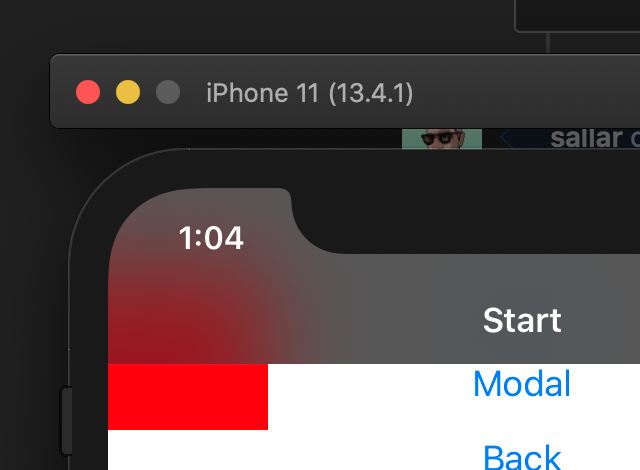
Thanks a lot.
sallar
on 15 May 2020
However I think something's wrong with the master version "in my project only". this is what happens in mine but not in Example@master:
      <Stack.Screen
        name={HOME_SCREEN}
        component={HomeScreen}
        options={{
          headerLargeTitle: true,
          headerTranslucent: true,
          headerStyle: {
            backgroundColor: 'rgba(255, 0, 0, 0.1)',
          },
        }}
      />
Results in an "opaque" background:
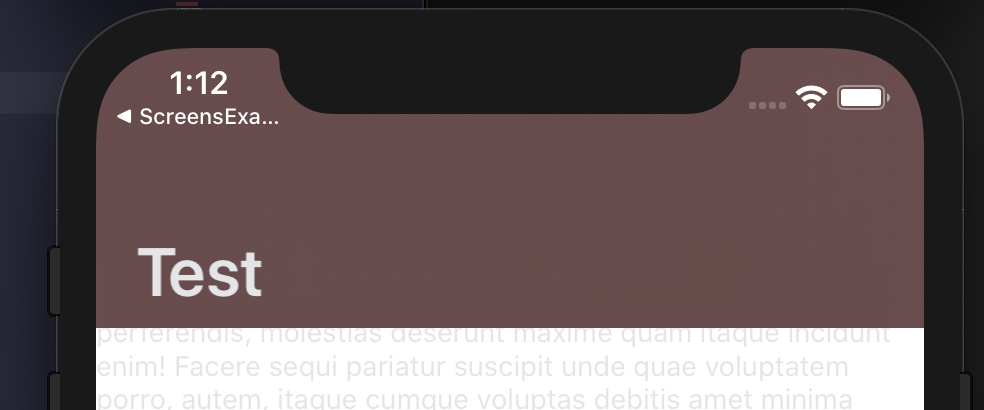
So the navigation is not actually translucent. This happens when I add the headerTranslucent: true. Here's a GIF:

So basically even without your PR, the Example@master works nicely and gets the blur effect, but my project does not, it doesn't even get the translucency.
Thanks and sorry for the ramble :D
sallar
on 15 May 2020
Blur effect can be only applied with connection to backgroundColor and with that color having alpha < 1. Then it can change the default blur applied. It works with backgroundColor: 'transparent' too. In your case, there might be a problem with aligning the content after the refresh. Try switching the translucency and refreshing the app with cmd+R. After disabling translucency, the content should appear below the header section.
WoLewicki
on 15 May 2020
@sallar setting contentInsetAdjustmentBehavior="automatic" on ScrollView seems to fix the layout issue
 arjndr
on 28 May 2020
arjndr
on 28 May 2020
@arjndr setting contentInsetAdjustmentBehavior="automatic" with translucent header makes the ScrollView acquire a contentOffset equal to the height of the header, but the ScrollView can still scroll under the header.
headerTranslucent: true
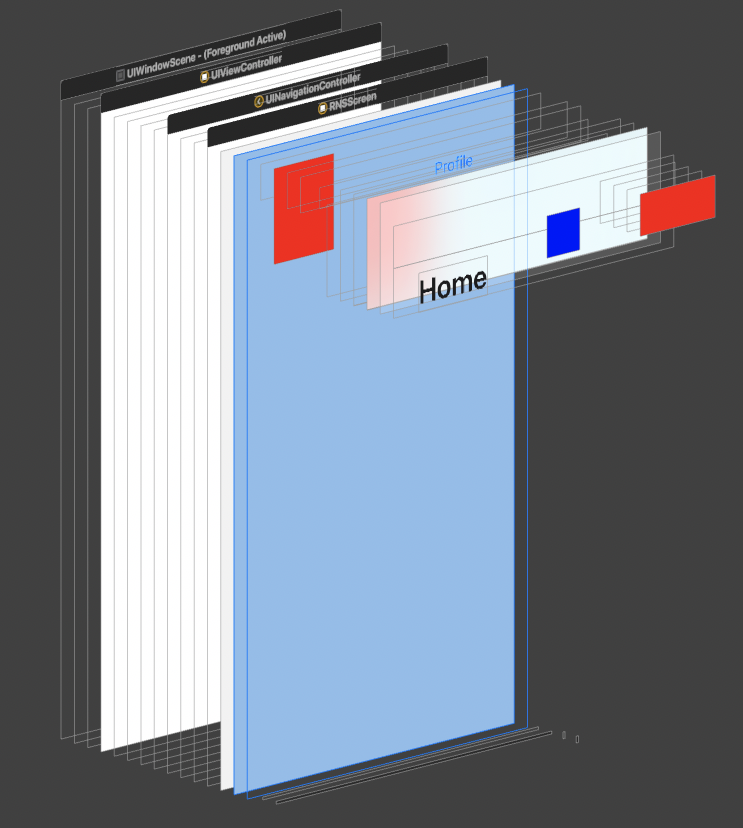
headerTranslucent: false
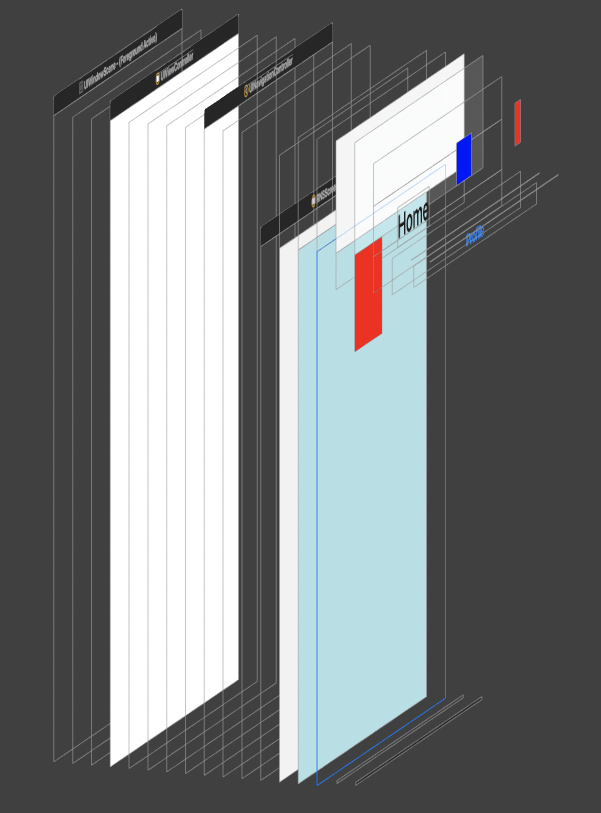
You can see the difference in the size of RNScreen.
WoLewicki
on 16 Jun 2020
Can I help you any more with this issue or can I close it?
WoLewicki
on 17 Jul 2020
I still have this issue with version 2.10.1
 LRNZ09
on 12 Aug 2020
LRNZ09
on 12 Aug 2020
@LRNZ09 but what is your issue?
WoLewicki
on 12 Aug 2020
@WoLewicki sorry for not being so explicit, I resolved with the layout issue using @arjndr’s solution, but I still can't enable the translucent header
LRNZ09
on 12 Aug 2020
What do you mean by not being able to enable it? You can check this medium post to see how it works from iOS 11: https://medium.com/@wailord/the-particulars-of-the-safe-area-and-contentinsetadjustmentbehavior-in-ios-11-9b842018eeaa. react-native-screens sets edgesForExtendedLayout to UIRectEdgeAll when setting the translucent to `true.
WoLewicki
on 12 Aug 2020
@WoLewicki I’ve just set headerTranslucentto true in the screenOptions prop of NativeStack.Navigator
LRNZ09
on 12 Aug 2020
And it didn't change anything? Can you provide a snack/repo that shows the problem?
WoLewicki
on 12 Aug 2020
I'm working on this repo https://github.com/LRNZ09/match-app I've added a red box on the welcome page to test the translucency
LRNZ09
on 12 Aug 2020
Could you provide a minimal repo needed to reproduce the issue so everybody can easily work on it? It would be best if it would have only the needed libraries.
WoLewicki
on 13 Aug 2020
@WoLewicki Sure, here's a snack https://snack.expo.io/@lrnz09/header-translucent-bug
LRNZ09
on 13 Aug 2020
@LRNZ09 you are using contentInsetAdjustmentBehavior="automatic" on ScrollView, which adds inset equal to header's height, so the first element of this ScrollView appears below it. You can see my comment: https://github.com/software-mansion/react-native-screens/issues/387#issuecomment-644786421. To check that the header is translucent, you can apply something like
headerStyle: {
    backgroundColor: 'rgba(100,100,100,0.1)',
    blurEffect: 'prominent',
  },
and see the difference with headerTranslucent: true/false.
WoLewicki
on 14 Aug 2020
@WoLewicki ok so, the problem here is that you have to add a transparent background color to see the translucent effect. But I remember in an old version of the native stack it wasn't mandatory and just headerTranslucent was enough
LRNZ09
on 14 Aug 2020
It may have been like that. Can I help you any more with this or can I close this issue?
WoLewicki
on 14 Aug 2020
Yeah I guess this can be closed now
LRNZ09
on 14 Aug 2020
Related issues
 beetlebum
·
5Comments
beetlebum
·
5Comments
 ArekChr
·
5Comments
ArekChr
·
5Comments
 thomasgosse
·
4Comments
thomasgosse
·
4Comments
 bitttttten
·
3Comments
bitttttten
·
3Comments
 chengsokdara
·
3Comments
chengsokdara
·
3Comments
Most helpful comment
@sallar setting
contentInsetAdjustmentBehavior="automatic"on ScrollView seems to fix the layout issue