React-native-navigation: Custom Nav Button problem with positioning
Issue Description
I am designing my own custom nav button which design is like this:
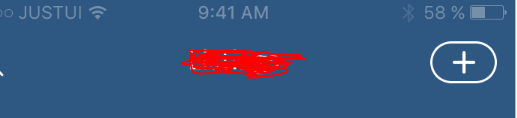
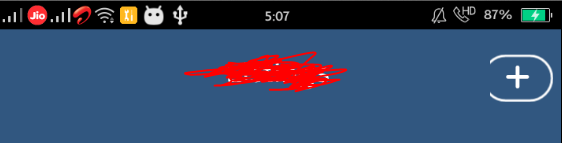
But when i'm trying to implement it it looks like:
Code for custom button
import React from 'react';
import {View, Text, TouchableOpacity, StyleSheet } from 'react-native';

export default class CustomNavButton extends React.Component {
    render(){
        return(
            <View style={{marginTop: 12, right: 5}}>
                <TouchableOpacity style={styles.buttonContainer} activeOpacity={0.8}>
                    <Text style={styles.buttonText}>{this.props.text}</Text>
                </TouchableOpacity>
            </View>
        )
    }
}

const styles = StyleSheet.create({
    buttonContainer: {
        width: 45,
        height: 30,
        borderRadius: 25,
        borderColor: '#ffffff',
        borderWidth: 1.5,
        justifyContent: 'center',
        alignItems: 'center'
    },
    buttonText: {
        fontSize: 30,
        textAlign: 'center',
        fontFamily: 'VarelaRound-Regular',
        color: '#ffffff'
    }
})
If i don't use right: 5 in view styling then its shows perfectly but i need that gap on that right side.
This need help for this problem.
Environment
- React Native Navigation version: latest
- React Native version: 49.03
- Platform(s) (iOS, Android, or both?): Android
- Device info (Simulator/Device? OS version? Debug/Release?): Both, Debug
 AvijitDutta95
All 13 comments
What I suspect is happening is that you are setting your buttonContainer's width to 45, and then forcing it right by 5, which causes that 5 pixels to get cut off on the left.
Solution:
Use marginRight: 5 instead of right: 5. This adds a margin between to the right of the screen and your view and should achieve what you want it to achieve.
Let me know how it goes.
 Seeker93
on 7 Nov 2017
Seeker93
on 7 Nov 2017
@Seeker93 , none of solutions are worked for me, with your first solution there is no changes and with that second one it's looks like:

No gap on right side after using paddingRight: 5
AvijitDutta95
on 7 Nov 2017
Hi, sorry, I edited my initial answer quickly since I made a mistake. You need marginRight instead of paddingRight
Seeker93
on 7 Nov 2017
@Seeker93, No change with marginRight also. :-(
AvijitDutta95
on 9 Nov 2017
add {borderWidth: 0}
and use padding to position your button 👍
 khsily
on 23 Nov 2017
khsily
on 23 Nov 2017
Sorry @khsily , your comment is not clear to me. I need border for that button. Can you explain what are you trying to say! Thanks....
AvijitDutta95
on 5 Dec 2017
@AvijitDutta95
Sorry, here's more detail.
you should use TouchableOpacity for the top wrapper View with {borderWidth: 0}
ex)
           <TouchableOpacity style={{
                height: '100%',
                justifyContent: 'center',
                borderWidth: 0,
                paddingRight: 132.5,
            }}>
                <View style={{
                    width: 45,
                    height: 30,
                    borderRadius: 25,
                    borderColor: '#ffffff',
                    borderWidth: 1.5,
                    justifyContent: 'center',
                    alignItems: 'center'
                }}>
                    <Text style={{
                        fontSize: 20,
                        color: '#ffffff'
                    }}>+</Text>
                </View>
            </TouchableOpacity>
Thank you so much for your help @khsily , Its work perfectly as i need 👍 Thanks once again... :-)
AvijitDutta95
on 5 Dec 2017
Hi @khsily , can you tell me one more thing that how can i handle onPress from custom nav button. for now i'm trying to you deep-linking like that way:
<TouchableOpacity style={styles.container} onPress={() => Navigation.handleDeepLink({ link: 'showNewPage' })}>
                <View style={styles.buttonContainer}>
                    <Text style={styles.buttonText}>{this.props.text}</Text>
                </View>
            </TouchableOpacity>
this is my custom nav button component:
and i'm handling it on component like this way:
onNavigatorEvent(event) {
    if (event.type === 'DeepLink') {
      if (event.link === 'showNewPage') {
        this.onAddListing();
      }
    }
  }

  componentWillMount() {
    this.props.navigator.setOnNavigatorEvent(this.onNavigatorEvent.bind(this));
  }
Its working but problem is on button press three times that new page rendering automatically.
AvijitDutta95
on 5 Dec 2017
@AvijitDutta95 any luck on solving this issue?
 anonrig
on 13 Jan 2018
anonrig
on 13 Jan 2018
@AvijitDutta95 @anonrig maybe you should create a method that uses Navigation.handleDeepLink() and bind this method in the onPress like this: this.myMethod.bind(this)
 witalobenicio
on 26 Jan 2018
witalobenicio
on 26 Jan 2018
This issue has been automatically marked as stale because it has not had recent activity. It will be closed if no further activity occurs.
If you believe the issue is still relevant, please test on the latest version and report back. Thank you for your contributions.
![stale[bot] picture](https://avatars.githubusercontent.com/in/1724?v=4&s=40) stale[bot]
on 2 Jun 2018
stale[bot]
on 2 Jun 2018
The issue has been closed for inactivity.
stale[bot]
on 9 Jun 2018
Related issues
 zagoa
·
3Comments
zagoa
·
3Comments
 EliSadaka
·
3Comments
EliSadaka
·
3Comments
 birkir
·
3Comments
birkir
·
3Comments
 yayanartha
·
3Comments
yayanartha
·
3Comments
 Chipped1
·
3Comments
Chipped1
·
3Comments
Most helpful comment
@AvijitDutta95
Sorry, here's more detail.
you should use TouchableOpacity for the top wrapper View with {borderWidth: 0}
ex)