React-native-blur: blur tha half of screen
hi
i emplement code to blur the half of screen and it work before, but for some reasons im delete my android folder and regenrate the android folder and now it blur the entire screen, this is my code.
    this.state = {
      viewRef: null,
         ...
    };


  imageLoaded() {
    setTimeout(() => {
      this.setState({ viewRef: findNodeHandle(this.backgroundImage) });
    }, 100);
  }

  render() {
    return (
     <View
        style={{
          flex: 1
        }}
      >
        <Image
          ref={img => {
            this.backgroundImage = img;
          }}
          source={require("../../res/Images/backSign.jpg")}
          style={{
            position: "absolute",
               top: 0,
            left: 0,
            bottom: 0,
            right: 0
          }}
          onLoadEnd={this.imageLoaded.bind(this)}
        />
        <BlurView
          style={{
            position: "absolute",
            top: Metrics.HEIGHT * 0.5,
            left: 0,
            bottom: 0,
            right: 0
          }}
          viewRef={this.state.viewRef}
          blurType="light"
        />
 <View
          style={{
            position: "absolute",
            top: Metrics.HEIGHT * 0.5
          }}
        >
      .....
 </View>
 </View>
)}
thanks in advance
 peyman-hakemi
All 9 comments
Hi,
I was just struggling with the same issue of applying margin to BlurView and what worked for me was wrapping BlurView with another View, applying the viewStyle there with overflow: hidden added to it. For example:
        <Image
          ref={img => {
            this.backgroundImage = img;
          }}
          source={require("../../res/Images/backSign.jpg")}
          style={{
            position: "absolute",
            top: 0,
            left: 0,
            bottom: 0,
            right: 0
          }}
          onLoadEnd={this.imageLoaded.bind(this)}
        />
        <View
          style={{
            position: "absolute",
            top: Metrics.HEIGHT * 0.5,
            left: 0,
            bottom: 0,
            right: 0,
            overflow: "hidden"
          }}
          pointerEvents={"none"}
        >
          <BlurView style={StyleSheet.absoluteFillObject} viewRef={this.state.viewRef} blurType="light" />
        </View>
 abendi
on 25 Mar 2019
abendi
on 25 Mar 2019
hi @abendi, In iOS BlurView is working fine but in Android it is not working properly. How to display half part of image should be blurred. Give me any suggestion for this.
code:-
componentDidMount() {
    InteractionManager.runAfterInteractions(() => {
      setTimeout(() => {
        const viewRef = findNodeHandle(this._viewRef);
        this.setState({ viewRef });
      }, 250);
    });
  }
render() {

    return (
  <View style={styles.container}>
          <View
            ref={ref => (this._viewRef = ref)}
            style={{
              backgroundColor: "transparent"
            }}
          >
            <Image
              source={{
                uri:
                  "https://encrypted-tbn0.gstatic.com/images?q=tbn:ANd9GcRWcrnWgito6J4J-EmACyiRlPoCW73FZLvwI7bUJk2jWdmMC1z2JQ"
              }}
              style={{ width: width, height: height / 3 }}
            />
          </View>
          {(Platform.OS == "ios" || this.state.viewRef !== null) && (
            <BlurView
              viewRef={this.state.viewRef}
              blurAmount={3}
              blurType="light"
              style={{
                position: "absolute",
                top: height / 5,
                left: 0,
                right: 0,
                bottom: 0
              }}
            />
          )}
        </View>
)}
const styles = StyleSheet.create({
  container: {
    marginTop: 10

  },
  absolute: {
    position: "absolute",
    top: height / 5,
    left: 0,
    bottom: 0,
    right: 0

  }
});
Here is my screenshots:-
iOS:-
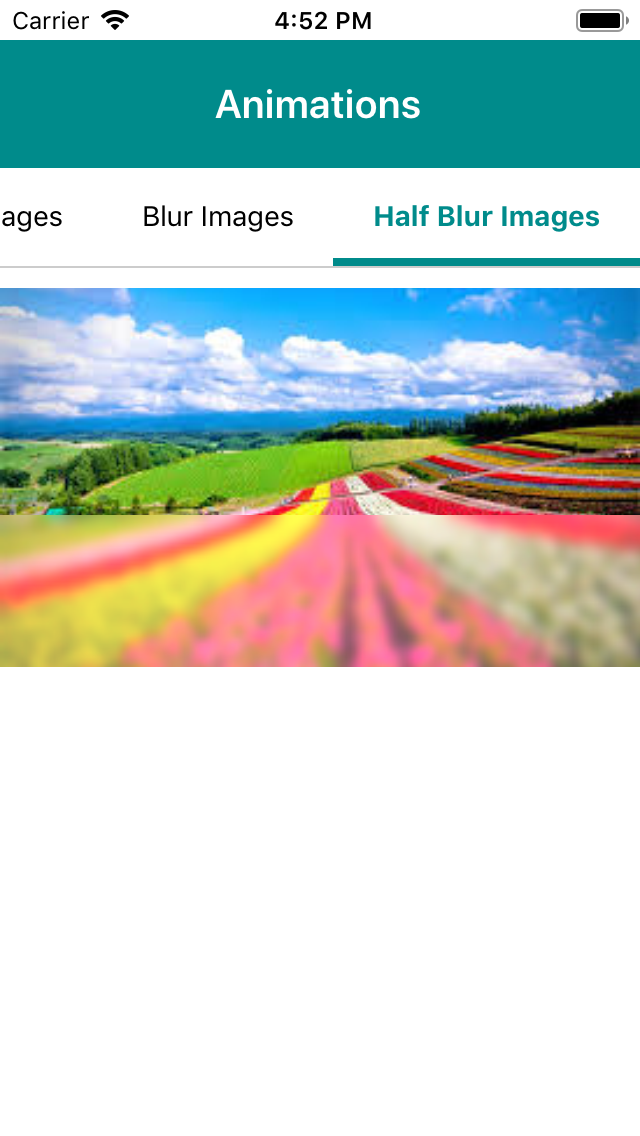
Android:-
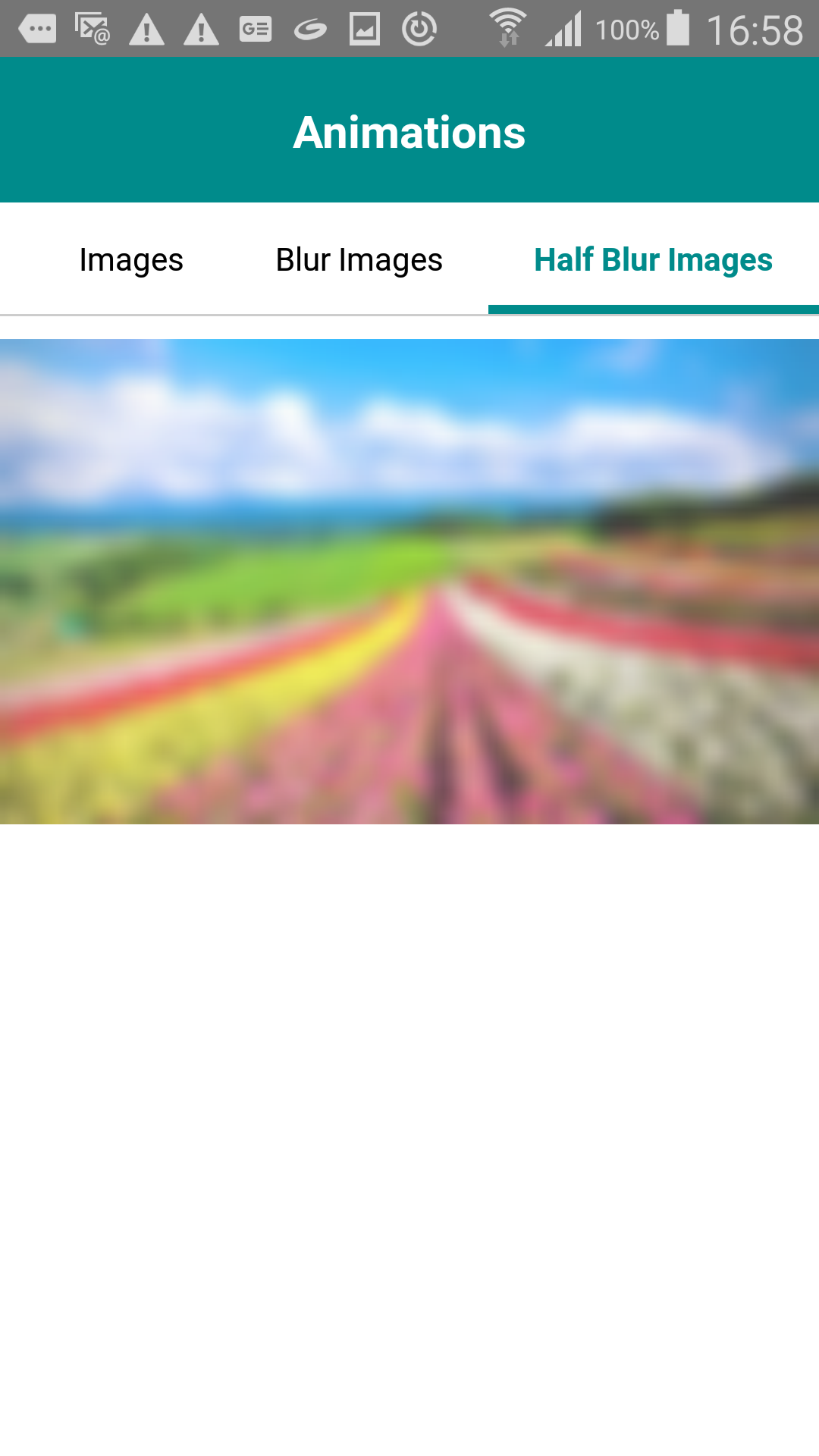
 harikanammi
on 6 May 2019
harikanammi
on 6 May 2019
As I mentioned earlier, you need to wrap absolutely positioned BlurView with View and control style from there with overflow: hidden (important) applied. For this image hack I also needed to wrap outer View with overflow: hidden. Also, you shouldn't rely on constant timeout (250ms) to wait for image to be loaded. Use Image event onLoad or onLoadEnd. This works for me on Android, untested on iOS:
  onImageRef = (ref: Image) => {
    this._imageRef = ref;
  };

  onImageLoad = () => {
    this.setState({
      imageNodeHandle: findNodeHandle(this._imageRef)!
    });
  };

  render() {
    return (
      <View style={{ marginTop: 10, overflow: "hidden" }}>
        <Image
          ref={this.onImageRef}
          onLoad={this.onImageLoad}
          source={{
            uri:
              "https://encrypted-tbn0.gstatic.com/images?q=tbn:ANd9GcRWcrnWgito6J4J-EmACyiRlPoCW73FZLvwI7bUJk2jWdmMC1z2JQ"
          }}
          style={{ width: width, height: height / 3 }}
        />
        {(Platform.OS === "ios" || this.state && this.state.imageNodeHandle !== null) && (
          <View style={[StyleSheet.absoluteFillObject, {
            width: width,
            height: (height / 3) / 2,
            overflow: "hidden"
          }]}>
            <BlurView blurType={"light"}
                      blurAmount={3}
                      style={[StyleSheet.absoluteFillObject]}
                      viewRef={this.state.imageNodeHandle}/>
          </View>)}
      </View>
    );
  }
Hi @abendi, thank you for your reply. Half of the part is blurred is working fine. But BlurView is applied to top of the image. I don't know how to set the BlurView is applied to bottom of the image as i mentioned iOS screenshot. Please give any solution for this.
Below mentioned android screenshot:-
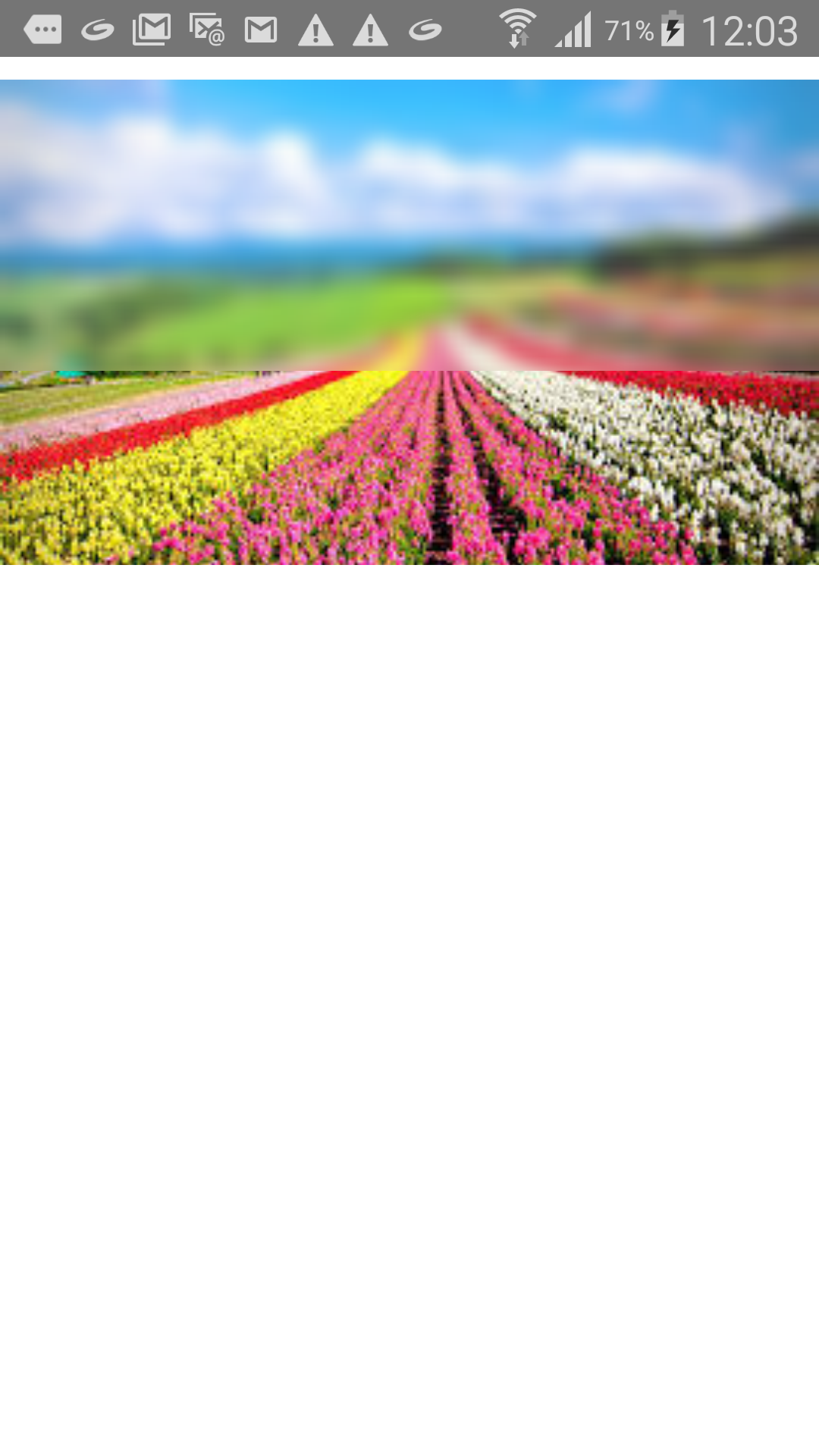
harikanammi
on 7 May 2019
Just apply top or marginTop to the View wrapping the BlurView?
abendi
on 7 May 2019
@abendi , yes i applied top property to View. But BlurView is displaying like mentioned screenshot.
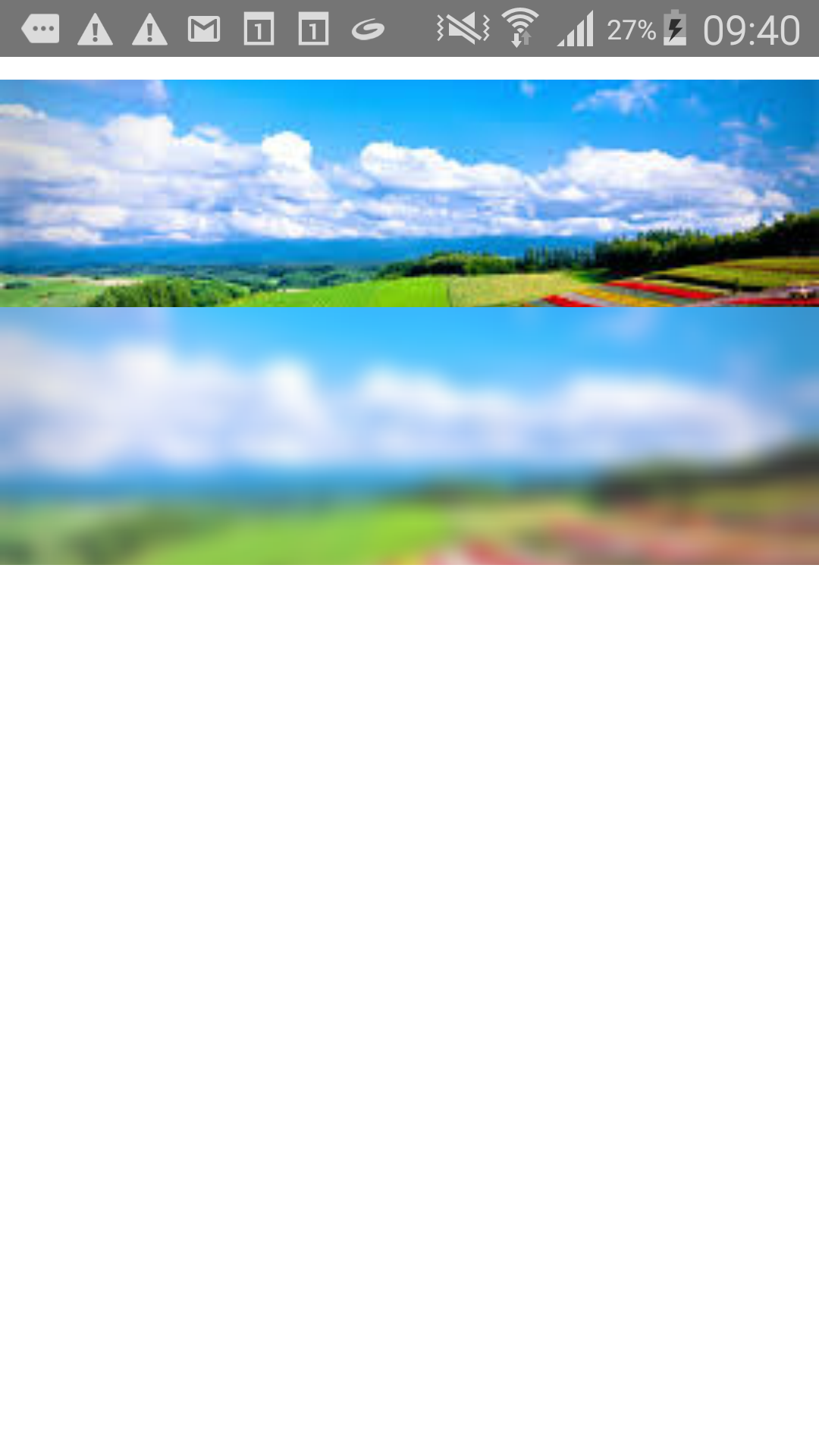
Here is my code:-
import React, { Component } from "react";
import {
  Platform,
  StyleSheet,
  Dimensions,
  View,
  Text,
  Image,
  TouchableOpacity,
  findNodeHandle
} from "react-native";
import { BlurView } from "@react-native-community/blur";
const { width, height } = Dimensions.get("window");
type Props = {};
export default class HalfBlur extends Component<Props> {
  constructor(props) {
    super(props);
    this.state = { imageNodeHandle: null };
  }

  onImageRef = (ref: Image) => {
    this._imageRef = ref;
  };

  onImageLoad = () => {
    this.setState({
      imageNodeHandle: findNodeHandle(this._imageRef)
    });
  };
  render() {
    return (
      <View style={{ marginTop: 10, overflow: "hidden" }}>
        <Image
          ref={this.onImageRef}
          onLoad={this.onImageLoad}
          source={{
            uri:
              "https://encrypted-tbn0.gstatic.com/images?q=tbn:ANd9GcRWcrnWgito6J4J-EmACyiRlPoCW73FZLvwI7bUJk2jWdmMC1z2JQ"
          }}
          style={{ width: width, height: height / 3 }}
        />
        {(Platform.OS === "ios" ||
          (this.state && this.state.imageNodeHandle !== null)) && (
          <View
            style={{
              position: "absolute",
              top: 100,
              bottom: 0,
              left: 0,
              right: 0,
              overflow: "hidden"
            }}
          >
            <BlurView
              blurType={"light"}
              blurAmount={3}
              style={[StyleSheet.absoluteFillObject]}
              viewRef={this.state.imageNodeHandle}
            />
          </View>
        )}
      </View>
    );
  }
}

const styles = StyleSheet.create({
  container: {
    flex: 1,
    backgroundColor: "white"
  },
  image: {
    width: width,
    height: height / 3.5
  },
  overlayStyle: {
    position: "absolute",
    top: 0,
    bottom: 0,
    left: 0,
    right: 0,
    justifyContent: "flex-end"
  },
  buttonView: {
    backgroundColor: "transparent",
    top: 0,
    alignItems: "center",
    justifyContent: "flex-end"
  },
  buttonStyle: {
    height: width / 6.9,
    width: width / 1.5,
    borderRadius: width / 2,
    backgroundColor: "black",
    alignItems: "center",
    justifyContent: "center",
    alignSelf: "center"
  },
  buttonTextColor: {
    color: "white",
    fontSize: width / 18.7,
    textAlign: "center",
    textAlignVertical: "center"
  }
});
hi @abendi , Any solution for this issue???
harikanammi
on 10 May 2019
Haven't figured out a way to do this on android either... Seems like height / top isn't doing anything
 franzwarning
on 1 Jul 2019
franzwarning
on 1 Jul 2019
Hey guys I'm slightly confused. This library has 13,000+ downloads per month.
Is partial image blur not supported on Android?
@charpeni @abendi solution only works if you want to blur the top of the image.
 Dror-Bar
on 5 Aug 2019
Dror-Bar
on 5 Aug 2019
Related issues
 almirfilho
·
3Comments
almirfilho
·
3Comments
 leonskim
·
5Comments
leonskim
·
5Comments
 minuitagency
·
5Comments
minuitagency
·
5Comments
 yanglingnan
·
6Comments
yanglingnan
·
6Comments
 tbolt
·
3Comments
tbolt
·
3Comments
Most helpful comment
Hi,
I was just struggling with the same issue of applying margin to BlurView and what worked for me was wrapping BlurView with another View, applying the viewStyle there with
overflow: hiddenadded to it. For example: