React-diagrams: React-diagrams - cannot get simple demo to work
First I am a beginner with web technology, so apologies in advance for the basic question. I am trying to run the following demo code locally:
I did the following:
1) Set up my local environment on Windows following instructions from https://reactjs.org/tutorial/tutorial.html#what-is-react and got a basic React app working and running in Chrome
2) Downloaded index.tsx (https://github.com/projectstorm/react-diagrams/blob/master/packages/diagrams-demo-gallery/demos/demo-simple/index.tsx) and placed in the /src directory of my project and downloaded DemoCanvasWidget.tsx (https://github.com/projectstorm/react-diagrams/blob/master/packages/diagrams-demo-gallery/demos/helpers/DemoCanvasWidget.tsx) and also placed in my /src folder
3) Modified index.tsx to reference DemoCanvasWidget.tsx in the /src folder rather than /helper
4) Installed the many references manually required for the diagrams: npm install --save-dev @emotion/core npm install --save-dev @emotion npm install --save-dev mathjs@^6.0.3 npm install --save-dev closest@^0.0.1 npm install --save-dev resize-observer-polyfill@^1.5.1 npm install --save-dev @emotion/styled@^10.* npm install --save-dev pathfinding@^0.4.18 npm install --save-dev typescript@>=3.7.0-dev npm install --save-dev paths-js@^0.4.9
5) Modified DemoCanvasWidget.tsx to fix compile errors: a) added // eslint-disable-next-line @typescript-eslint/no-namespace before namespace S to avoid a lint error b) Then had another error with babel (Namespace not marked type-only declare. Non-declarative namespaces are only supported experimentally in Babel. To enable and review caveats see: https://babeljs.io/docs/en/babel-plugin-transform-typescript) so I removed the namespace S from the file and amended references to no longer use a namespace.
After these steps the project compiles correctly and I get the following output from npm start:
Compiled successfully!
You can now view testreactapp in the browser.
Local: http://localhost:3000/
On Your Network: http://172.16.159.129:3000/Note that the development build is not optimized.
To create a production build, use yarn build.
However, nothing displays in my browser window http://localhost:3000 - it is just empty (I got the original demo project from the react tutorial to display).
Does anyone have any suggestions? I was surprised about the compile errors I had to fix so maybe I am doing something more fundamentally wrong.
Below are the files after editing.
Also note I then tried git cloning the full project and npm install / npm start on react-diagrams-masterpackages\diagrams-demo-project. This also did not render.
DemoCanvasWidget.tsx:
import * as React from 'react';
import styled from '@emotion/styled';

export interface DemoCanvasWidgetProps {
    color?: string;
    background?: string;
}
// eslint-disable-next-line @typescript-eslint/no-namespace
//namespace S {
    export const Container = styled.div<{ color: string; background: string }>`
        height: 100%;
        background-color: rgb(60, 60, 60) !important;
        background-size: 50px 50px;
        display: flex;
        > * {
            height: 100%;
            min-height: 100%;
            width: 100%;
        }
        background-image: linear-gradient(
                0deg,
                transparent 24%,
                ${p => p.color} 25%,
                ${p => p.color} 26%,
                transparent 27%,
                transparent 74%,
                ${p => p.color} 75%,
                ${p => p.color} 76%,
                transparent 77%,
                transparent
            ),
            linear-gradient(
                90deg,
                transparent 24%,
                ${p => p.color} 25%,
                ${p => p.color} 26%,
                transparent 27%,
                transparent 74%,
                ${p => p.color} `75%,`
                ${p => p.color} 76%,
                transparent 77%,
                transparent
            );
    `;
//}

export class DemoCanvasWidget extends React.Component<DemoCanvasWidgetProps> {
    render() {
        return (
            <Container
                background={this.props.background || 'rgb(60, 60, 60)'}
                color={this.props.color || 'rgba(255,255,255, 0.05)'}>
                {this.props.children}
            </Container>
        );
    }
}
index.tsx:
import createEngine, { DiagramModel, DefaultNodeModel, DefaultLinkModel } from '@projectstorm/react-diagrams';
import * as React from 'react';
import { CanvasWidget } from '@projectstorm/react-canvas-core';
import { DemoCanvasWidget } from './DemoCanvasWidget';

export default () => {
    //1) setup the diagram engine
    var engine = createEngine();

    //2) setup the diagram model
    var model = new DiagramModel();

    //3-A) create a default node
    var node1 = new DefaultNodeModel({
        name: 'Node 1',
        color: 'rgb(0,192,255)'
    });
    node1.setPosition(100, 100);
    let port1 = node1.addOutPort('Out');

    //3-B) create another default node
    var node2 = new DefaultNodeModel('Node 2', 'rgb(192,255,0)');
    let port2 = node2.addInPort('In');
    node2.setPosition(400, 100);

    // link the ports
    let link1 = port1.link<DefaultLinkModel>(port2);
    link1.getOptions().testName = 'Test';
    link1.addLabel('Hello World!');

    //4) add the models to the root graph
    model.addAll(node1, node2, link1);

    //5) load model into engine
    engine.setModel(model);

    //6) render the diagram!
    return (
        <DemoCanvasWidget>
            <CanvasWidget engine={engine} />
        </DemoCanvasWidget>
    );
};
 johnsmithlon
All 6 comments
On my project I styled the canvas like this:
const FullscreenCanvas = styled(CanvasWidget)`
  height: 100%;
  width: 100%;
`;
Try removing all other styles and keeping only this one, see if that works for you.
If that doesnt work, press CTRL + SHIFT + C and move your mouse around your application until you find any DOM element that might be the diagram. Click it to inspect it, and try messing around with styles under the Developer Tools window. Try to make everything 100% height and 100% width.
If that doesnt work, we'll probably be able to help you out more efficiently if you share your project (or a project in which we are able to reproduce this problem) under a GitHub repository.
These are some related issues: #460, #409.
 renato-bohler
on 9 Jan 2020
renato-bohler
on 9 Jan 2020
Thanks, I just tried the styled suggestion but no luck. When I do CTRL+SHIFT+C it looks like an empty html file. I've put the files onto a GitHub repo:
https://github.com/johnsmithlon/reactdiagrambug
Any further suggestions would be much appreciated.
johnsmithlon
on 9 Jan 2020
Cool. Ok, so... there's a couple of problems preventing the diagram to render correctly.
First problem
Firstly, and most importantly, you never told React to render. Your index.tsx file is only a React function component, but it was never used anywhere. Generally, the index.tsx file tells React to render a specific React component on a specific DOM element. It looks something like this:
import React from 'react';
import ReactDOM from 'react-dom';
import App from './App';

// Tells React to render the App component on the DOM element whose id is "root"
// You never did that, and thats why there's no child on the "root" div on the DevTools
ReactDOM.render(<App />, document.getElementById('root'));
So, basically:
- Rename
index.tsxtoApp.tsx - Create a new
index.tsxwith the contents above
Second problem
At this point, React is rendering under the root div, but nothing is seen. What I did to solve that was to add a container wrapping the FullscreenCanvas component, something like that:
const FullscreenCanvas = styled(DemoCanvasWidget)`
  height: 100%;
  width: 100%;
`;

const Container = styled.div`
  height: 100vh;
  width: 100vw;
`;

return (
  <Container>
    <FullscreenCanvas>
      <CanvasWidget engine={engine}>
      </CanvasWidget>
    </FullscreenCanvas>
  </Container>
);
Third problem
Now, you will be able to see the diagram, yay :tada:
But the body still has a margin to it. In this case, the diagram will not be really fullscreen:
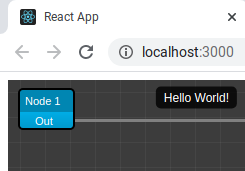
You could set the body style directly on the index.html file under the public folder. If you decide to do this, you'll need to stop and start the frontend server to apply the changes.
What I did: I created an App.css file under the src folder and added the simplest of the CSS:
body {
  margin: 0;
}
And then imported this file on App.tsx:
import './App.css';
Aaand that's it, I think.
If you want to see all changes I've made, you can give me access to this repository and I'll push them into a new branch. But try to follow these steps before, hopefully this will help you understand React better :smile:
renato-bohler
on 9 Jan 2020
Thank you - this is awesome! Much appreciated.
johnsmithlon
on 9 Jan 2020
If that solved your problem, you can close this issue now :smiley:
renato-bohler
on 9 Jan 2020
I tried following the suggested fixes but nothing worked for me.
Here's what really fixed the issue for both the nodes and the elements not showing properly.
I removed the importing of the storm-react-diagrams/dist/style.min.css
and instead, I created a custom CSS file which is the above file with the following modifications (You can find it under "node_modules/storm-react-diagrams/dist/" style.min.css):
.srd-diagram{position:unset;flex-grow:1;display:flex;cursor:move;overflow:visible}
(position to unset and overflow to visible)
.srd-link-layer{position:unset; ...}
(position to unset)
 waelmas
on 15 Sep 2020
waelmas
on 15 Sep 2020
Related issues
 CarlousF
·
3Comments
CarlousF
·
3Comments
 quangas
·
3Comments
quangas
·
3Comments
 abhijitnandy2011
·
3Comments
abhijitnandy2011
·
3Comments
 kmannislands
·
3Comments
kmannislands
·
3Comments
 schecter22107
·
3Comments
schecter22107
·
3Comments
Most helpful comment
Thank you - this is awesome! Much appreciated.