Pywinauto: not able to click a button
Hi All,
I am trying to automate windows based application which contains spaces in the application name.
I am able to open app with the help of below code:
from pywinauto.application import Application
app=Application().start('c:\\program files\\ESPWorkstation.exe')
we will receive a popup window (below) which allows us to proceed further

now i need to click on load button to proceed further.
Can some one help me on this issue?
Also, I need to navigate to a window which contains spaces after clicking load button to proceed with.
Thanks,
rajarameshmamidi
 rajarameshmamidi
All 38 comments
Hi @rajarameshmamidi this is easy to use spaces with key access instead of attribute access:
app['Load the User Profile'].LoadButton.click_input()
Anyway the name like app.Load_the_User_Profile should work since the best_match algorithm is resistant to typos. This is approximate matching of the name.
For more details I'd recommend to learn the Getting Started Guide first before submitting so many questions. If some paragraph is unclear in the guide, it's a good reason to submit an issue.
Thanks for understanding.
 vasily-v-ryabov
on 3 Sep 2018
vasily-v-ryabov
on 3 Sep 2018
Hi Vasily,
i gone through Getting Started Guide and tried below
from pywinauto.application import Application
app=Application().start(r'C:\Program Files\Cybermation\ESP Workstation\bin\ESPWorkstation.exe')
app.Load_the_User_Profile.LoadButton.ClickInput()
app.CA_WA_Workstation.MenuSelect('Connection Manager -> Connection Manager')
#app.Connection_Manager.MenuSelect('Connection ->Connect')
app.Connection_Manager.Menu.Connection.Connect.Select()
app.Connection_Manager.Servers.ClickInput()
i got below error
pywinauto.findbestmatch.MatchError: Could not find 'Connection_Manager' in 'dict_keys(['Afx:400000:0', 'CA WA WorkstationAfx:400000:0', 'CA WA Workstation'])'
Screenshots of my app..
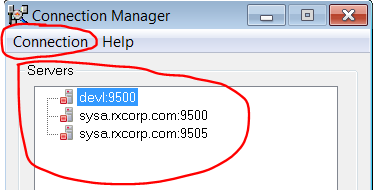
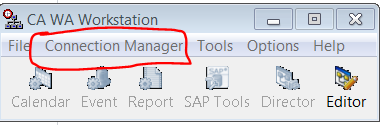
once above code works, i need to select a server to login by providing some parameters.
rajarameshmamidi
on 5 Sep 2018
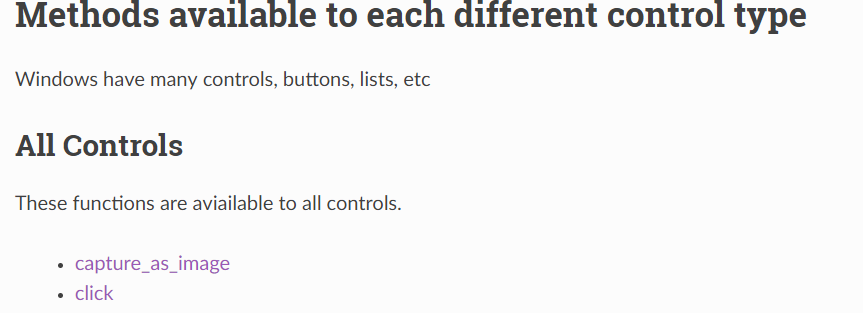
Also when i try to read(from Getting started Guide) methods available to each different control types it is rooting to pywinauto.controls.hwndwrapper where it shows empty. below are the screens fro the same

rajarameshmamidi
on 5 Sep 2018
Some empty pages is a known issue #541. I know the root cause, but had no chance to fix it yet.
Regarding "Connection Manager" window it looks like a separate process spawned. You have to connect to this process by title (if you don't know executable name):
conn_manager_app = Application().connect(title="Connection Manager")
conn_manager_app.Connection_Manager.menu_select('Connection ->Connect')
P.S. Also I would recommend using PEP-8 compatible names for methods like menu_select. Old CamelCase style methods are deprecated and may be removed already in 0.7.0 (end of this year).
vasily-v-ryabov
on 7 Sep 2018
0.6.4 docs are consistent (no much changes in 0.6.5), will fix it in 0.6.6:
https://pywinauto.readthedocs.io/en/0.6.4/code/pywinauto.controls.hwndwrapper.html
vasily-v-ryabov
on 7 Sep 2018
Hi Vasily,
i will try above method and let you know.
Thanks,
Rajarameshmamidi
rajarameshmamidi
on 10 Sep 2018
Hi Vasily,
Note:- will there be any code difference between 32-bit and 64-bit?
above code works fine and i am trying to get the controls of this window with the help of below code.
conn_manager_app.Connection_Manager.print_control_identifiers()
But got below error,
Traceback (most recent call last):
File "C:/Users/rrmamidi/Desktop/old Desktop/compress_1/python/basic python scripts/OpenApp.py", line 21, in
conn_manager_app = Application().connect(title='Connection Manager').print_control_identifiers() #Working
File "C:\Users\rrmamidi\AppData\Local\Programs\Python\Python36\Lib\site-packages\pywinauto-0.5.4-py3.6.egg\pywinauto\application.py", line 833, in connect
handle = findwindows.find_window(**kwargs)
File "C:\Users\rrmamidi\AppData\Local\Programs\Python\Python36\Lib\site-packages\pywinauto-0.5.4-py3.6.egg\pywinauto\findwindows.py", line 62, in find_window
raise WindowNotFoundError()
pywinauto.findwindows.WindowNotFoundError:
Thanks,
Rajarameshmamidi
rajarameshmamidi
on 12 Sep 2018
Hi Vasily,
Ignore above error. I am able to get the controls. now i am trying to select an item from the treeview and need to typekeys below are the screenshots
and code which i am trying to typekeys.
conn_manager_app.Connection_Manager.Connect['Pass&word:Edit'].TypeKeys('')
But got error
Traceback (most recent call last):
  File "C:/Users/rrmamidi/Desktop/old Desktop/compress_1/python/basic python scripts/OpenApp.py", line 16, in <module>
    conn_manager_app.Connection_Manager.Connect['Pass&word:Edit'].TypeKeys('MDS5HQE$')
  File "C:\Users\rrmamidi\AppData\Local\Programs\Python\Python36\Lib\site-packages\pywinauto-0.5.4-py3.6.egg\pywinauto\application.py", line 192, in __getitem__
    ctrls = _resolve_control(self.criteria)
  File "C:\Users\rrmamidi\AppData\Local\Programs\Python\Python36\Lib\site-packages\pywinauto-0.5.4-py3.6.egg\pywinauto\application.py", line 758, in _resolve_control
    raise e.original_exception
  File "C:\Users\rrmamidi\AppData\Local\Programs\Python\Python36\Lib\site-packages\pywinauto-0.5.4-py3.6.egg\pywinauto\timings.py", line 378, in WaitUntilPasses
    func_val = func(*args)
  File "C:\Users\rrmamidi\AppData\Local\Programs\Python\Python36\Lib\site-packages\pywinauto-0.5.4-py3.6.egg\pywinauto\application.py", line 536, in _get_ctrl
    findwindows.find_window(**ctrl_criteria))
  File "C:\Users\rrmamidi\AppData\Local\Programs\Python\Python36\Lib\site-packages\pywinauto-0.5.4-py3.6.egg\pywinauto\findwindows.py", line 59, in find_window
    windows = find_windows(**kwargs)
  File "C:\Users\rrmamidi\AppData\Local\Programs\Python\Python36\Lib\site-packages\pywinauto-0.5.4-py3.6.egg\pywinauto\findwindows.py", line 213, in find_windows
    best_match, wrapped_wins)
  File "C:\Users\rrmamidi\AppData\Local\Programs\Python\Python36\Lib\site-packages\pywinauto-0.5.4-py3.6.egg\pywinauto\findbestmatch.py", line 524, in find_best_control_matches
    raise MatchError(items = name_control_map.keys(), tofind = search_text)
pywinauto.findbestmatch.MatchError: Could not find 'Connect' in 'dict_keys(['Tree1', 'Tree1TreeView', 'TreeView', 'GroupBox', 'ServersGroupBox', 'Servers'])'
Thanks,
raja
rajarameshmamidi
on 12 Sep 2018
Looks like Connect is redundant in this chain. Can you try this:
conn_manager_app.Connection_Manager['Pass&word:Edit'].type_keys('')
By the way, don't use CamelCase style methods for backend="uia". These methods exist for backend="win32" only and they are deprecated. Use PEP-8 style: type_keys, click_input etc.
vasily-v-ryabov
on 12 Sep 2018
Oh, one more thing... If you use default backend in Application(), it's "win32". For this backend every dialog is a top-level window. So for "win32" this code might look like:
conn_manager_app.Connect['Pass&word:Edit'].type_keys('')
Hi vasily,
i tried to get controllers of Connect window with below code
conn_manager_app.Connect.print_control_identifiers()
and got error
Traceback (most recent call last):
  File "C:/Users/rrmamidi/Desktop/old Desktop/compress_1/python/basic python scripts/OpenApp.py", line 17, in <module>
    conn_manager_app.Connect.print_control_identifiers()
builtins.AttributeError: 'function' object has no attribute 'print_control_identifiers'
Also, i tried to use the code suggested by you but got error,
conn_manager_app.Connect['Pass&word:Edit'].type_Keys('')

Traceback (most recent call last):
  File "C:/Users/rrmamidi/Desktop/old Desktop/compress_1/python/basic python scripts/OpenApp.py", line 18, in <module>
    conn_manager_app.Connect['Pass&word:Edit'].type_Keys('') #this code shared by Vasily
builtins.TypeError: 'method' object is not subscriptable
Thanks,
raja
rajarameshmamidi
on 14 Sep 2018
Ah, sorry Connect is a method name so attribute access returns this method, not a window specification. You can try this specification: conn_manager_app.ConnectDialog.print_control_identifiers().
The second error is a consequence of previous one. Try this:
conn_manager_app.ConnectDialog['Pass&word:Edit'].type_keys('') # type_keys is all lower case!
Hi Vasily,
now i am able to get the controls of Connect window.
with 'type_keys ' not able to type .so i changed to 'TypeKeys ' and it worked.
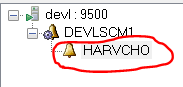
i am able to select root item of treeview with below code and not able to select an item from treeview. i am using below code to select treeview item
conn_manager.Event_manager.TreeViewWrapper.Select('devl:9500')

conn_manager.Event_manager.TreeViewWrapper.GetChild('1') # not working
conn_manager.Event_Manager_devl_9500.TreeViewWrapper.Select('\devl:9500\DEVLSCM1\HARVCHO')  # not working
Thanks,
Raja
rajarameshmamidi
on 18 Sep 2018
also i used below code to select treeview . it is selecting but through's error
conn_manager.Event_manager.TreeViewWrapper.Select('devl:9500')
error message:-
Traceback (most recent call last):
  File "C:/Users/rrmamidi/Desktop/old Desktop/compress_1/python/basic python scripts/OpenApp.py", line 38, in <module>
    conn_manager.Event_manager.TreeViewWrapper.Select('devl:9500') #working
  File "C:\Users\rrmamidi\AppData\Local\Programs\Python\Python36\Lib\site-packages\pywinauto-0.5.4-py3.6.egg\pywinauto\controls\common_controls.py", line 1437, in Select
    elem = self.GetItem(path)
  File "C:\Users\rrmamidi\AppData\Local\Programs\Python\Python36\Lib\site-packages\pywinauto-0.5.4-py3.6.egg\pywinauto\controls\common_controls.py", line 1361, in GetItem
    "Only absolute paths allowed - "
builtins.RuntimeError: Only absolute paths allowed - please start the path with \
below is the code i am trying to select treeview item but got error
conn_manager.Event_manager.TreeViewElement.Children().GetItem(['HARVCHO']).ClickInput('right')

Traceback (most recent call last):
  File "C:/Users/rrmamidi/Desktop/old Desktop/compress_1/python/basic python scripts/OpenApp.py", line 39, in <module>
    conn_manager.Event_manager.TreeViewWrapper.GetChild('1') # not working
  File "C:\Users\rrmamidi\AppData\Local\Programs\Python\Python36\Lib\site-packages\pywinauto-0.5.4-py3.6.egg\pywinauto\application.py", line 245, in __getattr__
    return getattr(ctrls[-1], attr)
builtins.AttributeError: 'TreeViewWrapper' object has no attribute 'GetChild'
hi Vasily...did you get a chance to look above request..
rajarameshmamidi
on 20 Sep 2018
Hi Vasily,
Ignore above errors. Now i am able to achieve to select child from tree-view.
i am trying to select an item after rightclicking with below code but getting error.
b = a.popupmenu.MenuClick('Trigger')

Also i am trying to get controllers of below window with below code but getting error. can you let me know how to get the controllers of this window.

conn_manager.Afx_400000_0.DEVLSCM1_HARVCHO_Trigger_the_EventDialog.print_control_identifiers()

Traceback (most recent call last):
  File "C:/Users/rrmamidi/Desktop/old Desktop/compress_1/python/basic python scripts/OpenApp.py", line 77, in <module>
    conn_manager.Event_Manager_devl_9500_DEVLSCM1_HARVCHO.ProfUIS_ControlBar.DEVLSCM1_HARVCHO_Trigger_the_EventDialog.print_control_identifiers()
  File "C:\Users\rrmamidi\AppData\Local\Programs\Python\Python36\lib\site-packages\pywinauto-0.6.5-py3.6.egg\pywinauto\application.py", line 585, in print_control_identifiers
    this_ctrl = self.__resolve_control(self.criteria)[-1]
  File "C:\Users\rrmamidi\AppData\Local\Programs\Python\Python36\lib\site-packages\pywinauto-0.6.5-py3.6.egg\pywinauto\application.py", line 249, in __resolve_control
    raise e.original_exception
  File "C:\Users\rrmamidi\AppData\Local\Programs\Python\Python36\lib\site-packages\pywinauto-0.6.5-py3.6.egg\pywinauto\timings.py", line 453, in wait_until_passes
    func_val = func(*args, **kwargs)
  File "C:\Users\rrmamidi\AppData\Local\Programs\Python\Python36\lib\site-packages\pywinauto-0.6.5-py3.6.egg\pywinauto\application.py", line 210, in __get_ctrl
    ctrl = self.backend.generic_wrapper_class(findwindows.find_element(**ctrl_criteria))
  File "C:\Users\rrmamidi\AppData\Local\Programs\Python\Python36\lib\site-packages\pywinauto-0.6.5-py3.6.egg\pywinauto\findwindows.py", line 87, in find_element
    raise ElementNotFoundError(kwargs)
pywinauto.findwindows.ElementNotFoundError: {'best_match': 'DEVLSCM1_HARVCHO_Trigger_the_EventDialog', 'top_level_only': False, 'parent': <win32_element_info.HwndElementInfo - 'Standard', ProfUIS-ControlBar, 795996>, 'backend': 'win32'}
Thanks,
raja
rajarameshmamidi
on 21 Sep 2018
Hi @rajarameshmamidi
menu_select should work if it's not an owner-drawn menu:
app.PopupMenu.menu_select("Trigger...")
The dialog is probably top-level window(error message tells it's not found as a child of Afx_400000_0), so this code should find it:
conn_manager.DEVLSCM1_HARVCHO_Trigger_the_EventDialog.print_control_identifiers()
And your traceback shows you're using it almost right except one thing. backend="win32" allows only 2 levels of window specification. So this code is incorrect:
conn_manager.Event_Manager_devl_9500_DEVLSCM1_HARVCHO.ProfUIS_ControlBar.DEVLSCM1_HARVCHO_Trigger_the_EventDialog.print_control_identifiers()
From error message you can see that conn_manager.Event_Manager_devl_9500_DEVLSCM1_HARVCHO.ProfUIS_ControlBar is found, but next level child is not. Why not use simply 1 top-level dialog? This should look like:
conn_manager.DEVLSCM1_HARVCHO_Trigger_the_EventDialog.print_control_identifiers()
Hi Vasily,
- i have achieved getting controls of trigger event dialog.
2 . i used the code shared by you and got below error
app.PopupMenu.menu_select('Trigger...')

Traceback (most recent call last):
  File "C:/Users/rrmamidi/Desktop/old Desktop/compress_1/python/basic python scripts/OpenApp.py", line 86, in <module>
    app.PopupMenu.menu_select('Trigger...')
  pywinauto.findbestmatch.MatchError: Could not find 'PopupMenu' in 'dict_keys(['CA WA Workstation', 'Afx:400000:0', 'CA WA WorkstationAfx:400000:0'])'
i tried as below ways and got error.
conn_manager.PopupMenu.menu_select("Trigger...")

 not found error in 'dict_keys(['Afx:400000:800:10003:10:0', 'Event Manager - devl : 9500 - DEVLSCM1.HARVCHKOAfx:400000:800:10003:10:0', 'Professional Shadow', 'Event Manager - devl : 9500 - DEVLSCM1.HARVCHKOProfessional Shadow', 'Event Manager - devl : 9500 - DEVLSCM1.HARVCHKOAfx:400000:0', 'Afx:400000:0', 'Event Manager - devl : 9500 - DEVLSCM1.HARVCHKO'])'
then i used as below and got error
conn_manager.Professional_ShadowDialog.PopupMenu.menu_select('Trigger...')

 pywinauto.findwindows.ElementNotFoundError: {'best_match': 'PopupMenu', 'top_level_only': False, 'parent': <win32_element_info.HwndElementInfo - '', Professional Shadow, 41230114>, 'backend': 'win32'}
Also i have two more way to those are from menubars(menu bar & standard) which are under Graph toolbar pane.

below are the ways i am tying to achive...
conn_manager.Event_manager_devl_9500_DEVLSCM1_HARVCHKO.Graph_Toolbar.MenuSelect('File -> New') got menu inaccessible error
conn_manager.Event_manager_devl_9500_DEVLSCM1_HARVCHKO.Graph_Toolbar.Standard.MenuBarClickInput([0],conn_manager) got error
builtins.AttributeError: Neither GUI element (wrapper) nor wrapper method 'MenuBarClickInput' were found (typo?)
Thanks,
Raja
rajarameshmamidi
on 23 Sep 2018
conn_manager.Event_manager_devl_9500_DEVLSCM1_HARVCHKO.Graph_Toolbar.Standard.MenuBarClickInput([0],conn_manager) got error
This is incorrect. Something like this maywork:
conn_manager.Event_manager_devl_9500_DEVLSCM1_HARVCHKO.Graph_Toolbar.MenuBarClickInput(0)
hi Vasily,
above code is not working..and got above error message.. below i have attached inspect details..may be this may give an idea. Also when i click on a button of standard menu,,,,,inspect says name as '''' will this be an issue

Thanks,
raja
rajarameshmamidi
on 27 Sep 2018
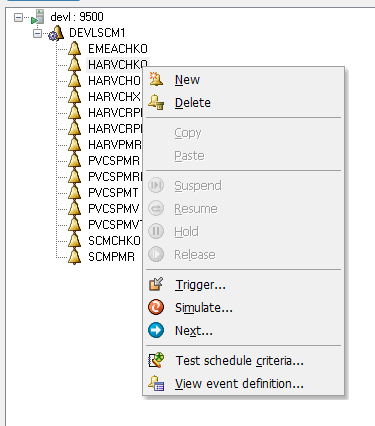
any idea why the
app.PopupMenu.menu_select('Trigger...') not working
rajarameshmamidi
on 27 Sep 2018
Well, this is custom Prof-UIS controls. I could find similar sample app ProfStudio (download page). Both toolbar and popup menus are custom controls and almost nothing is visible. I can try some tricks a bit later. We have very little chance to retrieve the texts from them.
vasily-v-ryabov
on 28 Sep 2018
By the way, Prof-UIS applications are able to support some scripting through COM library: http://www.prof-uis.com/prof-uis/tech-support/feature-articles/scripting-support-in-prof-uis-applications.aspx
I see they support menu bar and toolbar automation particularly. Not sure, it's possible to use these COM interfaces without special enabling on app side (from legal point of view also). You may discuss it with development team. Hope they can advise something. Also Legal advice might be necessary about using these COM interfaces outside in open source tool like pywinauto. If it's legal, I think it's technically possible to implement these controls wrappers in pywinauto (maybe with some sponsorship from your company, because it will take some time).
vasily-v-ryabov
on 28 Sep 2018
Hi Vasily,
i did work around to click 'Trigger Button'.i customized the trigger button to trigger when clicking Enter button. i am using below code to click enter button. But not working...
conn_manager.Event_manager_devl_9500_DEVLSCM1_HARVCHKO.send_keys('{ENTER}')
conn_manager.Event_manager_devl_9500_DEVLSCM1_HARVCHKO.Standard.send_keys('{ENTER}')

Traceback (most recent call last):
  File "C:/Users/rrmamidi/Desktop/old Desktop/compress_1/python/basic python scripts/OpenApp.py", line 83, in <module>
    conn_manager.Event_manager_devl_9500_DEVLSCM1_HARVCHKO.Standard.send_keys('{ENTER}')
  File "C:\Users\rrmamidi\AppData\Local\Programs\Python\Python36\lib\site-packages\pywinauto-0.6.5-py3.6.egg\pywinauto\application.py", line 174, in __call__
    format(self.criteria[-1]['best_match']))
builtins.AttributeError: Neither GUI element (wrapper) nor wrapper method 'send_keys' were found (typo?)
Manually it is working...when i press enter button.! can you give an idea...please
Thanks,
raja
rajarameshmamidi
on 29 Sep 2018
Correct method name is type_keys. Maybe you will need .type_keys('{ENTER}', set_foreground=False) to prevent setting focus to found element. Sometimes setting focus may cause popup controls to be hidden.
vasily-v-ryabov
on 30 Sep 2018
Hi vasily,
Above code is working... is it possible to make the entire code to run in background.... means.. can i work on other tasks after running above code(start app and close app)..?
i googled but din't get any idea....so, checking with you. if this works then it will be an added advantage to concentrate on other tasks without monitoring the process happening by 'pywinauto' code.
Just a thought...! from my side.
Thanks,
raja
rajarameshmamidi
on 1 Oct 2018
For some apps it's technically possible. Methods send_chars and send_keystrokes have similar API to type_keys but they don't require text control to be in a focus.
General problem of parallel execution is that type_keys and click_input methods require focus on the control or at least direct visibility.
Silent actions can be done using methods like .click() but they are not so reliable. For some cases only artificial pause can help or something like app.wait_cpu_usage_lower() which can wait till lazy intialization done (CPU load is below threshold).
vasily-v-ryabov
on 3 Oct 2018
Hi Vasily,
Ok... Is there a way to make the pywinauto process wait until users press any key(ex:- enter or space something like this...) ?
Thanks,
raja
rajarameshmamidi
on 4 Oct 2018
It depends where this key is expected to press. If you're waiting for pressing any key in python process console, then you need standard raw_input()/input() function available in Python in the global namespace. Or something like getch(). This is not a pywinauto functionality but general Python question.
If you want to sniff global key press event in the operating system, then you need win32_hooks module from pywinauto. See example: hook_and_listen.py.
vasily-v-ryabov
on 4 Oct 2018
Hi Vasily,
as per your suggestion.....after importing win32_hooks below sample code works,...,
if key == 'ENTER' :
conn_manager_app.ConnectDailog.ConnectButton.ClickInput()
Thanks,
Raja
rajarameshmamidi
on 8 Oct 2018
Hi Vasily,
can you confirm on above sample code is correct or not. if not what is the right approach.
Thanks,
raja
rajarameshmamidi
on 10 Oct 2018
It seems 'ENTER' is not in the list of keys for win32_hooks. I think we need to fix this inconsistency. I will file separate issue for this. This code should work:
if key == 'Return':
    conn_manager_app.ConnectDailog.ConnectButton.click_input()
Hi Vasily,
i have a doubt on above code.....we haven't mentioned 'enter' in the condition....so, will the condition work if we press any key?
Thanks,
raja
rajarameshmamidi
on 10 Oct 2018
Maybe I misread your previous message, but you did mention if key == 'ENTER' :. There was nothing about any key. Can you provide the full code sample and clear issue description? I can't read your thoughts every time.
vasily-v-ryabov
on 12 Oct 2018
Hi Vasily,
i have sample code on Notepad. i am opening notepad and printing message to press enter key after typing something and the process should wait until enter key pressed. Later it should click on save once enter key pressed. will below code works? if not what will be the right way...
from pywinauto.application import Application
from pywinauto.win32_hooks import KeyboardEvent

app = Application().start('c:\\windows\\notepad.exe')
print(' press enter key once you done with typing')
if KeyboardEvent == 'ENTER':
    app.notepad.MenuSelect('File -> Save').click()
Thanks,
Raja
rajarameshmamidi
on 15 Oct 2018
The right way is described in hook_and_listen.py example. For your case it should look so (if you need to press Enter inside Notepad or globally):
import win32api
import win32con
from pywinauto.application import Application
from pywinauto.win32_hooks import Hook
from pywinauto.win32_hooks import KeyboardEvent

app = Application().start('c:\\windows\\notepad.exe')
main_thread_id = win32api.GetCurrentThreadId()

def on_enter_press(args):
    """Callback for keyboard events"""
    if isinstance(args, KeyboardEvent):
        if args.current_key == 'Return' and args.event_type == 'key up':
            app.notepad.menu_select('File -> Save').click()
            win32api.PostThreadMessage(main_thread_id, win32con.WM_QUIT, 0, 0);

print(' press enter key once you done with typing')
hk = Hook()
hk.handler = on_enter_press
hk.hook(keyboard=True) # there is a blocking message loop inside;
# WM_QUIT exits this loop and continues execution of Python script
Of course, this code should work for the first Enter key press. If you need to handle all Enter keys, WM_QUIT should not be sent in the handler. So the script will never exit till explicit close of Python console.
If you need to wait for key press in Python console only (when it's in focus), this is the easiest way:
import msvcrt
if msvcrt.getch() == '\r': # e.g. Enter was pressed in Python console
     app.notepad.MenuSelect('File -> Save').click()
This helped me a-lot. Thank you very much for your support Vasily. we can close this request.
rajarameshmamidi
on 23 Oct 2018
Hi Folks
Even i am trying to do similar thing ... i just opened my app which needs to be automated.
Hope i have clearly mentioned now what am trying to in the below code as a comment
https://stackoverflow.com/questions/24606219/how-to-perform-click-action-on-button-or-text-field-by-pywinauto
As answered in the above stackoverflow question, was not able to execute succesfully by mentioned two level hirearchies to perform the desired UI automation

from pywinauto import Desktop, Application
import time
import pyautogui
Application().start('explorer.exe "C:\\Users\\tm\\Desktop\\new vantage\\PCMark_Vantage_v120_installer.exe"')
#started and connected app
app = Application(backend="uia").connect(path="explorer.exe", title="PCMark Vantage - InstallShield Wizard")
dlg = app.window(title_re='PCMark Vantage - InstallShield Wizard', class_name = '#32770')
'''
now after the above step , i opened the app ... now in the mentioned screenshot i want to click either  Next> or cancel button which was not able to get the control in that particular dialogue window . Need help on how to perform click action on either of those buttons
'''
app.??????.Cancel.click()
#dlg.child_window(best_match='Next').click()
print(dlg)
 mallikarjunasai995
on 24 Oct 2019
mallikarjunasai995
on 24 Oct 2019
Related issues
rajarameshmamidi
·
14Comments
 Enteleform
·
19Comments
Enteleform
·
19Comments
 nixgnef
·
15Comments
nixgnef
·
15Comments
 dstepanenko
·
16Comments
dstepanenko
·
16Comments
 smitagodbole
·
13Comments
smitagodbole
·
13Comments