Pytorch3d: Triangular Artifacts When Rendering ShapeNet with No Texture
🐛 Bugs / Unexpected behaviors
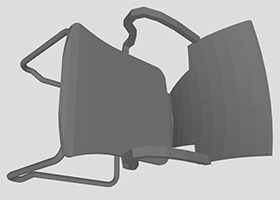
When I render ShapeNet with no texture (left), there seems to be a lot of triangular artifacts. It should look more like when I open the obj with meshlab (right). I'm not very experienced with rendering, so I'm not sure if this is a bug or I have some settings set incorrectly.
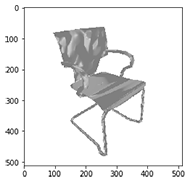
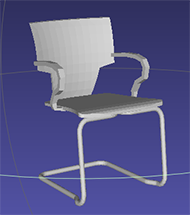
Instructions To Reproduce the Issue:
The obj file above is from ShapeNet V1 chair class, instance 1a74a83fa6d24b3cacd67ce2c72c02e. But the issue is the same for other obj files from ShapeNet as well. The model is:
The code I'm using to load the mesh without texture is based on #51. I'm also using the latest nightly version of pytorch3d.
import torch
import matplotlib.pyplot as plt
from pytorch3d.io import load_objs_as_meshes
from pytorch3d.io import load_obj
from pytorch3d.structures import Meshes
from pytorch3d.renderer import Textures
from pytorch3d.renderer import (
    look_at_view_transform,
    OpenGLPerspectiveCameras,
    PointLights,
    DirectionalLights,
    Materials,
    RasterizationSettings,
    MeshRenderer,
    MeshRasterizer,
    SoftPhongShader,
    HardPhongShader,
    SoftSilhouetteShader,
    BlendParams
)

# based on https://github.com/facebookresearch/pytorch3d/issues/51
def load_untextured_mesh(mesh_path, device):
    mesh = load_objs_as_meshes([mesh_path], device=device)
    verts, faces_idx, _ = load_obj(mesh_path)
    faces = faces_idx.verts_idx
    # Initialize each vertex to be white in color
    verts_rgb = torch.ones_like(verts)[None] # (1, V, 3)
    textures = Textures(verts_rgb=verts_rgb.to(device))
    mesh_no_texture = Meshes(
        verts=[verts.to(device)],
        faces=[faces.to(device)],
        textures=textures
        )
    return mesh_no_texture

def render_mesh(mesh, R, T, device, img_size=512):
    cameras = OpenGLPerspectiveCameras(device=device, R=R, T=T)
    raster_settings = RasterizationSettings(
        image_size=img_size,
        blur_radius=0.0,
        faces_per_pixel=1,
    )
    lights = PointLights(device=device, location=[[0.0, 5.0, -10.0]])
    renderer = MeshRenderer(
        rasterizer=MeshRasterizer(
            cameras=cameras,
            raster_settings=raster_settings
        ),
        shader=SoftPhongShader(
            device=device,
            cameras=cameras,
            lights=lights
        )
    )
    rendered_images = renderer(mesh, cameras=cameras)
    return rendered_images

obj_model_path = "data/example_shapenet/03001627/1a74a83fa6d24b3cacd67ce2c72c02e/model.obj"
device = torch.device("cuda:1")

with torch.no_grad():
    mesh = load_untextured_mesh(obj_model_path, device)
    R, T = look_at_view_transform(1, 30, 45)
    render = render_mesh(mesh, R, T, device)
plt.imshow(render[0, ..., :3].cpu().numpy())
 b7leung
All 11 comments
Hi @b7leung this is to do with the lighting! I am looking into this issue. You can turn off the lighting temporarily by setting
lights = PointLights(
    device=device,
    location=[[0.0, 5.0, -10.0]],
    diffuse_color=((0, 0, 0),),
    specular_color=((0, 0, 0),),
)
This should get rid of the artifacts.
 nikhilaravi
on 14 Aug 2020
nikhilaravi
on 14 Aug 2020
Thanks for the response, and for looking into this issue! I'm writing a paper on single view reconstruction and pytorch3d has been a lifesaver.
Anyways, it seems like turning off the lighting does get rid of the artifacts, but also causes the render to essentially become a silhouette. If there are any other workarounds/fixes, that would be great.

b7leung
on 14 Aug 2020
That's so great to hear, glad you are finding PyTorch3D useful. I will reply back here when I find a fix for the lighting!
nikhilaravi
on 14 Aug 2020
I also noticed that this could be an artifact of the position of the lighting. @b7leung have you tried putting the lighting in a different location?
 gkioxari
on 14 Aug 2020
gkioxari
on 14 Aug 2020
I also noticed that this could be an artifact of the position of the lighting. @b7leung have you tried putting the lighting in a different location?
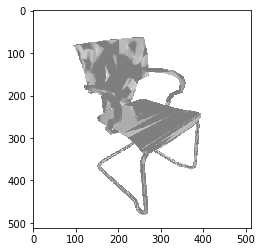
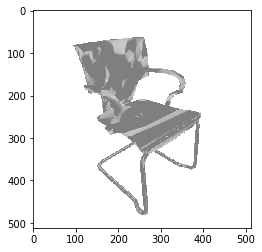
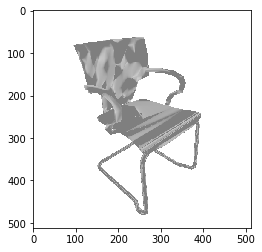
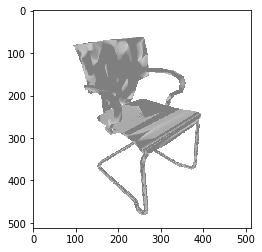
Changing the light position seems to cause the artifacts to show up differently. For example, the following are rendered with the light at position [1.0, 1.0, 1.0], [10,10,1], [-10,-10,-10], and [100,100,100] respectively.
b7leung
on 15 Aug 2020
It seems like pytorch3d creates these artifacts when rendering non-watertight meshes (shapenet's models are all non-watertight, to my knowledge). I'm not very knowledgeable about watertightness, so not sure if this is a bug or a fundamental limitation? Would anyone know the answer to this, and how easy this would be to fix?
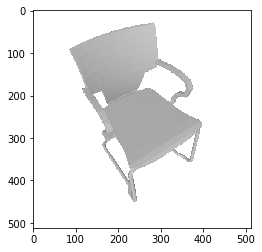
I found this out when I created a watertight manifold mesh from the original chair using ManifoldPlus :
model_manifold.zip
Then, pytorch3d can render the chair without the artifacts:
b7leung
on 21 Aug 2020
The PyTorch3D renderer makes no assumption about the watertightness, so whether a mesh is watertight or not should not come into play. In general ShapeNet meshes are dirty and far from good quality. I wonder whether the mesh you created after converting it to watertight is fixed in some other way (maybe faces are now positioned better, smoother curvature etc.).
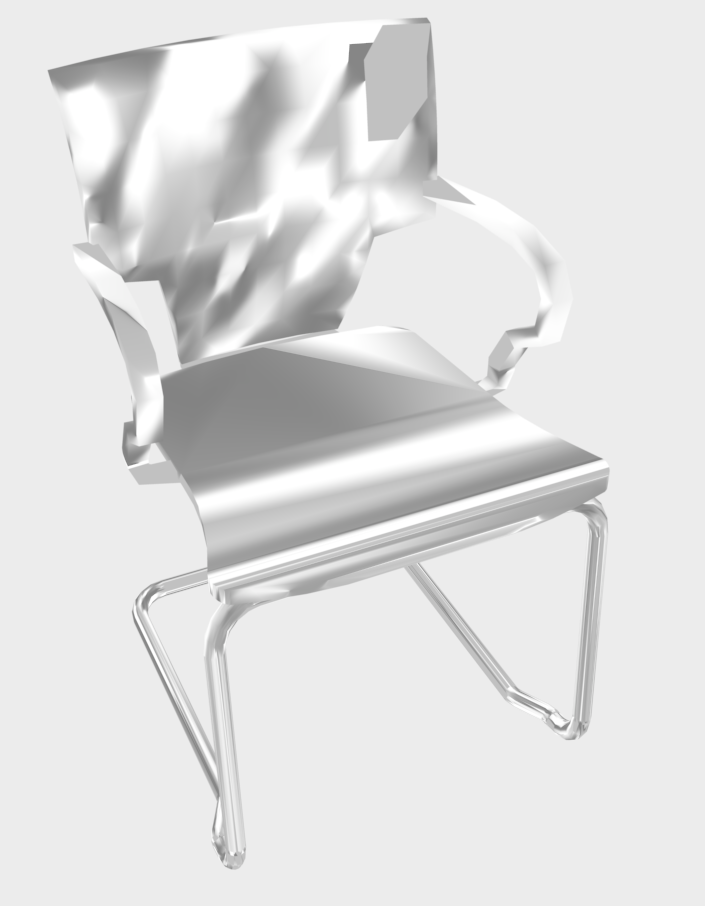
I used preview to visualize this shape and got the same weird looking result. MeshLab is definitely showing a much smoother mesh like the one you show above after making it watertight. I am convinced that this is some ShapeNet dirty obj issue and it's likely MeshLab is doing some smoothing perhaps across face/face normals.
gkioxari
on 22 Aug 2020
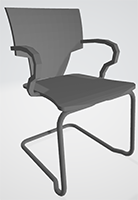
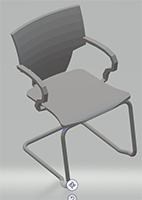
If that hypothesis is true, then it seems like whatever smoothing meshlab is doing is pretty standard. I'm not sure what preview is, though when I tried on 3D viewer, paint 3D (both standard on windows 10), G. Viewer, and Online 3D viewer, they all render perfectly (without artifacts).

b7leung
on 22 Aug 2020
Hi @b7leung
I looked into this and the discrepancies in the outputs are with regards to the shader and in particular with how face normals are computed. For example, here is MeshLab's output when you choose Vert shading instead of Face (which is the default)
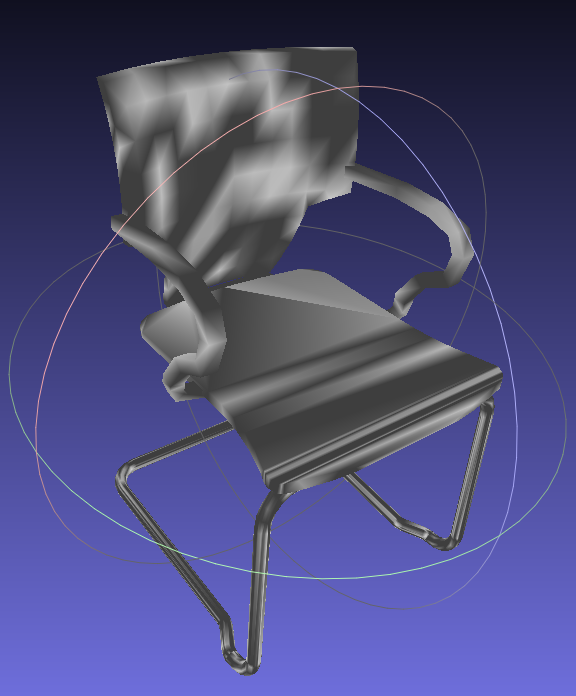
This is not a bug but, as I said, has to do with how face normals are computed, basically either by interpolating them from vertex normals or by passing them as inputs. Phong shading assumes a smoothly varying surface normal vector and a well designed CAD model should have those and lead to smooth interpolated face normals from vertex normals. However, a badly designed CAD model, as is the case with the model here, will lead to different face normals when they are interpolated from vertex normals (as done in Vert and also in Phong shading).
In PyTorch3D, you have a variety of shaders to pick from luckily!! Phong shading use vertex normals (and interpolates face normals from them)
while Flat shading uses face normals directly
If you change your shader in your code above to SoftFlatShader (=flat_shading followed by softmax blending), which is the equivalent of Face shading in MeshLab, you will get the following output.

Now, carefully designed CAD models should not lead to such a discrepancy in rendering between Vert and Face shading as shapes should usually be smooth. Only when shapes are not smooth is the difference in face normals and interpolated vertex normals this vast leading to these results. Also, I am now 100% that ManifoldPlus did some fixing in this regard to the mesh when it converted it to watertight! So that can be a good trick for fixing badly designed CAD models! I hope that was helpful!
gkioxari
on 24 Aug 2020
Yeah, that really helps. Thank you!
b7leung
on 26 Aug 2020
I had the same problem. It turns out in the ShapeNet dataset many objects have duplicated faces, sharing the same vertices but facing in opposite directions. That's why when computing vertex normals they cancel out resulting in incorrect results.
One quick workaround is:
- to use the Pytorch3D HardFlatShader (which uses face normals) instead of the SoftPhongShader,
- and turning on the back face culling option in the rasterizer settings (cull_backfaces=True).
If anyone knows a quick solution on how to clean the ShapeNet data (remove inner faces), happy to hear any feedback.
Cheers!
 PabloWiedemann
on 9 Mar 2021
PabloWiedemann
on 9 Mar 2021
Related issues
 elcronos
·
3Comments
elcronos
·
3Comments
 TSKongLingwei
·
3Comments
TSKongLingwei
·
3Comments
 abhi1kumar
·
3Comments
abhi1kumar
·
3Comments
 cihanongun
·
3Comments
cihanongun
·
3Comments
 NotAnyMike
·
3Comments
NotAnyMike
·
3Comments
Most helpful comment
Thanks for the response, and for looking into this issue! I'm writing a paper on single view reconstruction and pytorch3d has been a lifesaver.
Anyways, it seems like turning off the lighting does get rid of the artifacts, but also causes the render to essentially become a silhouette. If there are any other workarounds/fixes, that would be great.