Pysimplegui: [Bug ] Extending layout in a column is unreachable due to scroll bar not extending.
Type of Issues (Enhancement, Error, Bug, Question)
Question
Operating System
Win 10
Python version
3.8
PySimpleGUI Port and Version
Tkinter
4.24.0 Released 3-Jul-2020
Your Experience Levels In Months or Years
____6_____ Python programming experience
____12_____ Programming experience overall
____yes_____ Have used another Python GUI Framework (tkinter, Qt, etc) previously (yes/no is fine)?
You have completed these steps:
- [x ] Read instructions on how to file an Issue
- [x ] Searched through main docs http://www.PySimpleGUI.org for your problem
- [x ] Searched through the readme for your specific port if not PySimpleGUI (Qt, WX, Remi)
- [ x] Looked for Demo Programs that are similar to your goal http://www.PySimpleGUI.com
- [x ] Note that there are also Demo Programs under each port on GitHub
- [x ] Run your program outside of your debugger (from a command line)
- [x ] Searched through Issues (open and closed) to see if already reported
- [x ] Try again by upgrading your PySimpleGUI.py file to use the current one on GitHub. Your problem may have already been fixed but is not yet on PyPI.
Description of Problem / Question / Details
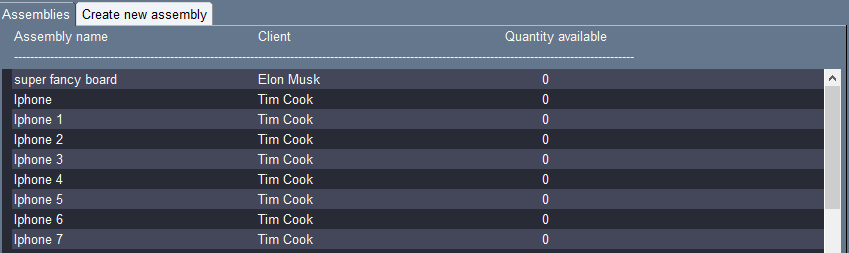
I have a GUI that grabs data from an SQL database and displays the data on a set of columns, similar to how a CSV file would show data. If I use the GUI to create a new entry in the database, I need to be able to display that new entry on the column. Is there a way to dynamically update and add an entry to a column? I know I can just redo the entire window, but there's a lot of data on the columns at times, so this takes a decent amount of time to do. Also, it just is a clunky solution to regen everything, when only a small section needs to be
Image of my columns:
Code To Duplicate
This is how the column data is generated:
def gen_columns():
    temp = []
    temp1 = []
    temp2 = []
    alt = 0
    key = 0
    for (assembly_name, assembly_client) in db.get_all_assemblies():
        if alt % 2:
            color = "#282a36"
        else:
            color = "#44475a"

        alt += 1

        temp.append([sg.Text(assembly_name, key="col %s" % key, size=(30, 1), background_color=color,
                             text_color="#f8f8f2", pad=((0, 0), (0, 0)))])
        temp1.append([sg.Text(assembly_client, size=(35, 1), background_color=color,
                              text_color="#f8f8f2", pad=((0, 0), (0, 0)))])
        temp2.append([sg.Text("0", size=(35, 1), background_color=color,
                              text_color="#f8f8f2", pad=((0, 0), (0, 0)))])
        key += 1

    return sg.Column([[sg.Column(temp, pad=((10, 0), (0, 0))), sg.Column(temp1, pad=((0, 0), (0, 0))),
                       sg.Column(temp2, pad=((0, 0), (0, 0)))]], scrollable=True, vertical_scroll_only=True)
 KyleHunter
All 41 comments
The way you create a table by using Text element is static, after finalized the layout cannot be changed, that's the most way PySimpleGUI do. In my point of view, the best way is to work with Table or Tree element for items of data set.
- sg.Table
- Create a table
sg.Table(values, key='Table', ...)
- Update table
window['Table'].update(self, values=None, ...)
- sg.Tree
- Preparation
- Using sg.TreeData to create a empty tree data
treedata = sg.TreeData()
- Insert each row of your data set into treedata by using 'insert' method
treedata.insert(parent, key, text, values, icon=None)
- Create Element for layout
sg.Tree(data=treedata, key='Tree', ...)
- Update tree for new treedata
window['Tree'].update(values=new_treedata)
- Update tree with only one row
window['Tree'].update(key=None, value=None, text=None, icon=None, visible=None)
 jason990420
on 14 Jul 2020
jason990420
on 14 Jul 2020
@jason990420 Thanks for the suggestion. Yes that may help for this, but then I will lose other flexibility, i.e being able to sort the columns with a header like an example shows. Unless some sort of sorting is possible that I may have missed? https://github.com/PySimpleGUI/PySimpleGUI/issues/238
Also, will either method allow me to dynamically delete or regenerate all values? Say if I bulk delete 10 entries, and want to re-gather from our database. _Edit: Yes, you can dynamically regenerate values with table, just tested. Can't seem to regenerate the headings though.._
KyleHunter
on 14 Jul 2020
One approach to tables is to create your own from scratch. This will enable you to place buttons at the tops of columns so that you can "sort", etc. There is at least one demo on doing this using input elements. In your case, it would be rows of text elements since your data is text. This could make it possible for you to detect when individual cells are clicked by enabling events on your text element. The issue you've linked shows doing this with Input elements.
Updating headers is not supported at this time, but if you created your own table, then you could use text or buttons as the header and make them clickable. This will also allow you to update any portion of the table at any time.
 PySimpleGUI
on 14 Jul 2020
PySimpleGUI
on 14 Jul 2020
@PySimpleGUI True. That's probably my best bet. But, I'll have to generate all input boxes I'll need from the start right? So if I only have two entries, I'll have to create 200 rows of inputs, to be able to dynamically add 190 entries?
KyleHunter
on 14 Jul 2020
You can "extend" a layout. What you can't do is delete items, but you can make them invisible.
Extending should enable you to add a new row as you need it. You can make rows from column elements with pad=(0,0) and use a key to make them invisible if you no longer need it.
You're basically bumping into the edge of what PySimpleGUI is able to do. There are limitations both at the PySimpleGUI level but also at the underlying GUI framework itself. Maybe tables in the Qt port will be a bit more interactive and dynamic down the road, but they're not quite there yet. It's a challenge to continue to grow 4 ports at a basic level, while adding new feature enhancements and supporting users. At some point, I run out of hours every day.
PySimpleGUI
on 14 Jul 2020
Oh, I missed that you're already doing all this. I didn't look at your code close enough and just assumed from the look that you're using the Table element.
You've done what I've described. What you've not discovered yet is the Wondow.extend_layout method
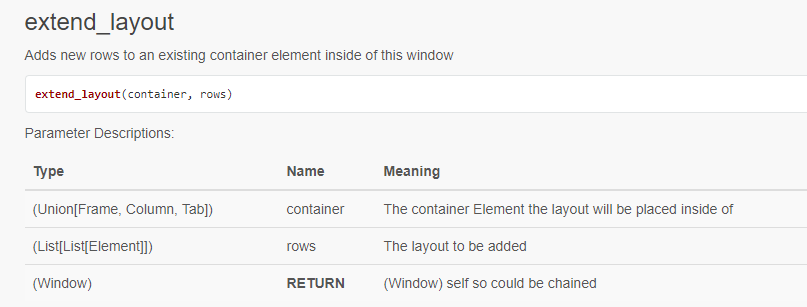
You can use this to add onto a Column inside your window. I would add rows as Column elements that are placed inside of a Column element that you can extend.
PySimpleGUI
on 14 Jul 2020
You'll find a demo program in the demos section (http://Demos.PySimpleGUI.org) called Demo_Layout_Extend.py
Here's the code so you don't need to look it up:
import PySimpleGUI as sg

"""
    Demonstrates how to use the Window.layout_extend method.
    Layouts can be extended at the Window level or within any container element such as a Column.
    This demo shows how to extend both.
    Note that while you can extend, add to, a layout, you cannot delete items from a layout.  Of course you
    can make them invisible after adding them.

    Copyright 2020 PySimpleGUI
"""

layout = [  [sg.Text('My Window')],
            [sg.Text('Click to add a row inside the frame'), sg.B('+', key='-B1-')],
            [sg.Text('Click to add a row inside the Window'), sg.B('+', key='-B2-')],
            [sg.Frame('Frame',[[sg.T('Frame')]], key='-COL1-')],
            [sg.Input(key='-IN-'), sg.Text(size=(12,1), key='-OUT-')],
            [sg.Button('Button'), sg.Button('Exit')]  ]

window = sg.Window('Window Title', layout)
i = 0
while True:             # Event Loop
    event, values = window.read()
    print(event, values)
    if event in (sg.WIN_CLOSED, 'Exit'):
        break
    if event == '-B1-':
        window.extend_layout(window['-COL1-'], [[sg.T('A New Input Line'), sg.I(key=f'-IN-{i}-')]])
        i += 1
    if event == '-B2-':
        window.extend_layout(window, [[sg.T('A New Input Line'), sg.I(key=f'-IN-{i}-')]])
        i += 1
window.close()
@PySimpleGUI Hmm, now that might solve everything. So if new entries are added, I'd just extend the column layout to add them.
But, if I instead deleted entries, is the only solution then to recreate everything from the window onward?
KyleHunter
on 14 Jul 2020
You could "hide" thing you delete by making them invisible. It will move them however to the end if they become visible again.
PySimpleGUI
on 14 Jul 2020
@PySimpleGUI Now that would solve it. Thanks so much.
KyleHunter
on 14 Jul 2020
Actually @PySimpleGUI . I did this test, using your example code for extending. Is this what you mean "It will move them however to the end if they become visible again?" There's no way to write over the hidden element?
Use case, We have 100 entries, we delete 50, and hide the text elements. We then add 20 new entries. There would be a 50 space gap before the new ones.
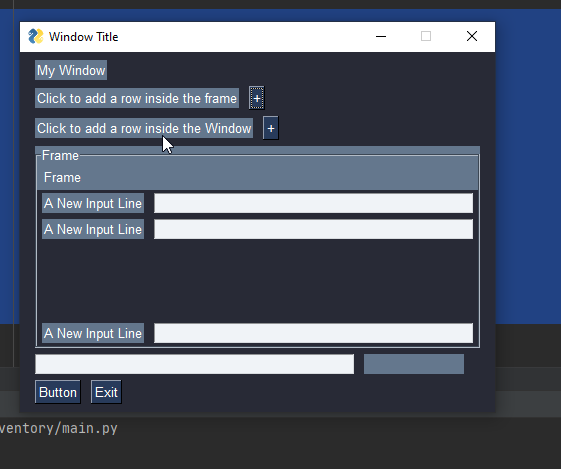
while True:  # Event Loop
    event, values = window.read()
    print(event, values)
    if event in (sg.WIN_CLOSED, 'Exit'):
        break
    if event == '-B1-':
        window.extend_layout(window['-COL1-'], [[sg.T('A New Input Line', key=f'-T-{i}-'), sg.I(key=f'-IN-{i}-')]])
        i += 1
        if i > 3:
            print(f'-IN-{i-2}-')
            window[f'-T-{i - 2}-'].update(visible=False)
            window[f'-IN-{i - 2}-'].update(visible=False)
    if event == '-B2-':
        window.extend_layout(window, [[sg.T('A New Input Line'), sg.I(key=f'-IN-{i}-')]])
        i += 1
window.close()
You have to hide the row-frame was well.
PySimpleGUI
on 14 Jul 2020
@PySimpleGUI Can you show me that in the exmaple please? We're not making a new frame, just the text and input objects?
KyleHunter
on 14 Jul 2020
Call the element's hide_row method. This hides the row the method is on, including other elements that may be on the row. It's a low-level kind of call that dips into the implementation details a little. If you want to really really hide it, then you have to hide the row is was on.
PySimpleGUI
on 14 Jul 2020
@PySimpleGUI Perfect. Now that works exactly as I need.
KyleHunter
on 14 Jul 2020
I'm very interested in how your program turns out. Please come back and post screenshots, etc. It could be very very helpful to other users and perhaps I could make a better simulated table demo.
PySimpleGUI
on 15 Jul 2020
I found another way of doing this row hiding today.
This is the important line of code:
window['-IN-'].ParentRowFrame.config(width=0, height=1)
It would be code that I would add internal to PySimpleGUI.
If you don't have any other visible elements on the row that the element went invisible on, then the entire row will become "invisible". The idea would be that I could call this on a user's behalf so that if that last thing on the row becomes invisible, the entire row will become invisible.
import PySimpleGUI as sg

layout = [  [sg.Text('My Window')],
            [sg.Input(key='-IN-'), sg.T('Shares the same row')],
            [sg.Text("this is my text", key='-OUT-')],
            [sg.Button('Inv'), sg.B('Vis'), sg.Button('Exit')]  ]

window = sg.Window('Window Title', layout, finalize=True)


while True:             # Event Loop
    event, values = window.read()
    print(event, values)
    if event == sg.WIN_CLOSED or event == 'Exit':
        break
    if event == 'Inv':
        window['-IN-'].update(visible=False)
        window['-IN-'].ParentRowFrame.config(width=0, height=1)
    if event == 'Vis':
        window['-IN-'].update(visible=True)
window.close()
Try changing this line:
[sg.Input(key='-IN-'), sg.T('Shares the same row')],
to be this:
[sg.Input(key='-IN-')],
This should make the entire row disappear. It will reappear when the element is added back.
I have a design in mind that may be able to "fix" the problems of visibility, but it's going to take a lot of work that I will need to schedule over the next couple of weeks. It will likely be worth it though as it will make visibility work the way it, in theory, should.
PySimpleGUI
on 15 Jul 2020
Hmmm... this actually leaves 1 pixel in height. That will add up eventually.
PySimpleGUI
on 15 Jul 2020
@PySimpleGUI OK. So an issue with the _extend_layout_ method.. If you use it to add entries to a scrollable column, it will not adjust the max size of the scrollable area. So if you start with 50 entries, that are properly scrollable, and you remove 10, you can add 10 new ones using _extend_window_ no problem. But, any entry from the 11th onward are not visible because it's outside the scrollable area.
Same issue if you start with a blank column, and use the _extend_window_ to add all of your entries to the column. None will ever show up, because the column doesn't change to accomodate the new entries.
KyleHunter
on 16 Jul 2020
OK, I 'll look at it.
PySimpleGUI
on 16 Jul 2020
Do you have short program that demonstrates this?
PySimpleGUI
on 17 Jul 2020
There is likely to be a problem with the scrollwheel working with the new elements as well. It's a bigger can of worms than I originally thought when I proposed you try it. It's not been used in this kind of way before.
PySimpleGUI
on 17 Jul 2020
Got the same problem with text that has auto_size_text = True set. Here is a short example program:
import PySimpleGUI as sg


window = sg.Window("Some Title", [[sg.Column([[sg.Text("Hello World!!!", size = (None, 1), auto_size_text = True, key = "text")]], scrollable = True), sg.Button("Make larger")]])
while True:
    event, values = window.read()
    if event == "Make larger":
        window["text"].update("Hello long World!!!")
    if event == sg.WIN_CLOSED:
        break
window.close()
As you can see, the columns scrollbar does not extend when the text gets larger.
 PyRectangle
on 1 Aug 2020
PyRectangle
on 1 Aug 2020
You're misunderstanding what auto_size_text means. It is for when you create the element. You shouldn't use None either part of a size, although you can get away with the height on tkinter.
Take a look at the text element's definition. Use the size parameter to reserve enough room for the element.
PySimpleGUI
on 1 Aug 2020
Layouts that are highly dynamic are not a good fit for PySimpleGUI generally speaking. If you want to do them, you'll need to understand sizes, use of resize and expand calls.
Take a look at the call reference to get a grasp on these parameters http://Calls.PySimpleGUI.org
The demo programs show the best patterns to follow.
PySimpleGUI
on 1 Aug 2020
Nevermind, found a better solution for my particular use case.
PyRectangle
on 1 Aug 2020
Do you have short program that demonstrates this?
Maybe this code could help?
import PySimpleGUI as sg

layout = [[sg.Column([[sg.Frame('', [[sg.T(str(i)), sg.OK(), sg.Cancel()]], key=str(i), visible=False)] for i in range(10)],
                     scrollable=True, vertical_scroll_only=True, size=(300, 300))]] + [[sg.Button('Add row', key='-B1-')]]

window = sg.Window('Window Title', layout)
i = 0
while True:  # Event Loop
    event, values = window.read()
    if event in (None, 'Exit'):
        break
    if event == '-B1-':
        window[str(i)](visible=True)
        i += 1
window.close()
I encountered this bug days ago and after searching in issues, came here. Not sure if you're talking about the same bug.
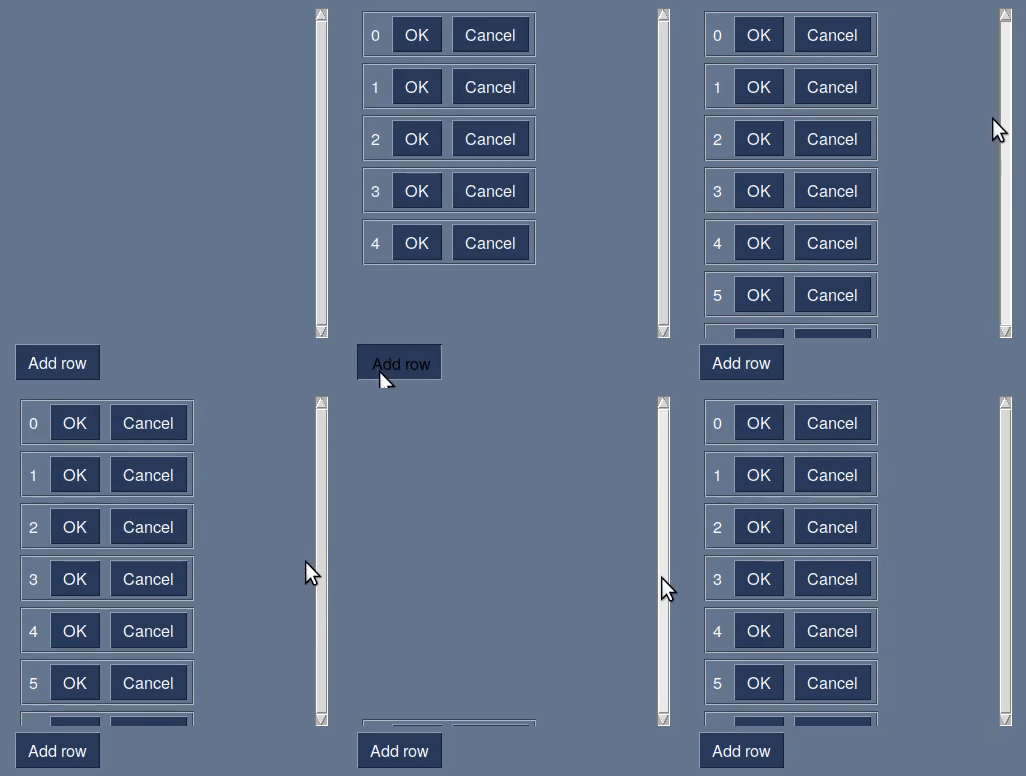
 scmanjarrez
on 4 Aug 2020
scmanjarrez
on 4 Aug 2020
Are you using the code with "pin"? Try using it. It's what will allow shrinking, 4.28.0 is what you want. Look at the announcements for lots of details.
What I've not tried is putting the pinned elements inside other containers. I've been working at the basic layout level, trying to get it to work quickly and first. Hopefully pin will work with Columns.
PySimpleGUI
on 4 Aug 2020
Yes, please see the announcement issue. It has explanation, demo program, etc.
It's why 4.28.0 was pushed out quickly. There's another issue with visibility you can look at as well.
PySimpleGUI
on 4 Aug 2020
Hi, thank you very much for your prompt response.
I have tried pinning the elements, but (maybe I'm doing it wrong) sadly, doesn't work.
import PySimpleGUI as sg

layout = [[sg.Column([[sg.pin(sg.Frame('', [[sg.T(str(i)), sg.OK(), sg.Cancel()]], key=str(i), visible=False))] for i in range(10)],
                     scrollable=True, vertical_scroll_only=True, size=(300, 330))]] + [[sg.Button('Add row', key='-B1-')]] + [[sg.Button('Del row', key='-B2-')]]

window = sg.Window('Window Title', layout)
i = 0
while True:  # Event Loop
    event, values = window.read()
    if event in (None, 'Exit'):
        break
    if event == '-B1-':
        window[str(i)](visible=True)
        i += 1
    if event == '-B2-':
        window[str(i)](visible=False)
        i += 1
    if i >= 10:
        i = 0
window.close()
It preserves its position, but column scrollbar still doesn't expand.
scmanjarrez
on 4 Aug 2020
I am most concerned about position. I understand that there's a scrollbar issue. That's what this Issue is about. There are multiple problems that are pretty thorny. Doin the best I can bud.
PySimpleGUI
on 4 Aug 2020
Oh, sorry if it sounded mean. Pinning is a great utility, thank you very much.
scmanjarrez
on 4 Aug 2020
In your event loop, when change the interior of your column, add this line:
window['-C-'].Widget.canvas.config(scrollregion=window['-C-'].Widget.canvas.bbox('all'))
Change '-C' to be the key of your column.
PySimpleGUI
on 4 Aug 2020
If you're adding elements back in, then you'll want to add a window.refresh() call before the line I gave you. Otherwise you won't be able to reach the bottom of the new contents.
window.refresh()
window['-C-'].Widget.canvas.config(scrollregion=window['-C-'].Widget.canvas.bbox('all'))
Wow, thank you very much, works perfectly.
scmanjarrez
on 4 Aug 2020
You will gain a pixel for every element you hide. So, be prepared that if you hide 200 lines you'll get 200 pixels of blank space. If should likely just make a new layout when doing that many instead of using visibility. If you set in the same location, it's possible to make a new window on top of the old one and then close the old one and it'll look seamless.
PySimpleGUI
on 4 Aug 2020
You will gain a pixel for every element you hide. So, be prepared that if you hide 200 lines you'll get 200 pixels of blank space. If should likely just make a new layout when doing that many instead of using visibility. If you set in the same location, it's possible to make a new window on top of the old one and then close the old one and it'll look seamless.
Can you point me to the demo program for window replacement? I was thinking about it, but didn't know how to do that.
scmanjarrez
on 4 Aug 2020
I'm not sure which you mean. Read through the descriptions. They are named well. I'm willing to help as much as possible, Being a search engine for you isn't the best use of my time... I'm working on adding the workaround into the API itself. It would be very helpful if there are tasks as you educate yourself and build your application, that you are capable of doing, that you do them yourself instead of asking for my help. I hope that makes sense. I really don't want to be a guy that says "google it".
PySimpleGUI
on 4 Aug 2020
I'm sorry, I just asked if you knew beforehand. I'll search it myself. I'm really sorry.
scmanjarrez
on 4 Aug 2020
Please get version 4.28.0.1
Change the hacked workaround code to these calls.....
When you make an element inside of a SCROLLABLE column visible or invisible, then call `Column.contents_changed()'.
Also, when you make anything in the window visible or invisible. call:
Window.visibility_changed()
This function already exists in the Qt port but was meaningless until now in the tkinter port.
So the correct order is:
window.visibility_changed()
column_element.contents_changed()
That should get this particular problem closed out.,
These new functions, being only just checked into GitHub moments ago, are not yet documented in the readme / read the docs so you'll have to rely on this issue for the time being.
You'll find lots of stuff about replacing entire window contents, reusing layouts (not reusing layouts), etc, in the docs, Cookbook and Demo Programs. I know there's a lot there, so search.
PySimpleGUI
on 4 Aug 2020
Fixed scmanjarrez's code. Interesting and simple example.
pysimplegui = "==4.29.0"
import PySimpleGUI as sg


column = sg.Column(
    [[sg.pin(sg.Frame('', [[
        sg.T(str(i)), sg.OK(), sg.Cancel()]],
        key=str(i), visible=False))] for i in range(10)],
    scrollable=True, vertical_scroll_only=True, size=(300, 330))
layout = [[column]] + [
    [sg.Button('Add row', key='-B1-')] + [sg.Button('Del row', key='-B2-')]
]


window = sg.Window('Window Title', layout)
i = 0
while True:  # Event Loop
    event, values = window.read()
    if event in (None, 'Exit'):
        break
    if event == '-B1-':
        if i > 9:
            i = 9
        window[str(i)](visible=True)
        i += 1
        column.contents_changed()
    if event == '-B2-':
        i -= 1
        if i < 0:
            i = 0
        window[str(i)](visible=False)
        column.contents_changed()
window.close()
 Feas2016
on 29 Sep 2020
Feas2016
on 29 Sep 2020
Related issues
 MikeTheWatchGuy
·
6Comments
MikeTheWatchGuy
·
6Comments
 mozesa
·
4Comments
mozesa
·
4Comments
 DKatarakis
·
6Comments
DKatarakis
·
6Comments
 thelou1s
·
4Comments
thelou1s
·
4Comments
 ECOM-Klaus
·
4Comments
ECOM-Klaus
·
4Comments
Most helpful comment
Please get version 4.28.0.1
Change the hacked workaround code to these calls.....
When you make an element inside of a SCROLLABLE column visible or invisible, then call `Column.contents_changed()'.
Also, when you make anything in the window visible or invisible. call:
Window.visibility_changed()This function already exists in the Qt port but was meaningless until now in the tkinter port.
So the correct order is:
window.visibility_changed()
column_element.contents_changed()
That should get this particular problem closed out.,
These new functions, being only just checked into GitHub moments ago, are not yet documented in the readme / read the docs so you'll have to rely on this issue for the time being.
You'll find lots of stuff about replacing entire window contents, reusing layouts (not reusing layouts), etc, in the docs, Cookbook and Demo Programs. I know there's a lot there, so search.