Pysimplegui: [PySimpleGUI-Enhancement] Ability to disable elements from ever getting focus.
Is there a way to remove default focus within a TabGroup?
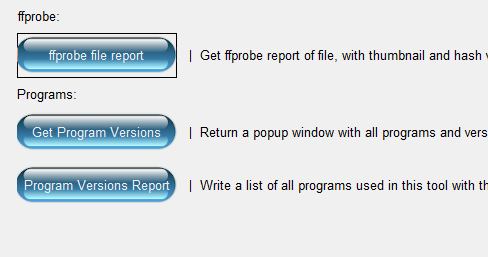
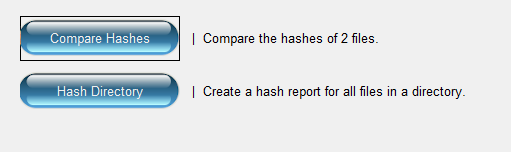
When initially loading the window, there is no focus set. Once selecting the next tab, the first button on the tab is then given focus. Because I am using base64 Images as buttons, this causes a black box to be shown around the button on each tab that is selected.
I can remove the black box by either double-clicking on a tab (give the tab focus) or in the code by setting the focus to the exit button on each event (but this puts the black box around the exit button).
Type of Issues (Enhancement, Error, Bug, Question)
Question, Enhancement
Operating System
Windows
Python version
3.7.4
PySimpleGUI Port and Version
PySimpleGUI 4.3.2
Your Experience Levels In Months or Years
____5 Years_____ Python programming experience
____10 Years_____ Programming experience overall
_____Yes____ Have used another Python GUI Framework (tkiner, Qt, etc) previously (yes/no is fine)?
You have completed these steps:
- [ x ] Read instructions on how to file an Issue
- [ x ] Searched through main docs http://www.PySimpleGUI.org for your problem
- [ x ] Searched through the readme for your specific port if not PySimpleGUI (Qt, WX, Remi)
- [ x ] Looked for Demo Programs that are similar to your goal http://www.PySimpleGUI.com
- [ x ] Note that there are also Demo Programs under each port on GitHub
- [ x ] Run your program outside of your debugger (from a command line)
- [ x ] Searched through Issues (open and closed) to see if already reported
Code or partial code causing the problem
import PySimpleGUI as sg
import image_64

def main():
    button_image = image_64.get_main_button()

    reporting_tab = [
            [sg.Column([
                [sg.Text('')],
                [sg.Text('ffprobe:')],
                [sg.Button('ffprobe file report', button_color=sg.TRANSPARENT_BUTTON, image_data=button_image, border_width=0, key='ffprobe'),
                 sg.Text('|  Get ffprobe report of file, with thumbnail and hash value.')],
                [sg.Text('Programs:')],
                [sg.Button('Get Program Versions', button_color=sg.TRANSPARENT_BUTTON, image_data=button_image, border_width=0, key='versions'),
                 sg.Text('|  Return a popup window with all programs and versions used in this tool.')],
                [sg.Button('Program Versions Report', button_color=sg.TRANSPARENT_BUTTON, image_data=button_image, border_width=0, key='versions_report'),
                 sg.Text('|  Write a list of all programs used in this tool with their versions to a file.')],
            ])]
    ]

    hashing_tab = [
            [sg.Column([
                [sg.Text(' ')],
                [sg.Button('Compare Hashes', button_color=sg.TRANSPARENT_BUTTON, image_data=button_image, border_width=0, key='compare_hashes'),
                 sg.Text('|  Compare the hashes of 2 files.')],
                [sg.Button('Hash Directory', button_color=sg.TRANSPARENT_BUTTON, image_data=button_image, border_width=0, key='hash_dir'),
                 sg.Text('|  Create a hash report for all files in a directory.')],
            ])]
    ]

    layout = [
        [sg.Text('Toolbox', size=(60, 1), justification='center', font=("Helvetica", 16),
                 relief=sg.RELIEF_RIDGE)],
        [sg.TabGroup([
                        [sg.Tab('Report Generation', reporting_tab, key='reporting_tab'),
                         sg.Tab('File Hashing', hashing_tab, key='hashing_tab')]]
                     , font=('Helvetica', 16))
         ],
        [sg.Text('_' * 100)],
        [sg.Button('Exit', button_color=sg.TRANSPARENT_BUTTON, image_data=button_image, border_width=0, key='Exit')]
    ]

    window = sg.Window('Toolbox', layout, location=(250, 250), grab_anywhere=False, use_default_focus=False, text_justification='center')

    while True:  # Event Loop
        event, values = window.Read()
        if event is None or event == 'Exit' or event == 'cave':
            break
 window.Close()

if __name__ == "__main__":
    main()
 rault89
All 33 comments
The issue that I am posting about is mainly about the button taking focus within the tab even though use_default_focus is set to False .
The screenshots show the black box around the buttons with a custom image, but even when removing the custom image and using the default buttons, the first button on a tab will take focus when the tab is selected.
rault89
on 28 Aug 2019
OK.... I think I know where to look.
 PySimpleGUI
on 29 Aug 2019
PySimpleGUI
on 29 Aug 2019
Do you have any input fields or other places you would like focus? The _easy way out_ of this is to set focus on something else in your window that would normally get focus in Windows.
PySimpleGUI
on 29 Aug 2019
Unfortunately there is nothing but buttons, tabs, and text on the main window in my program.
The main is being used as a launcher for separate sub-programs that are launched when their buttons are clicked from the main program.
I have been trying to think of a design change that I could do that could use an input box, but focus would have to be set back to that field on each event, because the focus is being set to the first button on the tab each time a new tab is displayed.
rault89
on 29 Aug 2019
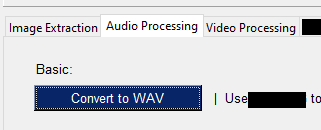
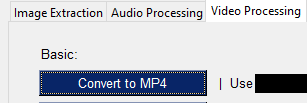
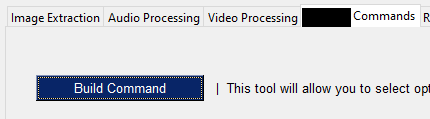
This just shows the progression of clicking through the tabs. Unless I set focus on something else in the window after each read, the focus is set to the first button/element in the newly selected tab.
rault89
on 29 Aug 2019
I posted code for you to try. Download a new PySimpleGUI.py file and try again. (from GitHub)
The version is 4.4.0.5
PySimpleGUI
on 29 Aug 2019
Still getting the same results
rault89
on 29 Aug 2019
Can you verify you're running 4.4.0.5 by adding to the top of your code:
print(sg.version)
Every time you switch to a new tab, the button is getting focus? For all tabs in the same run? If you flip through them one after another they ALL have focus set?
That's really weird as only 1 thing can have focus at a time.
PySimpleGUI
on 29 Aug 2019
If the version checks out, then this needs to be turned into an enhancement request. Tkinter is doing this focus thing, not PySimpleGUI.
Please try this workaround. To use it, you must Finalize your window. You can set the parameter finalize=True on your sg.Window call.
After your sg.Window call, add this line of code for every button you do not want focus on:
window[button_key].TKButton.config(takefocus=0)
It's not a good long-term fix, but fine in the short term.
PySimpleGUI
on 29 Aug 2019
I have confirmed that i am running 4.4.0.5.
I do not believe that the multiple items have focus, just the first button on the tab that is clicked... When i click a new tab, the button at the top of that tab is given focus.
I have attached another screenshot showing the PySimpleGUI Version requested, as well as the output of the command below:
The only action taken during this test was to click on the next tab to the right in the tab group.
   while True:  # Event Loop
        event, values = window.Read()

        print(f"Event: {event}, now {window.FindElementWithFocus()} has focus.")

rault89
on 29 Aug 2019
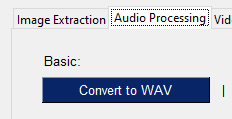
Adding the suggested line of code has resolved the issue of the buttons taking focus.
Just for awareness, it appears that the individual tabs now take focus when they are clicked on, but this isn't a problem for my purposes.
rault89
on 29 Aug 2019
Yea, this is all tkinter's doing.
I just thought of another way of doing it that doesn't involve a hack like this.
Remove the hack, and add this to your tabs... or to 1 tab to see if it works:
[sg.In(visible=False)],
This will all you to remain in the PySimpleGUI universe of calls and also makes it possible for people to use the Tab key to move around within a tab. The hack completely disables focus from ever happening on that button, even when the user wants it.
By putting an invisible Input element in your tab's layout, it gives tkinter something to set it's focus on without causing your button to lose the ability to get focus later.
PySimpleGUI
on 29 Aug 2019
You can likely also add one of these invisible Input elements in your main window so that tabs don't get focus too. Not sure of that but maybe it'll work at the window level as well.
PySimpleGUI
on 29 Aug 2019
I had attempted this (The invisible input) before posting the issue, but just tested again and was unsuccessful.
I'm not sure if it's that an invisible element cannot have focus? It doesn't appear to matter if I put the invisible input box on the main window, or within the tabs.
rault89
on 29 Aug 2019
It would have to be inside each tab for it to work.
It works at the window level and it works when the default tab is shown. But, leaving that tab and coming back caused focus to be on the button. If the input element is visible then it doesn't put the focus on either one of them.

It seems to only happen when you have a button before anything else in the tab.
It worked fine at the window level. I was able to hit the tab key and it went from the invisible input field to the next element in the window.
This is all caused by screwed up tkinter auto-focusing on what it thinks is the right widget. I would think, for sure, that the tab itself would retain the focus when you click on it.
I found ways of doing it if you enable tab choosing events and then forcing the focus to the invisible element, but it adds code to the event loop and looks kind bad in the process. I don't know any other way of user code doing it than this because it's all happening while in tkinter code. I don't know anything about switching tabs unless the events are enabled.
I think the hack is the only decent option. I just wished it didn't take away the ability to tab to that element in the process.
PySimpleGUI
on 29 Aug 2019
Oh wow, I just noticed I screwed up the line of code I should have given you. It should have been:
window[button_key].Widget.config(takefocus=0)
I blew that one! I'm currently adding the "Extending PySimpleGUI" chapter to the documentation and was using this as a good example.... and then I see I didn't follow the convention being taught in the docs.
You should always use
window[button_key].Widget......
When modifying the underlying tkinter Widget (or Qt, other port widgets)
PySimpleGUI
on 30 Aug 2019
As another workaround, you can put as the first component in the layout an invisible input, it will not take any space but it will take away the focus.
This is the piece you need to add at the beginning of your layout:
[sg.Input(visible=False)]
For example I used the code from this demo:
PySimpleGUI - Demo Desktop Widget Timer
This is the before and after:
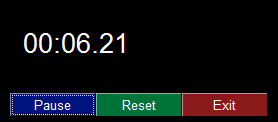
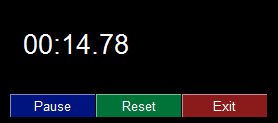
Full layout snippet:
layout = [
    [sg.Input(visible=False)],
    [sg.Text('')],
    [sg.Text('', size=(8, 2), font=('Helvetica', 20),justification='center', key='text')],
    [
     sg.Button('Pause', key='-RUN-PAUSE-', button_color=('white', '#001480')),
     sg.Button('Reset', button_color=('white', '#007339'), key='-RESET-'),
     sg.Exit(button_color=('white', 'firebrick4'), key='Exit')
    ]
]
Edit:
Rereading the thread I can see the solution was already posted, I will keep the comment posted in case anyone needs a code snippet.
 IulianOctavianPreda
on 3 May 2020
IulianOctavianPreda
on 3 May 2020
Hmmm.... I'm not sure what the purpose of this bit of code accomplishes. The issue's title and uhm focus (bad pun) was to disable an element from ever getting focus.
The code with the invisible input merely takes the initial focus so that the Pause button doesn't start with the focus. The buttons are still capable of getting focus.
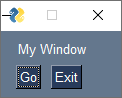
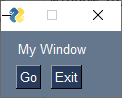
If your goal is for the first button, the pause button, to not have the focus initially (and thus not have the dashed line perhaps), then you can set the parameter use_default_focus=False when you create the window. This will create the window with no initial focus given to the buttons and you won't need an invisible Input element.
To illustrate...
import PySimpleGUI as sg

sg.Window('Window Title', [[sg.Text('My Window')], [sg.Button('Go'), sg.Button('Exit')]]).read(close=True)
Produces this window:
If you add the parameter, then the code becomes:
import PySimpleGUI as sg

sg.Window('Window Title', [[sg.Text('My Window')], [sg.Button('Go'), sg.Button('Exit')]], use_default_focus=False).read(close=True)
And produces this window:
PySimpleGUI
on 3 May 2020
I am experiencing an issue similar to above, but instead with windows, it's with individual tabs, but I haven't found a fix, even looking into the underlying Tkinter widgets, does anyone have a fix?
 LiamBogur
on 25 Jun 2020
LiamBogur
on 25 Jun 2020
I am experiencing an issue similar to above, but instead with windows, it's with individual tabs, but I haven't found a fix, even looking into the underlying Tkinter widgets, does anyone have a fix?
As am I, all fixes above not working with tabs. Or at least not that I can figure out.
Edit: I came up with a hacky, and probably not recommended, way to remove the dotted focus outline on buttons.
I opened the PySimpleGUI.py file and did a find and replace text:
Find:
tkbutton.config(

Replace with:
tkbutton.config(takefocus=0,
It's hacky but it worked so meh. Until I can find a better way this is what i'll have to do.
 AWO52PZ44IKE7FDR79DV2999BCZK19R0IFLDGHF
on 23 Aug 2020
AWO52PZ44IKE7FDR79DV2999BCZK19R0IFLDGHF
on 23 Aug 2020
You can access the underlying widget for elements by using the member variable Widget. This will allow you to write something like:
window[button_key].Widget.config(takefocus=0)
It's a good way to extend PySimpleGUI on your own should you find that a feature / functionality isn't implemented.
PySimpleGUI
on 23 Aug 2020
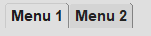
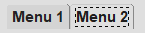
I was able to successfully use the window[button_key].Widget.config(takefocus=0) to remove focus from my buttons. Do you know how to remove the focus for when I click tabs? I was successfully able to add the use_default_focus=False within the Window creation which did in fact remove all focus when the application starts up; however, if I click on a tab, it adds focus lines to the newly clicked tab.
Here is right after launching the application and not clicking any tabs:
Here is after selecting Menu 2:
Here is after selecting Menu 1:
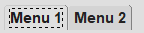
By the way I LOVE your work, it really has been the easiest way to write GUI's in Python that I have found so far!
 pythonista092920
on 29 Sep 2020
pythonista092920
on 29 Sep 2020
There should be no function for it in PSG now.
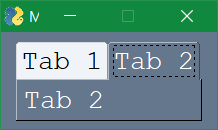
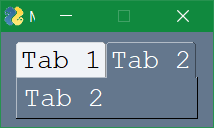
Here's tkinter code to change default layout for Tab, 'Notebook.focus' removed.
Not sure if same function can be built for other ports.
from tkinter import ttk

s = ttk.Style()
layout = s.layout('Tab')
s.layout("Tab",
    [('Notebook.tab',
      {'children':
        [('Notebook.padding',
          {'children':
            [('Notebook.label',
              {'side':'top','sticky': '',})],
          'sticky': 'nswe',})],
      'sticky': 'nswe',})])
Before
After
 jason990420
on 30 Sep 2020
jason990420
on 30 Sep 2020
from tkinter import ttk

s = ttk.Style()
layout = s.layout('Tab')
s.layout("Tab",
    [('Notebook.tab',
      {'children':
        [('Notebook.padding',
          {'children':
            [('Notebook.label',
              {'side':'top','sticky': '',})],
          'sticky': 'nswe',})],
      'sticky': 'nswe',})])
Thanks for your reply. I added this code and it didn't seem to make a difference other than opening a blank tk box along side the GUI. It isn't the biggest deal since the focus goes away once the user clicks somewhere other than the GUI. I know you have a bunch of stuff going on. If a way to remove focus from tabs becomes available that would be great. Thanks again.
pythonista092920
on 30 Sep 2020
Sample script as following to remove focus dash box from tab.
Platform: Win10, Python 3.8.3, PySimpleGUI 4.29.0.14
import PySimpleGUI as sg
from tkinter import ttk

s = ttk.Style()
layout = s.layout('Tab')
s.layout("Tab",
    [('Notebook.tab',
      {'children':
        [('Notebook.padding',
          {'children':
            [('Notebook.label',
              {'side':'top','sticky': '',})],
          'sticky': 'nswe',})],
      'sticky': 'nswe',})])

font = ('Courier New', 16)

tab1 = [[sg.Text('Tab 1', font=font)]]
tab2 = [[sg.Text('Tab 2', font=font)]]

tab_group_layout = [
    [sg.Tab('Tab 1', tab1, key='-TAB1-')],
    [sg.Tab('Tab 2', tab2, key='-TAB2-')],
]

layout = [
    [sg.TabGroup(tab_group_layout, enable_events=True, font=font, key='-TABGROUP-')],
]

window = sg.Window('My window with tabs', layout, finalize=True)

while True:

    event, values = window.read()
    if event == sg.WIN_CLOSED:
        break

window.close()
Sample script as following to remove focus dash box from tab.
Platform: Win10, Python 3.8.3, PySimpleGUI 4.29.0.14import PySimpleGUI as sg from tkinter import ttk s = ttk.Style() layout = s.layout('Tab') s.layout("Tab", [('Notebook.tab', {'children': [('Notebook.padding', {'children': [('Notebook.label', {'side':'top','sticky': '',})], 'sticky': 'nswe',})], 'sticky': 'nswe',})]) font = ('Courier New', 16) tab1 = [[sg.Text('Tab 1', font=font)]] tab2 = [[sg.Text('Tab 2', font=font)]] tab_group_layout = [ [sg.Tab('Tab 1', tab1, key='-TAB1-')], [sg.Tab('Tab 2', tab2, key='-TAB2-')], ] layout = [ [sg.TabGroup(tab_group_layout, enable_events=True, font=font, key='-TABGROUP-')], ] window = sg.Window('My window with tabs', layout, finalize=True) while True: event, values = window.read() if event == sg.WIN_CLOSED: break window.close()
I actually just ran this exact code and am still having the issue. Here is right when it opens without clicking any tabs:
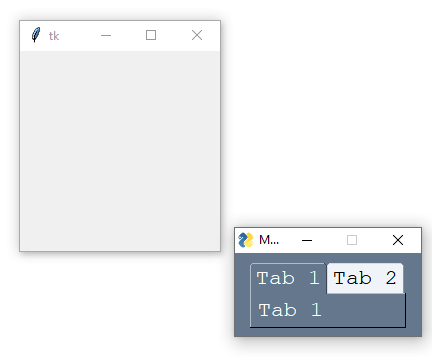
Here is after clicking tab 2:
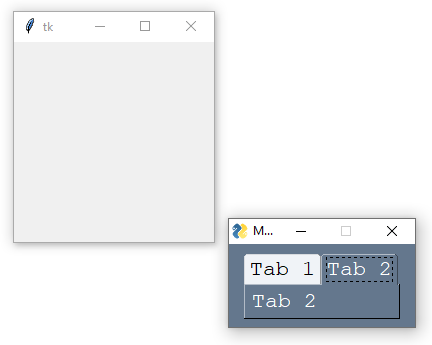
I am using Python 3.7, PySimpleGUI 4.29.0. I tried opening from PyCharm as well as creating an exe via PyInstaller with the same result. Any ideas?
pythonista092920
on 30 Sep 2020
I run it under PyScripter and OK without blank tk box, but same as yours under command prompt.
Will try to find the differences.
jason990420
on 30 Sep 2020
I'm really sorry for being so absent as I'm working on the new readme.
TTK was one of the biggest challenges I faced in the tkinter version of PySimpleGUI.
I think I finally got a handle on it recently.
I'll look into this I just need a little bit of time to do so. Again, I'm so sorry to be absent right now. I really need to wrap up this readme and I can't lose focus on it at the moment.
Jason is a saint for working so hard on this stuff..... Thank you SO much jason
PySimpleGUI
on 30 Sep 2020
I'm really sorry for being so absent as I'm working on the new readme.
TTK was one of the biggest challenges I faced in the tkinter version of PySimpleGUI.
I think I finally got a handle on it recently.
I'll look into this I just need a little bit of time to do so. Again, I'm so sorry to be absent right now. I really need to wrap up this readme and I can't lose focus on it at the moment.
Jason is a saint for working so hard on this stuff..... Thank you SO much jason
Not a problem. Thank you both. I'll keep subscribed to this thread and check back at a later point.
pythonista092920
on 30 Sep 2020
I think that setting the style for the Tabs should be after creating the root window and before creating the Tabs.
It worked because I did not exit IDLE, but ran the modified script again.
I think it can only be set when the Tabs is built in the PySimpleGUI source code.
Note: IDLE, integrated development and learning environment.
jason990420
on 30 Sep 2020
Oh IDLE!
That's a bad combination with PySimpleGUI.
The problem is the IDLE is written using..... tkinter.....
So, you're debugging a tkinter problem, while running a tkinter program. Sometimes they interfere, especially when you stop the program and try and restart it.
I don't have a good suggestion for something lightweight to replace using IDLE. Mu is OK, but I am not sure what it uses. It may also use tkinter. PyCharm and Wing are my favorites, but they're huge by comparison.
PySimpleGUI
on 30 Sep 2020
Not the python standard IDLE, there're lot of IDLE.
PyScripter is one of IDLE
- Use JCL (JEDI Code Library)
- Use JVCL (JEDI Visual Component Library),
- Designed by C++
- Not by tcl/tk or tkinter
jason990420
on 30 Sep 2020
Oh! Thank you for the education! Sorry... I'm a bit behind in technology sometimes :-)
PySimpleGUI
on 30 Sep 2020
Related issues
 mozesa
·
4Comments
mozesa
·
4Comments
 DKatarakis
·
6Comments
DKatarakis
·
6Comments
 ihouses
·
6Comments
ihouses
·
6Comments
 eyeonus
·
6Comments
eyeonus
·
6Comments
 ECOM-Klaus
·
4Comments
ECOM-Klaus
·
4Comments