Pysimplegui: [Request] Move buttons to ttk
Just now figuring out that there are ttk versions for basic widgets. However, the configuring of them is done different (sizes, colors, etc). And, the mechanism for changing the config is by using styles and themes. Working on styles now so hopefully better looking elements will abound in the future on tkinter.
 MikeTheWatchGuy
All 15 comments
Thanks so much for this. I was just about to ask why button colours don't work on Mac, e.g., this:
sg.Submit(tooltip='Click to submit this form.', button_color=('white', 'blue'))
 kakyoism
on 29 Nov 2018
kakyoism
on 29 Nov 2018
on Macs, the button colors are a known issue. Button colors are not supported at all on Macs when using tkinter.
MikeTheWatchGuy
on 29 Nov 2018
I'll add more information to the docs about the Mac color problems.
In straight PySimpleGUI, the ChangeLookAndFeel is disabled for Macs. Ironic that there are problems on a Mac with changing colors.
This restriction is removed on the PySimpleGUIQt version.
MikeTheWatchGuy
on 29 Nov 2018
Mike, glad you're discovering ttk! My understanding is that these new ttk widgets actually use native widgets, so they look and are identical to widgets from the host operating system. The way to use them is nearly a drop-in replacement for the older tk widgets. Almost all the options (except a few styling ones, like you've mentioned) are identical. It's extremely simple. You can just convert all your widgets to ttk and get dramatically better looking apps. You would just do something like this:
import tkinter as tk
from tkinter import ttk

# Just use ttk.Button instead of tk.Button and you're off and running...
button = ttk.Button(parent, text='Button Text')
I've been using ttk ever since I started tkinter. and I can honestly say there's no way you could tell that my GUI's are made by tkinter. Native is...well, native!
Mark Roseman's website, https://tkdocs.com/, has been an invaluable reference, and he uses ttk in all his examples. I don't know if you've found that yet, but it's certainly worth a look!
 AWPelican
on 1 Dec 2018
AWPelican
on 1 Dec 2018
I would also recommend the New Mexico Tech reference, as this is typically my go-to resource for almost everything when I'm building a tkinter app. It also explains the ttk widgets in detail, and is a great help. Again, you may have already found this, but IMO it is one of the best resources out there for tkinter, so I wanted to mention it.
https://infohost.nmt.edu/tcc/help/pubs/tkinter/web/index.html
AWPelican
on 1 Dec 2018
My problem is in using the Themes and Styles settings properly. This is what's holding me back from moving to ttk buttons.
Right now I'm modifying Styles in a way that one widget can impact the settings of another. What I need to do is create a custom Style that is my own and apply that to the widgets. I don't know how to do that yet.
MikeTheWatchGuy
on 1 Dec 2018
I'd say that the biggest benefit to be had with ttk style widgets would be native look and feel. Buttons on Windows look like other buttons on Windows, Mac buttons look and feel like mac buttons.
From a UX perspective, it makes a huge difference.
 spyoungtech
on 18 Jan 2019
spyoungtech
on 18 Jan 2019
This would be really nice to have. Working on windows I'd really like the users to see a _native_ app with _native_ controls.
 pranav0091
on 6 Mar 2019
pranav0091
on 6 Mar 2019
Yea, well, as soon as I figure out the ttk styling correctly then I'll add them.
It's been HELL getting 1 element, the combo, to style correctly.
The best thing to do for buttons in tkinter, in my opinion, is to supply your own button graphics.
MikeTheWatchGuy
on 6 Mar 2019
I know from the docs that this goes against your design ethos, but do you think it'd be a good idea to let users access the tk-objects directly. Or perhaps a mode where the specification of the element can be in raw tk/ttk code?
From a cursory reading, it seems that the key difference in user-code between the older (and IMHO, often ugly) tk buttons/sliders and the newer _native_ looking ones is one line of import and changing tk.Button to ttk.Button
PS: Thanks for this amazing library. I'm really amazed by what you have built here so far :)
pranav0091
on 7 Mar 2019
I'm not going to complain nor block any kind of lower level access someone wants with the widgets. It becomes a support issue if anything. In theory, the APIs should do everything you need. In practice, they fall quite short of what the frameworks are capable of doing.
I've attempted to switch the buttons from normal to ttk before. I've got one or two ttk widgets at the moment because I don't have a choice. I think one is the Combobox. It's not as simple as switching tk.Button to ttk.Button. If that's the case, then it would be great if you could fork the code and make the change yourself to see how it works. You should be able to search and find where I create the buttons and make that 1 line change.
_I would gladly switch... IF I had a way to "style" the damned things on an individual basis. If someone can supply me code that will enable me to apply styles to one widget at a time, then we would be all set!_
What I may be able to do is a hybrid kind of approach where you can specify a button should be a ttk button rather than a tk button. The best I will be able to deliver is a standard ttk button. I may not be able to even set the size of it, but you'll at least have something in your window to work with. Should you wish to modify the button directly, you can get access to the ttk variable.
At the moment, the tk.Button widget's variable is:
Button.TKButton
I'll likely name the ttk version of the button:
Button.TTKButton
MikeTheWatchGuy
on 7 Mar 2019
I would gladly switch... IF I had a way to "style" the damned things on an individual basis. If someone can supply me code that will enable me to apply styles to one widget at a time, then we would be all set!
From my understanding, when you create a themed widget like ttk.Button, you can pass them each their own style=some_style keyword argument.
style_one = ttk.Style()
style_two = ttk.Style()
style_one.configure('One.TButton', foreground="red")
style_two.configure('Two.TButton', foreground="green")

button_one = ttk.Button(text="One", style='One.TButton')
button_two = ttk.Button(text='Two', style='Two.TButton')
button_three = ttk.Button(text='Default style')

button_one.pack()
button_two.pack()
button_three.pack()

root.mainloop()
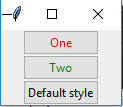
Does this give you what you need @MikeTheWatchGuy ?
spyoungtech
on 7 Mar 2019
-Ah-
If it were only that simple.
Every button, every ttk widget needs it's own UNIQUE style that is copied from a standard Style.
Take a look at the code for the Comboxbox starting at line 5174.
Remember that you need to take into account the use of Images on buttons, etc.
I'm unsure just how many of the tk.Button calls I'm making that are compatible with ttk. Disabling, setting focus, binding keys, all need to be implemented for this ttk.Button.
If you want to take a shot at implementing the ttk Buttons, the Button code begins at line 4985.
Here's the code. This portion of the Button code does the creation of the tk.Button object, configures it according to the many user settings available, and then places the button into the Window. There are other places in the code to change, but this is the ugly section that needs reworking to get to ttk.Button.
Good luck in your journey....
            elif element_type == ELEM_TYPE_BUTTON:
                stringvar = tk.StringVar()
                element.TKStringVar = stringvar
                element.Location = (row_num, col_num)
                btext = element.ButtonText
                btype = element.BType
                if element.AutoSizeButton is not None:
                    auto_size = element.AutoSizeButton
                else:
                    auto_size = toplevel_form.AutoSizeButtons
                if auto_size is False or element.Size[0] is not None:
                    width, height = element_size
                else:
                    width = 0
                    height = toplevel_form.DefaultButtonElementSize[1]
                if element.ButtonColor != (None, None) and element.ButtonColor != DEFAULT_BUTTON_COLOR:
                    bc = element.ButtonColor
                elif toplevel_form.ButtonColor != (None, None) and toplevel_form.ButtonColor != DEFAULT_BUTTON_COLOR:
                    bc = toplevel_form.ButtonColor
                else:
                    bc = DEFAULT_BUTTON_COLOR
                border_depth = element.BorderWidth
                if btype != BUTTON_TYPE_REALTIME:
                    tkbutton = tk.Button(tk_row_frame, text=btext, width=width, height=height,
                                         command=element.ButtonCallBack, justify=tk.LEFT, bd=border_depth, font=font)
                else:
                    tkbutton = tk.Button(tk_row_frame, text=btext, width=width, height=height, justify=tk.LEFT,
                                         bd=border_depth, font=font)
                    tkbutton.bind('<ButtonRelease-1>', element.ButtonReleaseCallBack)
                    tkbutton.bind('<ButtonPress-1>', element.ButtonPressCallBack)
                if bc != (None, None) and bc != COLOR_SYSTEM_DEFAULT and bc[1] != COLOR_SYSTEM_DEFAULT:
                    tkbutton.config(foreground=bc[0], background=bc[1], activebackground=bc[1])
                elif bc[1] == COLOR_SYSTEM_DEFAULT:
                    tkbutton.config(foreground=bc[0])
                if border_depth == 0:
                    tkbutton.config(relief=tk.FLAT)
                    tkbutton.config(highlightthickness=0)
                element.TKButton = tkbutton  # not used yet but save the TK button in case
                wraplen = tkbutton.winfo_reqwidth()  # width of widget in Pixels
                if element.ImageFilename:  # if button has an image on it
                    tkbutton.config(highlightthickness=0)
                    photo = tk.PhotoImage(file=element.ImageFilename)
                    if element.ImageSubsample:
                        photo = photo.subsample(element.ImageSubsample)
                    if element.ImageSize != (None, None):
                        width, height = element.ImageSize
                    else:
                        width, height = photo.width(), photo.height()
                    tkbutton.config(image=photo, compound=tk.CENTER, width=width, height=height)
                    tkbutton.image = photo
                if element.ImageData:  # if button has an image on it
                    tkbutton.config(highlightthickness=0)
                    photo = tk.PhotoImage(data=element.ImageData)
                    if element.ImageSubsample:
                        photo = photo.subsample(element.ImageSubsample)
                    if element.ImageSize != (None, None):
                        width, height = element.ImageSize
                    else:
                        width, height = photo.width(), photo.height()
                    tkbutton.config(image=photo, compound=tk.CENTER, width=width, height=height)
                    tkbutton.image = photo
                if width != 0:
                    tkbutton.configure(wraplength=wraplen + 10)  # set wrap to width of widget
                tkbutton.pack(side=tk.LEFT, padx=elementpad[0], pady=elementpad[1])
                if element.Visible is False:
                    tkbutton.pack_forget()
                if element.BindReturnKey:
                    element.TKButton.bind('<Return>', element.ReturnKeyHandler)
                if element.Focus is True or (toplevel_form.UseDefaultFocus and not focus_set):
                    focus_set = True
                    element.TKButton.bind('<Return>', element.ReturnKeyHandler)
                    element.TKButton.focus_set()
                    toplevel_form.TKroot.focus_force()
                if element.Disabled == True:
                    element.TKButton['state'] = 'disabled'
                if element.Tooltip is not None:
                    element.TooltipObject = ToolTip(element.TKButton, text=element.Tooltip,
                                                    timeout=DEFAULT_TOOLTIP_TIME)
Every button, every ttk widget needs it's own UNIQUE style that is copied from a standard Style.
I'm not sure what you mean. In the example I provided, each of the button styles are unique. They are independently modifiable and namedspaced as One.TButton and Two.TButton, for example. Only widgets that are passed those names for styles will have the respective style applied. The key is to use a unique namespace. Otherwise, you may end up modifying the default style or reusing the same namespace, causing it to affect more than the singular widget.
One.TButton is a new style which inherits from the default TButton. I could also make another style which inherits from One.TButton by naming it Something.One.TButton. If you use style.configure('TButton', ...) you'll end up modifying the default style even if it's a new Style object in Python terms. This is an artifact of how TCL/TK works under the hood.
I'm unsure just how many of the tk.Button calls I'm making that are compatible with ttk. Disabling, setting focus, binding keys, all need to be implemented for this ttk.Button.
Yes, there is certainly a bit more to do than simply dropping in ttk.Button. If I find the time, I'll try to take a look at this.
spyoungtech
on 11 Mar 2019
FINALLY nailed the Buttons both tk and ttk.
Added ability tonight to set the disabled colors too.
This is an old issue that's been addressed several releases back.
 PySimpleGUI
on 14 Dec 2019
PySimpleGUI
on 14 Dec 2019
Related issues
 mozesa
·
4Comments
mozesa
·
4Comments
 ECOM-Klaus
·
4Comments
MikeTheWatchGuy
·
6Comments
MikeTheWatchGuy
·
5Comments
ECOM-Klaus
·
4Comments
MikeTheWatchGuy
·
6Comments
MikeTheWatchGuy
·
5Comments
 ihouses
·
6Comments
ihouses
·
6Comments
Most helpful comment
Mike, glad you're discovering ttk! My understanding is that these new ttk widgets actually use native widgets, so they look and are identical to widgets from the host operating system. The way to use them is nearly a drop-in replacement for the older tk widgets. Almost all the options (except a few styling ones, like you've mentioned) are identical. It's extremely simple. You can just convert all your widgets to ttk and get dramatically better looking apps. You would just do something like this:
I've been using ttk ever since I started tkinter. and I can honestly say there's no way you could tell that my GUI's are made by tkinter. Native is...well, native!
Mark Roseman's website, https://tkdocs.com/, has been an invaluable reference, and he uses ttk in all his examples. I don't know if you've found that yet, but it's certainly worth a look!