Pylance-release: Semantic highlighting colors every variable with same color
Environment data
Expected behaviour
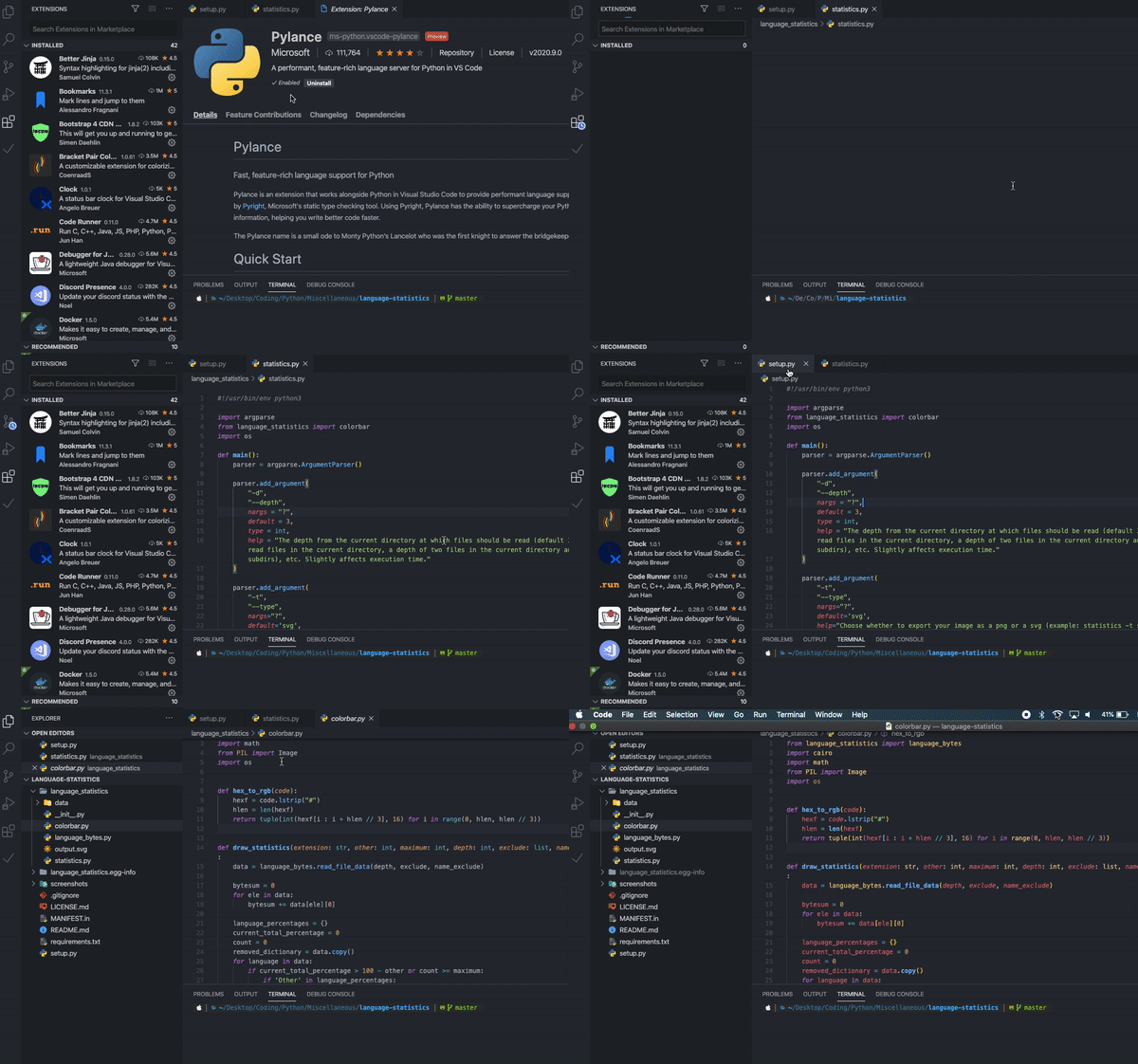
Different variables would have different colors or at least distinct color for self keyword and other variables. I think before semantic highlighting the editor was much more usable:

Actual behaviour
Every variable has red colour:

I didn't find how to disable this feature and only way seem to be downgrade.
 johnybx
All 27 comments
Can confirm this - this is very frustrating and something that I was just about to open an issue for myself. This not only affects variable names, but also modules.
I've tested all the extensions I have - this is caused by the new Pylance release. Instead of the expected syntax highlighting, we get this strange new syntax highlighting, with no way to disable or override it in the settings.
 Destaq
on 4 Sep 2020
Destaq
on 4 Sep 2020
self now italicized in One Dark Pro to distinguish it, if you're looking for self to be a different colour checkout Mayukai semantic mirage.

 bschnurr
on 4 Sep 2020
bschnurr
on 4 Sep 2020
Downgrading to the previous release fixes the broken semantic highlighting (2020.8.3)
 falkben
on 4 Sep 2020
falkben
on 4 Sep 2020
Hi @Destaq this can be turned off, see https://code.visualstudio.com/docs/getstarted/themes#_editor-semantic-highlighting (2 settings in config)
 zgoda
on 4 Sep 2020
zgoda
on 4 Sep 2020
I don't think this is broken; it is entirely up to the theme to choose how to display the tokens. We just send what the tokens are, and One Dark Pro displays variables in red, parameters italicized, etc. If you don't like the colors chosen by One Pro Dark, you'd need to report it on their tracker.
You can always turn of semantic highlighting in the editor (I believe you could disable it for Python in a "[python]": { ... } block), or switch to a theme that colors the tokens differently.
 jakebailey
on 4 Sep 2020
jakebailey
on 4 Sep 2020
I'm not using OneDarkPro, just the default theme, and the semantic highlighting was broken for me as well.
falkben
on 4 Sep 2020
The default themes still make choices as to what different tokens should be colored. We don't have control over that, VS Code does in their theme.
@zgoda shows the page where you can customize this to your liking, or disable it entirely if you don't like it.
(snipped)
Before this would have been controlled by the TextMate grammar for Python, which behaves differently by highlighting the word "self" anywhere in the code, for example. I am noticing that the LSP spec does not offer any distinct token for say "self" or "this" (which would explain why it's just "a parameter variable" to the semantic tokenization): https://microsoft.github.io/language-server-protocol/specifications/specification-3-16/#textDocument_semanticTokens
If the spec had a way to distinguish those, we could make this a bit closer to the TextMate theme. I'm wondering if other languages are using their own custom tokens and having themes add them.
jakebailey
on 4 Sep 2020
Oops, I meant:
{
    "[python]": {
        "editor.semanticHighlighting.enabled": false
    }
}
One Dark Pro is listed in release changelog as one of themes with full support for semantic highlighting.
BTW, docs say semantic highlighting is available only for 3 languages and Python is not listed among them.

zgoda
on 4 Sep 2020
I can confirm that the settings change to disable semanticHighlighting does restore the different coloration of "self". However, it's a bit odd to me to have to disable semantic highlighting in order to restore semantic highlighting that was working before this specific release. It sounds like this release of Pylance changes the behavior of the language server grammar from TextMate to something else? Is there any more information on this?
falkben
on 4 Sep 2020
@zgoda There's a difference between having specific language support (custom tokens, it seems) and general semantic token support (color variables in red). There are other themes included with VS Code like the plain dark theme or the high contrast that have zero semantic highlighting support.
Themes wouldn't support special Python tokens specifically up until now, given this is the first time Python is getting semantic tokens. If there are special tokens or modifiers we can include that are out of the spec that allows themes to better distinguish certain variables, then that is worth investigation.
@falkben TextMate grammars are complicated regex rules in order to color the text that are bundled with VS Code, and are the ultimate fallback if VS Code doesn't have a provider for semantic tokens. That's what's happening here; we declare support for semantic tokens so VS Code calls us for the info. Those rules are not semantic, it's just that a variable called "self" almost always means "the self for a class", so it ends up "feeling" like semantic highlighting.
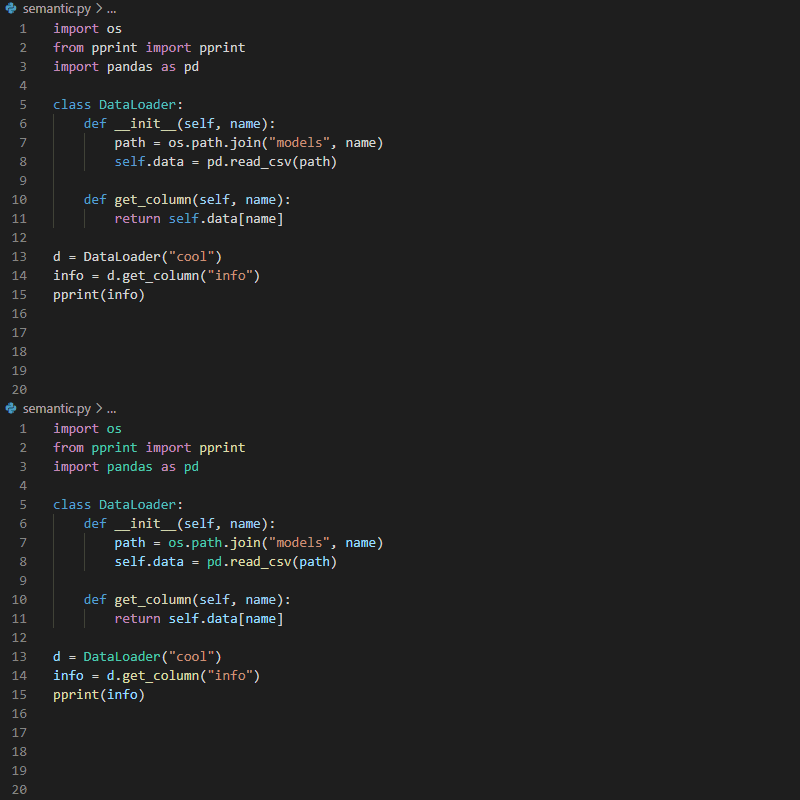
Compare the difference in this example; you can see that semantic highlighting means that we know that DataLoader is a class at all uses, and not just the declaration (which is all the TextMate profile can know via regex matching the line).
jakebailey
on 4 Sep 2020
I appreciate the comments @jakebailey, thanks for the information. Your example does help show what you give up vs. gain by enabling this feature.
If pylance changes things dramatically like this going forward, it would be nice to have as an option, disabled by default, and that you could opt into, at least until the new behavior is standardized.
falkben
on 4 Sep 2020
I think, besides self there's probably quite a bit more that we lose with this syntax highlighting versus the old TextMate regex highlighting. It would be nice to know what we are gaining vs. giving up.
For example, with the new highlighting, key word argument pairs are all displayed with the same color, which makes it much harder to read for me when there's a large number of them.
falkben
on 4 Sep 2020
I am not sure if my understanding of semantic highlighting is correct but I would expect different colors for same token in context for example if I have dummy function:
def test(input_token):
    x = 1
    return x + input_token
I would expect different colors for token input_token and x. Same expectations holds for class definition if I define in __init__ variable self.x I would expect that x part has same color throughout the definition of class methods where used.
@jakebailey the question is if this is already done by pylance and problem is only on theme side or if pylance treat all local variables the same way.
johnybx
on 4 Sep 2020
See my explanation in https://github.com/microsoft/pylance-release/issues/319#issuecomment-686843969. That isn't how VS Code defines semantic highlighting; semantic highlighting in VS Code is "this is a variable, color it this way", or "this is a function, color it that way". It isn't "color each variable a different color".
In that code snippet's case, they will be different by nature of input_token having the "parameter" modifier to say that it's a parameter; One Dark Pro italicizes parameters, for example. But otherwise semantically, all we can say is that both are variables. We can't tell the editor that any given token needs to be a specific color; that's up to the theme based on the generic metadata we provide.
jakebailey
on 4 Sep 2020
If pylance changes things dramatically like this going forward, it would be nice to have as an option, disabled by default, and that you could opt into, at least until the new behavior is standardized.
+1 to this. I'd like to share my experience because it took me a while to understand what had happened to syntax highlighting. Given I did not know about this new feature, the change appeared to be a bug. I hadn't realized this, but my eyes were particularly used to the previous syntax highlighting, and I couldn't scan code I'm familiar with as easily as I was able to before.
Unfortunately, my various initial attempts at searching for the cause didn't lead to any hits (e.g., "vscode python colors all the same", "vscode color theme changes python (limited to last week)"), so I gave up and assumed this was a strange issue with VSCode on my computer. I wasn't sure where I should even file a bug (vscode? vscode-python? the color theme repo?).
Eventually I gave up and stuck with the existing syntax highlighting, until the next day when I disabled pylance on a whim and realized the syntax highlighting was "fixed," and searched specifically in the issues for this repository, leading to this issue.
 achalddave
on 5 Sep 2020
achalddave
on 5 Sep 2020
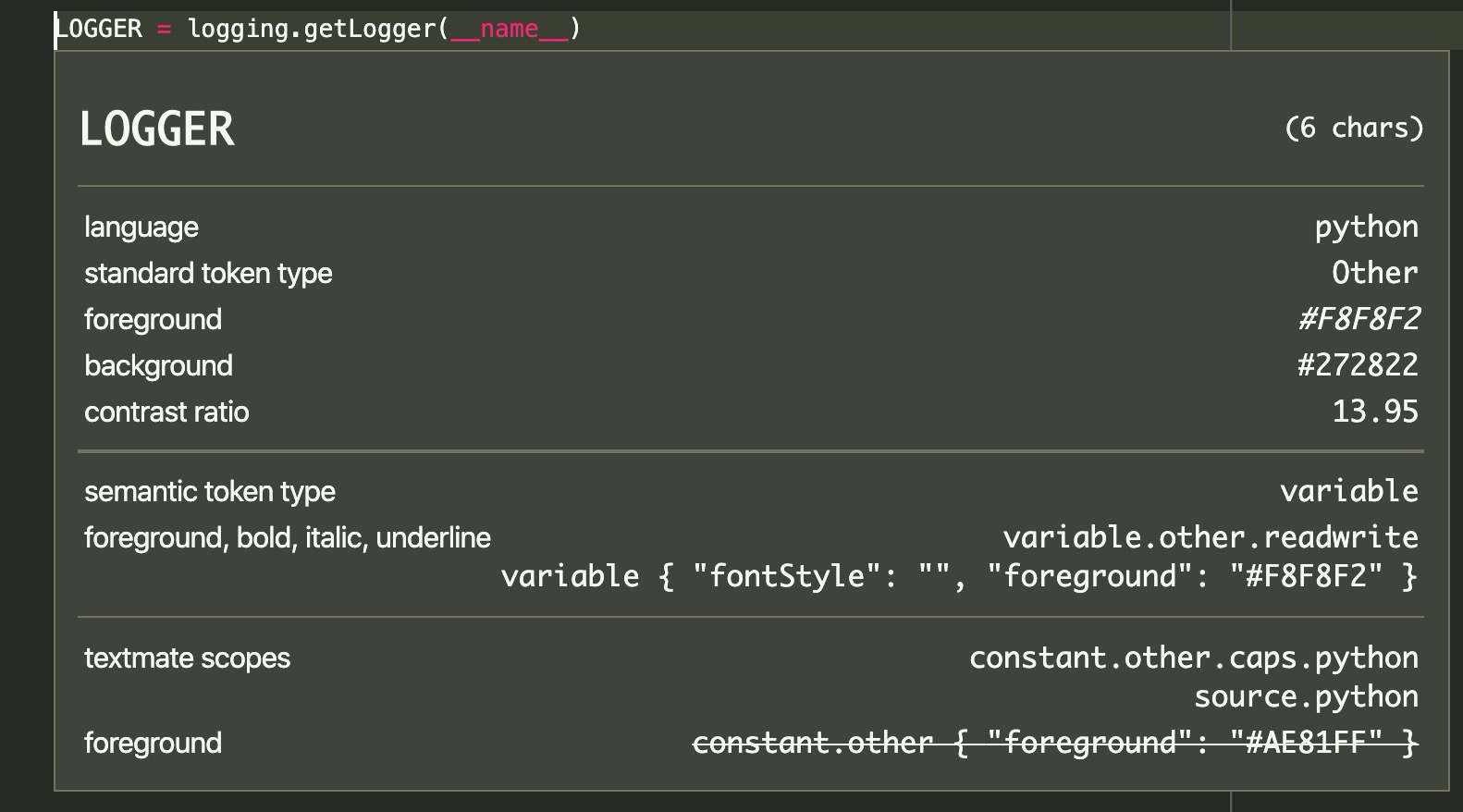
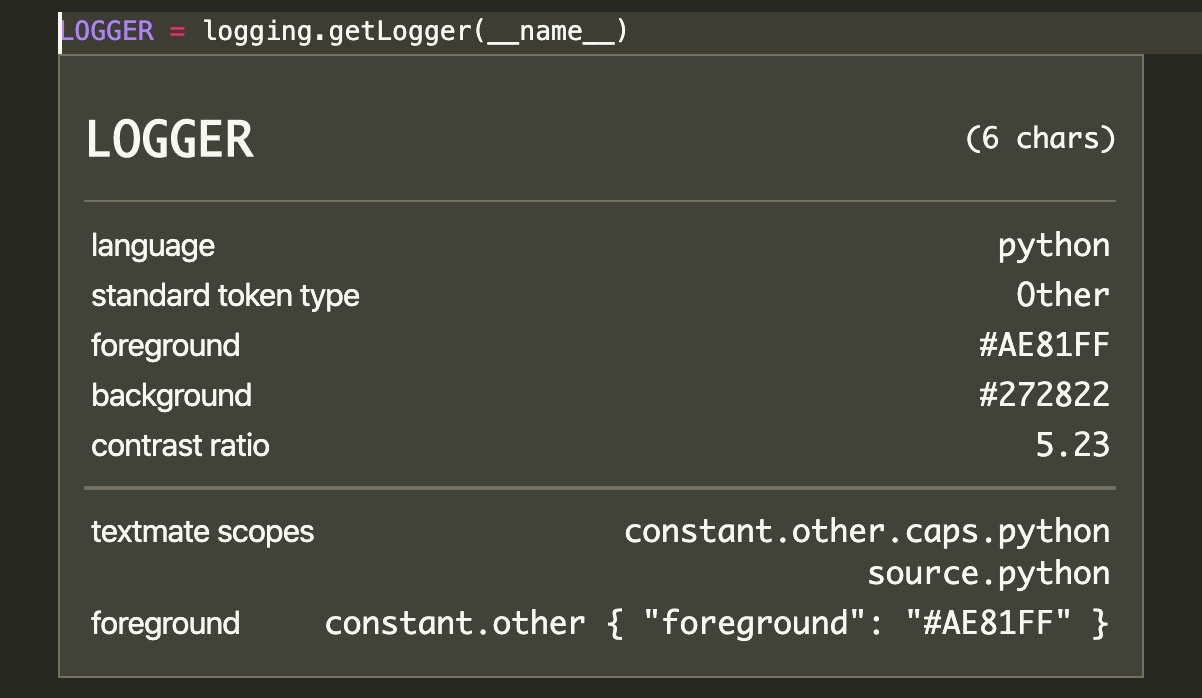
not sure why LOGGERs foreground is being suppressed here. If turn off semantic highlighting it is working fine. Not sure if this an issue, and I don't follow this long thread. So excuse my ignorance if already reported/discussed.
Theme: Monokai
WIth semantic highlighting turned on:
WIth semantic highlighting turned off:
 jahan01
on 6 Sep 2020
jahan01
on 6 Sep 2020
self now italicized in One Dark Pro to distinguish it, if you're looking for self to be a different colour checkout Mayukai semantic mirage.
After reading the related One Dark Pro issue and this issue i'm still not clear who is responsible for how things are colored, but I would like to say italics make things harder for people with dyslexia to read sometimes, a different color for self would be vastly preferable for me.
 shughes-uk
on 16 Sep 2020
shughes-uk
on 16 Sep 2020
Since many themes don't have great support for semantic tokens, would it be possible to document a few that do? I think this could ease the pain of migration here.
 ivirshup
on 16 Sep 2020
ivirshup
on 16 Sep 2020
Thank you for the feedback everyone.
The next release will have additional semantic token types and modifiers to add more variety than provided by the VS Code built in semantic tokens.
This will have the effect of respecting the theme coloring of some of the Python specific textmate scopes that were lost when semantic colorization was introduced.
The improvements apply to CONSTANTS, self and cls parameters, dunder methods, and type hints inside of comments.
 huguesv
on 17 Sep 2020
huguesv
on 17 Sep 2020
This issue has been fixed in version 2020.9.6, which we've just released. You can find the changelog here: https://github.com/microsoft/pylance-release/blob/master/CHANGELOG.md#202096-23-september-2020
jakebailey
on 24 Sep 2020
Note that the old VS Code regex-based TextMate profile didn't mark variables _at all_ (which is likely why the change was so jarring; other languages do mark variables IIRC). If you prefer this behavior you should be able to override your theme's choice of variable coloring by doing something like:
{
    "editor.semanticTokenColorCustomizations": {
        "[One Dark Pro]": {
            "rules": {
                "variable": "#ABB2BF" // One Dark Pro's default text color
            }
        }
    }
}
But the other tokens should match what you're used to with VS Code's defaults without semantic highlighting. We'd appreciate it if those who disabled it could give it a shot again and provide feedback! 🙂
jakebailey
on 24 Sep 2020
@jakebailey thanks for these fixes in v2020.9.6, the improvements make the semantic coloring much easier to understand! I tried your suggested override for the variable token while using One Dark Pro and noticed that it overrides the coloring of module level constants which are now identified the same as other variables:
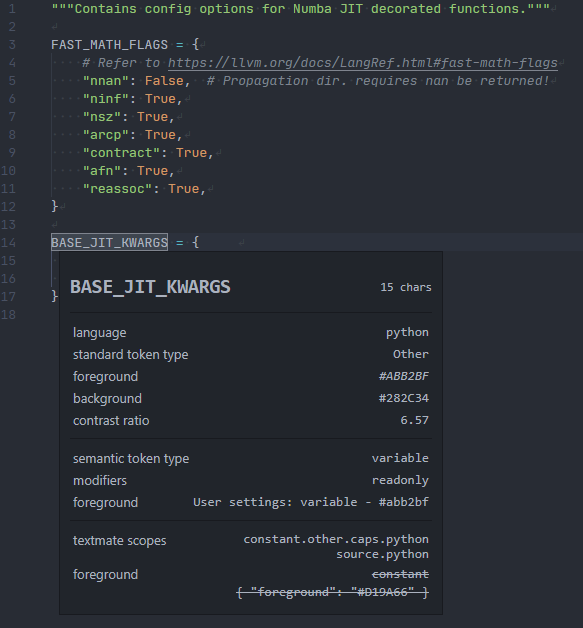
Is it possible to add another semantic token for these module level constants in the future so that we can have them colored differently?
EDIT: Just noticed that this is a duplicate of @jahan01 's reply and @ian-h-chamberlain 's solution works for my use-case of module-level constants
 skilkis
on 24 Sep 2020
skilkis
on 24 Sep 2020
The highlighting of CONSTANTs was the one thing blocking me from enabling this feature so thank you for addressing it!
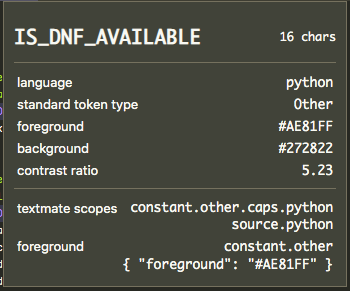
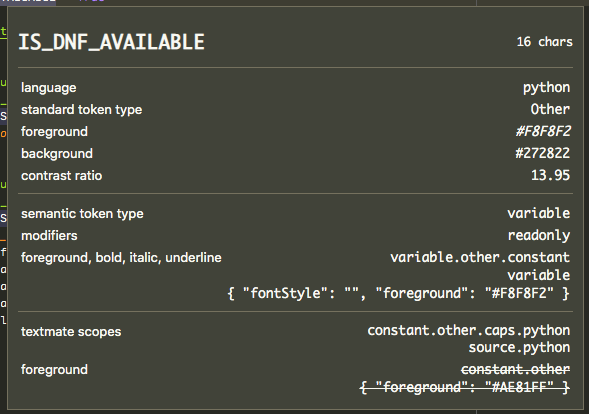
I will note that for some reason I still had to apply a customization to get back the original color I was used to, maybe because my theme doesn't treat variable.readonly the same as constant.other.*... but for others' reference here is how I got it back:
Scope with semantic highlight disabled:
Scope with semantic highlight enabled:
Customization to get back the original color:
    "editor.semanticTokenColorCustomizations": {
        "[Monokai]": {
            "rules": {
                "variable.readonly": "#AE81FF", // edit: "*.readonly" may be more comprehensive here actually...
            }
        }
    },
It seems there are few corner cases here not handled yet like class-level constants, but I think I can live with those for now:
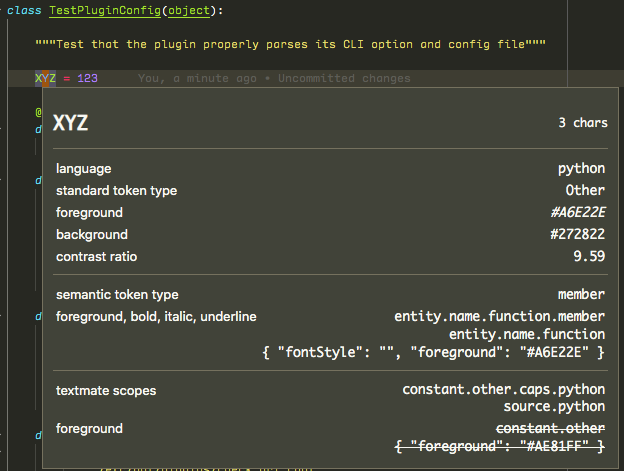
 ian-h-chamberlain
on 24 Sep 2020
ian-h-chamberlain
on 24 Sep 2020
Just in case anyone else is looking for customizing their theme and is curious about how to get the popup with information about how the tokens are being identified, you enable that in the command pallet with "Developer: Inspect Editor Tokens and Scopes". Can find more information about that here: https://code.visualstudio.com/blogs/2017/02/08/syntax-highlighting-optimizations#_new-textmate-scope-inspector-widget
To make the same change as @ian-h-chamberlain made for constants for One Dark Pro you'd want something like this:
{
  "editor.semanticTokenColorCustomizations": {
    "[One Dark Pro]": {
      "rules": {
        "variable": "#ABB2BF", // One Dark Pro's default text color
        "variable.readonly": "#D19A66", // edit: "*.readonly" may be more comprehensive here actually...
      }
    }
  }
}
Yes, thanks for mentioning the other rules; I just gave a quick example of an override and you should definitely distinguish tokens how you prefer. We should be outputting scope/token names with enough info to distinguish things (as they have to be different to be rendered differently). I found the color by disabling semantic highlighting, checking the color with the tooltip, then adding it back to the config.
jakebailey
on 24 Sep 2020
For anyone else who discovered that other languages were suddenly also impacted by this (all const vars in JavaScript, lol), check this other comment I made about how to make it language specific.
TLDR you can add the language in the rule matcher, in my case:
    "editor.semanticTokenColorCustomizations": {
        "[Monokai]": {
            "rules": {
                "variable.readonly:python": "#AE81FF",
            }
        }
    },
Related issues
 martinjohndyer
·
4Comments
martinjohndyer
·
4Comments
 peach-lasagna
·
3Comments
peach-lasagna
·
3Comments
 fbidu
·
3Comments
fbidu
·
3Comments
 flaree
·
4Comments
flaree
·
4Comments
 ynouri
·
3Comments
ynouri
·
3Comments
Most helpful comment
Oops, I meant: