Powershell: Get-ChildItem -Recurse doesn't work on the OneDrive sync folder
Steps to reproduce
Get-ChildItem -Recurse $env:OneDrive
with PowerShell Core 6.2.0 outputs the same results as:
Get-ChildItem $env:OneDrive
In other words, the subfolders are not recursed into.
This can be verified easily with:
PS C:/Users/steph> (Get-ChildItem $env:OneDrive).Count
174
PS C:/Users/steph> (Get-ChildItem -Recurse $env:OneDrive).Count
174
This works properly with Windows PowerShell 5.1:
PS C:/Users/steph> (Get-ChildItem $env:OneDrive).Count
174
PS C:/Users/steph> (Get-ChildItem -Recurse $env:OneDrive).Count
158122
Expected behavior
Get-ChildItem -Recurse $env:OneDrive
should enumerate all files and folders in the OneDrive sync tree.
Actual behavior
Get-ChildItem -Recurse $env:OneDrive
enumerates only the files and folders at the root of the OneDrive sync tree.
Environment data
PS C:/Users/steph> $PSVersionTable

Name                           Value
----                           -----
PSVersion                      6.2.0
PSEdition                      Core
GitCommitId                    6.2.0
OS                             Microsoft Windows 10.0.17763
Platform                       Win32NT
PSCompatibleVersions           {1.0, 2.0, 3.0, 4.0…}
PSRemotingProtocolVersion      2.3
SerializationVersion           1.1.0.1
WSManStackVersion              3.0

PS C:/Users/steph> (gi "C:\Users\steph\AppData\Local\Microsoft\OneDrive\OneDrive.exe").VersionInfo

ProductVersion   FileVersion      FileName
--------------   -----------      --------
19.043.0304.0007 19.043.0304.0007 C:\Users\steph\AppData\Local\Microsoft\OneDrive\OneDrive.exe
OS Version: 10.0.17763.437
 sba923
All 12 comments
Related #9246
 iSazonov
on 26 Apr 2019
iSazonov
on 26 Apr 2019
Hope this is not a side effect of #8745... I'll build a 6.2.0 without that change and see what I get.
sba923
on 26 Apr 2019
I hate to say, but commenting out the one line that's the core of #8745:
NativeMethods.RtlSetProcessPlaceholderCompatibilityMode(NativeMethods.PHCM_EXPOSE_PLACEHOLDERS);
does "repair" Get-ChildItem -Recurse $env:OneDrive.
Now I have to investigate why exposing the placeholders breaks Get-ChildItem -Recurse.
sba923
on 27 Apr 2019
For reference #8315
/cc @SteveL-MSFT for information. Perhaps we need help from Windows file system team to review the code.
iSazonov
on 27 Apr 2019
Haven't checked the code yet, but it could be that PowerShell Core doesn't recurse into directories that are reparse points.
Here's what I get with Windows PowerShell:
````
PS C:/Users/steph> gci -rec $env:onedrive | ? { $_.fullname -match 'somedir' } | Select FullName, Attributes, @{Name='HexAttributes'; Expression={("0x{0:x}" -f $_.Attributes)}}
FullName Attributes HexAttributes
-------- ---------- -------------
C:\Users\steph\OneDrive\somedir Directory, ReparsePoint 0x00000410
C:\Users\steph\OneDrive\somedir\somefile1.txt 4199968 0x00401620
C:\Users\steph\OneDrive\somedir\somefile2.txt 4199968 0x00401620
````
The same thing in PowerShell Core 6.2.0 yields:
````
PS C:/Users/steph> gci -rec $env:onedrive | ? { $_.fullname -match 'somedir' } | Select FullName, Attributes, @{Name='HexAttributes'; Expression={("0x{0:x}" -f $_.Attributes)}}
FullName Attributes HexAttributes
-------- ---------- -------------
C:\Users\steph\OneDrive\somedir Directory, ReparsePoint 0x00000410
````
Whereas my private build of PowerShell Core 6.2.0 with the aforementioned line commented out yields:
````
PS netcoreapp2.1/win7-x64/publish> gci -rec $env:onedrive | ? { $_.fullname -match 'somedir' } | Select FullName, Attributes, @{Name='HexAttributes'; Expression={("0x{0:x}" -f $_.Attributes)}}
FullName Attributes HexAttributes
-------- ---------- -------------
C:\Users\steph\OneDrive\somedir Directory 0x00000010
C:\Users\steph\OneDrive\somedir\somefile1.txt 4194336 0x00400020
C:\Users\steph\OneDrive\somedir\somefile2.txt 4194336 0x00400020
````
To be continued...
sba923
on 28 Apr 2019
After checking that .NET Core's EnumerateDirectories() behaves the same as .NET Framework's, I think I've found the culprit.
System.Management.Automation\namespaces\FileSystemProvider.cs contains the following logic for recursing into subdirectories:
````
// if "Hidden" is explicitly specified anywhere in the attribute filter, then override
// default hidden attribute filter.
if (Force || !hidden || isFilterHiddenSpecified || isSwitchFilterHiddenSpecified)
{
// We only want to recurse into symlinks if
// a) the user has asked to with the -FollowSymLinks switch parameter and
// b) the directory pointed to by the symlink has not already been visited,
// preventing symlink loops.
if (tracker == null)
{
if (InternalSymbolicLinkLinkCodeMethods.IsReparsePoint(recursiveDirectory))
{
continue;
}
}
else if (!tracker.TryVisitPath(recursiveDirectory.FullName))
{
WriteWarning(StringUtil.Format(FileSystemProviderStrings.AlreadyListedDirectory,
recursiveDirectory.FullName));
continue;
}
                            Dir(recursiveDirectory, recurse, depth - 1, nameOnly, returnContainers, tracker);
                        }
````
If I understand correctly, this means that, while Windows PowerShell seems to follow directory symbolic links (reparse points), PowerShell Core doesn't unless you specify -FollowSymlink.
This hypothesis is corroborated by what I get in PowerShell Core 6.2.0 when adding -FollowSymlink:
````
PS C:/Users/steph> gci -rec -FollowSymlink $env:onedrive | ? { $_.fullname -match 'somedir' } | Select FullName, Attributes, @{Name='HexAttributes'; Expression={("0x{0:x}" -f $_.Attributes)}}
FullName Attributes HexAttributes
-------- ---------- -------------
C:\Users\steph\OneDrive\somedir Directory, ReparsePoint 0x00000410
C:\Users\steph\OneDrive\somedir\somefile1.txt 4199968 0x00401620
C:\Users\steph\OneDrive\somedir\somefile2.txt 4199968 0x00401620
````
Where do we go from here? Close this issue as "by design", and document that PowerShell Core has a known incompatibility with / behavior change from Windows PowerShell 5.1?
sba923
on 28 Apr 2019
Yeah, I think this one's a fairly clear "by design". It should already be documented, but users of OneDrive mightn't often be aware that it makes such use of symlinks.
 vexx32
on 28 Apr 2019
vexx32
on 28 Apr 2019
It come from #4020
iSazonov
on 29 Apr 2019
Indeed, that's linked to that improvement to Get-ChildItem which results in "nicer" behavior with symlinks over Windows PowerShell.
Take the following structure with an intentional loop:
c:\tmp\somedir_on_c\symlink_to_dis a true directory symlink tod:\tmp\somedir_on_dd:\tmp\somedir_on_d\symlink_to_cis a true directory symlink toc:\tmp\somedir_on_c
In Windows PowerShell, here's what you get with Get-ChildItem -Recurse C:\tmp\somedir_on_c\:
````
Directory: C:\tmp\somedir_on_c
Mode LastWriteTime Length Name
---- ------------- ------ ----
d----- 2019-04-29 08:58 real_subdir
d----l 2019-04-29 08:58 symlink_to_d
-a---- 2019-04-29 08:58 80 file1.txt
Directory: C:\tmp\somedir_on_c\real_subdir
Mode LastWriteTime Length Name
---- ------------- ------ ----
-a---- 2019-04-29 08:58 80 file2.txt
Directory: C:\tmp\somedir_on_c\symlink_to_d
Mode LastWriteTime Length Name
---- ------------- ------ ----
d----- 2019-04-29 08:59 real_subfolder
d----l 2019-04-29 09:00 symlink_to_c
-a---- 2019-04-29 08:59 80 file3.txt
Directory: C:\tmp\somedir_on_c\symlink_to_d\real_subfolder
Mode LastWriteTime Length Name
---- ------------- ------ ----
-a---- 2019-04-29 08:59 80 file4.txt
Directory: C:\tmp\somedir_on_c\symlink_to_d\symlink_to_c
Mode LastWriteTime Length Name
---- ------------- ------ ----
d----- 2019-04-29 08:58 real_subdir
d----l 2019-04-29 08:58 symlink_to_d
-a---- 2019-04-29 08:58 80 file1.txt
Directory: C:\tmp\somedir_on_c\symlink_to_d\symlink_to_c\real_subdir
Mode LastWriteTime Length Name
---- ------------- ------ ----
-a---- 2019-04-29 08:58 80 file2.txt
Directory: C:\tmp\somedir_on_c\symlink_to_d\symlink_to_c\symlink_to_d
Mode LastWriteTime Length Name
---- ------------- ------ ----
d----- 2019-04-29 08:59 real_subfolder
d----l 2019-04-29 09:00 symlink_to_c
-a---- 2019-04-29 08:59 80 file3.txt
Directory: C:\tmp\somedir_on_c\symlink_to_d\symlink_to_c\symlink_to_d\real_subfolder
Mode LastWriteTime Length Name
---- ------------- ------ ----
-a---- 2019-04-29 08:59 80 file4.txt
Directory: C:\tmp\somedir_on_c\symlink_to_d\symlink_to_c\symlink_to_d\symlink_to_c
Mode LastWriteTime Length Name
---- ------------- ------ ----
d----- 2019-04-29 08:58 real_subdir
d----l 2019-04-29 08:58 symlink_to_d
-a---- 2019-04-29 08:58 80 file1.txt
Directory: C:\tmp\somedir_on_c\symlink_to_d\symlink_to_c\symlink_to_d\symlink_to_c\real_subdir
Mode LastWriteTime Length Name
---- ------------- ------ ----
-a---- 2019-04-29 08:58 80 file2.txt
Directory: C:\tmp\somedir_on_c\symlink_to_d\symlink_to_c\symlink_to_d\symlink_to_c\symlink_to_d
Mode LastWriteTime Length Name
---- ------------- ------ ----
d----- 2019-04-29 08:59 real_subfolder
d----l 2019-04-29 09:00 symlink_to_c
-a---- 2019-04-29 08:59 80 file3.txt
[…]
Directory: C:\tmp\somedir_on_c\symlink_to_d\symlink_to_c\symlink_to_d\symlink_to_c\symlink_to_d\symlink_to_c\symlink_to_d\symlink_to_c\symlink_to_d\symlink_to_c\symlink_to_d\symlink_to_c\symlink_to_d\symlink_to_c\symlink_to_d\symlin
k_to_c\symlink_to_d\symlink_to_c\symlink_to_d\symlink_to_c\symlink_to_d\symlink_to_c\symlink_to_d\symlink_to_c\symlink_to_d\symlink_to_c\symlink_to_d\symlink_to_c\symlink_to_d\symlink_to_c\symlink_to_d
Mode LastWriteTime Length Name
---- ------------- ------ ----
d----- 2019-04-29 08:59 real_subfolder
d----l 2019-04-29 09:00 symlink_to_c
-a---- 2019-04-29 08:59 80 file3.txt
Directory: C:\tmp\somedir_on_c\symlink_to_d\symlink_to_c\symlink_to_d\symlink_to_c\symlink_to_d\symlink_to_c\symlink_to_d\symlink_to_c\symlink_to_d\symlink_to_c\symlink_to_d\symlink_to_c\symlink_to_d\symlink_to_c\symlink_to_d\symlin
k_to_c\symlink_to_d\symlink_to_c\symlink_to_d\symlink_to_c\symlink_to_d\symlink_to_c\symlink_to_d\symlink_to_c\symlink_to_d\symlink_to_c\symlink_to_d\symlink_to_c\symlink_to_d\symlink_to_c\symlink_to_d\real_subfolder
Mode LastWriteTime Length Name
---- ------------- ------ ----
-a---- 2019-04-29 08:59 80 file4.txt
Get-ChildItem : The name of the file cannot be resolved by the system.
- Get-ChildItem -Recurse C:\tmp\somedir_on_c\
~~~~~~~~~~~
- CategoryInfo : ReadError: (C:\tmp\somedir_..._d\symlink_to_c:String) [Get-ChildItem], IOException
- FullyQualifiedErrorId : DirIOError,Microsoft.PowerShell.Commands.GetChildItemCommand
Get-ChildItem : The name of the file cannot be resolved by the system.
- Get-ChildItem -Recurse C:\tmp\somedir_on_c\
~~~~~~~~~~~
- CategoryInfo : ReadError: (C:\tmp\somedir_..._d\symlink_to_c:String) [Get-ChildItem], IOException
- FullyQualifiedErrorId : DirIOError,Microsoft.PowerShell.Commands.GetChildItemCommand
````
Thanks to #4020, with PowerShell Core 6.2.0 you get:
````
Directory: C:\tmp\somedir_on_c
Mode LastWriteTime Length Name
---- ------------- ------ ----
d----- 2019-04-29 08:58 real_subdir
d----l 2019-04-29 08:58 symlink_to_d
-a---- 2019-04-29 08:58 80 file1.txt
Directory: C:\tmp\somedir_on_c\real_subdir
Mode LastWriteTime Length Name
---- ------------- ------ ----
-a---- 2019-04-29 08:58 80 file2.txt
````
and if you add -FollowSymlink you get:
````
Directory: C:\tmp\somedir_on_c
Mode LastWriteTime Length Name
---- ------------- ------ ----
d----- 2019-04-29 08:58 real_subdir
d----l 2019-04-29 08:58 symlink_to_d
-a---- 2019-04-29 08:58 80 file1.txt
Directory: C:\tmp\somedir_on_c\real_subdir
Mode LastWriteTime Length Name
---- ------------- ------ ----
-a---- 2019-04-29 08:58 80 file2.txt
Directory: C:\tmp\somedir_on_c\symlink_to_d
Mode LastWriteTime Length Name
---- ------------- ------ ----
d----- 2019-04-29 08:59 real_subfolder
d----l 2019-04-29 09:00 symlink_to_c
-a---- 2019-04-29 08:59 80 file3.txt
Directory: C:\tmp\somedir_on_c\symlink_to_d\real_subfolder
Mode LastWriteTime Length Name
---- ------------- ------ ----
-a---- 2019-04-29 08:59 80 file4.txt
WARNING: Skip already-visited directory C:\tmp\somedir_on_c\symlink_to_d\symlink_to_c.
````
The problem with OneDrive is that it uses reparse points in a way that's not identical to true directory symlinks, and as of now I haven't been able to find a way to distinguish them from code (especially for directories that have just been created by the OneDrive client, and for which the user has _never_ explicitly tagged them as Free up space or Always keep on this device--see the old folder in the example below), whereas File Explorer clearly _does_ makes the difference:
````
PS C:\tmp\somedir_on_c> Get-Item C:\tmp\somedir_on_c\symlink_to_d\ | Select FullName, Attributes, @{Name='HexAttributes'; Expression={("0x{0:x}" -f $_.Attributes)}}
>
FullName Attributes HexAttributes
-------- ---------- -------------
C:\tmp\somedir_on_c\symlink_to_d\ Directory, ReparsePoint 0x00000410
PS C:\tmp\somedir_on_c> Get-Item C:\users\steph\onedrive\somedir\ | Select FullName, Attributes, @{Name='HexAttributes'; Expression={("0x{0:x}" -f $_.Attributes)}}
>
FullName Attributes HexAttributes
-------- ---------- -------------
C:\users\steph\onedrive\somedir\ 1049616 0x00100410
PS C:\tmp\somedir_on_c> Get-Item C:\users\steph\onedriveold | Select FullName, Attributes, @{Name='HexAttributes'; Expression={("0x{0:x}" -f $_.Attributes)}}
>
FullName Attributes HexAttributes
-------- ---------- -------------
C:\users\steph\onedriveold Directory, ReparsePoint 0x00000410
````
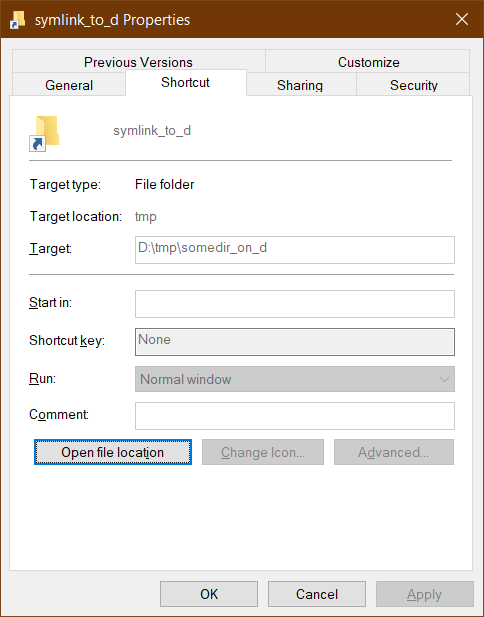
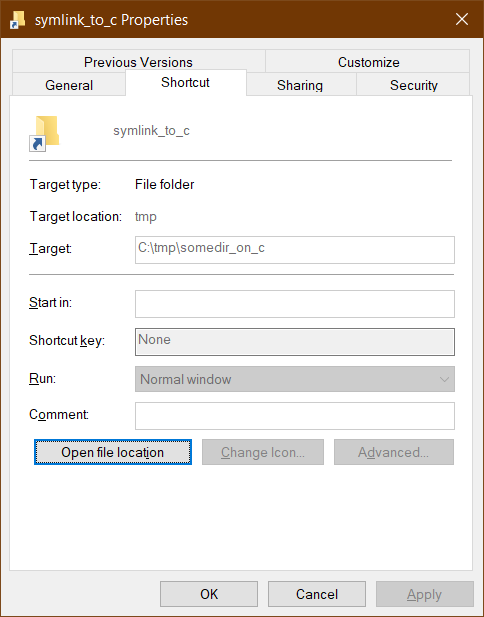


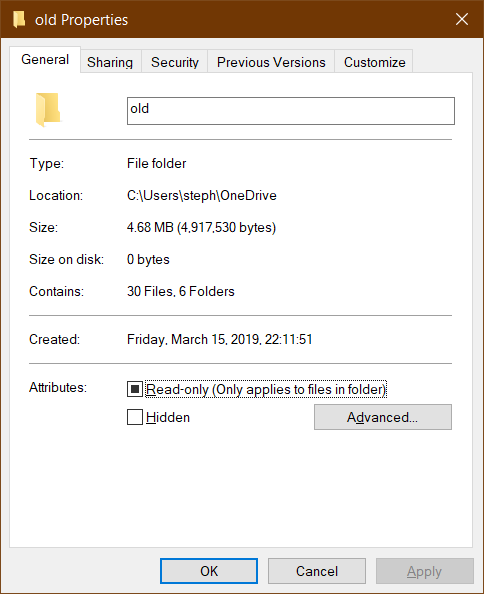

At this point I have the following two interrogations:
- Where is the change of behavior of
Get-ChildItem -Recursebetween Windows PowerShell and PowerShell Core documented? - Would there be a way to have PowerShell Core "transparently" work with the OneDrive sync folder like Windows PowerShell does? This would require determining whether a directory reparse point is a directory symlink or a OneDrive directory placeholder, and IMVHO only the devs who own the OneDrive "Files on Demand" sync architecture know how to do that...
sba923
on 29 Apr 2019
- I think we had not documented issue for the old PR.
- I guess Windows has special attributes for OneDrive and the attributes was enhanced in Windows 10 that's why I'm ping @SteveL-MSFT to ask Windows file system team for help. We have some issue for OnDrive.
iSazonov
on 29 Apr 2019
I'll see if I can locate OneDrive owners to determine how to detect it is OneDrive.
As for the change in behavior, it's already documented: https://docs.microsoft.com/en-us/powershell/module/microsoft.powershell.management/get-childitem?view=powershell-6 (search for -FollowSymLink). If you think additional text is needed, please open an issue in the PowerShellDocs repo.
 SteveL-MSFT
on 30 Apr 2019
SteveL-MSFT
on 30 Apr 2019
@SteveL-MSFT: what's especially important to be able to understand is how to tell that a folder that's just been created by the OneDrive client's initial setup (placeholder creation) and that has the exact same attributes (0x00000410) as a true directory symlink is not a directory symlink! Thanks for the links to the documentation I'll check it out and suggest improvements if needed via the PowerShellDocs repo.
Before I started working on #8315 and #8745 I did quite some reverse engineering of the new attributes / new usage of existing attributes, see this spreadsheet.
sba923
on 30 Apr 2019
Related issues
 rudolfvesely
·
3Comments
rudolfvesely
·
3Comments
 rkeithhill
·
3Comments
SteveL-MSFT
·
3Comments
rkeithhill
·
3Comments
SteveL-MSFT
·
3Comments
 garegin16
·
3Comments
garegin16
·
3Comments
 MaximoTrinidad
·
3Comments
MaximoTrinidad
·
3Comments