Powershell: SDK: Missing MMI DLL when publishing SCD targeting portable win RIDs.
I'm trying to publish a .NET Core v2.1.4 console app that uses the Microsoft.PowerShell.SDK to invoke PS Core commands. The Microsoft.Management.Infrastructure.dll is missing from the output directory after doing a publish targeting portable Windows RIDs (win-x64 or win-x86). Everything is fine when targeting Linux portable.
I tried including the MMI NuGet package explicitly, but that didn't help either.
I Binged around to try to figure out if portable Windows deployments simply don't work with MMI or PowerShell SDK, but I couldn't find anything.
Steps to reproduce
Using this demo project...
ConsoleTest.zip
Publish using...
dotnet publish -o .\publish -r win-x64
Run .\publish\ConsoleTest.exe and observe error.
Microsoft.Management.Infrastructure.dll is missing in the output directory.
Now publish using...
dotnet publish -o .\publish -r win10-x64
Run .\publish\ConsoleTest.exe and observe success.
Microsoft.Management.Infrastructure.dll is present in the output directory.
Expected behavior
A self-contained deployment targeting Windows portable should (I think?) have all its dependencies included. It appears to be missing Microsoft.Management.Infrastructure.dll.
Actual behavior
The below error is generated when trying to run an SCD targeting Windows.
Could not load file or assembly 'Microsoft.Management.Infrastructure, Version=1.0.0.0, Culture=neutral, PublicKeyToken=31bf3856ad364e35'. The system cannot find the file specified.

   at System.Reflection.RuntimeAssembly.GetExportedTypes(RuntimeAssembly assembly, ObjectHandleOnStack retTypes)
   at System.Reflection.RuntimeAssembly.GetExportedTypes()
   at System.Management.Automation.Runspaces.PSSnapInHelpers.GetAssemblyTypes(Assembly assembly, String name)
   at System.Management.Automation.Runspaces.PSSnapInHelpers.AnalyzeModuleAssemblyWithReflection(Assembly assembly, String name, PSSnapInInfo psSnapInInfo, PSModuleInfo moduleInfo, String helpFile, Dictionary`2& cmdlets, Dictionary`2& aliases, Dictionary`2& providers)
   at System.Management.Automation.Runspaces.PSSnapInHelpers.AnalyzePSSnapInAssembly(Assembly assembly, String name, PSSnapInInfo psSnapInInfo, PSModuleInfo moduleInfo, Dictionary`2& cmdlets, Dictionary`2& aliases, Dictionary`2& providers, String& helpFile)
   at System.Management.Automation.Runspaces.InitialSessionState.ImportPSSnapIn(PSSnapInInfo psSnapInInfo, PSSnapInException& warning)
   at System.Management.Automation.Runspaces.InitialSessionState.CreateDefault()
   at System.Management.Automation.Runspaces.RunspaceFactory.CreateRunspace(PSHost host)
   at System.Management.Automation.Runspaces.RunspaceFactory.CreateRunspace()
   at System.Management.Automation.PowerShell.Worker.CreateRunspaceIfNeededAndDoWork(Runspace rsToUse, Boolean isSync)
   at System.Management.Automation.PowerShell.CoreInvokeHelper[TInput,TOutput](PSDataCollection`1 input, PSDataCollection`1 output, PSInvocationSettings settings)
   at System.Management.Automation.PowerShell.CoreInvoke[TInput,TOutput](PSDataCollection`1 input, PSDataCollection`1 output, PSInvocationSettings settings)
   at System.Management.Automation.PowerShell.CoreInvoke[TOutput](IEnumerable input, PSDataCollection`1 output, PSInvocationSettings settings)
   at System.Management.Automation.PowerShell.Invoke(IEnumerable input, PSInvocationSettings settings)
   at System.Management.Automation.PowerShell.Invoke()
   at ConsoleTest.Program.Main(String[] args) in C:\Users\WhyYouLookingAtMyUserName\Desktop\ConsoleTest\Program.cs:line 14
Environment data
Name  : PSVersion
Value : 6.1.0

Name  : PSEdition
Value : Core

Name  : GitCommitId
Value : 6.1.0

Name  : OS
Value : Microsoft Windows 10.0.17134

Name  : Platform
Value : Win32NT

Name  : PSCompatibleVersions
Value : {1.0, 2.0, 3.0, 4.0...}

Name  : PSRemotingProtocolVersion
Value : 2.3

Name  : SerializationVersion
Value : 1.1.0.1

Name  : WSManStackVersion
Value : 3.0
 lucent-sea
All 18 comments
cc @adityapatwardhan
 SteveL-MSFT
on 28 Sep 2018
SteveL-MSFT
on 28 Sep 2018
@Jay-Rad If you see the MMI package, it has native assemblies that are specific to the Windows OS version. Namely, win10-x64, win10-x86, win7-x64, win7-x86, win8-x64, win8-x86, win81-x64, win81-x86. Since there are native dependencies which slightly differ per platform, it is not possible to have a portable win-* package for MMI.
 adityapatwardhan
on 28 Sep 2018
adityapatwardhan
on 28 Sep 2018
@adityapatwardhan Thank you for clearing this up for me. :) And thanks to everyone for all your time and hard work!
lucent-sea
on 28 Sep 2018
@SteveL-MSFT @adityapatwardhan I see that PowerShell Core is becoming more popular and as result there are more such questions. Developers need documentation how to use the SDK.
Related #2878, #2879, #2880
(Maybe WiKi?)
 iSazonov
on 1 Oct 2018
iSazonov
on 1 Oct 2018
@iSazonov that is a great point. Opened https://github.com/PowerShell/PowerShell-Docs/issues/2967
SteveL-MSFT
on 2 Oct 2018
@adityapatwardhan can you explain what the solution is?
 RaphiStein
on 31 May 2019
RaphiStein
on 31 May 2019
This issue explains that PowerShell core is not portable cross-platform. Is there a plan to make it portable? That is the basic expectation from the .net core.
I specifically need to publish a framework-independent application that can run PowerShell on windows server 2008 (as an alternative to upgrading the PowerShell version), but this limitation blocks me.
When I run the published application on the server, I get the error
Unhandled Exception: System.TypeInitializationException: The type initializer fo
r 'System.Management.Automation.Runspaces.RunspaceFactory' threw an exception. -
--> System.DllNotFoundException: Unable to load DLL 'api-ms-win-eventing-provide
r-l1-1-0.dll' or one of its dependencies: The specified module could not be foun
d. (Exception from HRESULT: 0x8007007E)
 ttutisani
on 12 Jul 2019
ttutisani
on 12 Jul 2019
@ttutisani If this is happening on Windows Server 2008, dotnet does not support it. Minimum supported version in Windows Server 2008 R2 SP1. Supported OS
Also, for PowerShell 7, the minimum supported OS by dotnet is Windows Server 2012 R2 SP1
adityapatwardhan
on 12 Jul 2019
The server has Microsoft Windows Server 2008 R2 with 6.1.7601 Service Pack 1 Build 7601. I assume that is what you meant and I still see the error. Maybe I need to indicate a specific publishing option?
Currently, I have <RuntimeIdentifier>win10-x64</RuntimeIdentifier> because I'm building it on a win10 machine and it threw an error when I tried to run it on my local dev machine - hence I specified this option.
Now it works fine locally but throws an error on the server.
ttutisani
on 12 Jul 2019
Can you please clarify this?
Also, for PowerShell 7, the minimum supported OS by dotnet is Windows Server 2012 R2 SP1
Do you mean that PowerShell 7 is a dependency for the .NET core app that uses PowerShell class (from System.Management.Automation namespace) to invoke scripts?
ttutisani
on 12 Jul 2019
I would recommend the runtimeidentifier as Win7-x64. This is what PowerShell uses.
adityapatwardhan
on 12 Jul 2019
The latest release 7.0.0-preview.1 is built on netcore 3.0. The minimum supported OS for netcore 3.0 is Windows Server 2012 R2 SP1, hence the same for PowerShell 7.
adityapatwardhan
on 12 Jul 2019
I receive an error when I try to publish with that option on my dev machine.
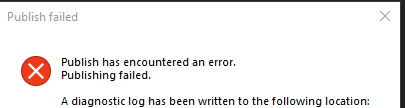
Just to clarify: my dev machine runs win 10, but my goal is to publish the app as framework-independent and to run it on win 2008 r2 sp1. Is there a way?
ttutisani
on 12 Jul 2019
To add to that, I have another app running on this same server just fine. .net core self-contained publish, targeting win-x64 runtime from publishing settings. However, this time the .net core app uses PowerShell class as described above and it throws the mentioned error during the run, as I explained before.
ttutisani
on 12 Jul 2019
You should be still able to use RuntimeIdentifier as Win7-x64 when building on Windows 10. Can you share a snippet of your csproj file?
adityapatwardhan
on 12 Jul 2019
Here it is:
<Project Sdk="Microsoft.NET.Sdk">

  <PropertyGroup>
    <OutputType>Exe</OutputType>
    <TargetFramework>netcoreapp2.2</TargetFramework>
  </PropertyGroup>

  <ItemGroup>
    <PackageReference Include="Microsoft.Management.Infrastructure" Version="1.0.0" />
    <PackageReference Include="Microsoft.PowerShell.Commands.Diagnostics" Version="6.2.1" />
    <PackageReference Include="Microsoft.PowerShell.SDK" Version="6.2.1" />
    <PackageReference Include="Microsoft.WSMan.Management" Version="6.2.1" />
  </ItemGroup>

</Project>
You know what, disregard my complaints. It started working. I just set the value back to Win-x64 and then again back to Win7-x64. I think the problem was that first I published with Win10-x64 and then immediately switched to the Win7-x64 setting.
Anyway, it works flawlessly as a self-contained deployment. Thanks for your help!!!
ttutisani
on 12 Jul 2019
Glad to hear it works!
adityapatwardhan
on 12 Jul 2019
Related issues
 abock
·
3Comments
abock
·
3Comments
 pcgeek86
·
3Comments
pcgeek86
·
3Comments
 mklement0
·
3Comments
mklement0
·
3Comments
 alx9r
·
3Comments
alx9r
·
3Comments
 garegin16
·
3Comments
garegin16
·
3Comments