Powershell: Directory for $PSHome when updating on Windows with MSI
On Windows, when we do an update install with an MSI, the directory of $PSHome gets changed to reflect the version number. For example, C:\Program Files\PowerShell\6.0.0-beta.8 gets changed to C:\Program Files\PowerShell\6.0.0-beta.9.
Unfortunately, this breaks any user-created shortcuts that are hard-coded to the exact path of PowerShell. Similarly, apps like VS Code get hardcoded to that path and will break after an update install.
AFAICT, there's a couple of paths forward here:
- It might not matter at all once we move to
pwshand add $PSHome to the PATH. Anyone who wants stability should build their shortcuts, VS Code preferences, and shell/batch scripts againstpwshand not the full path. - We change behavior to only use the major and minor versions (e.g.
6.0and6.1and not the revision number). That way, when we update to 6.1 we can keep them side-by-side. However, that might not be desirable if we maintain strict semantic versioning (i.e. don't make breaking changes between minor versions). - We change behavior to only use the major version (e.g.
6). This is similar to the Office or VS Code approach (e.g.Office12vs.Office13). This may be overoptimizing if we never do a PowerShell 7, or it might be the right solution if we maintain strict semantic versioning.
My main goal here is not to over-optimize for an uncertain future. That's why I'm leaning towards 1, but I want to get people's thoughts.
 joeyaiello
All 10 comments
I have managed versions and SxS with other languages ins linux by having a symlinks. Something like /path/to/project.latest which is a symlink to /path/to/project.1.0.2.3/ when a new version is added, the symlink just gets updated to the new path. Perhaps something similar could be done with junctions?
C:\Program Files\PowerShell\Latest -> C:\Program Files\PowerShell\6.0.0-beta.9
 markekraus
on 25 Oct 2017
markekraus
on 25 Oct 2017
Furthermore, any shortcuts that get created by pinning the PowerShell launched from the installer, will have the "Start in" directory set to the install location rather than %USERPROFILE%. So when I start these shortcuts they start up in the install dir rather than my home dir. This might be as simple as making the installer "Launch PowerShell" command set the working directory to the current user's home dir.
 rkeithhill
on 26 Oct 2017
rkeithhill
on 26 Oct 2017
@joeyaiello PR 5101 already added $PSHome to the path
@rkeithhill It might sound easy but making any change in WiX is a pain. I tried it once but I can give it another go. I am glad that at least people find the Launch PowerShell checkbox useful that I added to the installer. :-)
 bergmeister
on 4 Jan 2018
bergmeister
on 4 Jan 2018
I think it's worth mentioning #5919 here for this discussion.
Windows only but relevant.
 lwsrbrts
on 27 Jan 2018
lwsrbrts
on 27 Jan 2018
My preference is to go with single major version for the folder name. If the user cares about the actual version, it's in the product. If the user wants side-by-side, they should use the .zip anyways.
 SteveL-MSFT
on 2 Feb 2018
SteveL-MSFT
on 2 Feb 2018
Just to add from duplicate issue #6088.
Do we need to keep the version details on the shortcut (and shortcut folder) that is placed into the Start Menu? Why can't it just be 'PowerShell' rather than 'PowerShell-6.0.1' as it is now?
 SwarfegaGit
on 2 Feb 2018
SwarfegaGit
on 2 Feb 2018
@SwarfegaGit The start menu folder already got renamed to PowerShell in PR 5891
bergmeister
on 2 Feb 2018
@bergmeister that's good news! I see the version number still remains on the shortcut though. I see there's mention of this being for side-by-side installations but as @SteveL-MSFT mentioned above ideally these people should be using the .zip version. I would sooner see the shortcut just be called 'PowerShell' like every other application (aside from Office xxxx) on my Start Menu.
SwarfegaGit
on 2 Feb 2018
@rkeithhill Recently a -WorkingDirectory option was added to pwsh in 6.1.0-preview.2, therefore you can now change the shortcut to start in your user directory by appending -WorkingDirectory %USERPROFILE% (right-click -> Properties)
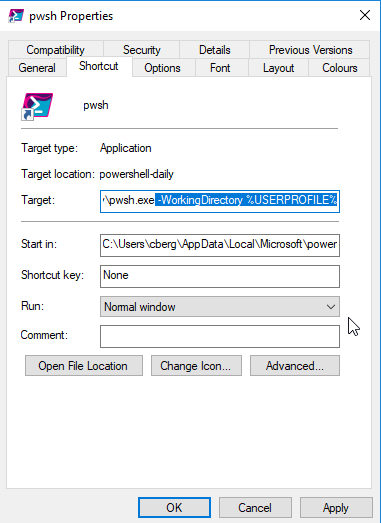
Personally, Normally, I hate 'Add shortcut' checkboxes in installers but this special case would warrant having 2 checkbox (unchecked by default) to add such shortcuts to the Taskbar/Desktop. WDYT?
bergmeister
on 12 May 2018
This should be fixed as we now install to $env:ProgramFiles\PowerShell\6 and $env:ProgramFiles\PowerShell\6-preview
SteveL-MSFT
on 20 Jul 2018
Related issues
 JohnLBevan
·
3Comments
JohnLBevan
·
3Comments
 mklement0
·
3Comments
mklement0
·
3Comments
 pcgeek86
·
3Comments
pcgeek86
·
3Comments
 ajensenwaud
·
3Comments
ajensenwaud
·
3Comments
 garegin16
·
3Comments
garegin16
·
3Comments
Most helpful comment
@joeyaiello PR 5101 already added
$PSHometo the path@rkeithhill It might sound easy but making any change in WiX is a pain. I tried it once but I can give it another go. I am glad that at least people find the
Launch PowerShellcheckbox useful that I added to the installer. :-)