Pengwin: Open With WLinux in Context Menu leads to error
Describe the bug
A clear and concise description of what the bug is.
When I right click on a folder in Explorer and select "Open With WLinux," I am presented with an "Application Not Found" error.
To Reproduce
Steps to reproduce the behavior:
- Go to Explorer
- Right click and select Open With WLinux
- See error
Expected behavior
A clear and concise description of what you expected to happen.
I expect the folder to open as the current directory in WLinux
Screenshots
If applicable, add screenshots to help explain your problem.

Additional context
Add any other context about the problem here.
Basic Troubleshooting Checklist
[X] I have confirmed WSL is enabled: https://docs.microsoft.com/en-us/windows/wsl/troubleshooting#confirm-wsl-is-enabled.
[X] I have searched Google for the error message.
[X] I have searched the official Microsoft WSL issues page: https://github.com/Microsoft/WSL/issues.
[X] I have searched the WLinux issues page: https://github.com/WhitewaterFoundry/WLinux/issues.
[ ] I have reset WLinux: Settings->Apps->Apps & features->WLinux->Advanced Options->Reset.
[ ] I have disabled and re-enabled WSL in Windows Features.
[ ] I have run Windows 10 updates and restarted.
What other troubleshooting have you attempted?
Insert here:
WLinux Version
Find: Settings->Apps->Apps & features->WLinux->Advanced Options->Version.
Insert here:
Windows Build
Run 'systeminfo | findstr /C:"OS"' in Command Prompt and insert here:
OS Name: Microsoft Windows 10 Home
OS Version: 10.0.16299 N/A Build 16299
OS Manufacturer: Microsoft Corporation
OS Configuration: Standalone Workstation
OS Build Type: Multiprocessor Free
BIOS Version: HUAWEI 1.12, 7/16/2018
For help on retrieving: https://docs.microsoft.com/en-us/windows/wsl/troubleshooting#check-your-build-number
 bushidocodes
All 7 comments
Can you complete the following steps and paste the output here?
- open Powershell with Administrator;
- run
(Get-ItemProperty Registry::HKEY_CLASSES_ROOT\Directory\Background\shell\WLinux\command).'(default)'
 patrick330602
on 18 Nov 2018
patrick330602
on 18 Nov 2018
I have the same issue, here is the output:
wlinux.exe run "cd "$(wslupath "%V")" && $(getent passwd $LOGNAME | cut -d: -f7)"
 hidenmind
on 19 Nov 2018
hidenmind
on 19 Nov 2018
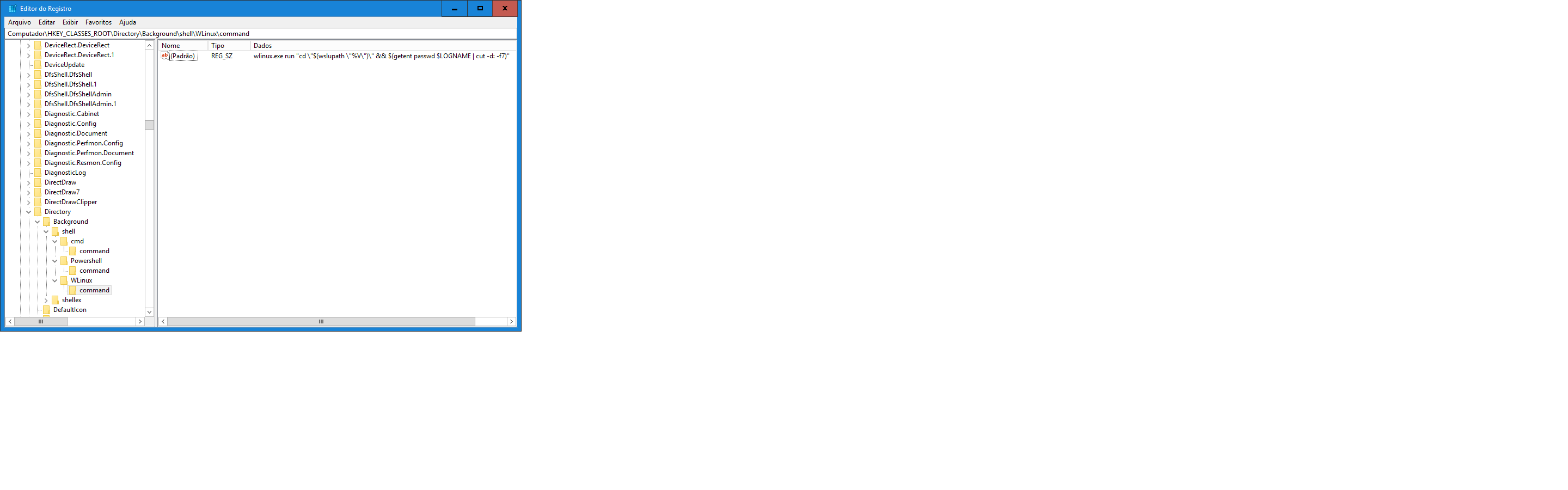
@hidenmind if this happens, open regedit from search or ctrl-R and navigate to HKEY_CLASSES_ROOT\Directory\Background\shell\WLinux\command, and replace the default value to wlinux.exe run "cd \"$(wslupath \"%V\")\" && $(getent passwd $LOGNAME | cut -d: -f7)"
patrick330602
on 19 Nov 2018
@patrick330602 Thanks for replying. This is exactly the value that is already in the key, and the feature continues not working
hidenmind
on 19 Nov 2018
We have a fix inbound #247.
 sirredbeard
on 3 Dec 2018
sirredbeard
on 3 Dec 2018
wlinux.exe run "cd "$(wslupath "%V")" && $(getent passwd $LOGNAME | cut -d: -f7)"
Thanks,it works
 terwer
on 9 Jan 2019
terwer
on 9 Jan 2019
Thank you, @patrick330602.
sirredbeard
on 9 Jan 2019
Related issues
 Photonico
·
5Comments
sirredbeard
·
3Comments
Photonico
·
5Comments
sirredbeard
·
3Comments
 pnelsonsr
·
5Comments
pnelsonsr
·
5Comments
 WSLUser
·
4Comments
WSLUser
·
4Comments
 ket000
·
5Comments
ket000
·
5Comments