
They're supposed to get removed when the download completes, but they're remaining in a "downloading" state, although the beatmaps have been imported.
 smoogipoo
All 11 comments
Been this way for ages, not even sure it can be called a regression. Also I don't mind the behaviour; it's really jarring to have them disappear completely. Could probably do with a different colour for the bar once completed, though.
 peppy
on 27 Jun 2018
peppy
on 27 Jun 2018
Shouldn't there be a filter option to show/hide maps that have already been downloaded?
 naoey
on 27 Jun 2018
naoey
on 27 Jun 2018
This broke within the last 3 weeks. I'm calling this a regression based on just that.
Furthermore, the cards don't hide even when you enter osu!direct with the beatmaps. They just sit there without a download button.
I would prefer that beatmaps do get hidden when you have them. It's much easier to tell which beatmaps you have when they're not there.
smoogipoo
on 27 Jun 2018
Having an option to hide them would be fine, but the default should not be hidden. We are aiming to have a similar experience to the website.
That said, it should be easily distinguishable that they are downloaded.
peppy
on 27 Jun 2018
It's been discussed to change the download button on the cards to "open" buttons in #2731
naoey
on 27 Jun 2018
@arflyte we need a way to show that beatmaps are potentially in an already downloaded state. There should be some kind of easy identifier (possibly just a different colour bar at the bottom?) and a button in place of the download button to go to the beatmap at song select.
peppy
on 28 Jun 2018
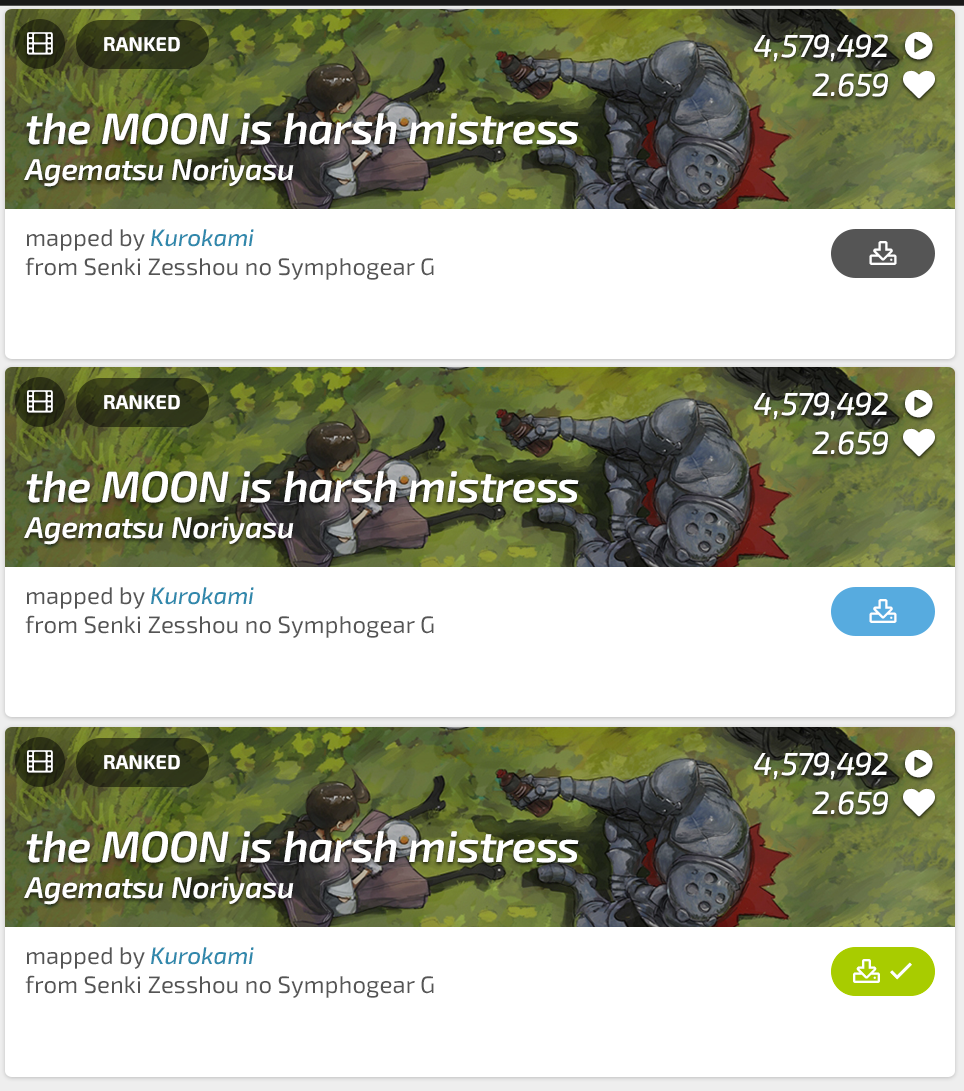
Download state indicators. Press grey button to download, changes to blue when download in progress (with slow fading-in-out icon). Downloaded maps green button with a checkmark; clicking the beatmap tile will take player to the song select screen.
 arflyte
on 28 Jun 2018
arflyte
on 28 Jun 2018
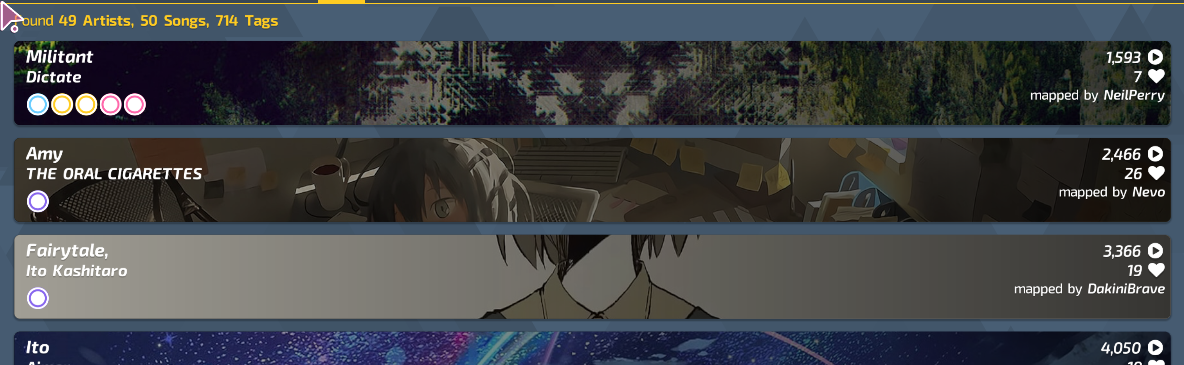
How should the button look in the list view (as in the image below) of the direct overlay? Replacing the current button with this would make a big green/blue/grey box that looks odd.
naoey
on 3 Jul 2018
For the time being add it somewhere I guess.
peppy
on 3 Jul 2018
Have better screenshots now. Drop in replacement to the existing button would look like this:


naoey
on 3 Jul 2018
I think this is fine for now.
peppy
on 3 Jul 2018
Related issues
 LanTenDragon
·
3Comments
LanTenDragon
·
3Comments
 Gonzalo-Bruna
·
3Comments
Gonzalo-Bruna
·
3Comments
 smileyhead
·
3Comments
smileyhead
·
3Comments
 stageosu
·
3Comments
stageosu
·
3Comments
 DenshaOtk
·
3Comments
DenshaOtk
·
3Comments
Most helpful comment
Download state indicators. Press grey button to download, changes to blue when download in progress (with slow fading-in-out icon). Downloaded maps green button with a checkmark; clicking the beatmap tile will take player to the song select screen.