Openshot-qt: Pictures in video will not stay in position
Describe the bug
As stated, pictures whose position and size are modified do not stay in the edited position or size after export. It returns to default position.
System Details (please complete the following information):
- Operating System / Windows 10
- OpenShot Version / Latest version as of today
To Reproduce
Steps to reproduce the behavior:
- Alter picture position, size, and add a transition.
- Export video.
- You'll find that in the exported video, the pictures are different size and/or in different positions, though they look correct in the preview in the .osp file.
Expected behavior
I want my pictures displayed in the desired size, position, and transition
 mdcervania
All 22 comments
@mdcervania - This works okay for me. Anyone else wanna test this? @N3WWN @peanutbutterandcrackers @ferdnyc
 DylanC
on 27 Jul 2018
DylanC
on 27 Jul 2018
This may be an export-frame-rate-mismatch issue. @mdcervania , can you confirm that you're setting the Project Profile to match the format you're exporting, _before_ setting up the Timeline, and then exporting to an output file that uses the same frame rate as the Project Profile? Currently export to different frame rate than the selected project frame rate (set by Project Profile selection) is not supported (not working properly).
 ferdnyc
on 27 Jul 2018
ferdnyc
on 27 Jul 2018
@ferdnyc - This profile switching seems to cause about 75% of the issues on here. :laughing:
DylanC
on 27 Jul 2018
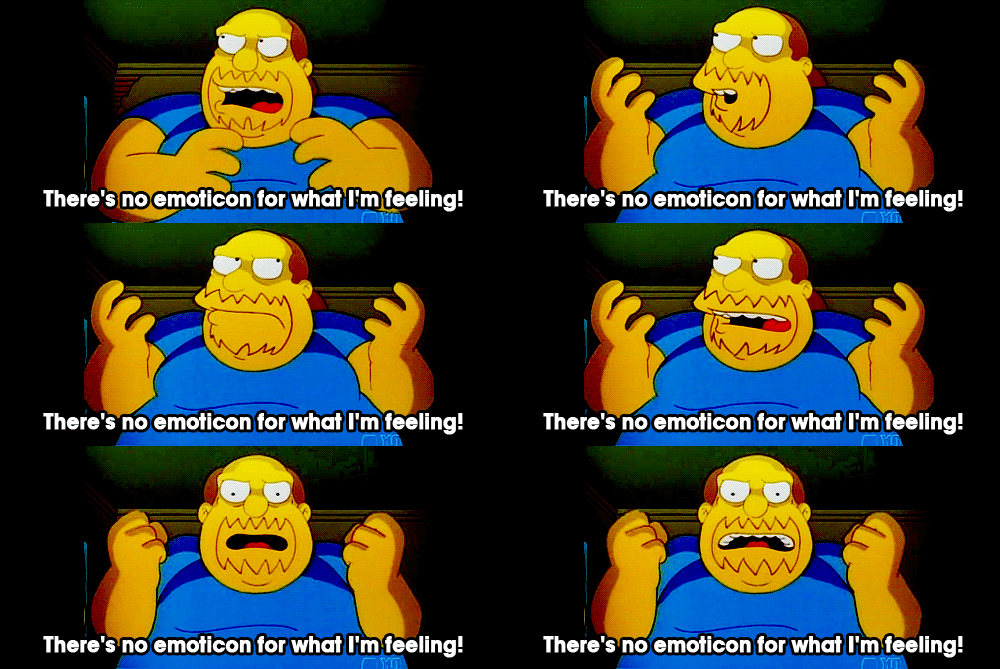
(There actually is... just not in Github's limited reactions list, I'm noticing.)
ferdnyc
on 27 Jul 2018
The project I was initially working on I exported 5 different times, changing the Profile Setting only on the 4th and 5th try because of the trouble I was having, and in those cases, the exported video flickered green. I’ll test it again, I guess. 🙄
mdcervania
on 27 Jul 2018
I exported 5 different times, changing the Profile Setting only on the 4th and 5th try
Sorry about that. It's definitely frustrating.
Also, to be clear: changing the profile before EXPORT won't work: It has to be set before even adding the clips to the timeline (or, at least, before setting any keyframes) or the project won't export properly. (Actually, if you change project profile after you've already created the timeline events, you'll likely find that it no longer even previews properly.)
The only thing that matters is the frame rate, though. You can change file format or quality as much as you like, as long as the frame rate stays the same throughout the entire process.
ferdnyc
on 27 Jul 2018
So far it looks like picture position and transition and size are working.
But the one photo that I place at the beginning where I change the fit to "none", is where I am experiencing problems.The size is correct. Transition is correct. Center gravity edit works as well. The position is the only thing that is wrong.
On Friday, July 27, 2018, 1:41:33 PM PDT, Frank Dana notifications@github.com wrote:
I exported 5 different times, changing the Profile Setting only on the 4th and 5th try
Sorry about that. It's definitely frustrating.
Also, to be clear: changing the profile before EXPORT won't work: It has to be set before even adding the clips to the timeline (or, at least, before setting any keyframes) or the project won't export properly. (Actually, if you change project profile after you've already created the timeline events, you'll likely find that it no longer even previews properly.)
The only thing that matters is the frame rate, though. You can change file format or quality as much as you like, as long as the frame rate stays the same throughout the entire process.
—
You are receiving this because you were mentioned.
Reply to this email directly, view it on GitHub, or mute the thread.
mdcervania
on 31 Jul 2018
I know this is an old thread, but I just downloaded OpenShot a couple weeks ago and this is still persistent. I am running version 2.4.3.
Basically, I import all of the images I want on the video, set the scale to "none", use the regular transition feature to move things around, but the export can never be precise to where I set the imported image. I have attached a screenshot to show exactly what this looks like:
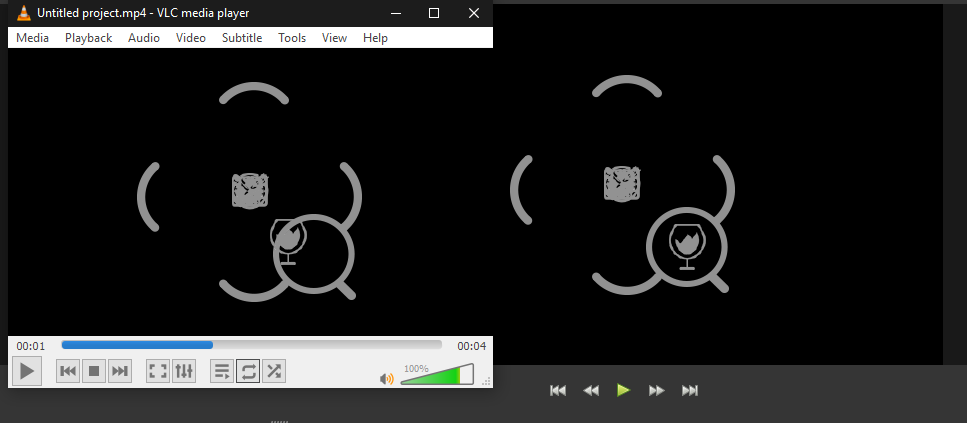
As you can see, I have only positioned the one icon. The ones that are in their default position after setting scale to none are still in their expected locations.
I have to say, this app would be 100% perfect for me if this issue was fixed. Not being able to export in a pixel-perfect way is indeed frustrating. Especially as the app is so darn easy to use!
 RyanClarkDesign
on 26 Mar 2019
RyanClarkDesign
on 26 Mar 2019
@RyanClarkDesign I've found scaling other than Best Fit to be problematic. I leave all of my media set to Best Fit and then adjust how it is displayed using Scale X/Y, Location X/Y, etc.
One trick that I use quite a bit is to use software like GIMP (or sometimes ImageMagick's convert command line utility) to alter the source files so that OpenShot doesn't have to change them at all and I know exactly what they'll look like.
For instance, I often need to use still images of various odd sizes. I'll open those images up in GIMP and crop the image to 1280x720 or 1920x1080 so it will nicely fill the final output window.
If the image has a transparent background and I don't want it to fill the screen, I'll sometimes just expand the image "canvas" to 1280x720 (or whatever my project profile is).
 N3WWN
on 26 Mar 2019
N3WWN
on 26 Mar 2019
@N3WMN So you are saying that a PNG of like 50x50px should actually be whatever the dimensions of the final output are? Like from your example above the non-clear pixels would be 1280x720 even though the bit that is getting moved around is only 50x50. I will give this a shot! Thank you :)
RyanClarkDesign
on 26 Mar 2019
@N3WWN Hmmm. Still not working right. I re-imported all of the actors with the pixel dimensions of the video output, left them at bestfit, transformed their position, still off after output.
RyanClarkDesign
on 26 Mar 2019
@RyanClarkDesign Is it possible for you to attach a really short .osp file with only one or two of your icons so we can see exactly what is going on and try it on our own systems?
N3WWN
on 26 Mar 2019
@N3WWN That is a great idea! Please see attached :) Because the file type for uploading here is not supported, I am going to rename it to a .gif. You will have to change it back to .osp :)

RyanClarkDesign
on 27 Mar 2019
@RyanClarkDesign Unfortunately, the filenames were all clobbered by github. Any chance of uploading a zip/tgz/etc of the project so the names are maintained?
N3WWN
on 27 Mar 2019
@N3WWN Here it is :)
overview.zip
RyanClarkDesign
on 28 Mar 2019
Thanks @RyanClarkDesign !
I had to rename your .ops file to .osp for OpenShot to recognize it, and sportsbar.png is missing, but otherwise I was able to open your project and export it.
The preview and the final exported video look very much the same to me, so perhaps I'm missing something or perhaps the issue doesn't exist in 2.4.4 (the version I'm running).
I do notice that the "centering" of the icons in the frame varies based on the size of the preview window, though. Perhaps that's what you're referring to?
Relatively large preview window (reflects the actual, final exported video:
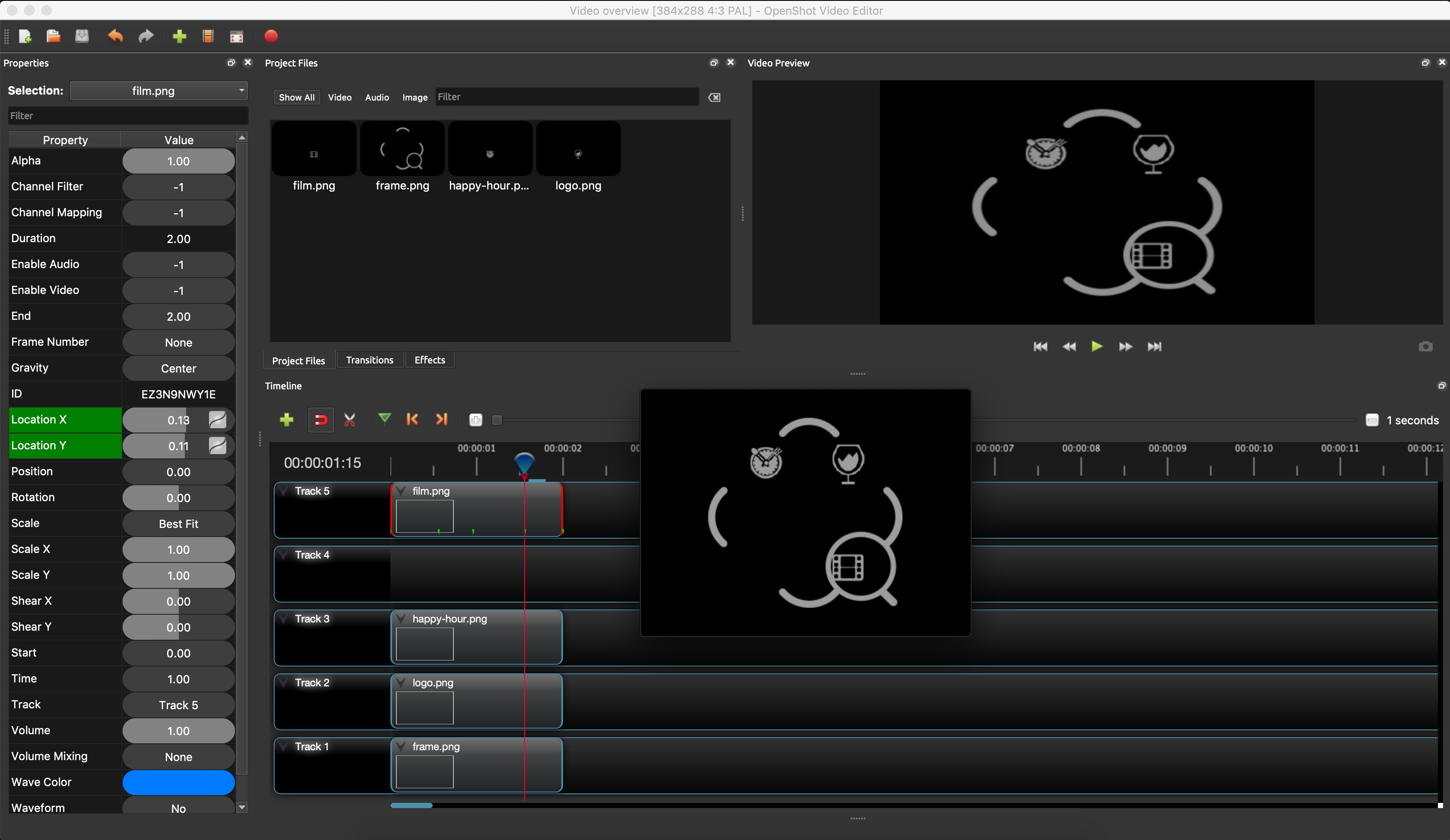
Relatively small preview window (icons are centered, but final export video is still as above):

The preview should not change anything but size when it is resized. Everything should be relative to the exported video.
I think we've uncovered another preview window bug @DylanC
@peanutbutterandcrackers , you've done animations like this in the past, I believe... how did you do it?
N3WWN
on 28 Mar 2019
@N3WWN YES! I noticed that when I resized the preview area(the one with the green play button below) it changed the placement of the icons. I actually played with this a bit to see if I could get the output to be right. Never could.
Sorry that the files were janky. And thank you for your help.
You know... This app really has some potential. There are a few animation apps out there and mostly they are hard to use. For a UI / UX developer, OpenShot could have some real usability. So far, I have used it to trim video and animate. If this app remains nicely trim (unbloated) and sticks to these more "advanced" basics, I can see using this app as a regular part of my workflow. AND and a creative person, I have already started to use it for learning/experimental pieces. Super fun! This little bug is a doozy though. It is IMPERATIVE that exports be pixel perfect.
RyanClarkDesign
on 28 Mar 2019
Interesting.
You can even see it happen in real time — if you start with a small preview area and grow it real big, you'll see the preview resize uniformly (while Qt is doing the scaling), then the current-frame preview will be redrawn by OpenShot and it'll "snap" into the distorted version.
Some observations:
- This has gotta be related to the whole "preview aspect is always 16:9" thing, since it's definitely an aspect-ratio issue. If you switch the project profile into one with a 16:9 aspect, the whole issue goes away completely and preview-resizing becomes flawless.
- Oddly enough, I think the _distortion_ is actually caused by OpenShot having to enlarge the preview so it's larger than the rendered output would be.
- It can be hard to tell because most of the non-16:9 aspect profiles have such small dimensions, so they're basically always being enlarged.
- So, with e.g. the "QCIF NTSC" (or PAL) profile (176x144 pixels), the distortion is pronounced at nearly any size.
- But if I switch to a profile like "HDV 1440x1080p", then I have to float the preview and make it > 2/3 of my entire 1920x1200 screen area before the distortion shows up.
- The aspect ratio involvement is made even more obvious when you take the previous observation into account. While profies at 4:3 and other aspects distort differently depending on their screen dimensions (with smaller ones being quicker to show distortion), even a tiny 16:9 profile like "QVGA Widescreen" (426x240 px @ 16:9) is undistorted at any preview size.
ferdnyc
on 9 Apr 2019
Further:
- If I do this for all four available elements (ignoring the missing icon):
- Set the scaling mode to "Stretch"
- Set ScaleX to 0.76
It'll correct for the distortion, at any resolution.
- In fact, the above holds for any _aspect ratio_ (at least in the preview, I haven't exported any of these) — Scale:Stretch, ScaleX:0.76 remains undistorted in 16:9 profile previews, same as it becomes in the other aspects.
That last bit's especially weird, because Scale:Stretch should distort the output based on the target aspect ratio.
ferdnyc
on 9 Apr 2019
I am no longer able to replicate this issue with OpenShot 2.5.0 and the files contained in the overview.zip archive.
@RyanClarkDesign - Could you try to replicate with 2.5.0 and confirm that this issue has been addressed and can be closed?
N3WWN
on 27 Feb 2020
Hello,
I will have to get to this here in a few. I have to replace my PC. However, I love this app, so I will be re-installing it to edit. Thank you!
R
On Feb 27, 2020, at 12:52 PM, Richard Alloway notifications@github.com wrote:
I am no longer able to replicate this issue with OpenShot 2.5.0 and the files contained in the overview.zip archive.
@RyanClarkDesign https://github.com/RyanClarkDesign - Could you try to replicate with 2.5.0 and confirm that this issue has been addressed and can be closed?
—
You are receiving this because you were mentioned.
Reply to this email directly, view it on GitHub https://github.com/OpenShot/openshot-qt/issues/1893?email_source=notifications&email_token=AGKTVOP3TP7RPRPJOLMMPCLRFARYZA5CNFSM4FLF33A2YY3PNVWWK3TUL52HS4DFVREXG43VMVBW63LNMVXHJKTDN5WW2ZLOORPWSZGOENF5AWY#issuecomment-592171099, or unsubscribe https://github.com/notifications/unsubscribe-auth/AGKTVOOXCTNRDU2WVUDJJ73RFARYZANCNFSM4FLF33AQ.
RyanClarkDesign
on 29 Feb 2020
Thank you so much for submitting an issue to help improve OpenShot Video Editor. We are sorry about this, but this particular issue has gone unnoticed for quite some time. To help keep the OpenShot GitHub Issue Tracker organized and focused, we must ensure that every issue is correctly labelled and triaged, to get the proper attention.
This issue will be closed, as it meets the following criteria: - No activity in the past 180 days - No one is assigned to this issue
We'd like to ask you to help us out and determine whether this issue should be reopened. - If this issue is reporting a bug, please can you attempt to reproduce on the latest daily build to help us to understand whether the bug still needs our attention. - If this issue is proposing a new feature, please can you verify whether the feature proposal is still relevant.
Thanks again for your help!
![stale[bot] picture](https://avatars3.githubusercontent.com/in/1724?v=4&s=40) stale[bot]
on 26 Oct 2020
stale[bot]
on 26 Oct 2020
Related issues
 malinga91
·
3Comments
malinga91
·
3Comments
 carlosnewmusic
·
3Comments
carlosnewmusic
·
3Comments
 adswan
·
3Comments
adswan
·
3Comments
 ghost
·
3Comments
ghost
·
3Comments
 Geoff0627
·
3Comments
Geoff0627
·
3Comments