Office-js-docs-pr: Office 2013 not showing Office Add-ins
Hello Microsoft,
Thank you always for your support and quick responses.
Your document shows that Office/Outlook 2013 supports Mailbox 1.4. Mailbox 1.1 at the very least without any updates. Is my understanding correct?
However, recently, two instances of our Outlook 2013 are not showing add-ins. It does not even show the "Get Add-ins" button. This is pretty much the same as this : https://answers.microsoft.com/en-us/msoffice/forum/msoffice_o365admin-mso_security-mso_o365b/get-add-ins-button-is-missing-from-my-outlook-365/16569cdd-69a1-4601-bd00-b35a1912ee96?page=1
The account used in the Outlook 2013 installation has multiple add-ins installed. It has message header analyzer and other well-known addins as well. And accessing the same account via OWA, will show the add-ins correctly.
Here is a screenshot of the Office 2013 we are using : https://i.stack.imgur.com/3b6CY.png. I think we are using a volume license so I don't have the "Connected Experience" button either.
I sincerely hope you can help us with this.
Thank you very much for your help.
Document Details
⚠ Do not edit this section. It is required for docs.microsoft.com ➟ GitHub issue linking.
- ID: f8e26a32-7523-2211-bde3-938cf94a76ec
- Version Independent ID: 80ad76d1-8a12-348f-dd6a-2f9392ed1f95
- Content: Outlook JavaScript API requirement sets - Office Add-ins
- Content Source: docs/reference/requirement-sets/outlook-api-requirement-sets.md
- Product: outlook
- Technology: add-ins
- GitHub Login: @o365devx
- Microsoft Alias: o365devx
 glr0221
All 9 comments
Hi @glr0221,
Thank you for the questions. Let me tag @ElizabethSamuel-MSFT to answer the version support question and @exextoc to address the missing Get Add-ins experience (and possibly answer that linked answers.microsoft question.
 AlexJerabek
on 4 Mar 2021
AlexJerabek
on 4 Mar 2021
Thank you @AlexJerabek. Your support and the dev teams are really awesome. I know you have a lot on your plates but you always take time to read and try your best effort to resolve an issue. Thank you again.
glr0221
on 4 Mar 2021
Outlook 2013 Only supports App Commands (Add-in's whose buttons are in the Ribbons. If both Outlook.exe, Mso.dll and Osf.dll have been updated to Version 15.0.4805.XXXX or later) From your screenshot it looks like you are updated...but you have to check OSF.dll manually. Automatic updates should take care of this, but it would be good to verify. (note that if these aren't update, then Outlook does not support 1.3, 1.4, and will only show add-ins that the API set supports (likely 1.2 or lower)
What Exchange Server / Account are you connecting to? Is it an On-Prem Exchange server or Office Online Exchange Account?
I assume the add-ins that aren't showing up, don't have a min requirement set of 1.5? (It sounds like they don't, but I just wanted to sanity check)
Does this work in later versions of Outlook against the same account? (Outlook 2016, 2019, 365/Click To Run versions)?
Your symptoms seem to indicate that Outlook is having trouble connecting to Exchange and getting the manifests for the users. If you use fiddler, you should be able to see a getappmanifests EWS call when Outlook boots. If there are errors there, then that would be a problem.
If you can't use fiddler, you can also check:
C:\Users[USER NAME]\appdata\local\microsoft\office\16.0\Wef*{24F868EF-FA2E-490A-95D3-4F58AA88BAC9}\GJ4bvhmR9ZchCWHC64g6yQ==*\Manifests
Replace [User Name] With the User's user name, also the GUIDs at the end can vary based on how many Exchange Profiles/Accounts you have. If there are too many you can delete the Wef folder and Outlook will recreate it/redownload manifests on boot. After boot, you should see this folder populate with the add-ins Manifests. If it is not then there is a problem connecting to exchange and you may need to use Fiddler to find out what is happening.
Note that Outlook 2013 is out of support, so if there is a product bug, upgrading to later versions is the recommend solution.
 exextoc
on 5 Mar 2021
exextoc
on 5 Mar 2021
Hello @exextoc,
First off, thank you again for taking time to investigate the issue. Please note, that for the add-ins, button button-based office addins and non-button office add-ins do not show in my Outlook 2013. It is as if it does not support Mailbox 1.1.
Outlook 2013 Only supports App Commands (Add-in's whose buttons are in the Ribbons. If both Outlook.exe, Mso.dll and Osf.dll have been updated to Version 15.0.4805.XXXX or later) From your screenshot it looks like you are updated...but you have to check OSF.dll manually. Automatic updates should take care of this, but it would be good to verify. (note that if these aren't update, then Outlook does not support 1.3, 1.4, and will only show add-ins that the API set supports (likely 1.2 or lower)
OSF.dll -> 15.0.5172.1000
MSO.dll -> Could not find this file
Outlook.exe -> 15.0.5285.1000
What Exchange Server / Account are you connecting to? Is it an On-Prem Exchange server or Office Online Exchange Account?
The account I used in my Outlook 2013 is an O365 account. Not an exchange server account.
I assume the add-ins that aren't showing up, don't have a min requirement set of 1.5? (It sounds like they don't, but I just wanted to sanity check)
My addin runs on environments that support Mailbox 1.1 to Mailbox 1.5 API sets. It is not showing up. In fact, ALL office add-ins are not showing.
Does this work in later versions of Outlook against the same account? (Outlook 2016, 2019, 365/Click To Run versions)?
Yes. The account when used in outlook 2016 or in OWA or in click-to-run-outlook correctly shows the Mailbox 1.5 and non-Mailbox-1.5 add-ins.
Your symptoms seem to indicate that Outlook is having trouble connecting to Exchange and getting the manifests for the users. If you use fiddler, you should be able to see a getappmanifests EWS call when Outlook boots. If there are errors there, then that would be a problem.
I tried monitoring network traffic via fiddler but i could not find the getappmanifests call. As I have said, the account I am using is an Office 365 account.
If you can't use fiddler, you can also check:
C:\Users[USER NAME]\appdata\local\microsoft\office\16.0\Wef**{24F868EF-FA2E-490A-95D3-4F58AA88BAC9}\GJ4bvhmR9ZchCWHC64g6yQ==**\Manifests
I don't have a Wef folder.
Note that Outlook 2013 is out of support, so if there is a product bug, upgrading to later versions is the recommend solution.
I understand. Would you think that this is issue (non-display/access to add-ins) is because Office 2013 has been 'cutoff' from office 365 access? Like in this article :
https://docs.microsoft.com/en-us/deployoffice/endofsupport/office-365-services-connectivity
Sorry for the lengthy answers and for taking time in the response.
Thank you again and looking forward to your guidance.
glr0221
on 5 Mar 2021
Can you check your Windows Event Log (Event Viewer -> Windows Log -> Application) And filter on Outlook and Event #63?
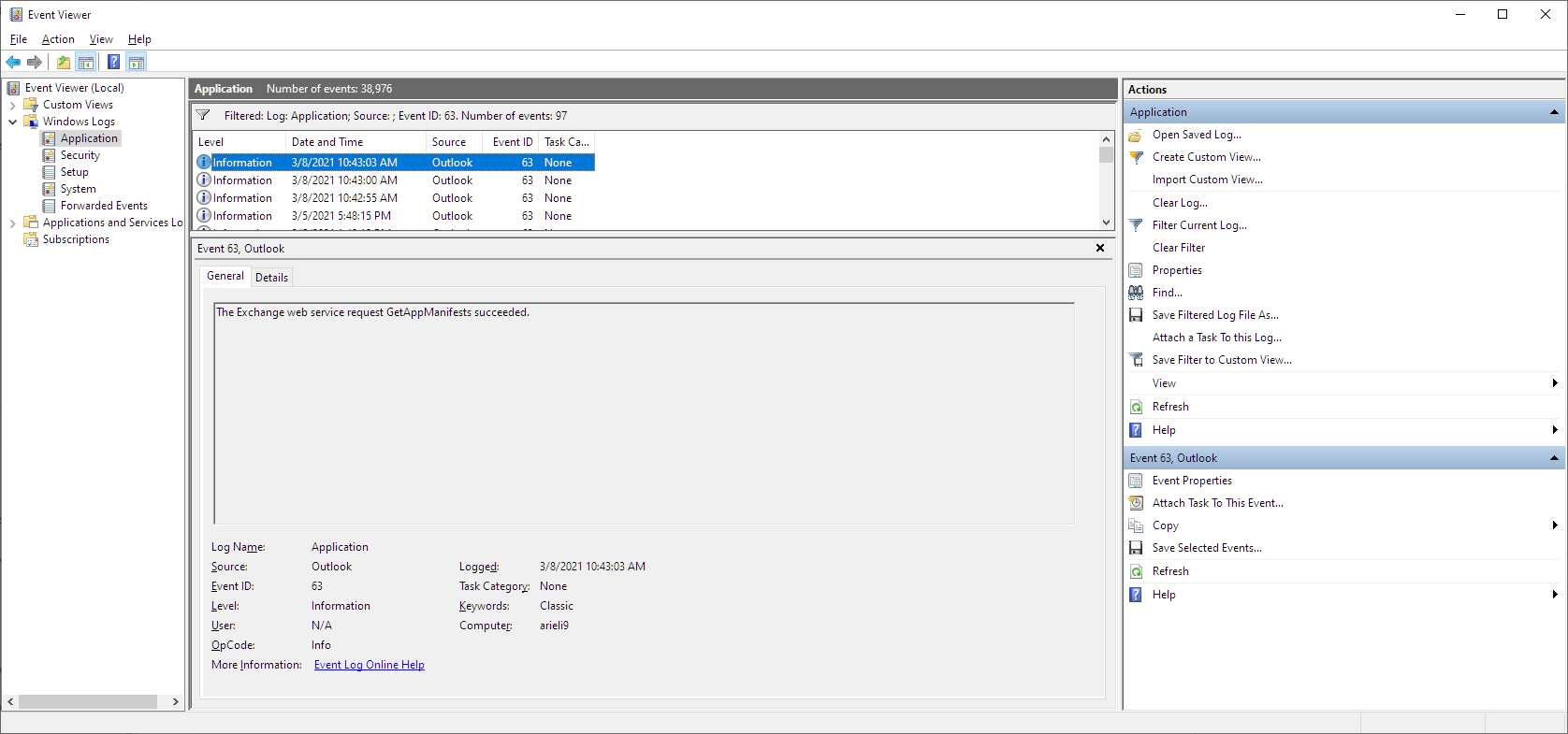
This should report that GetAppManifests are succeeding or not.
exextoc
on 8 Mar 2021
Hello @exextoc,
Sorry for the delayed response. Before I did the Event Viewer task, one of my colleagues used another 0365 account in the same outlook 2013 client. And lo and behold, the addins on that particular account loaded successfully. But when I access emails in the other account, the add-ins are still not showing. So I was thinking "is this something with how the other account was setup?" Both accounts are O365 though.
When I ran Event Viewer, the GetAppManifests call was successful. I just don't know though if this is because of Account A or Account B. Regardless, is it possible that one account shows addins and the other does not? When both accounts have add-ins installed and show up when accessed via OWA and Outlook clients (fo MAC and Windows).
I hope the data I gave you was not confusing. Thank you always for your support.
glr0221
on 12 Mar 2021
To clarify, did your colleague test on the same machine as the account with the issue?
Can you try recreating the profile of the account with the issue?
exextoc
on 12 Mar 2021
Hello @exextoc,
Great news. I think I was able to find out the root cause of the issue.
When you requested me to nuke the profile, I also nuked all the accounts. Basically I had Outlook but no email accounts added. Then what I did was :
- Added the account where all add-ins were shown, using POP/SMTP.
- Added the account where all add-ins were missing using, Control Panel-> Mail -> Add Account.
When i did the above, the account which previously showed the add-ins, don't show them anymore.
And the account which previously did not show the add-ins, now show them.
So in conclusion, it was because I added the account using POP/SMTP that resulted to the add-ins not being shown. Do we have any documentation in the MS docs that talk about this? If not I suggest we add a footnote or something to make sure people don't get confused either. @ElizabethSamuel-MSFT
That being said, do we close this ticket? Thank you to both of you and to @AlexJerabek as well.
Please stay as awesome as always.
glr0221
on 16 Mar 2021
Glad to hear your issue is resolved!
There is documentation about the client requirements for using Outlook add-ins here. Below is the relevant part:
The client must be connected to an Exchange server or Microsoft 365 using a direct connection. When configuring the client, the user must choose an Exchange, Office, or Outlook.com account type. If the client is configured to connect with POP3 or IMAP, add-ins will not load.
I am closing this issue now. Please re-open if you have any more questions.
exextoc
on 16 Mar 2021
Related issues
 smozgur
·
8Comments
smozgur
·
8Comments
 NT-D
·
3Comments
NT-D
·
3Comments
 redcirkle
·
3Comments
redcirkle
·
3Comments
 fowl2
·
5Comments
fowl2
·
5Comments
 beyphy
·
4Comments
beyphy
·
4Comments
Most helpful comment
Glad to hear your issue is resolved!
There is documentation about the client requirements for using Outlook add-ins here. Below is the relevant part:
I am closing this issue now. Please re-open if you have any more questions.