Office-docs-powershell: Teams cmdlets not recognized as the name of a cmdlet, function, script file...
Environment:
Windows 10
$PSVersionTable

Name                           Value
----                           -----
PSVersion                      5.1.18362.752
PSEdition                      Desktop
PSCompatibleVersions           {1.0, 2.0, 3.0, 4.0...}
BuildVersion                   10.0.18362.752
CLRVersion                     4.0.30319.42000
WSManStackVersion              3.0
PSRemotingProtocolVersion      2.3
SerializationVersion           1.1.0.1
Desired Behaviour
Run cmdlet's listed at:
https://docs.microsoft.com/en-us/powershell/module/teams
Actual Behaviour
Get-TeamChannelUser : The term 'Get-TeamChannelUser' is not recognized as the name of a cmdlet, function, script file, or operable program.
Check the spelling of the name, or if a path was included, verify that the path is correct and try again.
What I've Tried
Hello,
I am new to PowerShell and installed Teams module with:
Install-Module MicrosoftTeams
Then ran:
$credentials=Get-Credential
And:
Connect-MicrosoftTeams -Credential $credentials
I get two results (expected behaviour) when I run:
Get-Team
with the columns:
GroupId DisplayName Visibility Archived MailNickName Description
These cmdet's also return a value:
Get-TeamUser -GroupId ********
Get-TeamChannel -GroupId ********
Get-TeamUser
Get-CsUserPolicyPackage -Identity ********
However, when I try and run the other cmdlet's listed here, like:
Get-TeamChannelUser -GroupId ********
Get-TeamHelp
I get error's, like:
Get-TeamChannelUser : The term 'Get-TeamChannelUser' is not recognized as the name of a cmdlet, function, script file, or operable program.
Check the spelling of the name, or if a path was included, verify that the path is correct and try again.
Question 01
How can I make those cmdlet's that aren't working work?
Question 02
Also, in regards to the depreciated Get-TeamFunSettings, the docs state:
To retrieve a Team's fun settings, run Get-Team.
However, Get-Team -GroupId ******** only returns these columns:
GroupId DisplayName Visibility Archived MailNickName Description
The same, seemingly incorrect, statement is made for the depreciated Get-TeamGuestSettings.
How do I get more verbose results from Get-Team that would show all the information the docs says should be available from those cmdlets?
 oshihirii
All 12 comments
@officedocsbot assign @yogkumgit
 yogkumgit
on 13 Jul 2020
yogkumgit
on 13 Jul 2020
Answer 1:
Get-TeamChannelUser -GroupId ******** -DisplayName "CHANNELNAME" is part of the Teams preview module currently.
Get-TeamHelp Although referenced in the documentation does not seem to be part of either the GA module or the preview module.
Answer 2:
Get-Team -GroupId ****** | FL will give you the full details of the team like:

 JSHooper
on 13 Jul 2020
JSHooper
on 13 Jul 2020
Thank you.
Re: Answer 1
I installed public preview per the docs with:
Uninstall-Module MicrosoftTeams
Install-Module PowerShellGet -Force -AllowClobber
# restart powershell module
Install-Module MicrosoftTeams -AllowPrerelease
And I still get:
Get-TeamChannelUser : The term 'Get-TeamChannelUser' is not recognized as the name of a cmdlet, function, script file,
or operable program. Check the spelling of the name, or if a path was included, verify that the path is correct and
try again.
Re: Answer 2
I was able to get the same results you demonstrated.
Additional Question
The docs here:
https://docs.microsoft.com/en-gb/MicrosoftTeams/teams-powershell-install#install-the-skype-for-business-online-connector
state:
Skype for Business Online Connector is currently part of Teams PowerShell public preview. Once we've rolled this feature into the GA release of Teams PowerShell, Skype for Business Online Connector will no longer be available
Seeing as I have now installed the 'public preview' of the Teams PowerShell module, does that mean I can use all the Skype cmdlet's listed here:
https://docs.microsoft.com/en-us/powershell/module/skype
as well as the Teams cmdlets listed here:
https://docs.microsoft.com/en-us/powershell/module/teams
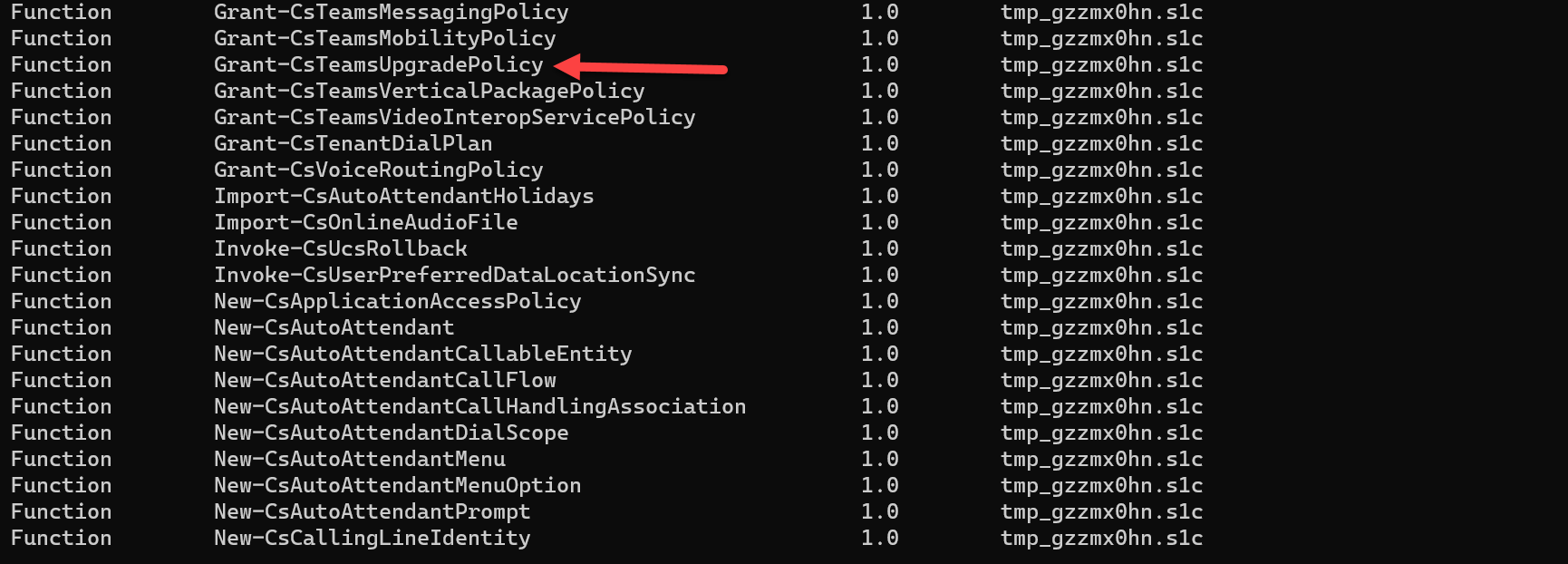
I was confused about this because I was looking for Grant-CsTeamsUpgradePolicy as it is mentioned in the upgrade docs here:
https://docs.microsoft.com/en-us/MicrosoftTeams/upgrade-to-teams-on-prem-overview#tools-for-managing-the-upgrade
and I couldn't see it on the Teams cmdlets page, but it is on the Skype cmdlets page.
Thank You.
oshihirii
on 14 Jul 2020
Apologies I should have been more specific in my last answer, The MicrosoftTeams Module needs to be installed from the Powershell Gallery Test here. This uses the beta version of Microsoft Graph as per the documentation here

Additional Question
I also tried installing the MicrosoftTeams module via the public preview route (after uninstalling MicrosoftTeams Module)
Install-Module MicrosoftTeams -AllowPrerelease
I had the same results as yourself, New-CsOnlineSession was unavailable. I then uninstalled and installed the PsTestGallery version and got these results:
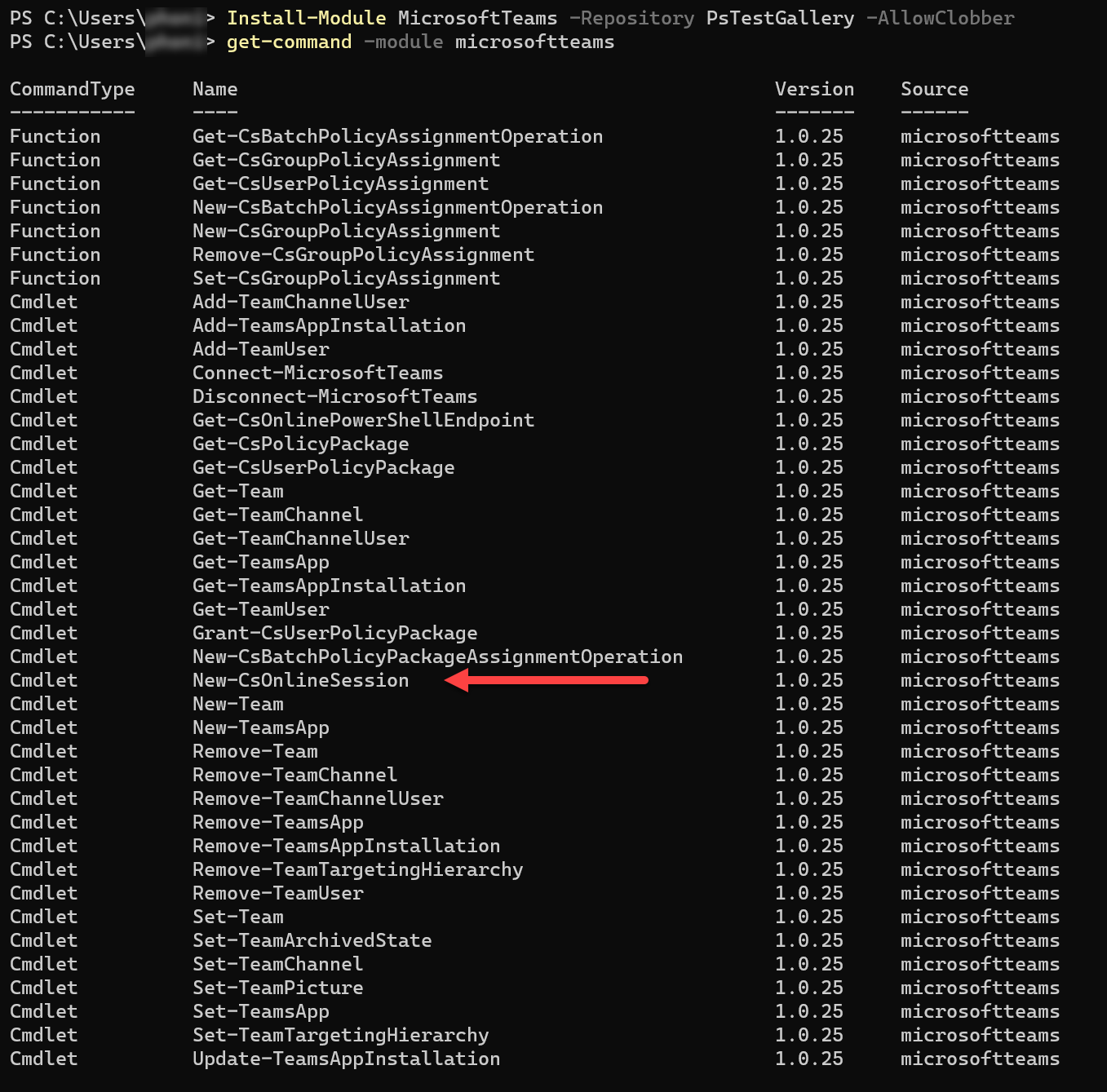
Once I run
$session = New-CsOnlineSession
Import-PSSession $session
I was able to run all the Skype for Business commands as I had before using the Skype Online Connector. I have added a screenshot to show you the function you are looking for as part of what I had done:
JSHooper
on 14 Jul 2020
Hello @oshihirii how are you?
Get-TeamChannelUser is part of the preview module, as @JSHooper James kindly let you know.
Both modules are now in the same PowerShell Gallery. https://www.powershellgallery.com/packages/MicrosoftTeams/
I could succesfully use the 1.1.3-preview module (which is the current preview module) to connect to both Teams and SfB Online, no need to install from the previous int gallery.
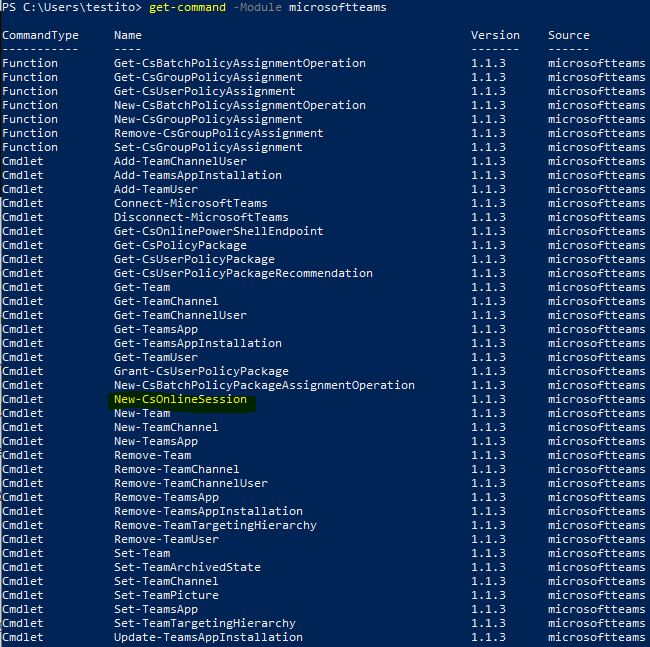
You can find more information in the new Teams PowerShell release notes article here https://docs.microsoft.com/en-us/microsoftteams/teams-powershell-release-notes
Hope this information helps you.
@JSHooper James thanks for your contribution!
 get-itips
on 16 Jul 2020
get-itips
on 16 Jul 2020
@get-itips Thank you very much for the contribution and sharing this explanation. @oshihirii Hope this comment is helpful for you. If you see a documentation update is required, please feel free to open an issue for the same. We proceed here to close it. Thanks for taking out some time to open the issue. Appreciate and encourage you to do the same in future also.
yogkumgit
on 17 Jul 2020
Thank you all.
Sorry for late reply, I needed some time to digest and understand the information.
@get-itips - based on your comments, i didn't install the PsTestGallery and wanted to see what version module I had.
So I ran Get-InstalledModule:
Get-InstalledModule
For me, this returned:
Version              Name                                Repository           Description
-------              ----                                ----------           -----------
1.1.4                MicrosoftTeams                      PSGallery            Microsoft Teams cmdlets module for Win...
1.4.7                PackageManagement                   PSGallery            PackageManagement (a.k.a. OneGet) is a...
2.2.4.1              PowerShellGet                       PSGallery            PowerShell module with commands for di...
I then ran:
get-command -Module microsoftteams
which returned:
CommandType     Name                                               Version    Source
-----------     ----                                               -------    ------
Function        Get-CsBatchPolicyAssignmentOperation               1.1.4      microsoftteams
Function        Get-CsGroupPolicyAssignment                        1.1.4      microsoftteams
Function        Get-CsUserPolicyAssignment                         1.1.4      microsoftteams
Function        New-CsBatchPolicyAssignmentOperation               1.1.4      microsoftteams
Function        New-CsGroupPolicyAssignment                        1.1.4      microsoftteams
Function        Remove-CsGroupPolicyAssignment                     1.1.4      microsoftteams
Cmdlet          Add-TeamUser                                       1.1.4      microsoftteams
Cmdlet          Connect-MicrosoftTeams                             1.1.4      microsoftteams
Cmdlet          Disconnect-MicrosoftTeams                          1.1.4      microsoftteams
Cmdlet          Get-CsPolicyPackage                                1.1.4      microsoftteams
Cmdlet          Get-CsUserPolicyPackage                            1.1.4      microsoftteams
Cmdlet          Get-CsUserPolicyPackageRecommendation              1.1.4      microsoftteams
Cmdlet          Get-Team                                           1.1.4      microsoftteams
Cmdlet          Get-TeamChannel                                    1.1.4      microsoftteams
Cmdlet          Get-TeamsApp                                       1.1.4      microsoftteams
Cmdlet          Get-TeamUser                                       1.1.4      microsoftteams
Cmdlet          Grant-CsUserPolicyPackage                          1.1.4      microsoftteams
Cmdlet          New-CsBatchPolicyPackageAssignmentOperation        1.1.4      microsoftteams
Cmdlet          New-Team                                           1.1.4      microsoftteams
Cmdlet          New-TeamChannel                                    1.1.4      microsoftteams
Cmdlet          New-TeamsApp                                       1.1.4      microsoftteams
Cmdlet          Remove-Team                                        1.1.4      microsoftteams
Cmdlet          Remove-TeamChannel                                 1.1.4      microsoftteams
Cmdlet          Remove-TeamsApp                                    1.1.4      microsoftteams
Cmdlet          Remove-TeamUser                                    1.1.4      microsoftteams
Cmdlet          Set-Team                                           1.1.4      microsoftteams
Cmdlet          Set-TeamArchivedState                              1.1.4      microsoftteams
Cmdlet          Set-TeamChannel                                    1.1.4      microsoftteams
Cmdlet          Set-TeamPicture                                    1.1.4      microsoftteams
Cmdlet          Set-TeamsApp                                       1.1.4      microsoftteams
I am still confused however, as this list does not include the cmdlets mentioned in this thread, ie:
Get-TeamChannelUser: https://docs.microsoft.com/en-us/powershell/module/teams/get-teamchanneluser
Get-TeamHelp - https://docs.microsoft.com/en-us/powershell/module/teams/get-teamhelp
Grant-CsTeamsUpgradePolicy - https://docs.microsoft.com/en-us/powershell/module/skype/grant-csteamsupgradepolicy
New-CsOnlineSession - https://docs.microsoft.com/en-us/powershell/module/skype/new-csonlinesession
@get-itips - my understanding of your comments was that both Skype cmdlets (here) and Teams cmdlets (here) should now be in the module version I have?
I see the docs also say:
If you're using the latest Teams PowerShell public preview release, you don't need to install the Skype for Business Online Connector.
Thank You.
oshihirii
on 18 Jul 2020
Hello @oshihirii
How are you ?
According to the output that you share, you have installed the 1.1.4 version, the GA version of the module and not the preview, follow here if you want to give the preview version a try https://docs.microsoft.com/en-us/microsoftteams/teams-powershell-install currently, when outputting the version, you should see 1.1.3-preview for the Preview version
About sfb commands, you won't see them listed when running get-command -Module microsoftteams as sfb cmdlets are imported into the session after you run New-CsOnlineSession:
$credential = Get-Credentials

#Connect to Microsoft Teams
Connect-MicrosoftTeams -Credentials $credential

#Connection to Skype for Business Online and import into Ps session
$session = New-CsOnlineSession -Credentials $credential
Import-PsSession $session
As the link I shared explains.
You can see exactly which cmdlet is in GA or Public Preview module here https://docs.microsoft.com/en-us/microsoftteams/teams-powershell-release-notes#cmdlet-availability
Hope this information clarifies it to you!
Thanks
get-itips
on 18 Jul 2020
Thank you.
For reference, I needed to install the preview version specifically, as following the instructions here (for public preview) installs 1.1.4:
https://docs.microsoft.com/en-us/microsoftteams/teams-powershell-install
Get-InstalledModule
``` Version Name Repository Description
------- ---- ---------- -----------
1.4.7 PackageManagement PSGallery PackageManagement (a.k.a. OneGet) is a...
2.2.4.1 PowerShellGet PSGallery PowerShell module with commands for di...
Install-Module MicrosoftTeams -AllowPrerelease
Untrusted repository
You are installing the modules from an untrusted repository. If you trust this repository, change its
InstallationPolicy value by running the Set-PSRepository cmdlet. Are you sure you want to install the modules from
'PSGallery'?
[Y] Yes [A] Yes to All [N] No [L] No to All [S] Suspend [?] Help (default is "N"): Y
Version Name Repository Description
------- ---- ---------- -----------
1.1.4 MicrosoftTeams PSGallery Microsoft Teams cmdlets module for Win...
1.4.7 PackageManagement PSGallery PackageManagement (a.k.a. OneGet) is a...
2.2.4.1 PowerShellGet PSGallery PowerShell module with commands for di...
So I looked at this link to see how to install a particular version of the module:

https://docs.microsoft.com/en-us/powershell/module/powershellget/install-module?view=powershell-7#example-4--install-a-specific-version-of-a-module

which suggests this *format*:

    Install-Module -Name PowerShellGet -RequiredVersion 2.0.0

so I did:

    Install-Module MicrosoftTeams -AllowPrerelease -RequiredVersion 1.1.3-preview

and result is:

    Get-InstalledModule
Version Name Repository Description
------- ---- ---------- -----------
1.1.3-preview MicrosoftTeams PSGallery Microsoft Teams cmdlets module for Win...
1.4.7 PackageManagement PSGallery PackageManagement (a.k.a. OneGet) is a...
2.2.4.1 PowerShellGet PSGallery PowerShell module with commands for di...
    $credentials=Get-Credential
    Connect-MicrosoftTeams -Credential $credentials

````
Account      : ********
Environment  : AzureCloud
Tenant       : ********
TenantId     : ********
TenantDomain : ********
````
    get-command -Module microsoftteams
CommandType Name Version Source
----------- ---- ------- ------
Function Get-CsBatchPolicyAssignmentOperation 1.1.3 microsoftteams
Function Get-CsGroupPolicyAssignment 1.1.3 microsoftteams
Function Get-CsUserPolicyAssignment 1.1.3 microsoftteams
Function New-CsBatchPolicyAssignmentOperation 1.1.3 microsoftteams
Function New-CsGroupPolicyAssignment 1.1.3 microsoftteams
Function Remove-CsGroupPolicyAssignment 1.1.3 microsoftteams
Function Set-CsGroupPolicyAssignment 1.1.3 microsoftteams
Cmdlet Add-TeamChannelUser 1.1.3 microsoftteams
Cmdlet Add-TeamsAppInstallation 1.1.3 microsoftteams
Cmdlet Add-TeamUser 1.1.3 microsoftteams
Cmdlet Connect-MicrosoftTeams 1.1.3 microsoftteams
Cmdlet Disconnect-MicrosoftTeams 1.1.3 microsoftteams
Cmdlet Get-CsOnlinePowerShellEndpoint 1.1.3 microsoftteams
Cmdlet Get-CsPolicyPackage 1.1.3 microsoftteams
Cmdlet Get-CsUserPolicyPackage 1.1.3 microsoftteams
Cmdlet Get-CsUserPolicyPackageRecommendation 1.1.3 microsoftteams
Cmdlet Get-Team 1.1.3 microsoftteams
Cmdlet Get-TeamChannel 1.1.3 microsoftteams
Cmdlet Get-TeamChannelUser 1.1.3 microsoftteams
Cmdlet Get-TeamsApp 1.1.3 microsoftteams
Cmdlet Get-TeamsAppInstallation 1.1.3 microsoftteams
Cmdlet Get-TeamUser 1.1.3 microsoftteams
Cmdlet Grant-CsUserPolicyPackage 1.1.3 microsoftteams
Cmdlet New-CsBatchPolicyPackageAssignmentOperation 1.1.3 microsoftteams
Cmdlet New-CsOnlineSession 1.1.3 microsoftteams
Cmdlet New-Team 1.1.3 microsoftteams
Cmdlet New-TeamChannel 1.1.3 microsoftteams
Cmdlet New-TeamsApp 1.1.3 microsoftteams
Cmdlet Remove-Team 1.1.3 microsoftteams
Cmdlet Remove-TeamChannel 1.1.3 microsoftteams
Cmdlet Remove-TeamChannelUser 1.1.3 microsoftteams
Cmdlet Remove-TeamsApp 1.1.3 microsoftteams
Cmdlet Remove-TeamsAppInstallation 1.1.3 microsoftteams
Cmdlet Remove-TeamTargetingHierarchy 1.1.3 microsoftteams
Cmdlet Remove-TeamUser 1.1.3 microsoftteams
Cmdlet Set-Team 1.1.3 microsoftteams
Cmdlet Set-TeamArchivedState 1.1.3 microsoftteams
Cmdlet Set-TeamChannel 1.1.3 microsoftteams
Cmdlet Set-TeamPicture 1.1.3 microsoftteams
Cmdlet Set-TeamsApp 1.1.3 microsoftteams
Cmdlet Set-TeamTargetingHierarchy 1.1.3 microsoftteams
Cmdlet Update-TeamsAppInstallation 1.1.3 microsoftteams
Then I tried the steps to import sfb cmdlets and ran:
$session = New-CsOnlineSession -Credential $credentials
which returns:
New-CsOnlineSession : The remote server returned an error: (404) Not Found.
At line:1 char:12
- $session = New-CsOnlineSession -Credential $credentials
~~~~~~~~~~~~
- CategoryInfo : AuthenticationError: (:) [New-CsOnlineSession], WebException
- FullyQualifiedErrorId : New-CsOnlineSession,Microsoft.Open.Teams.SfbOnline.CsSession.NewCsOnlineSession
New-CsOnlineSession : The remote server returned an error: (404) Not Found.
At line:1 char:12
- $session = New-CsOnlineSession -Credential $credentials
~~~~~~~~~~~~
- CategoryInfo : NotSpecified: (:) [New-CsOnlineSession], WebException
- FullyQualifiedErrorId : System.Net.WebException,Microsoft.Open.Teams.SfbOnline.CsSession.NewCsOnlineSession
```
oshihirii
on 18 Jul 2020
Hello @oshihirii how are you?
Will review the article to see if I can improve it based on your feedback.
About the 404 you are receiving trying to import the SfB cmdlets... did you connect first to Teams Ps ?
Thank you
get-itips
on 20 Jul 2020
Do you mean with:
$credentials=Get-Credential
Connect-MicrosoftTeams -Credential $credentials
If so, yes, and to see that command in the context it was run, see previous post.
oshihirii
on 20 Jul 2020
Do you mean with:
$credentials=Get-Credential
Connect-MicrosoftTeams -Credential $credentials
If so, yes, and to see that command in the context it was run, see previous post.
Tried but I can not reproduce the 404 you are receiving. Probably you checked the permissions already. For that specific error the best now will be to open a ticket in your tenant.
Will review the article if we can improve it. Thanks for your feedback!
get-itips
on 20 Jul 2020
Related issues
 tomlarse
·
5Comments
tomlarse
·
5Comments
 LindaSchaar
·
4Comments
LindaSchaar
·
4Comments
 andikrueger
·
5Comments
andikrueger
·
5Comments
 tomresing
·
5Comments
tomresing
·
5Comments
 mrik23
·
5Comments
mrik23
·
5Comments