Obs-studio: [BUG] OBS on HiDPI displays on W10 is barely usable everything is tiny
Platform
Operating system and version: Windows 10 x64- 2004 (19592.1001)
OBS Studio version: 25.0.1
Expected Behavior
Fonts should be readable
Current Behavior
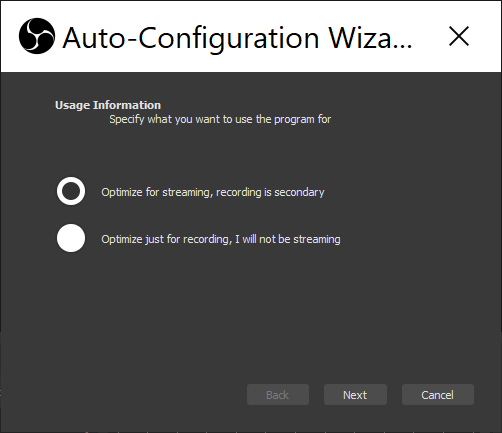
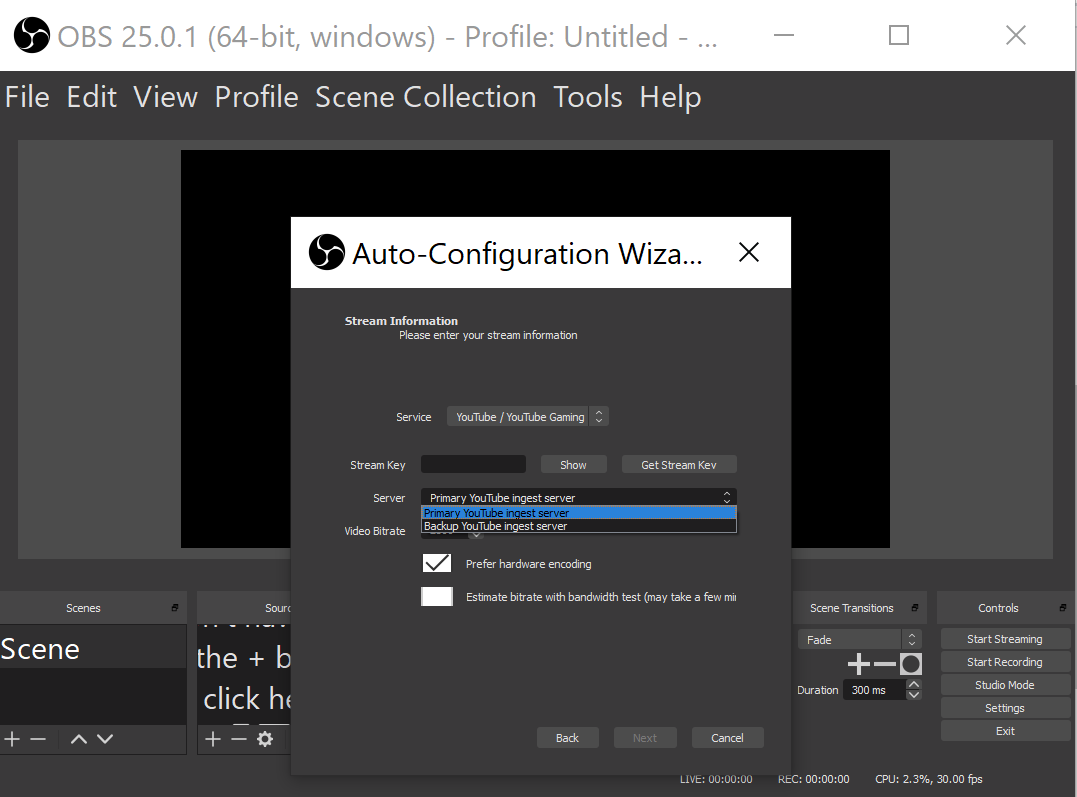
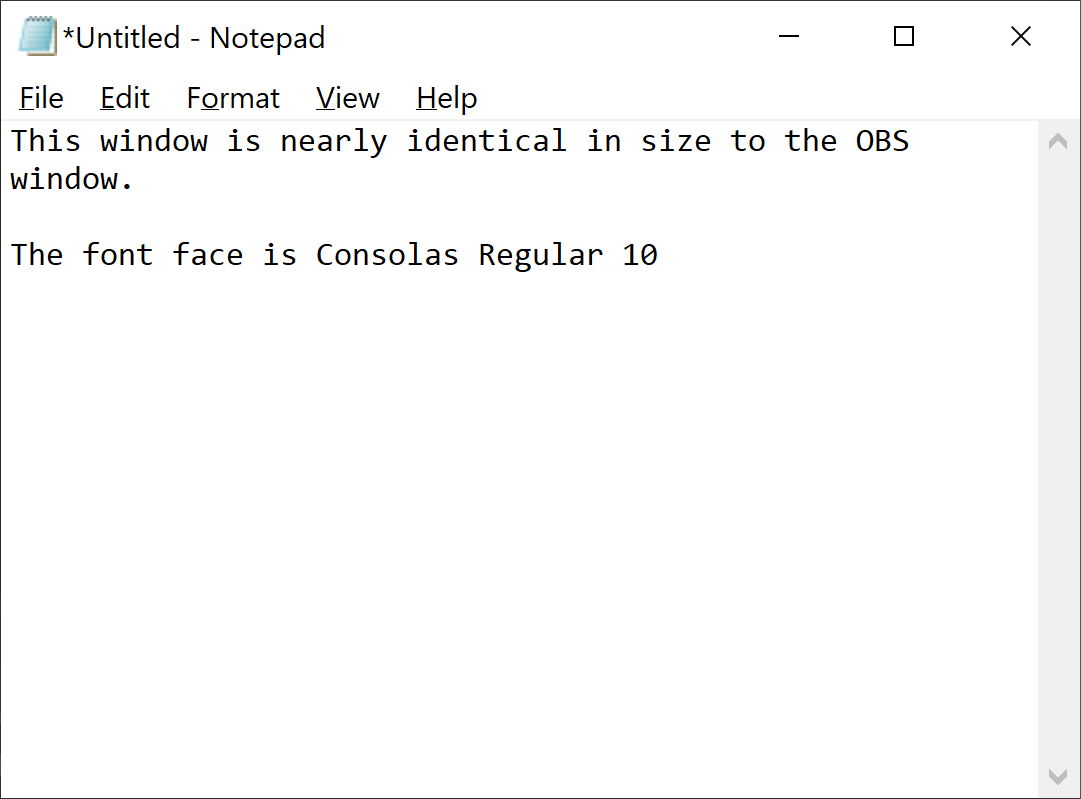
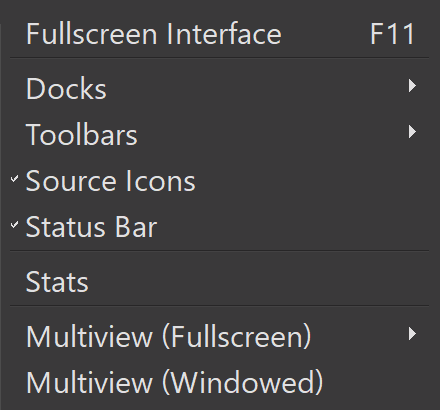
Some portions of text/widgets are incredibly tiny. But not everything.
Steps to Reproduce
- Laptop is a Dell w/ high dpi, text size is 250% (display settings), display res is 3200x1800 (recommended)
- Download the OBS 25.0.1 installer on Windows 10
- Use defaults and walk through to the wizard.



Additional information
 jsoref
All 13 comments
This is a known limitation of the Qt version we're using (our UI library). For the moment, this is our recommendation:
Due to issues with how Qt handles high-DPI display scaling, you may encounter some oddities in the OBS Studio UI when using DPI scaling. As a workaround, you can disabled DPI scaling for OBS:
- Close OBS Studio.
- Find your OBS Studio shortcut, either on your desktop or in your start menu (Right click -> Open file location).
- Right click on it and select "Properties".
- Go to the "Compatibility tab".
- Click "Change high DPI settings".
- Tick "Override high DPI scaling behavior".
- In the dropdown, change it to "System (Enhanced)".
- Click OK to exit out of the scaling settings.
- Click OK to save the new properties.
- Launch OBS Studio as you normally would.
It'll be fixed when we're able to bump our Qt version to 5.14 or above (we're currently on 5.10)
 WizardCM
on 4 Apr 2020
WizardCM
on 4 Apr 2020
Gonna keep this open until we actually update to Qt 5.14.
 dodgepong
on 4 Apr 2020
dodgepong
on 4 Apr 2020
I tried this, but every time I relaunch OBS the setting gets ignored.
Here's the steps I'm taking, with the registry values between each launch.
Computer\HKEY_CURRENT_USER\Software\Microsoft\Windows NT\CurrentVersion\AppCompatFlags\Layers
- Reset the regkey.
C:\Progam Files (x86)\obs-studio\bin\64bit\obs64.exe = ""- Go to OBS -> Properties -> Compatibility -> Change high DPI settings -> System (Enhanced)
C:\Progam Files (x86)\obs-studio\bin\64bit\obs64.exe = "~ GDIDPISCALING DPIUNAWARE"- Launch OBS
- Everything is working fine, no High DPI issues.
- Reg key has been changed, however:
C:\Progam Files (x86)\obs-studio\bin\64bit\obs64.exe = "~ GDIDPISCALING DPIUNAWARE HIGHDPIAWARE"- Close and re-open OBS, and issues appear again.
I don't see anything obvious in the source that would be doing this, so maybe this is to do with the way OBS registers its manifest?
 jbzdarkid
on 19 Apr 2020
jbzdarkid
on 19 Apr 2020
That workaround usually works fine for me. Sometimes updates reset it but relaunches certainly don't for me.
 Heufneutje
on 20 Apr 2020
Heufneutje
on 20 Apr 2020
@Heufneutje Can you check to see if your registry settings are being changed in the same way?
jbzdarkid
on 20 Apr 2020
I cannot reproduce step 7/8. The registry key does not change for me. Updates to the registry before that happen as you described.
Heufneutje
on 21 Apr 2020
Qt 5.6 supports already High DPI scaling with the Qt Application attribute Qt::AA_EnableHighDpiScaling: See there
I used to set the environment value QT_AUTO_SCREEN_SCALE_FACTOR to 1 and did not had problems using OBS with it, so from my experience it should be possible to do in Qt 5.10 too.
But could agree on first enabling it in Qt 5.14 as the Support is improved further, but Qt 5.6+ have enough support for most cases, so i would see no problem in enabling it for Qt 5.10 by default without the environment value.
Not scaled

Scaled

Temporary workaround would be like that:
set QT_AUTO_SCREEN_SCALE_FACTOR=1
cd "C:\Program Files\obs-studio\bin\64bit"
obs64.exe
 Syping
on 21 May 2020
Syping
on 21 May 2020
@Syping We're aware of that flag. See #1602 for some history on why we only enable it for Qt 5.11+.
 RytoEX
on 21 May 2020
RytoEX
on 21 May 2020
I started Process Monitor, and as far as it was concerned, no application was modifying this key.
So, I wrote a small batch script to reset the key and launch OBS, then pointed my shortcut at it:
REG ADD "HKCU\Software\Microsoft\Windows NT\CurrentVersion\AppCompatFlags\Layers" /v "C:\Program Files (x86)\obs-studio\bin\64bit\obs64.exe" /t REG_SZ /d "~ GDIDPISCALING DPIUNAWARE" /f
start "" "obs64.exe"
@jbzdarkid Weird how the Windows DPI setting gets lost each time your exit OBS app. From your tip, here is my laucher:
REM "See: https://github.com/obsproject/obs-studio/issues/2634#issuecomment-633187614"
REG ADD "HKCU\Software\Microsoft\Windows NT\CurrentVersion\AppCompatFlags\Layers" /v "C:\Program Files\obs-studio\bin\64bit\obs64.exe" /t REG_SZ /d "~ GDIDPISCALING DPIUNAWARE" /f
start /d "C:\Program Files\obs-studio\bin\64bit" "" "C:\Program Files\obs-studio\bin\64bit\obs64.exe"
 javajon
on 10 Jun 2020
javajon
on 10 Jun 2020
I was sick of the squished UI on my high DPI screen and stumbled across this while searching for how to fix it. I tried the adding the suggested regedit key as a work around but in the latest RC2 and the dockable windows don't behave correctly at all.
They appear in front of the rest of the UI elements and not docked in the sidebars, and the windows application menu can be interacted with but is not visible behind the dockable elements. Clicking on where they are causes them to appear in front of the dockable element.
 ,
, 
 Dunnymeister
on 17 Sep 2020
Dunnymeister
on 17 Sep 2020
Due to issues with how Qt handles high-DPI display scaling, you may encounter some oddities in the OBS Studio UI when using DPI scaling. As a workaround, you can disabled DPI scaling for OBS:
Hi,
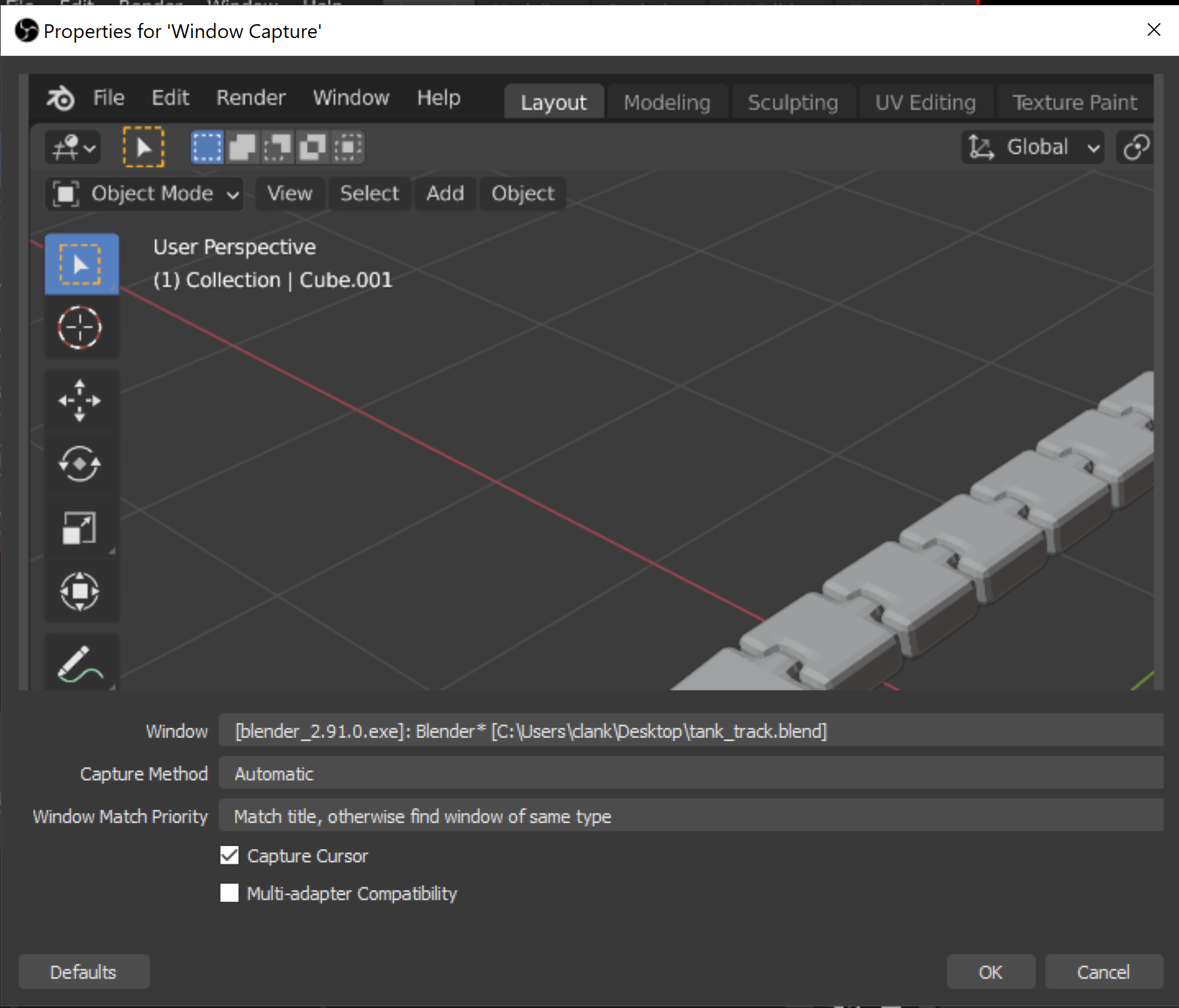
When I disable DPI scaling for OBS it's impossible to add Windows Capture - the captured windows is zoomed in, only 1/4 of the windows is visible (on a 4K display).
 SimplexPL
on 10 Oct 2020
SimplexPL
on 10 Oct 2020
When I change dpi scaling to "System (Enhanced)" Only 1/4th of the windows I capture are shown:
 clankill3r
on 27 Nov 2020
clankill3r
on 27 Nov 2020
Related issues
 JonnyHaystack
·
3Comments
JonnyHaystack
·
3Comments
 DaWe35
·
7Comments
DaWe35
·
7Comments
 HumbertoStrada
·
8Comments
HumbertoStrada
·
8Comments
 gxalpha
·
9Comments
gxalpha
·
9Comments
 b3ck
·
10Comments
b3ck
·
10Comments
Most helpful comment
Gonna keep this open until we actually update to Qt 5.14.