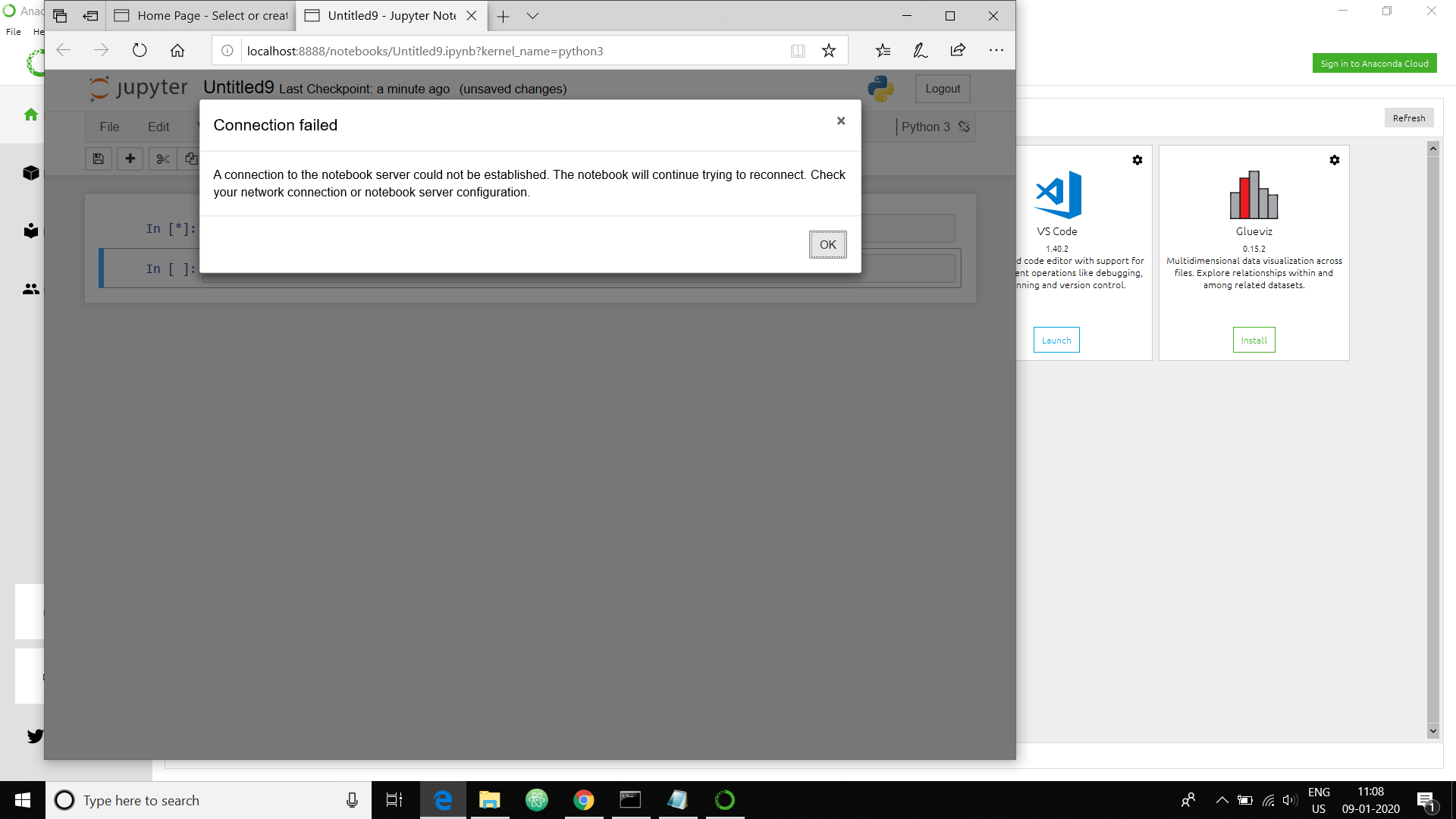
Notebook: a connection to the notebook server could not be established. the notebook will continue trying to reconnect. check your network connection or notebook server configuration.
I already uninstall my antivirus , changed the web browser ,and 4time uninstall the total anaconda package and install it again , after that my jupyter notebook is showing kernel not connected or showing server not connected , i upload the bellow screenshot .. please kindly give a proper solution .
 somu191995
All 8 comments
Did you find any solution?
I have also done the same things you did but still facing issue
 arsalyou
on 30 Jan 2020
arsalyou
on 30 Jan 2020
This can happen if your Notebook server is no longer running. Check the command window in which jupyter notebook was invoked. If the server is still active, please provide the contents of that command window, otherwise restart the notebook server and see if you can restart the kernel from your notebook (web screen).
 kevin-bates
on 31 Jan 2020
kevin-bates
on 31 Jan 2020
Already done, but same issue, this problem only in anaconda inbuild jupyter notebook. If i created a new python environment and install there jupyter notebook then it was working.. Same issue on spyder also, kernel not connected
somu191995
on 31 Jan 2020
Sorry for the frustration. Could you please provide the following:
- The output of
pip freezein this env - The
kernel.jsonfile relative to this kernel. You'll likely want to runjupyter kernelspec listto determine the directory in which this kernel'skernel.jsonfile resides. - Start your Notebook server with the
--debugflag, reproduce the problem, then provide the contents from the Notebook server's command window - up to and including the period of the kernel's connection failure. - Is the command window prompt available following the issue? (I.e., has the notebook server stopped?)
Thank you
kevin-bates
on 31 Jan 2020

thank u for your concern , but the problem not resolve , i send you the error files, , please do something .
somu191995
on 31 Jan 2020
json file
{
"argv": [
"C:\Users\Biswajit rout\Anaconda3\python.exe",
"-m",
"ipykernel_launcher",
"-f",
"{connection_file}"
],
"display_name": "Python 3",
"language": "python"
}
somu191995
on 31 Jan 2020
Thank you for the pip freeze and kernel.json information. However, the most important information is that of the command window output. By 'command window', I am not referring to the output you see in the web browser. That had already been provided and I don't expect new information displayed there. However, the window in which you typed jupyter notebook --debug to start the Notebook server in the first place is where the interesting output will be.
I don't know the Windows integration well enough for how people launch Notebook servers. On the Windows machine I have access to, I start a CMD "shell", then type jupyter notebook --debug. This produces information such as the URL to use from the browser to access the server, etc. It's this "shell" in which important details regarding the lifecycle of your failing kernel will reside. Based on your screenshot, this may be the window associated with the Anaconda icon, I don't know.
That said, and groping in the dark here, it looks like you're using some older versions of jupyter modules that have been updated with important fixes that apply to Windows platforms. As a result, I recommend you do the following...
- Stop the Notebook server. You'll need to figure out where that occurs from. Typically, this operation will consist of hitting
twice in the command window in which the server was started. - Upgrade your Notebook using:
conda update -c conda-forge notebookfrom the appropriate conda env. Once completed, ensure thatjupyter_clientandjupyter_corehave versions5.3.4and4.6.1, respectively. - Restart your Notebook server with
--debugand try running the kernel again.
Should the failure continue, you're going to need to figure out how to provide the output of the command window in which the Notebook server (not the web page) was started.
If others more familiar with the various Windows env interactions that myself can help determine where the Notebook's stdout and stderr are going here, please chime in.
Thanks.
kevin-bates
on 31 Jan 2020
If the problem persists, please see what error messages do you get in your web browser console. Depending on your browser you might need to enable developer mode.
 AlekseyMalyshev
on 13 May 2020
AlekseyMalyshev
on 13 May 2020
Related issues
 pylang
·
3Comments
pylang
·
3Comments
 fonnesbeck
·
3Comments
fonnesbeck
·
3Comments
 cancan101
·
3Comments
cancan101
·
3Comments
 cmesro
·
3Comments
cmesro
·
3Comments
 arilwan
·
3Comments
arilwan
·
3Comments
Most helpful comment
Thank you for the
pip freezeandkernel.jsoninformation. However, the most important information is that of the command window output. By 'command window', I am not referring to the output you see in the web browser. That had already been provided and I don't expect new information displayed there. However, the window in which you typedjupyter notebook --debugto start the Notebook server in the first place is where the interesting output will be.I don't know the Windows integration well enough for how people launch Notebook servers. On the Windows machine I have access to, I start a CMD "shell", then type
jupyter notebook --debug. This produces information such as the URL to use from the browser to access the server, etc. It's this "shell" in which important details regarding the lifecycle of your failing kernel will reside. Based on your screenshot, this may be the window associated with the Anaconda icon, I don't know.That said, and groping in the dark here, it looks like you're using some older versions of jupyter modules that have been updated with important fixes that apply to Windows platforms. As a result, I recommend you do the following...
conda update -c conda-forge notebookfrom the appropriate conda env. Once completed, ensure thatjupyter_clientandjupyter_corehave versions5.3.4and4.6.1, respectively.--debugand try running the kernel again.Should the failure continue, you're going to need to figure out how to provide the output of the command window in which the Notebook server (not the web page) was started.
If others more familiar with the various Windows env interactions that myself can help determine where the Notebook's stdout and stderr are going here, please chime in.
Thanks.