Notebook: Pasting with (remapped) Ctrl+V does not work on Mac
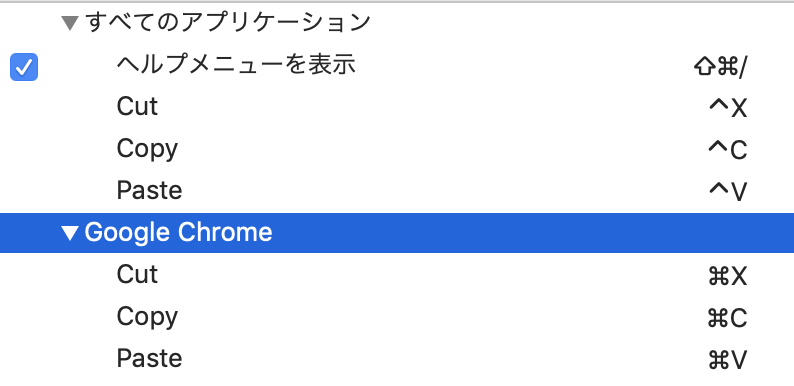
I remapeed copy and paste shortcuts from Cmd to Ctrl as meta key (see screenshot below).
While this works nicely overall in Chrome or Safari (not in Firefox, but this is a different story) somehow Jupyter Notebook cannot deal with this. Instead of pasting content when pressing Ctrl+V the cursorjust jumps to the end of the input field.
Pasting via the menus is working fine though.
Copying content with Ctrl+C is working fine as well.
The behavior can be seen in all Jupyter input fields. Even in the Jupyter lab settings.
I recently upgraded to Mac Os Mojave.
I am not sure if it is the OS upgrade or a jupyter upgrade, but this is something which worked "before".
Server Information:
You are using Jupyter notebook.

The version of the notebook server is: 5.6.0
The server is running on this version of Python:
Python 3.7.0rc1 (v3.7.0rc1:dfad352267, Jun 12 2018, 01:00:10)
[Clang 6.0 (clang-600.0.57)]

 aberres
All 15 comments
I don't use Jupyter Interactive Notebook, but I have seen that this bug is recently happening in both Chrome and Safari browsers on the Mac. I wonder if all of these programs are using some kind of the same underlying text editing engine, which is updating for each of these apps at different times.
I have noticed that when I press the (remapped) ctrl-V that the cursor jumps to the end of the input field instead of pasting, but, once that it has jumped there, then, a second press of ctrl-V will paste it there.
 tfabris
on 24 Nov 2018
tfabris
on 24 Nov 2018
Hi -- I am experiencing a similar problem. I have the same remapping and it used to work, but stopped at some point. I have not upgraded to Mojave, and my best estimate is that the issue started late summer 2018. I only use chrome, but also see the issue in Safari and Firefox. I have noticed this problem (instead of respecting the remapping for paste, ctrl-v performs a emacs like cursor movement) with Jupyter notebooks, and also when editing a gist on github. I do not have problem in other apps such as gmail.
My guess is that this not related to Chrome or the OS, but maybe to a change in codemirror, or whatever js component is being used for code editing by Jupyter/Github.
If the Jupyter dev's have any thoughts or pointers or temporary workarounds that would help trace this or request a change to the appropriate upstream that would be great.
thanks!
 habemus-papadum
on 6 Jan 2019
habemus-papadum
on 6 Jan 2019
My guess is that this not related to Chrome or the OS, but maybe to a change in codemirror, or whatever js component is being used for code editing by Jupyter/Github.
No, it's definitely not related to Jupyter or Codemirror, because I have the same problem and I don't use either of those things. Also the same thing happens in the Safari browser on the Mac.
tfabris
on 6 Jan 2019
I am experiencing a similar problem. I too have remapped Cmd+V to Ctrl+V on a Mac Mojave. The behaviour is as described by @habemus-papadum (i.e. cursor jumps to the end of cell). I've looked over all the enabled extensions but none seem to use Ctrl+V.
Would really appreciate a hint from someone, on how to mitigate this!
Thank you!
 clungu
on 8 Feb 2019
clungu
on 8 Feb 2019
Same problem here.
 williamevanl
on 11 Feb 2019
williamevanl
on 11 Feb 2019
I have this issue with some text entry fields in chrome, but I've not tried with Jupyter.
It appears that I can work around the issue with command+shift+v in some cases.
 csghuser
on 19 Jul 2019
csghuser
on 19 Jul 2019
Same problem here
 Youngl41
on 3 Aug 2019
Youngl41
on 3 Aug 2019
I faced the same problem.
Although it was unwilling, I avoided it by overriding only Chrome remapping...
 ohke
on 13 Aug 2019
ohke
on 13 Aug 2019
Same here. Ctrl+V acts like in Emacs (page down). Ctrl+C doesn't do anything but make the Edit menu flash in the top bar (Finder). I can right-click Copy and Paste ok.
 hdoggiedawg
on 7 Dec 2019
hdoggiedawg
on 7 Dec 2019
I reported this at https://bugs.chromium.org/p/chromium/issues/detail?id=1064501
It seems like it would be categorized in component:Blink>Editing>Paste os=Mac
 jcrben
on 25 Mar 2020
jcrben
on 25 Mar 2020
EDIT: seems like the format examples might be misleading... putting this in ~/Library/KeyBindings/DefaultKeyBinding.dict worked for me.. (note = rather than => from examples)
{
   "^v" = "noop:";
}
Details..
So this appears to be because the Ctrl-v is defined in /System/Library/Frameworks/AppKit.framework/Resources/StandardKeyBinding.dict to be mapped to pageDown
{
...
  "^t" => "transpose:"
  "^v" => "pageDown:"
...
}
which is what is causing the jumping to the end of the page behaviour. There is a doc here which suggests that modifying:
/Library/KeyBindings/DefaultKeyBinding.dict
~/Library/KeyBindings/DefaultKeyBinding.dict
can be used to override the mappings, but this is not working for me on Mojave 10.14.6
I tried
{
   "^v" => "noop:";
}
and various combinations of that, but no luck. Still Ctrl-v jumps to end of page
 tolland
on 11 Jun 2020
tolland
on 11 Jun 2020
It worked! Mac OS 10.15.5, tested not in jupyter but in Firefox, but the issue is definitely the same
TL;DR - Create StandardKeyBinding.dict like @tolland suggest, but do not use Finder or default text editor - use terminal (e.g. touch + vi/nano)
First, it didn't work for me as well and the problem appears to be in Finder or default text editor of Mac OS: when I was creating a file I was using Finder (xtraFinder) to create a text file. It was created with .txt extension that I deleted and edited the file with the default text editor - added
{
   "^v" = "noop:";
}
and restart the computer
And nothing happened :(
Then I go in Finder to the file - it was good. !BUT! When I go to the folder in terminal and do ls it showed that file has .txt extension!
So the right way to go is to create a file and content through the terminal (e.g. touch + nano), restart the computer and enjoy the results :)
 Alexsey
on 15 Jun 2020
Alexsey
on 15 Jun 2020
amazing! This issues had been puzzling people for so long, a simple upvote seems too lame.
habemus-papadum
on 15 Jun 2020
This fixed my problem in other websites, but not in places that use CodeMirror. I think it's related to this issue https://github.com/codemirror/CodeMirror/issues/5848 from CodeMirror.
 santileortiz
on 25 Sep 2020
santileortiz
on 25 Sep 2020
For me control-c and control-v work normally in codemirror.
I have no shortcuts defined but I have switched the control and command modifier keys. See screenshot.

 inouiw
on 16 Nov 2020
inouiw
on 16 Nov 2020
Related issues
 Foadsf
·
3Comments
Foadsf
·
3Comments
 okdolly-001
·
3Comments
okdolly-001
·
3Comments
 toasteez
·
3Comments
toasteez
·
3Comments
 arbaazsama
·
3Comments
arbaazsama
·
3Comments
 mmngreco
·
3Comments
mmngreco
·
3Comments
Most helpful comment
EDIT: seems like the format examples might be misleading... putting this in
~/Library/KeyBindings/DefaultKeyBinding.dictworked for me.. (note=rather than=>from examples)Details..
So this appears to be because the Ctrl-v is defined in
/System/Library/Frameworks/AppKit.framework/Resources/StandardKeyBinding.dictto be mapped to pageDownwhich is what is causing the jumping to the end of the page behaviour. There is a doc here which suggests that modifying:
/Library/KeyBindings/DefaultKeyBinding.dict
~/Library/KeyBindings/DefaultKeyBinding.dict
can be used to override the mappings, but this is not working for me on Mojave 10.14.6
I tried
and various combinations of that, but no luck. Still Ctrl-v jumps to end of page